Global and Local Text and Value Settings
This tutorial shows you how to configure global and local text settings in the 23degrees application, and when to use which.
You might wonder: Why are there even two different ways of styling text and value displays?In this tutorial, we’ll walk through local styling for fine-tuned control and global styling for consistency and templates, so you know exactly when to use each.
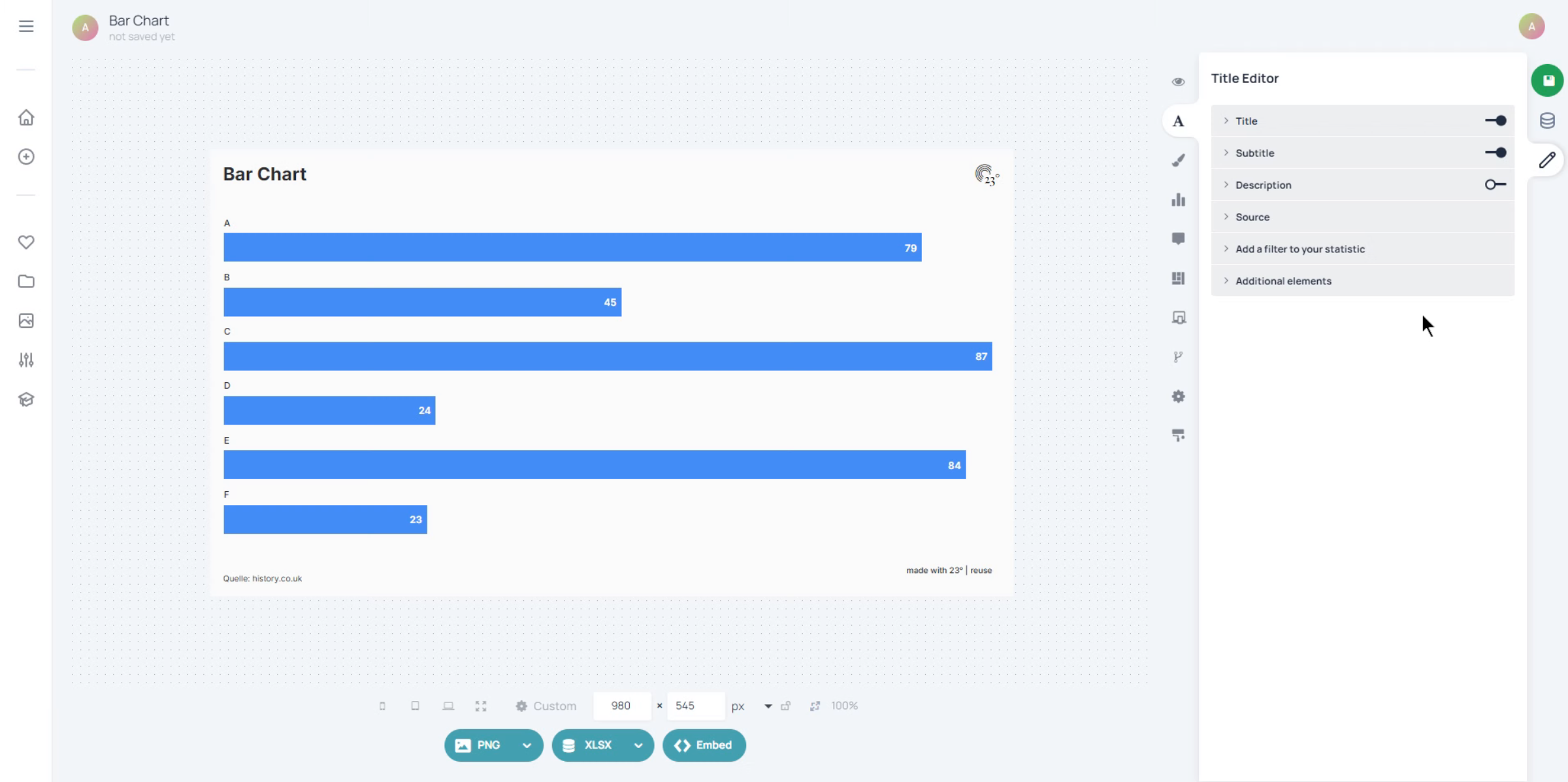
Local settings in a quill field let you style individual words or characters.Use local settings when you want certain parts of your text to stand out: for example, making one word bigger, highlighting a number in a different colour, or changing the font for a specific phrase.
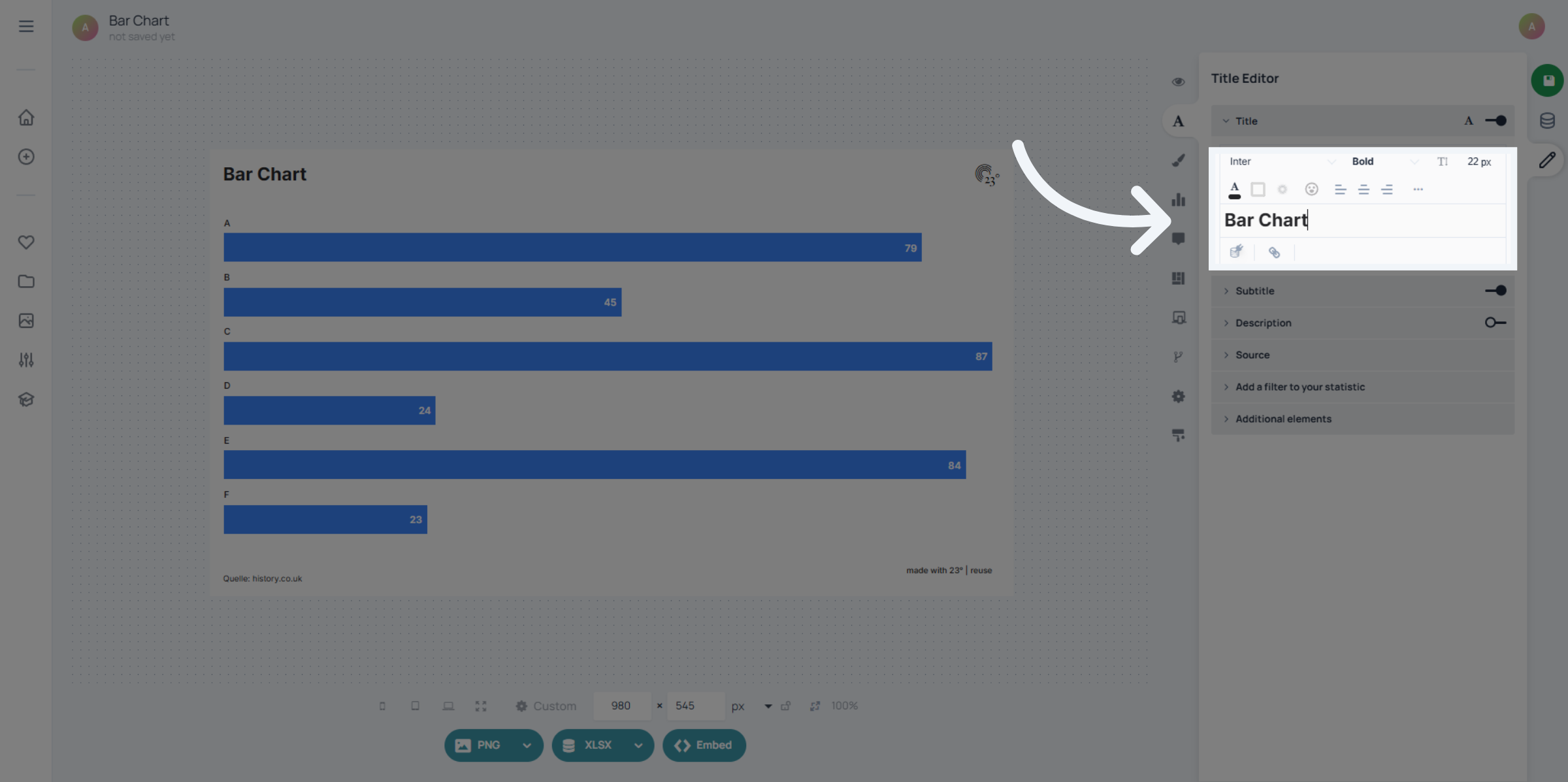
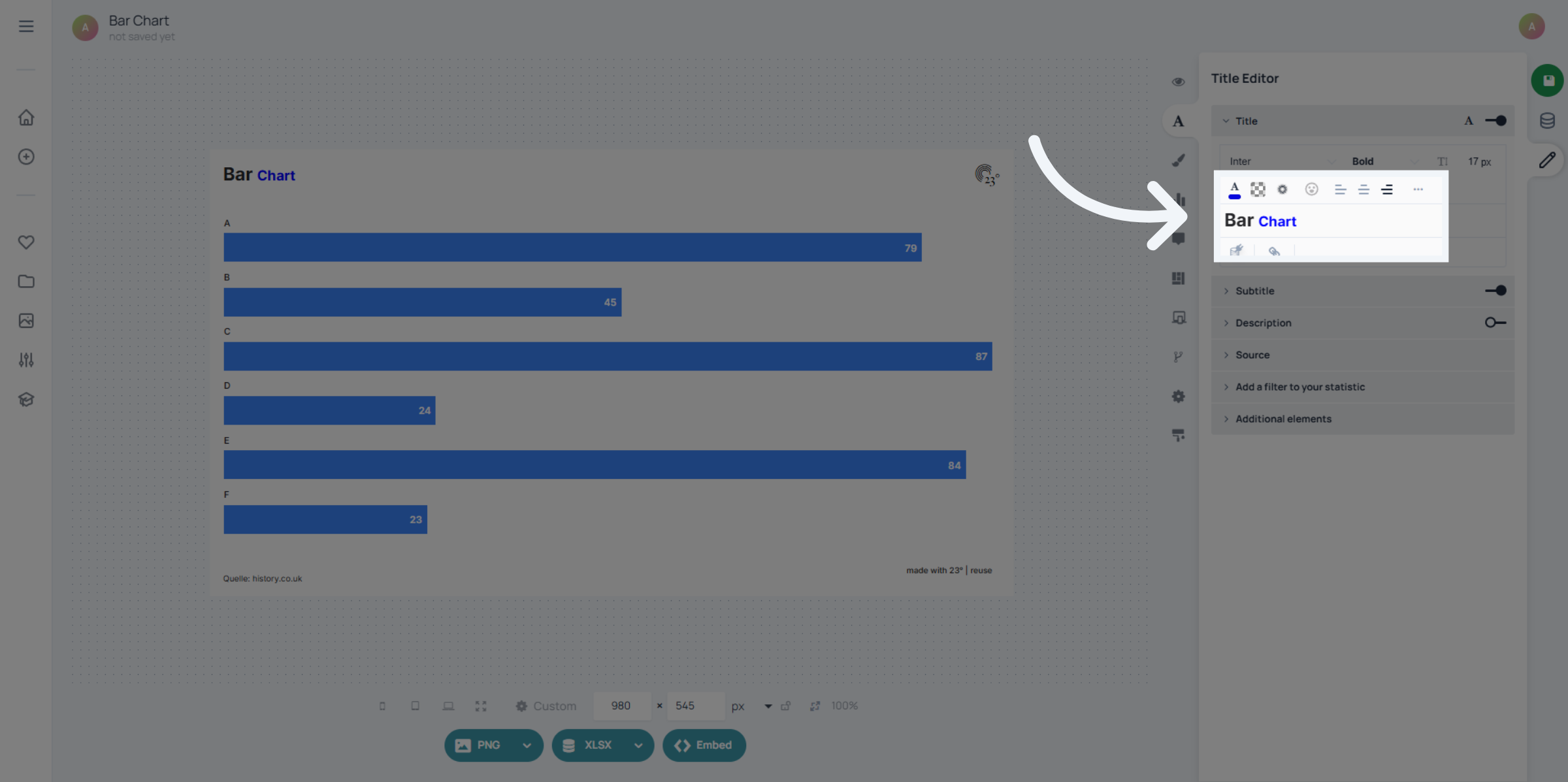
To apply local styling, select the characters you want to edit and use the local text editor menu above the quill field.Here you can change size, colour, font, or emphasis (like bold or italic) just for the selected text, without affecting the rest of the content.
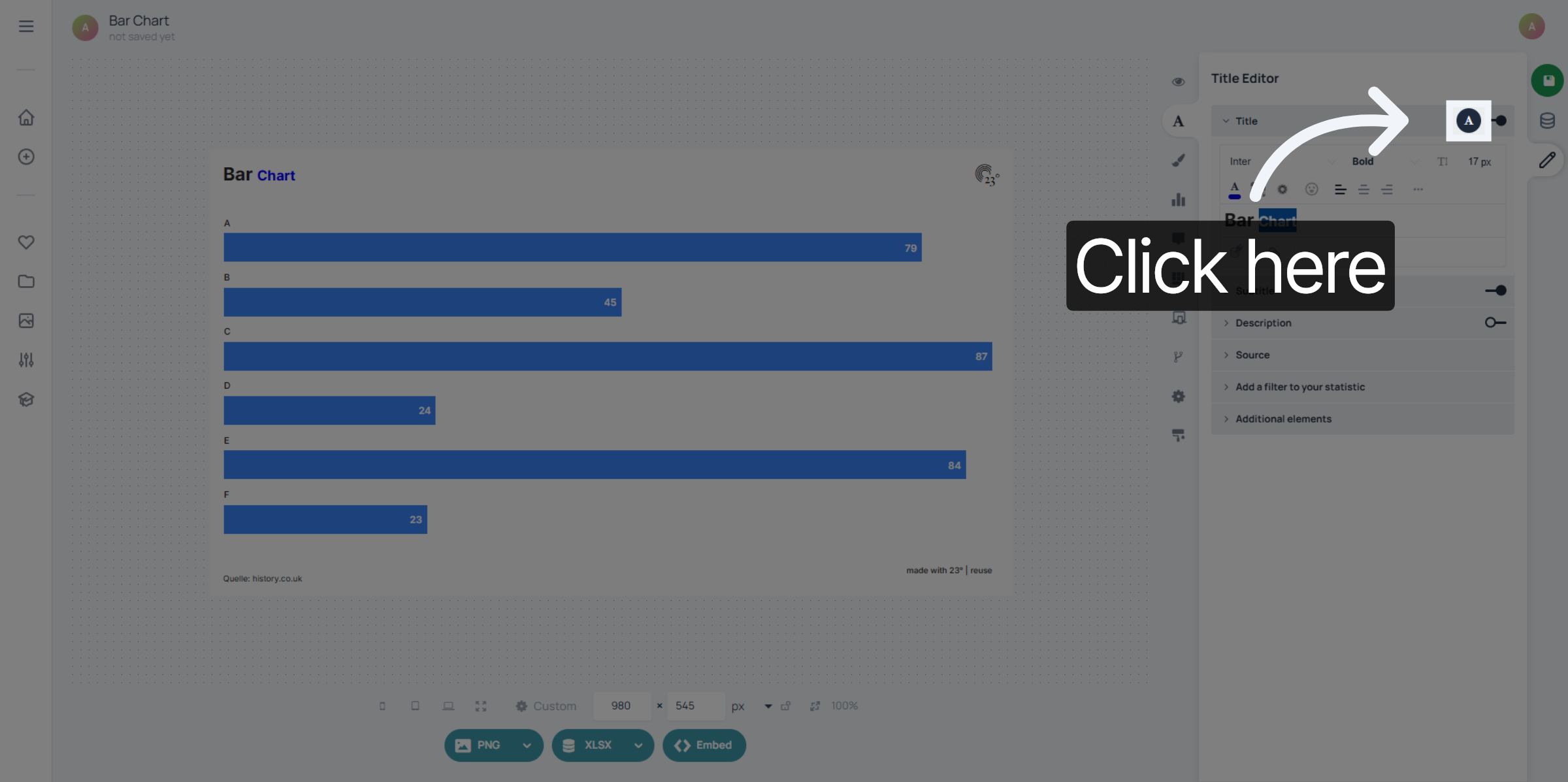
Global styling settings are accessed by clicking the text icon in the top right corner of each quill field.This opens a panel where you control how all text in that field should look.
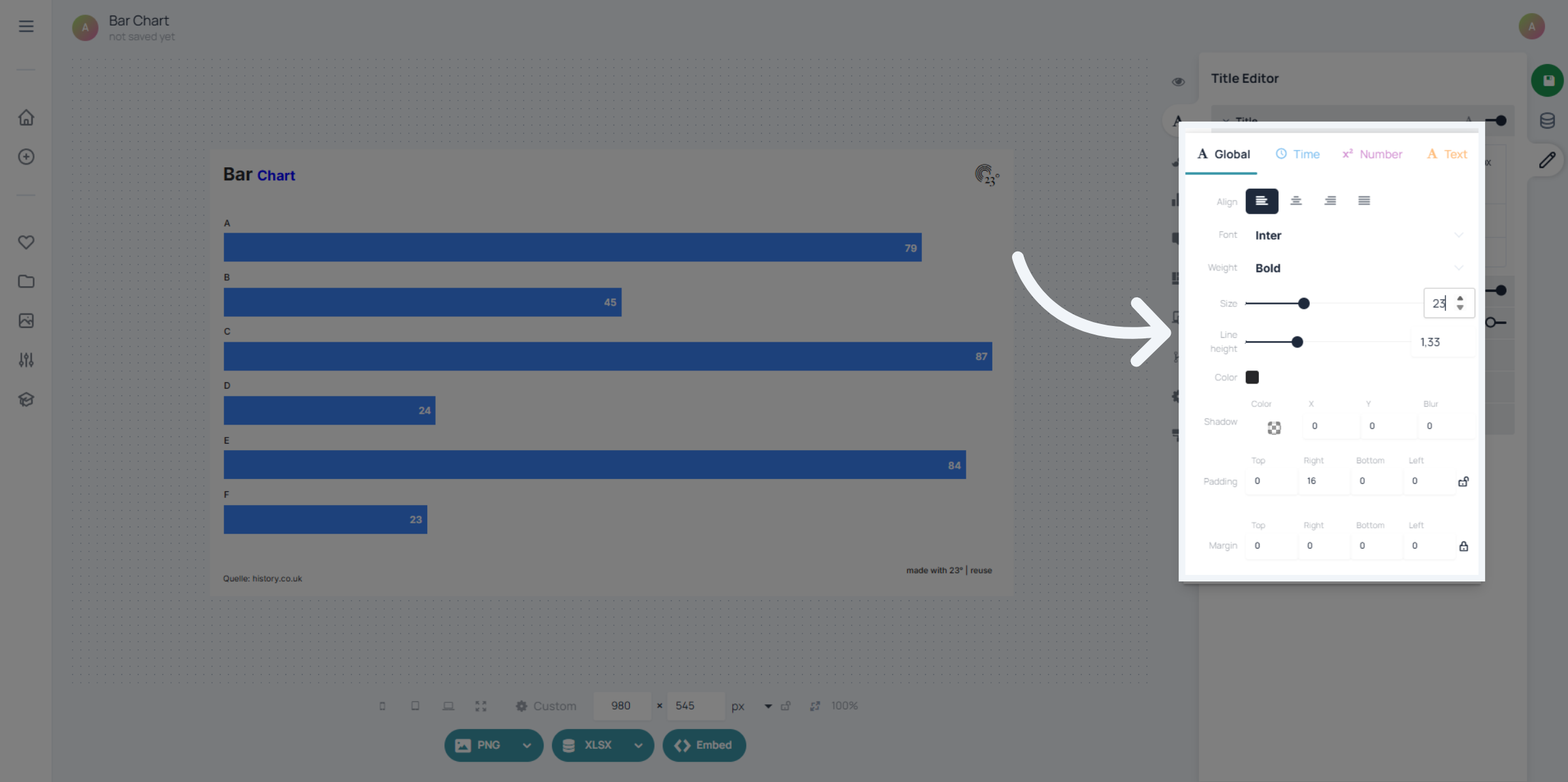
In the global text settings, you can choose alignment, font, font size, line height, and text colour.Everything you set here applies to the entire quill field.This is especially important for templates: only global settings can be saved and reused as part of a template design.
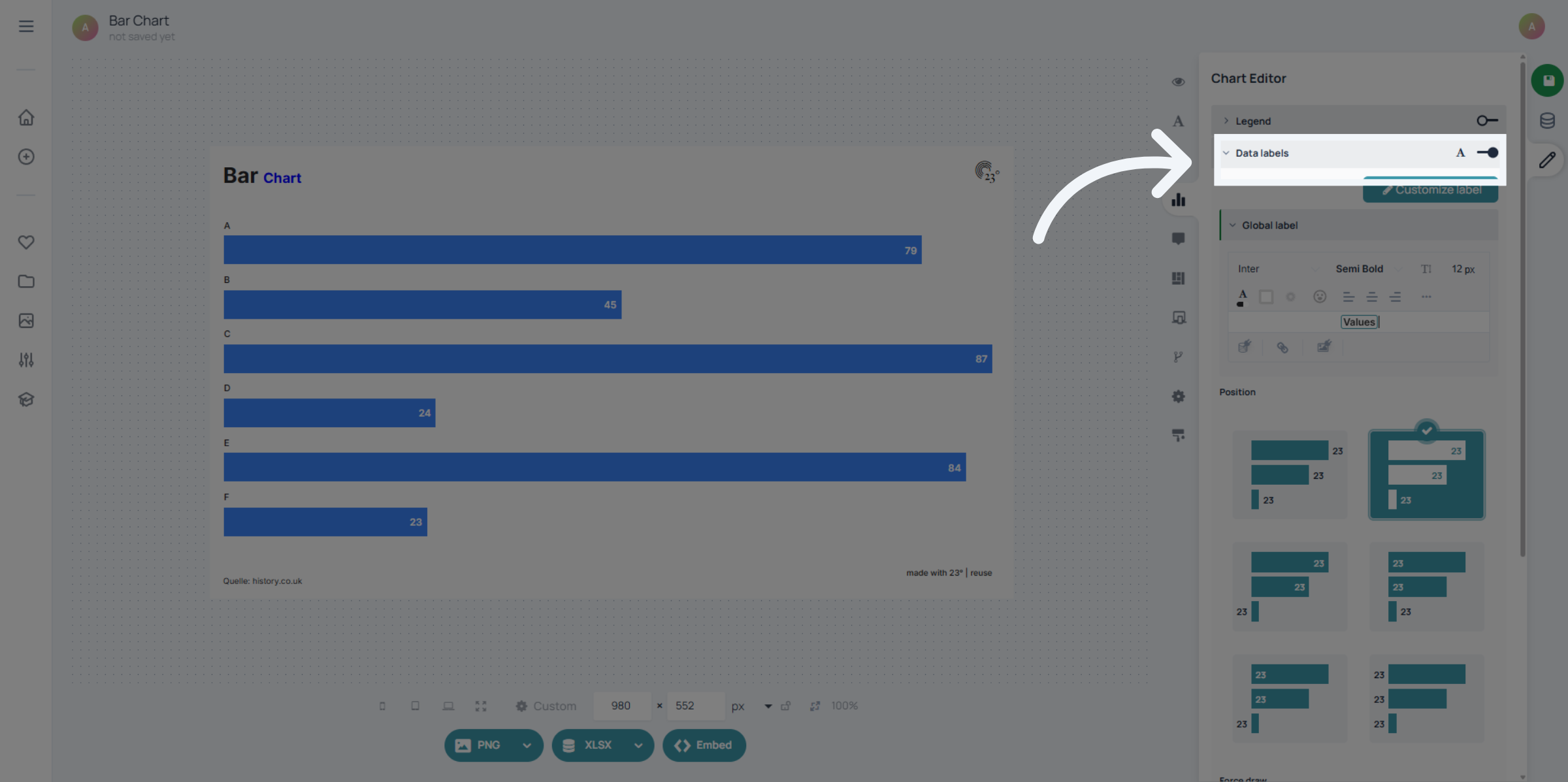
If you want to apply global settings to value displays, you’ll find the same global text icon inside your data labels settings. Use this to keep number formatting and label styling consistent across all charts that use the same template.
You’ve learned the difference between local and global text settings and where to find them: Local settings for custom styling of specific words or characters. Global settings for consistent styling and templatability for entire fields and value displays. Check out other tutorials to explore more styling and display options in 23degrees.