Tables - Dynamic Height
This tutorial demonstrates how to configure dynamic height settings for tables within the 23degrees application.
You will learn to enable and apply dynamic height adjustments to improve table display, usability and prevent scroll in scroll occurances on your website.
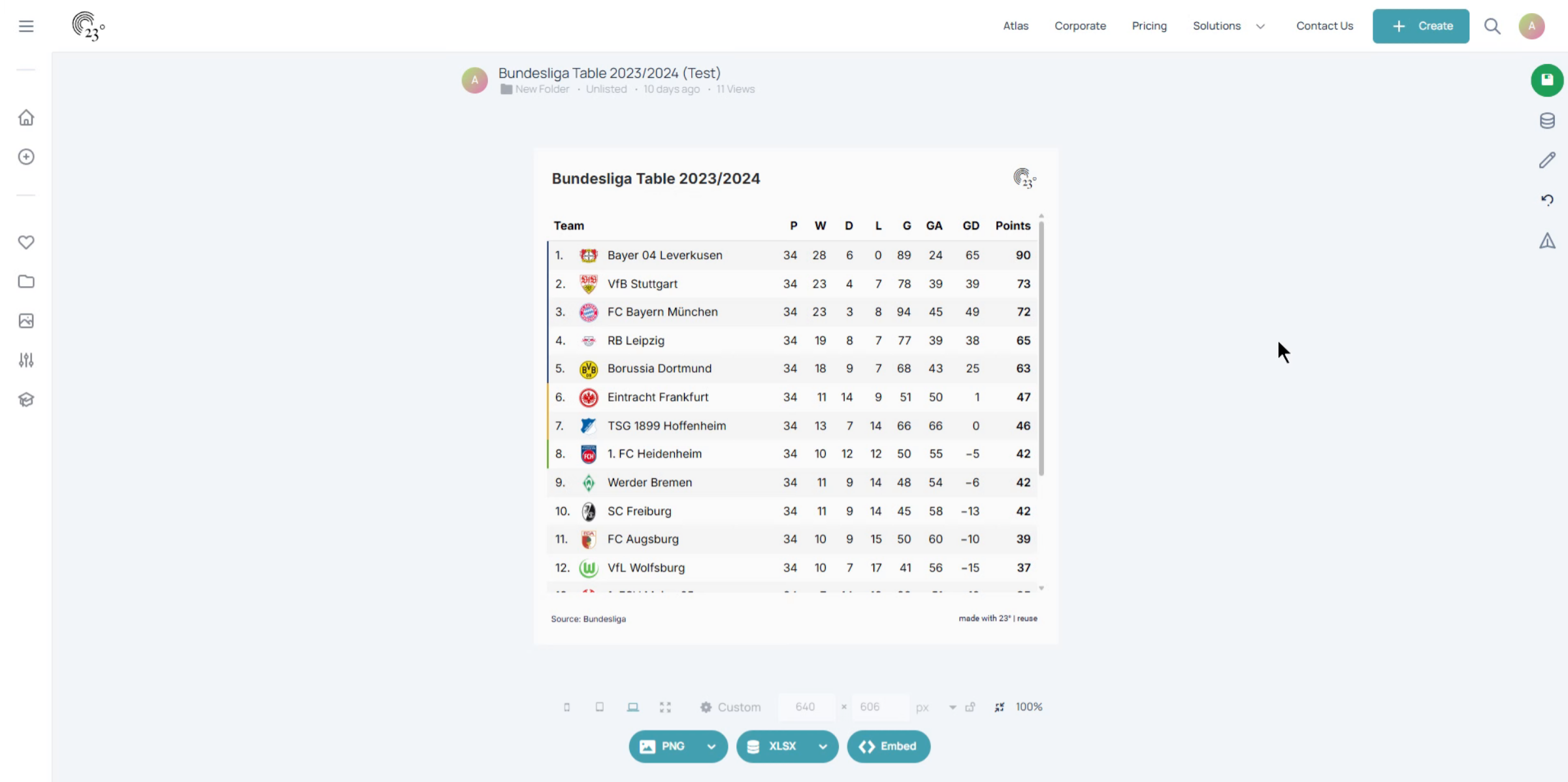
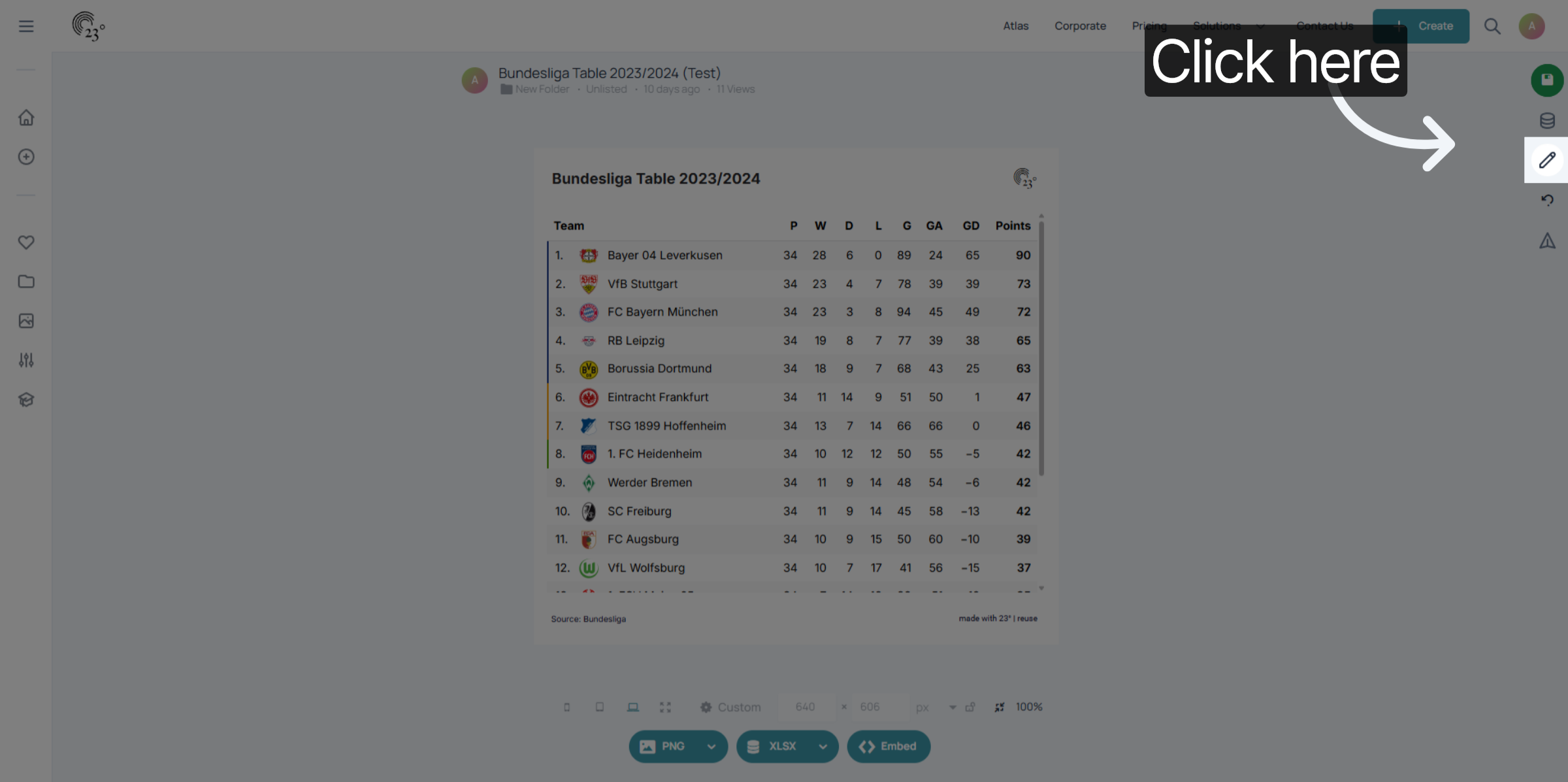
Click here to access the chart editor.
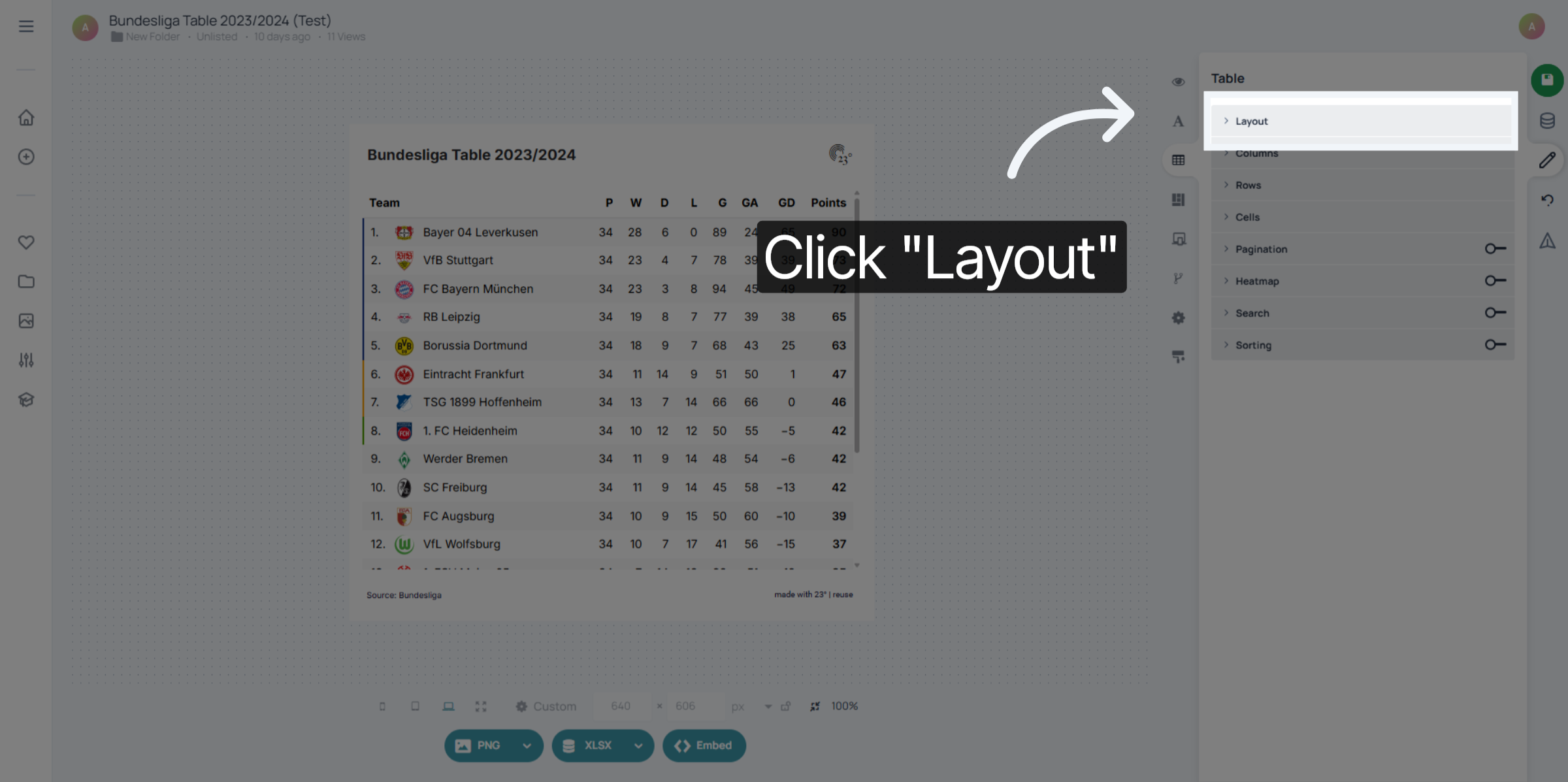
Click "Layout" to open the layout configuration options for the table.
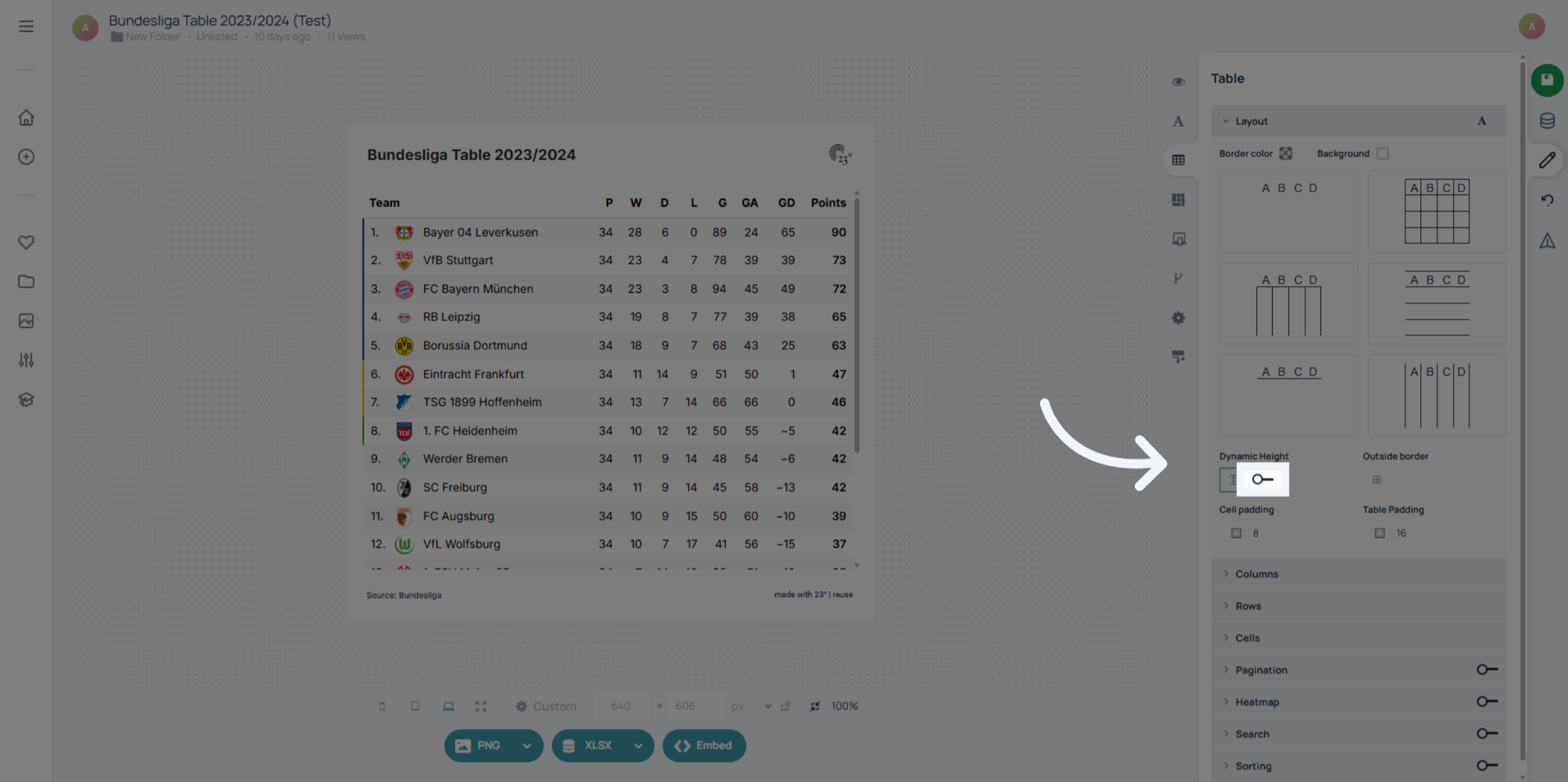
Click "on" to activate the dynamic height feature for the table.
Now when embedding your chart is is going to be displayed in its full height without having to worry about the annoying scroll in scroll.
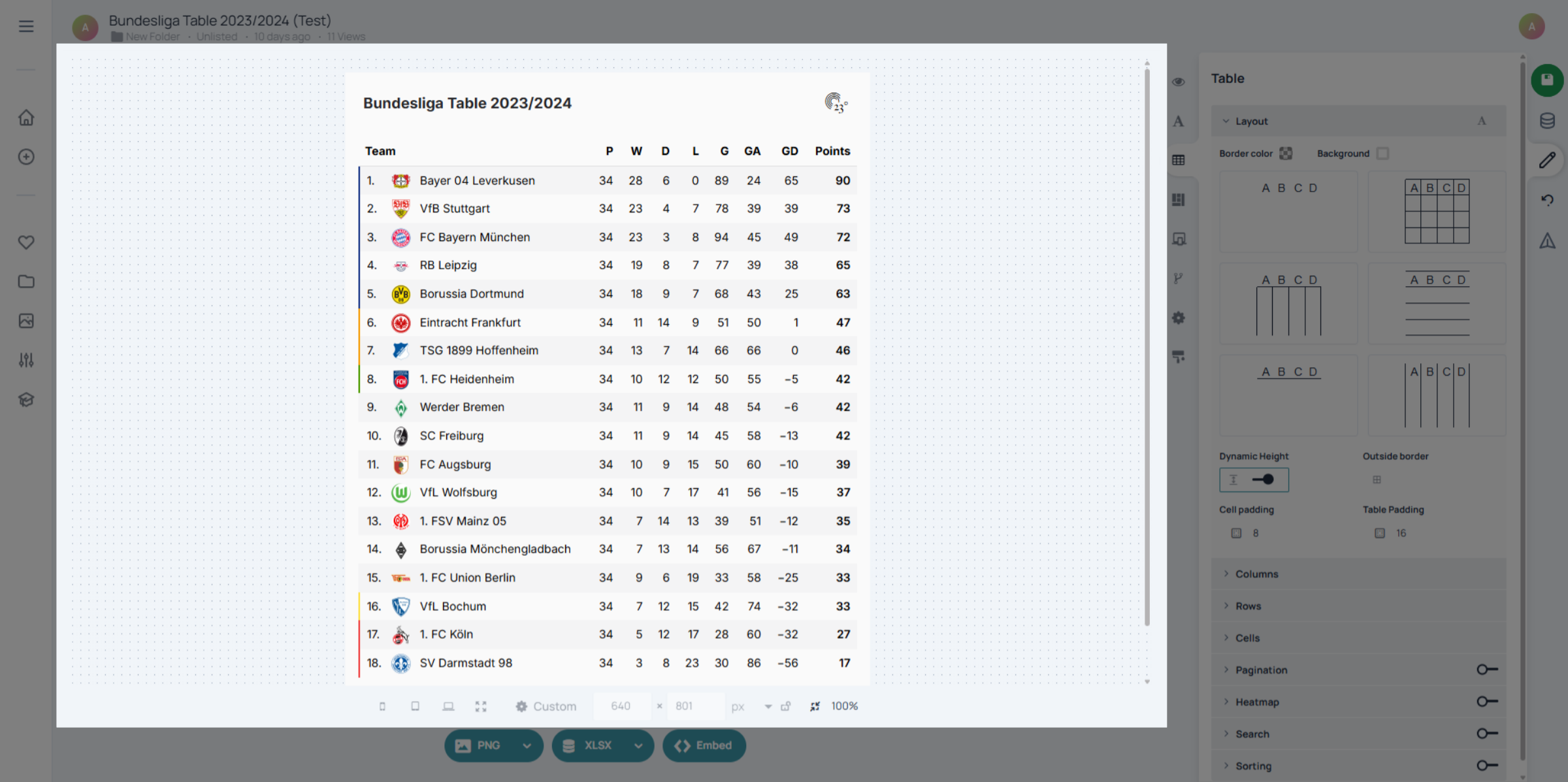
You have successfully enabled dynamic height for tables in the 23degrees application, enhancing the display of data. This adjustment improves readability and user experience when viewing table content.