Configure Embed Editor Settings in 23degrees Application
This tutorial explains how to configure the Embed settings within the 23degrees Chart Embed Editor.
You will learn to adjust breakpoints, font scaling and aspect ratios to customize your embedding experience effectively.
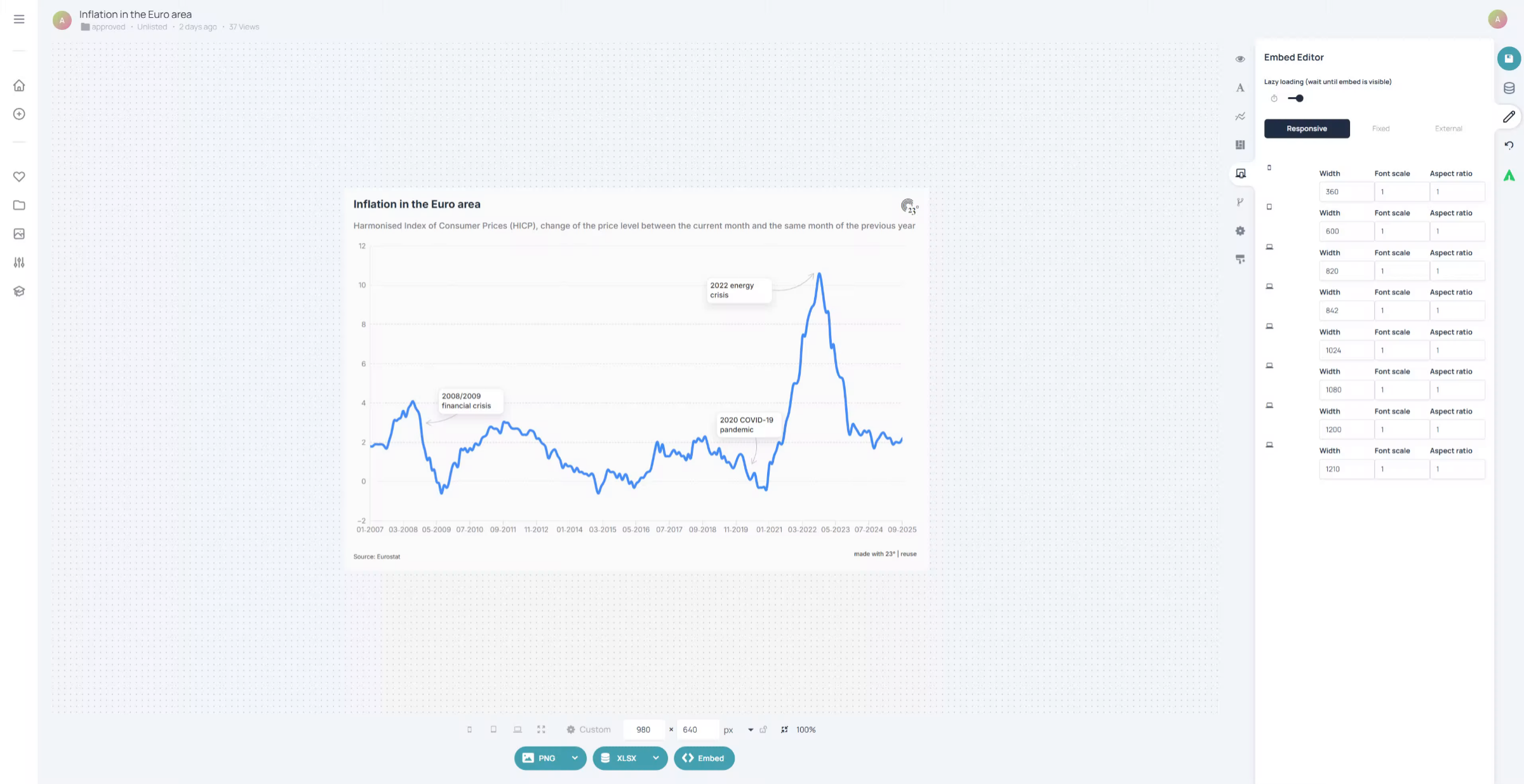
The Embed Editor can be found by clicking on the screen icon in the chart editor
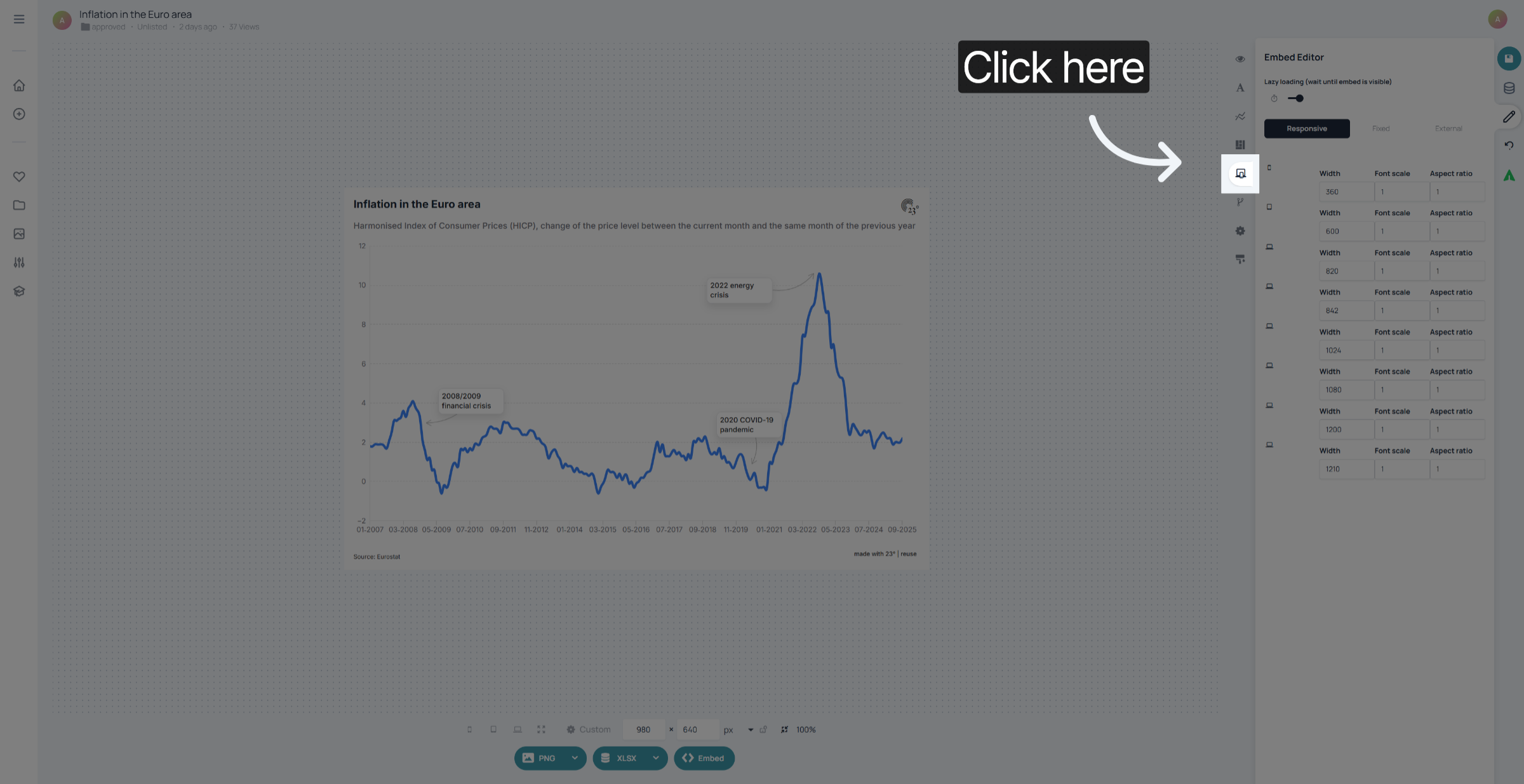
If you want to see what your embedded chart will look like responsively on various screen sizes you can do so by clicking on each of the screen icons in the editor. Here is what this chart is going to look on a small mobile device.
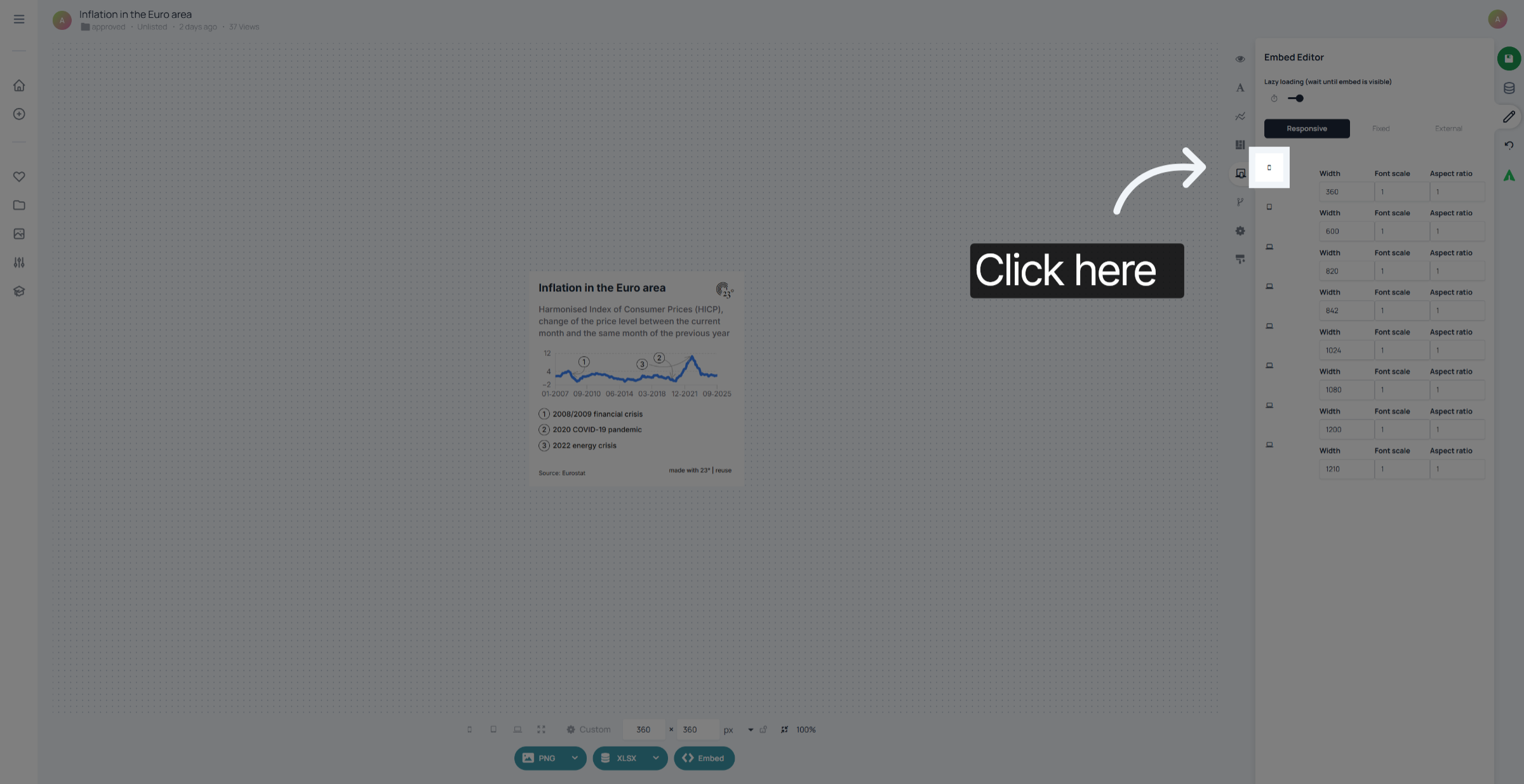
And here you can see what the chart looks like on a wider desktop screeen.
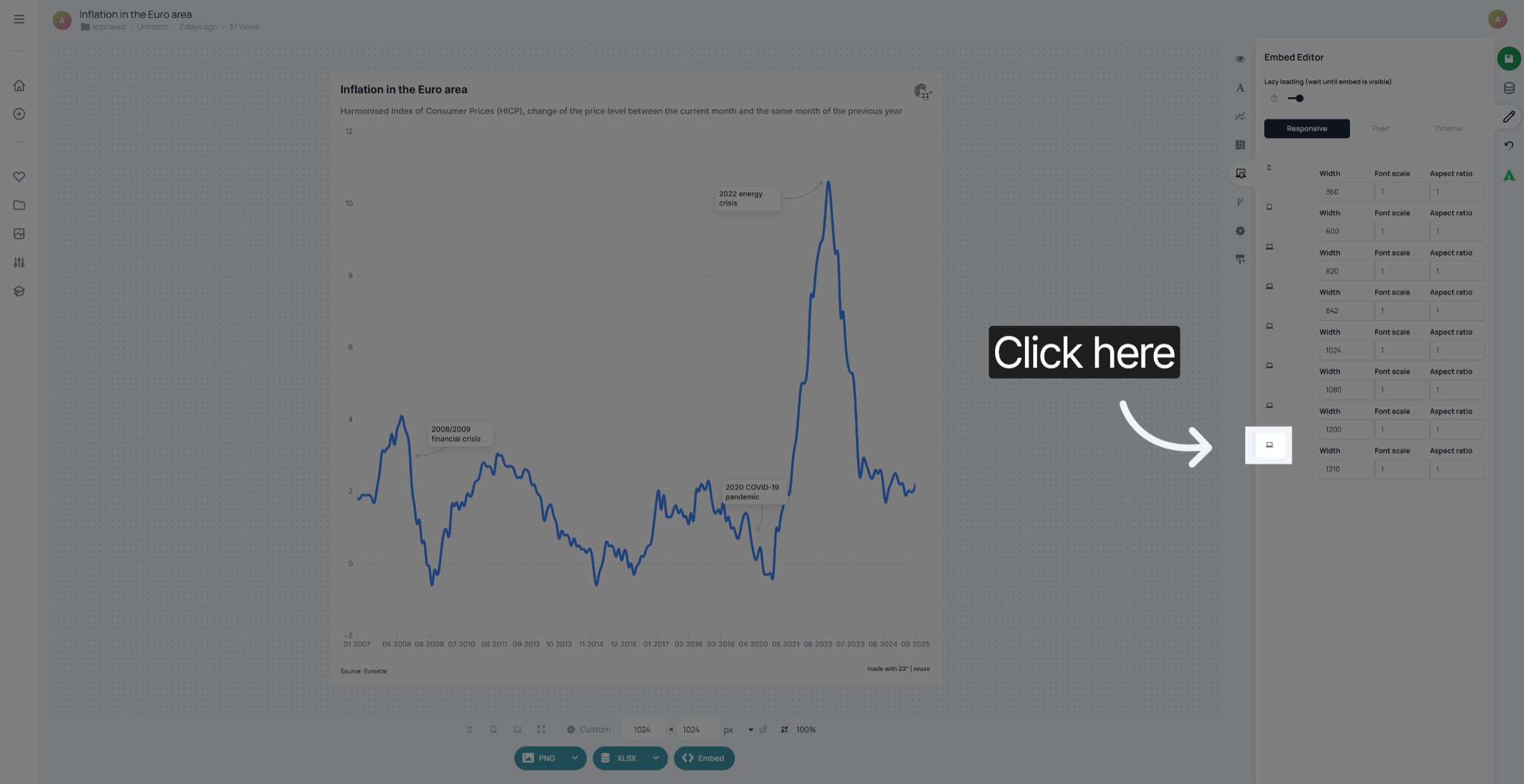
You can adjust the font scaling for each option seperately. If your goal is for the chart to be as similar as possible on every device put everything to 1. If you want to guarantee more readability or prevent line breaks you can play around with the options.
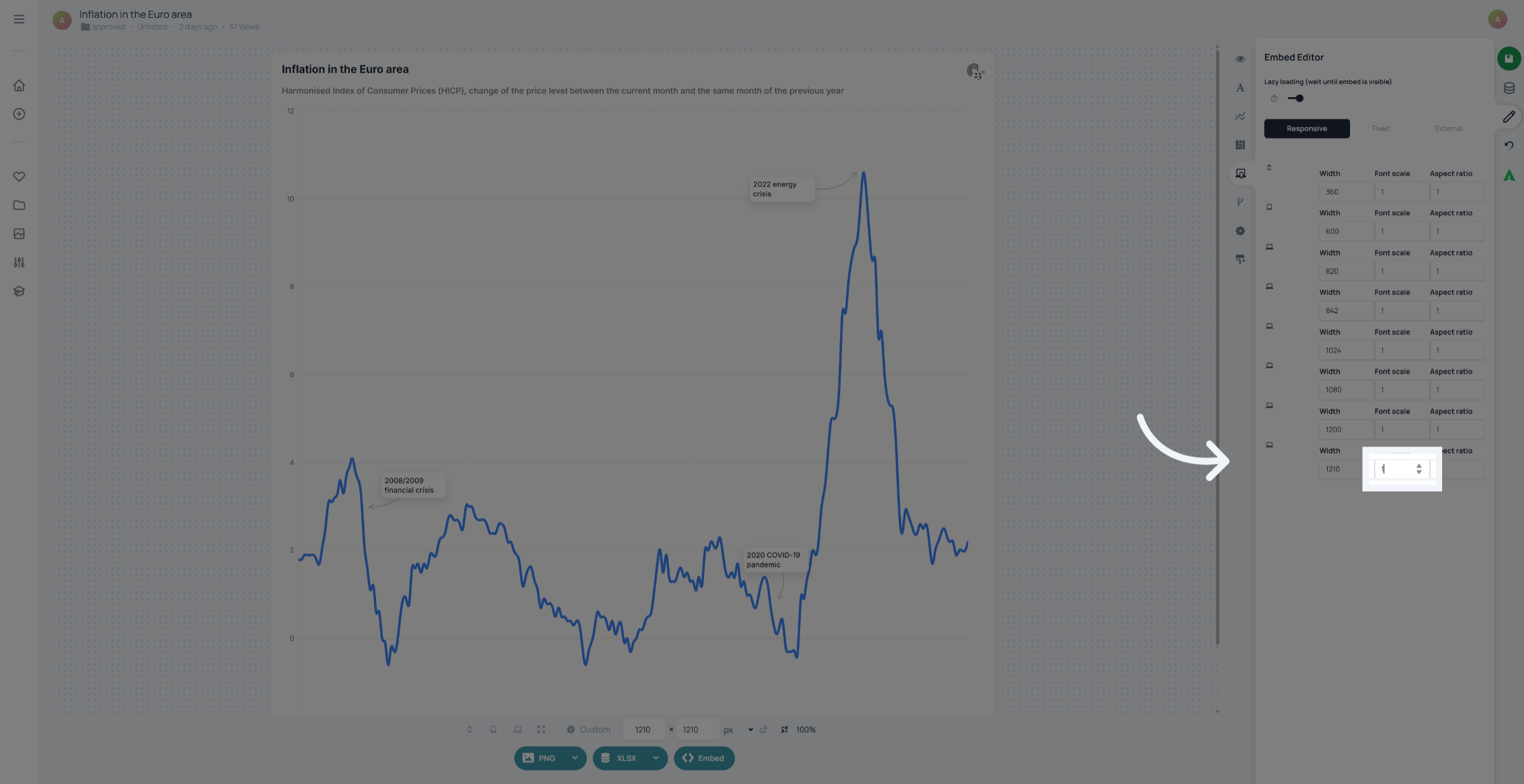
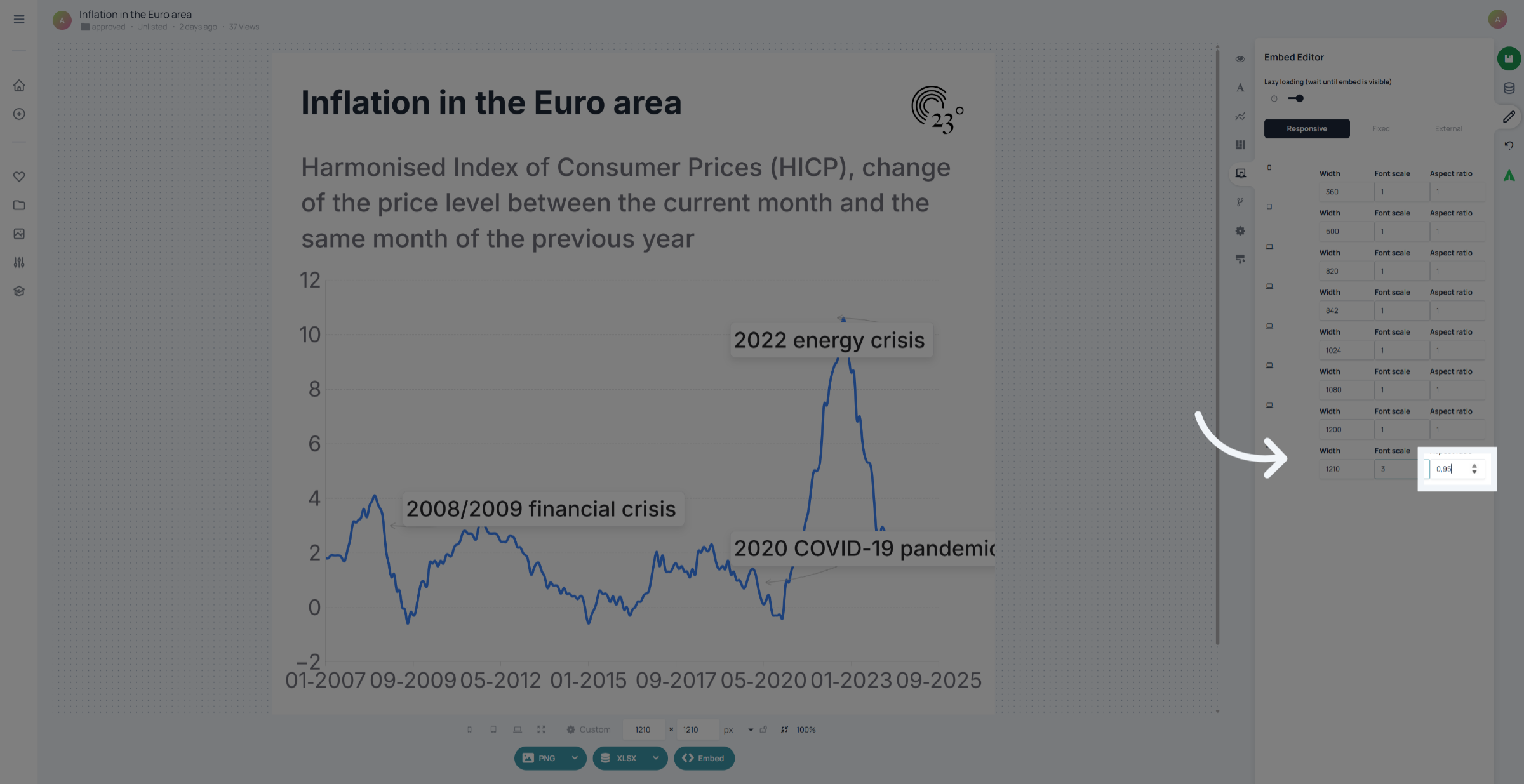
We added a font scaling of 3, which means that the text in the chart is going to be displayed 3 times bigger then originally set in the chart. The next step is changing the aspect ratios of your chart. If its set to 1 the chart is equal in height and width. by lowering the aspect ratio the chart growths in height proportionally by increasing the aspect ratio, the chart becomes wider.
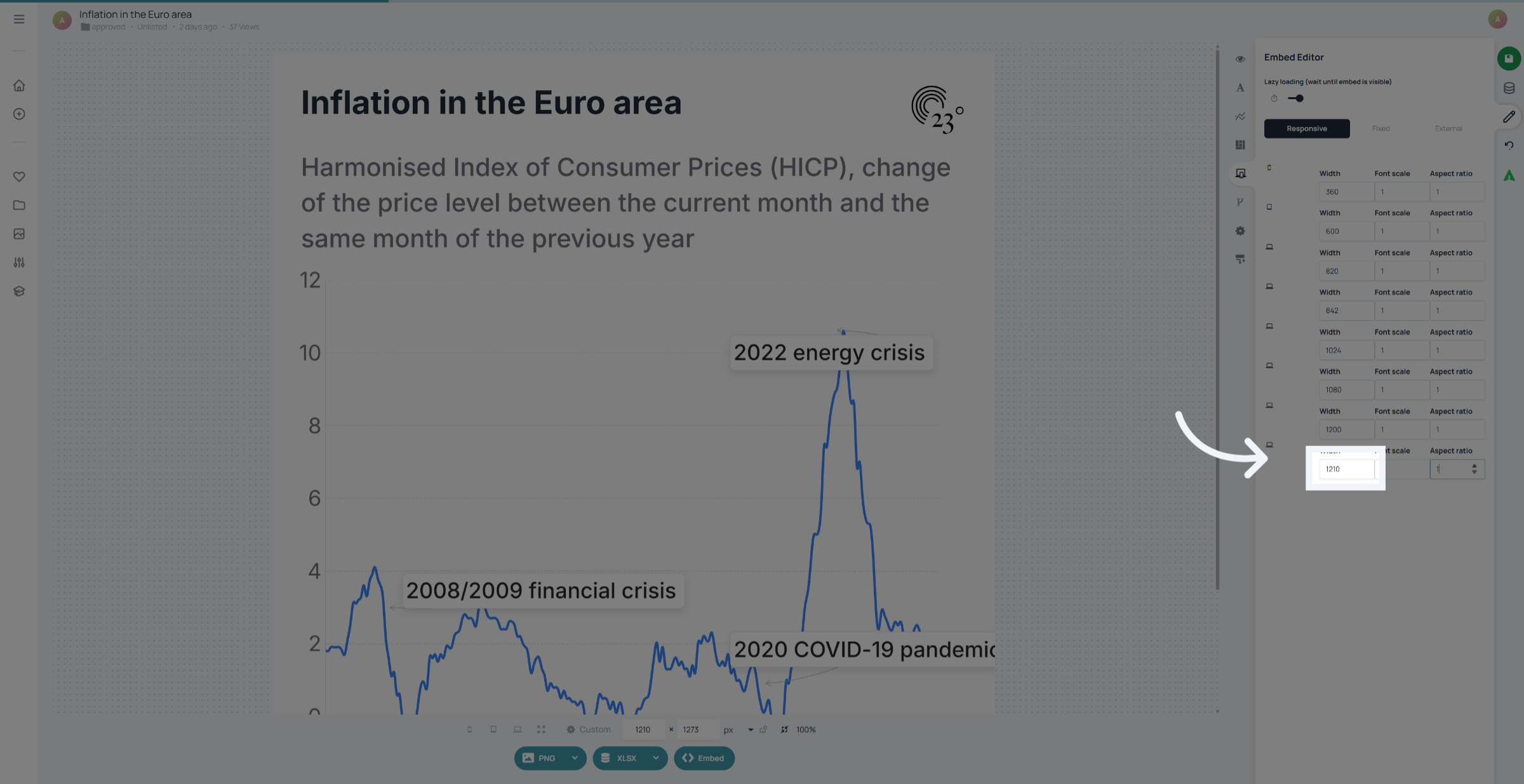
Breakpoints are set per default. But you can set your own breakpoints depending on your needs. Just type in your required breakpoint in pixels. Keep in Mind the font scaling and aspect ratios are interpolated between breakpoints
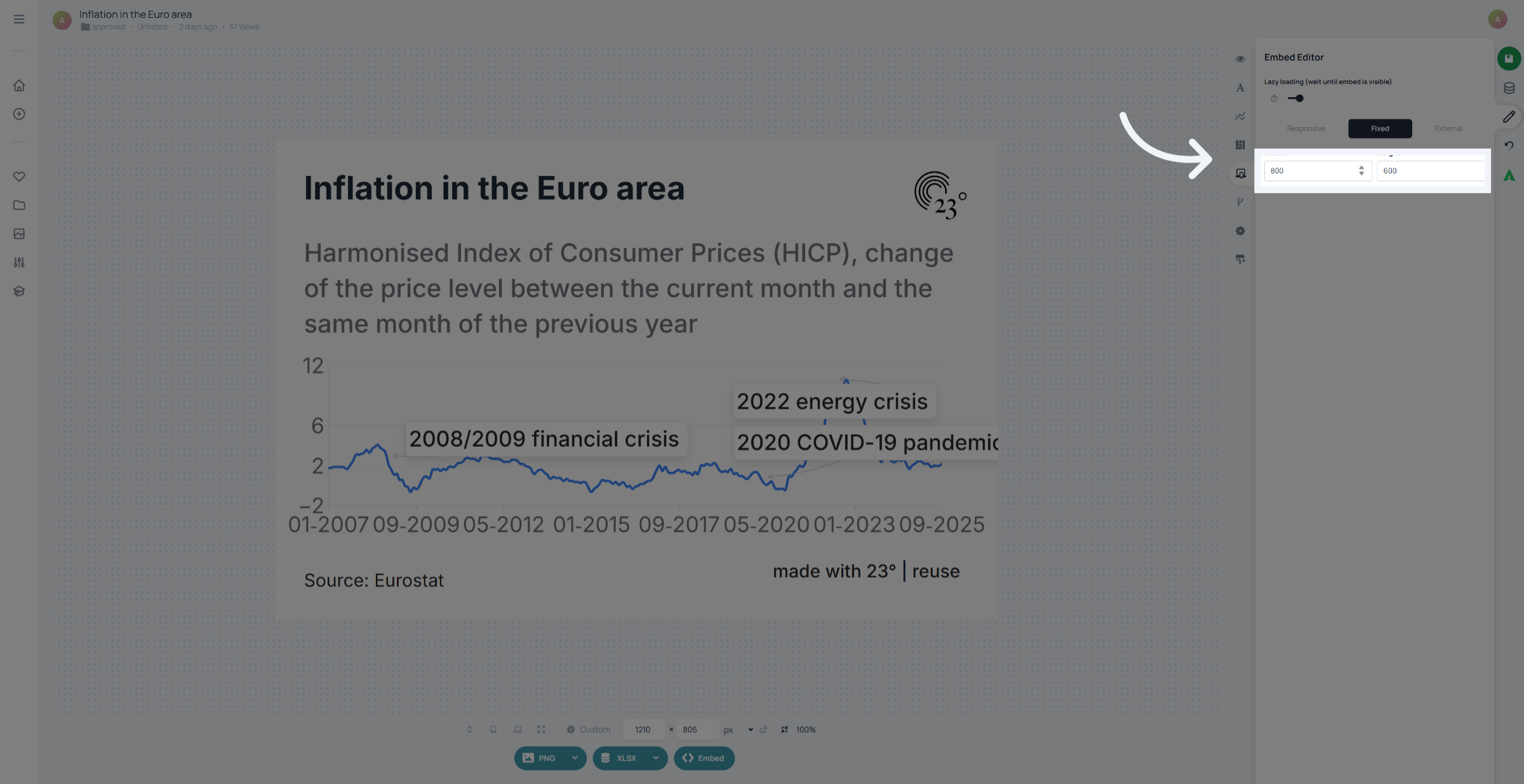
If you need fixed Embed Sizes regardles of screen size click on fixed.
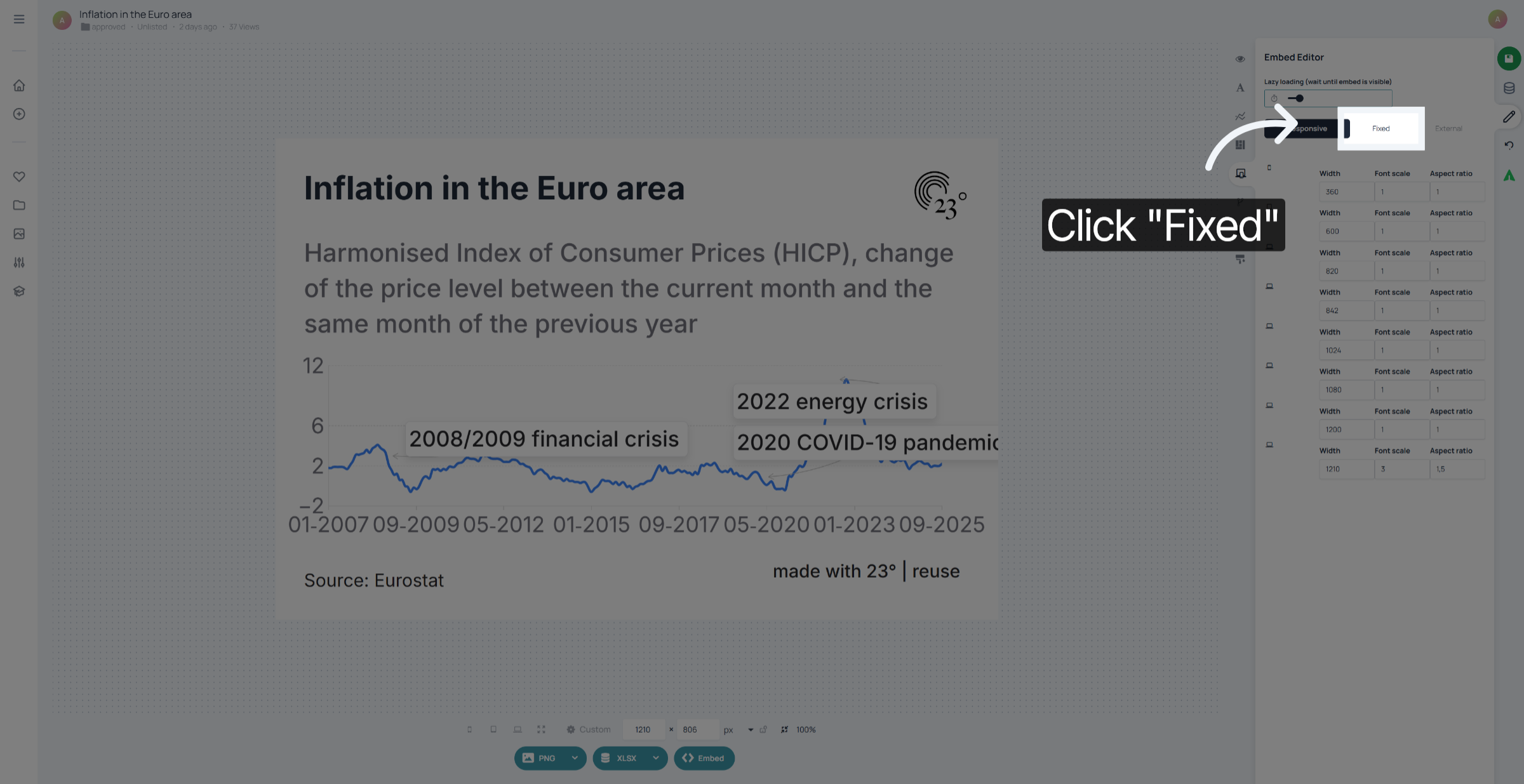
Here you can set your fixed height and width in pixels regardless of screen size.
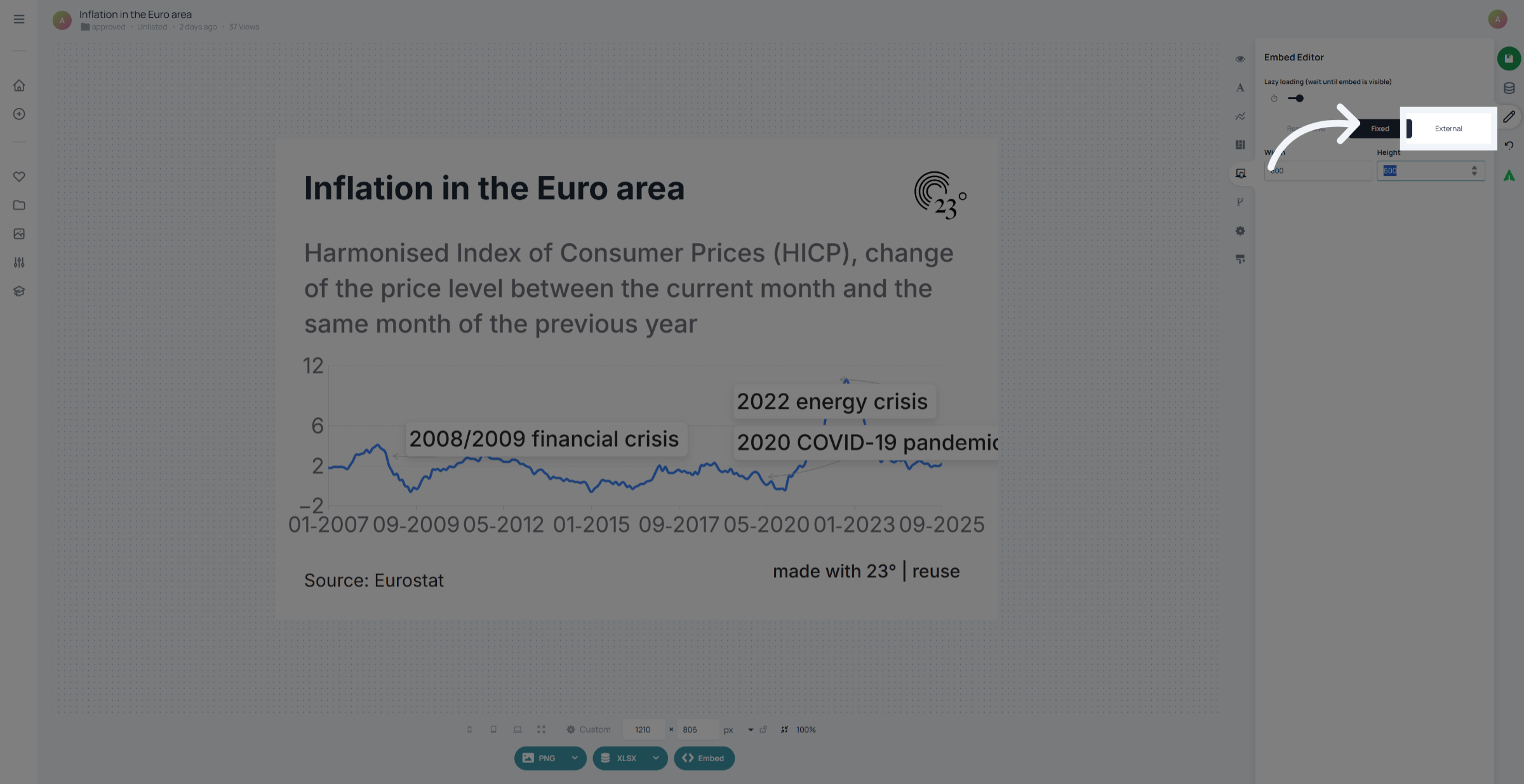
If you are setting chart height and width externally select the "External" option.
You have successfully configured the Embed Editor settings in the 23degrees application by adjusting parameters, enabling features, and setting dimensions. This setup ensures your embedding experience is tailored to your specific needs and preferences.