Create Filtered Embeds Using Embed Branch Editor
In this video, I’ll show you how to use the Embed Branch Editor to create multiple embeds from a single base chart. In our example, we’ll take one chart that shows the SDG score over time and turn it into separate charts for different countries.
The Embed Branch Editor is a shortcut for those moments when you need many similar charts but don’t want to repeat the same steps again and again. Whether you’re visualizing election results by region or breaking down indicators by category, this feature lets you spin up all those variations much faster from one master chart.
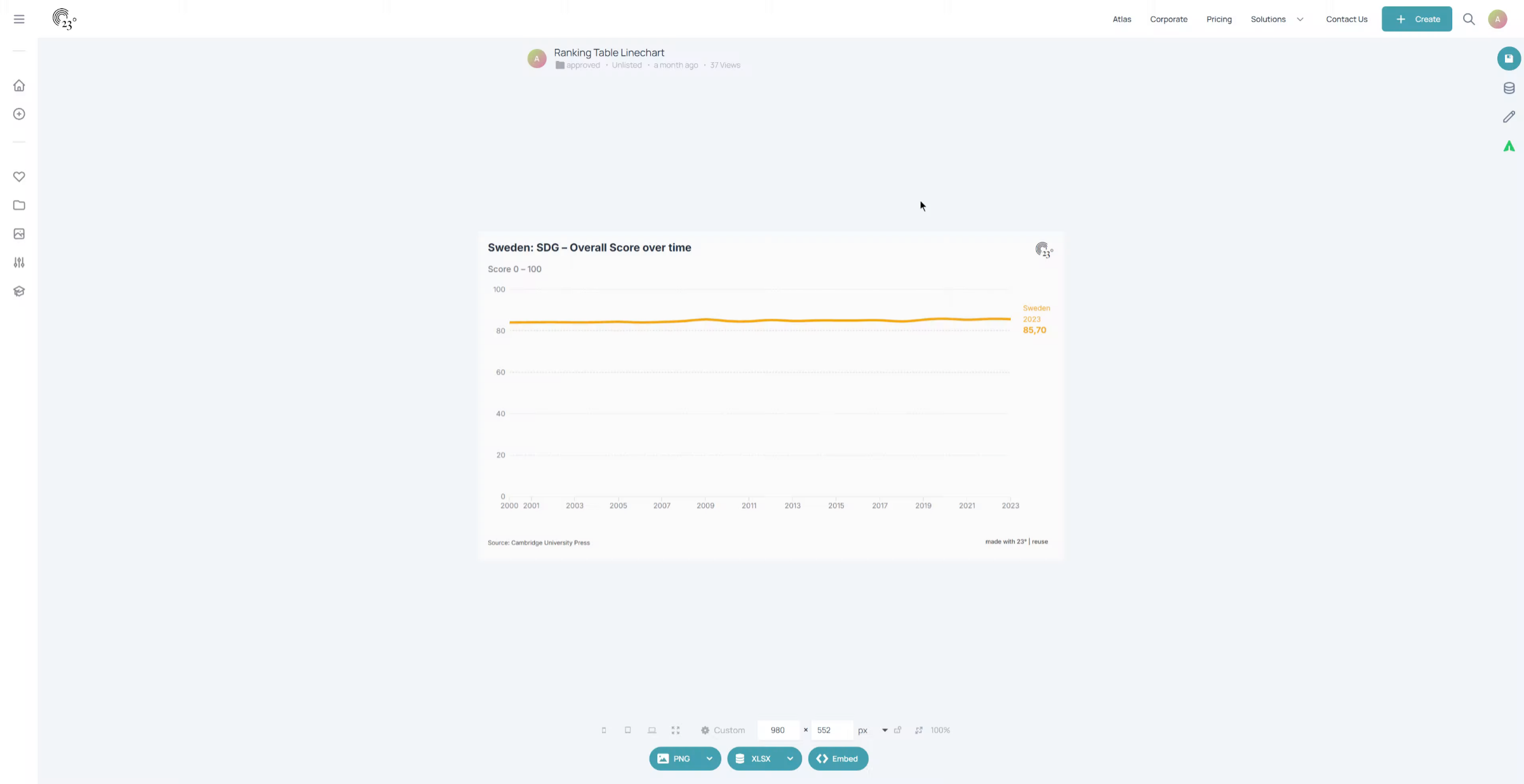
Click here to open the Chart Editor.
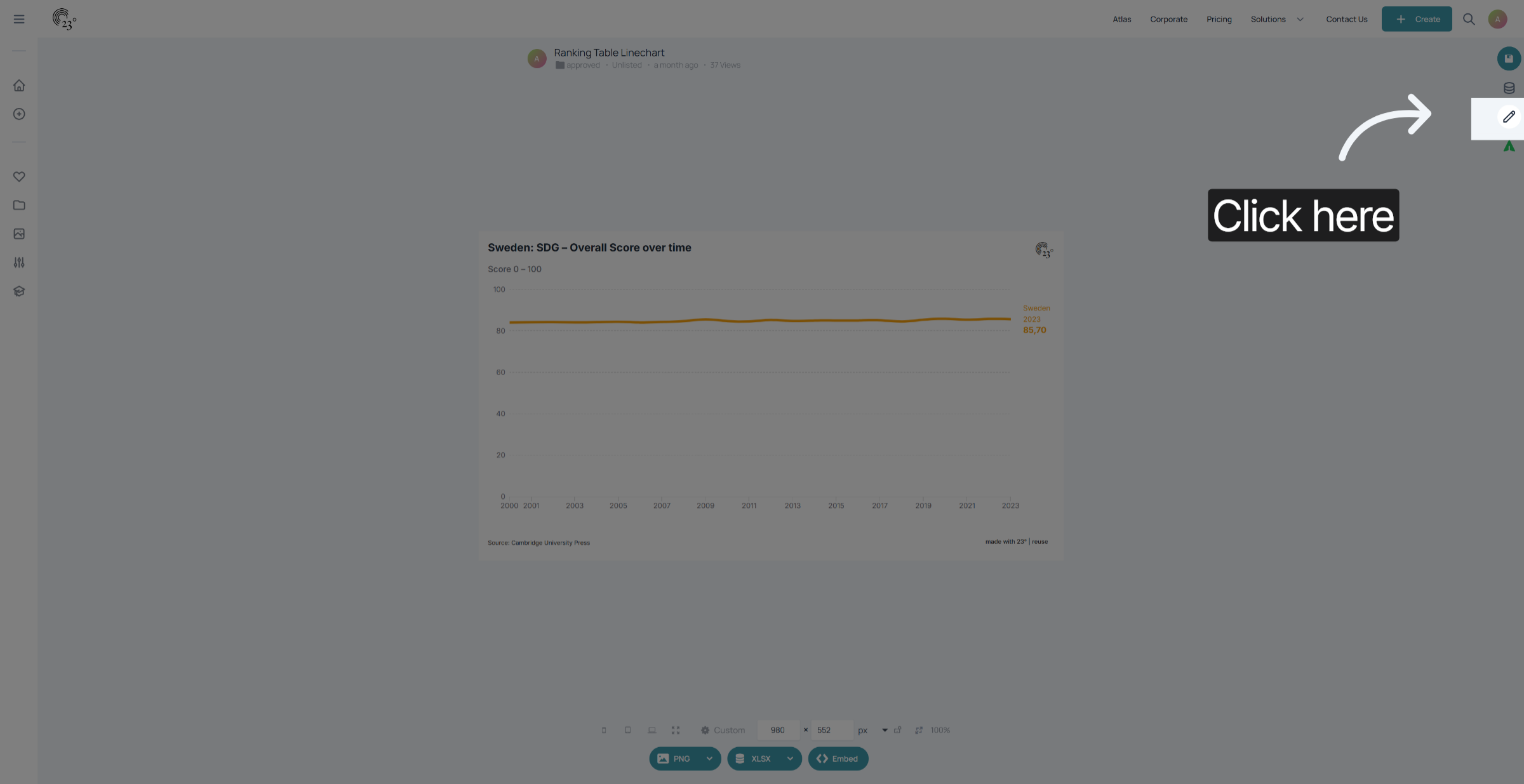
Click here to open the Embed Branch Editor.
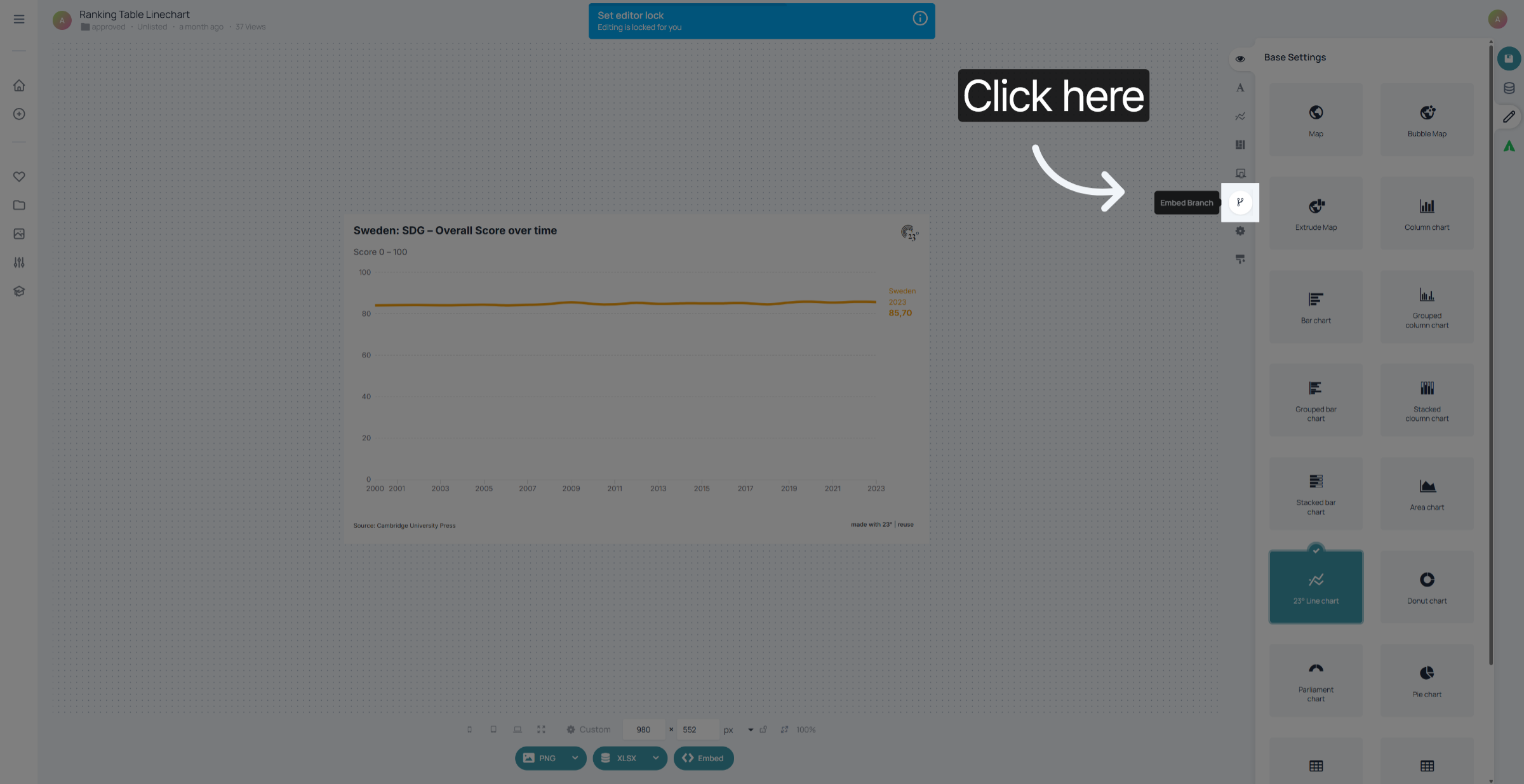
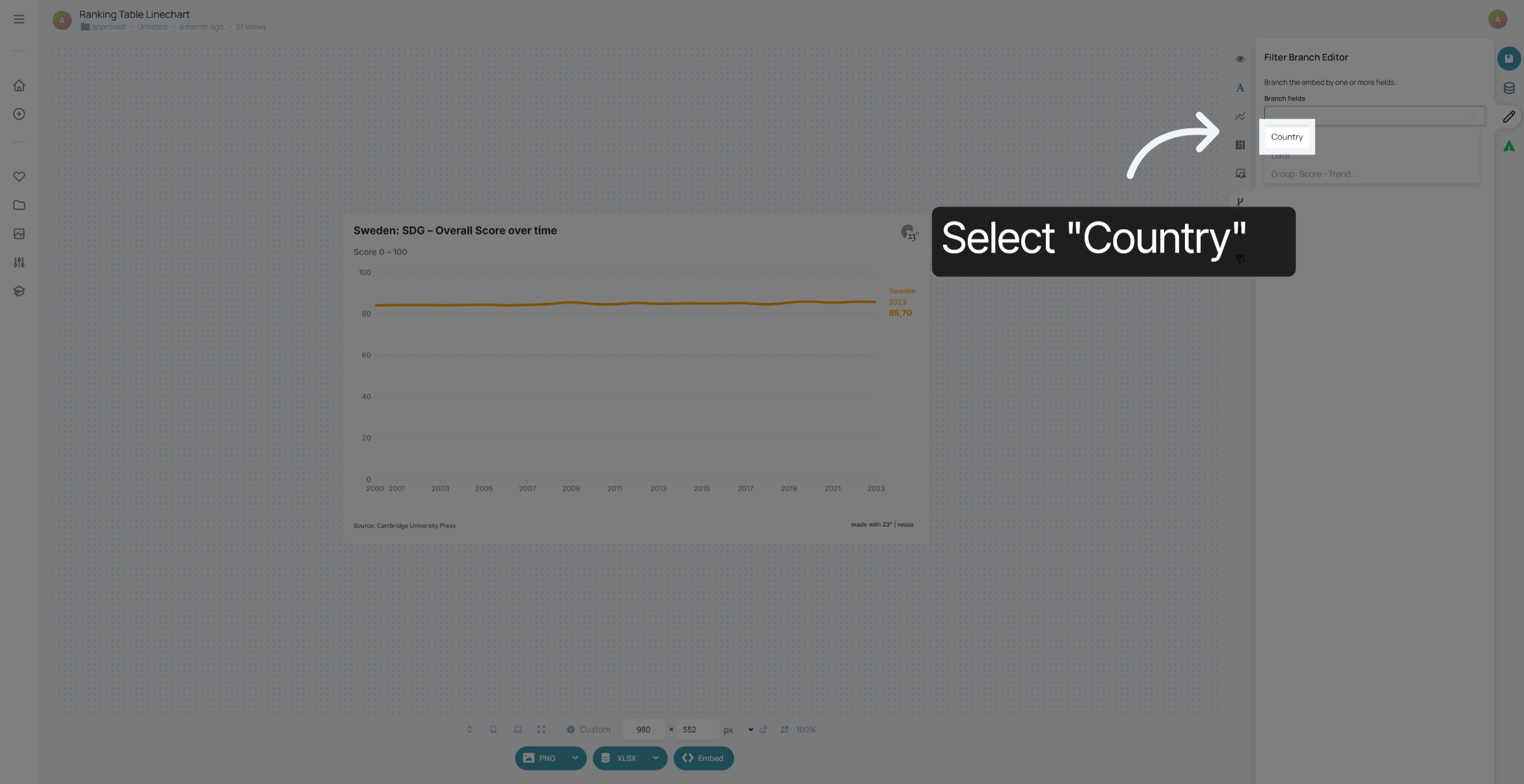
Select the column that you want to filter by. In this case we want to create one chart each per country, so we select our country column from the dataset. Keep in mind you can apply multiple filters depending on your dataset.
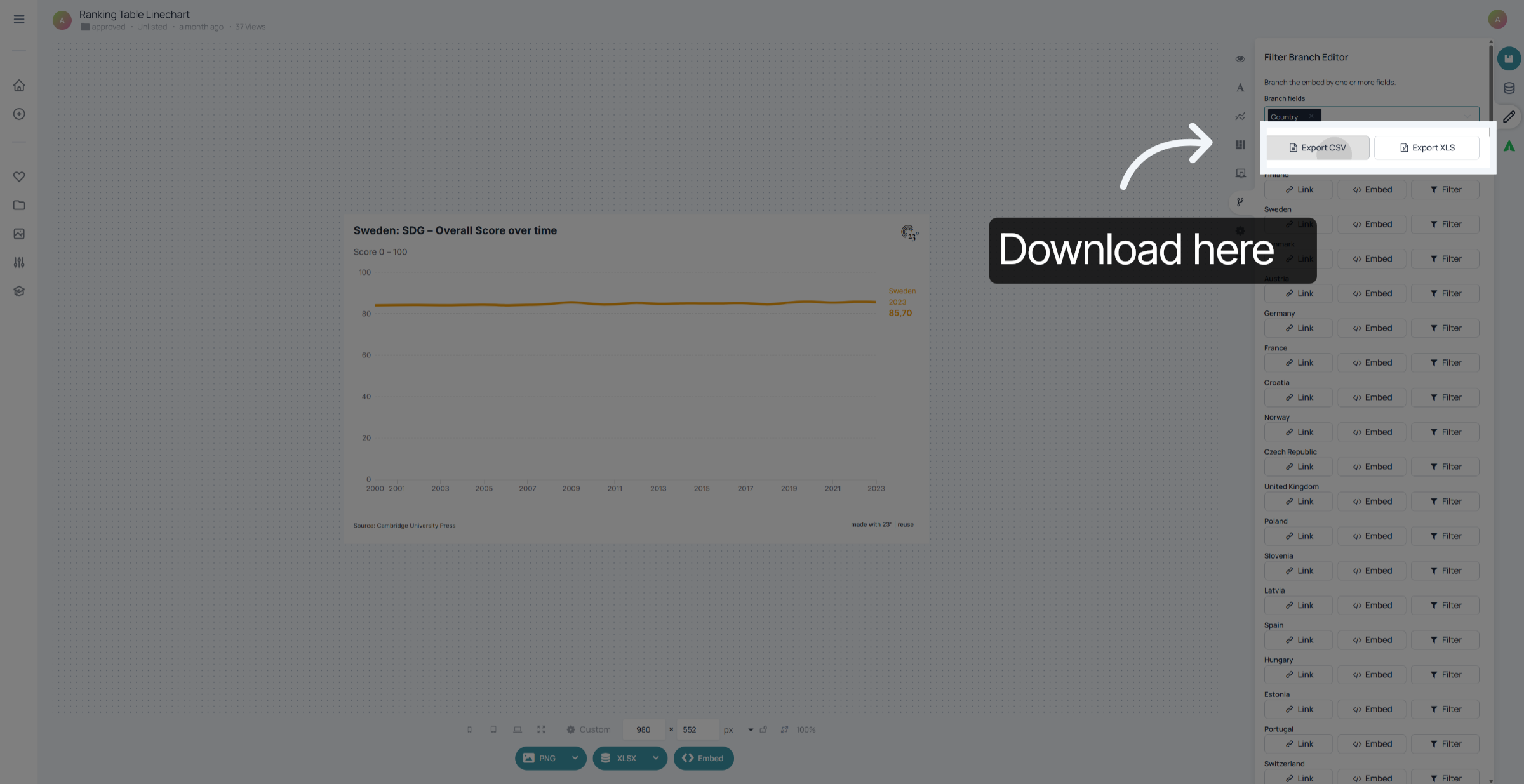
Once you have selected a filter option you can download all the available embeds directly as a csv or excel file.
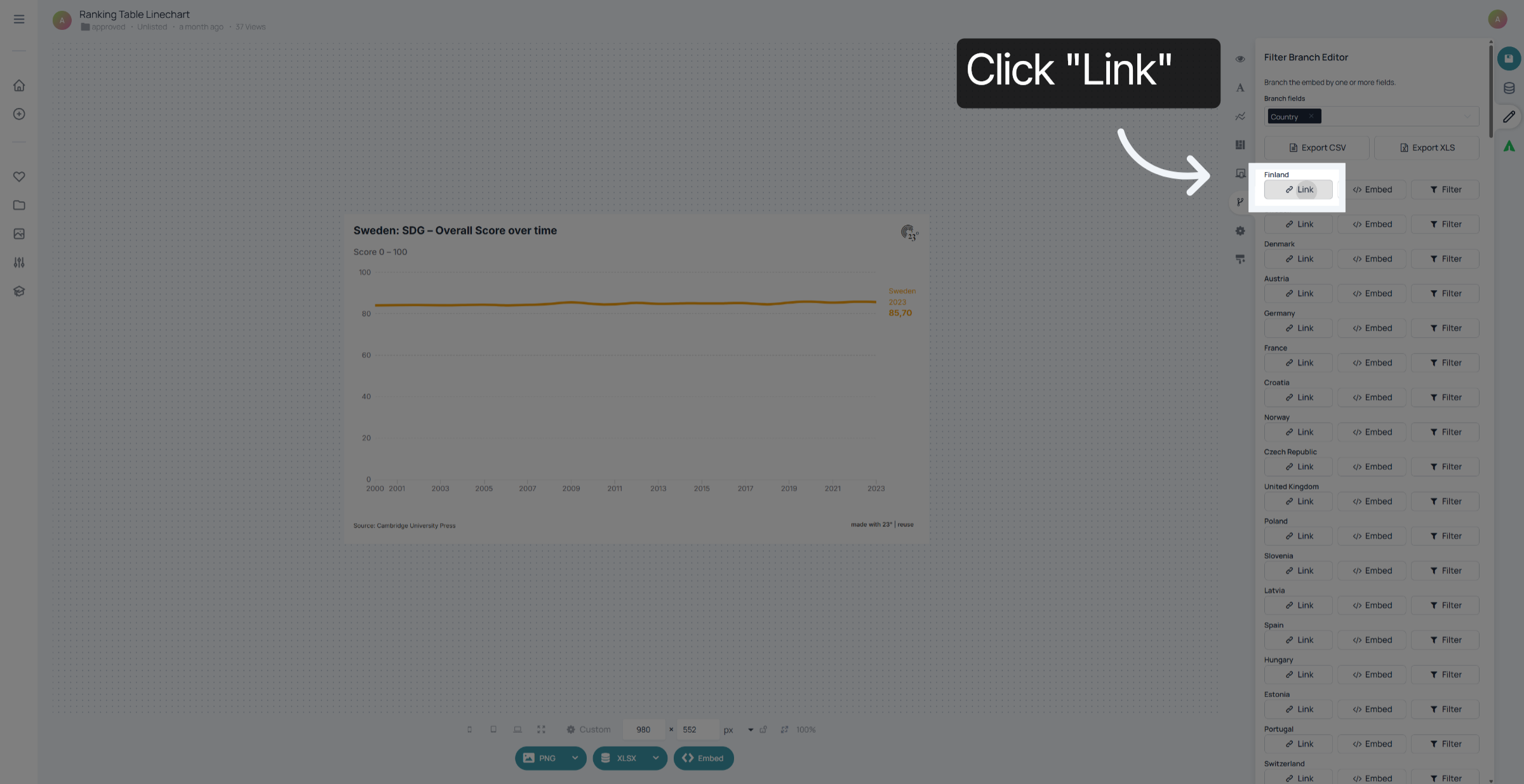
If you want to select single links to see what the filtered element looks like you can click here.
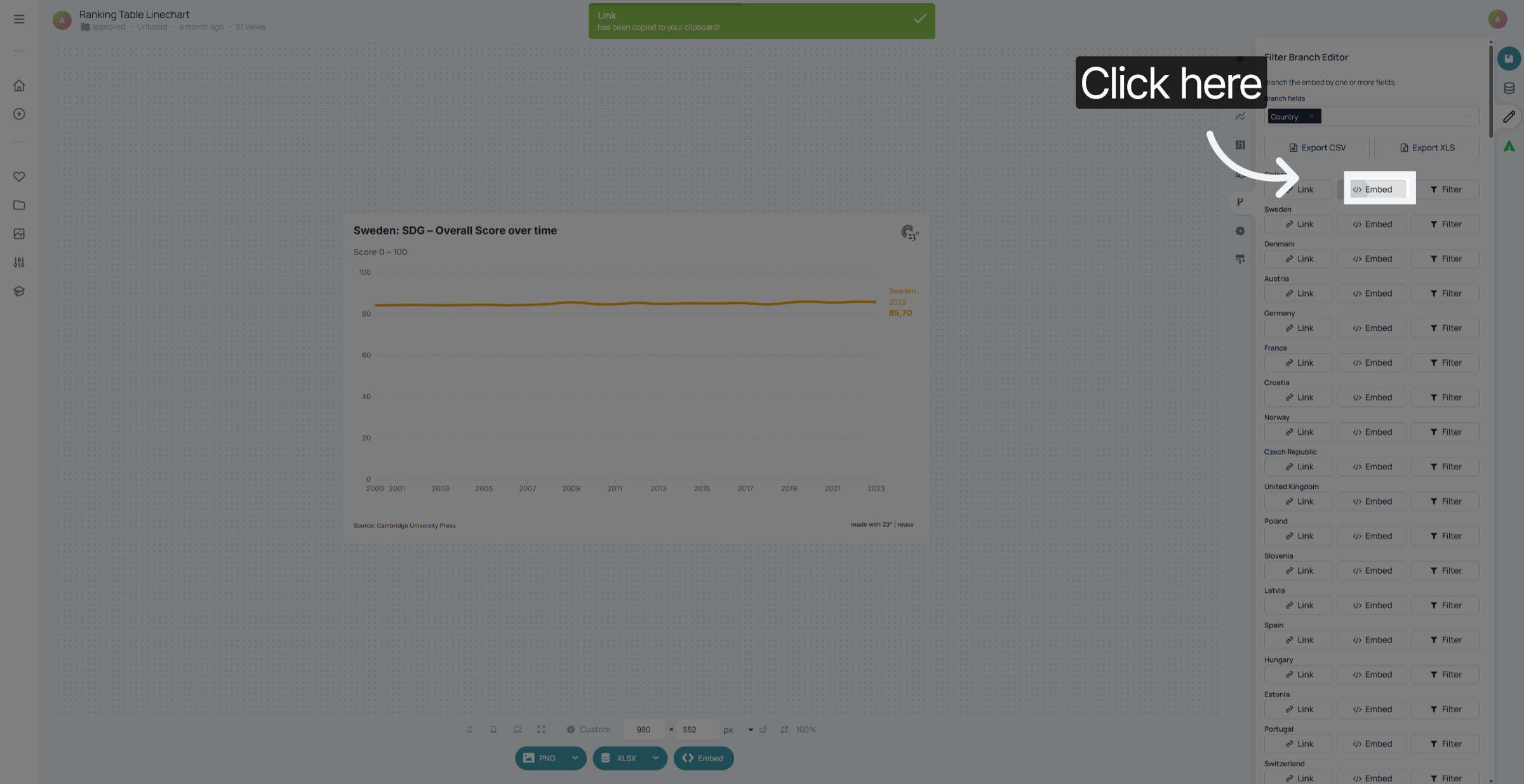
To select a single Embed code for the filtered version click on the Embed field.
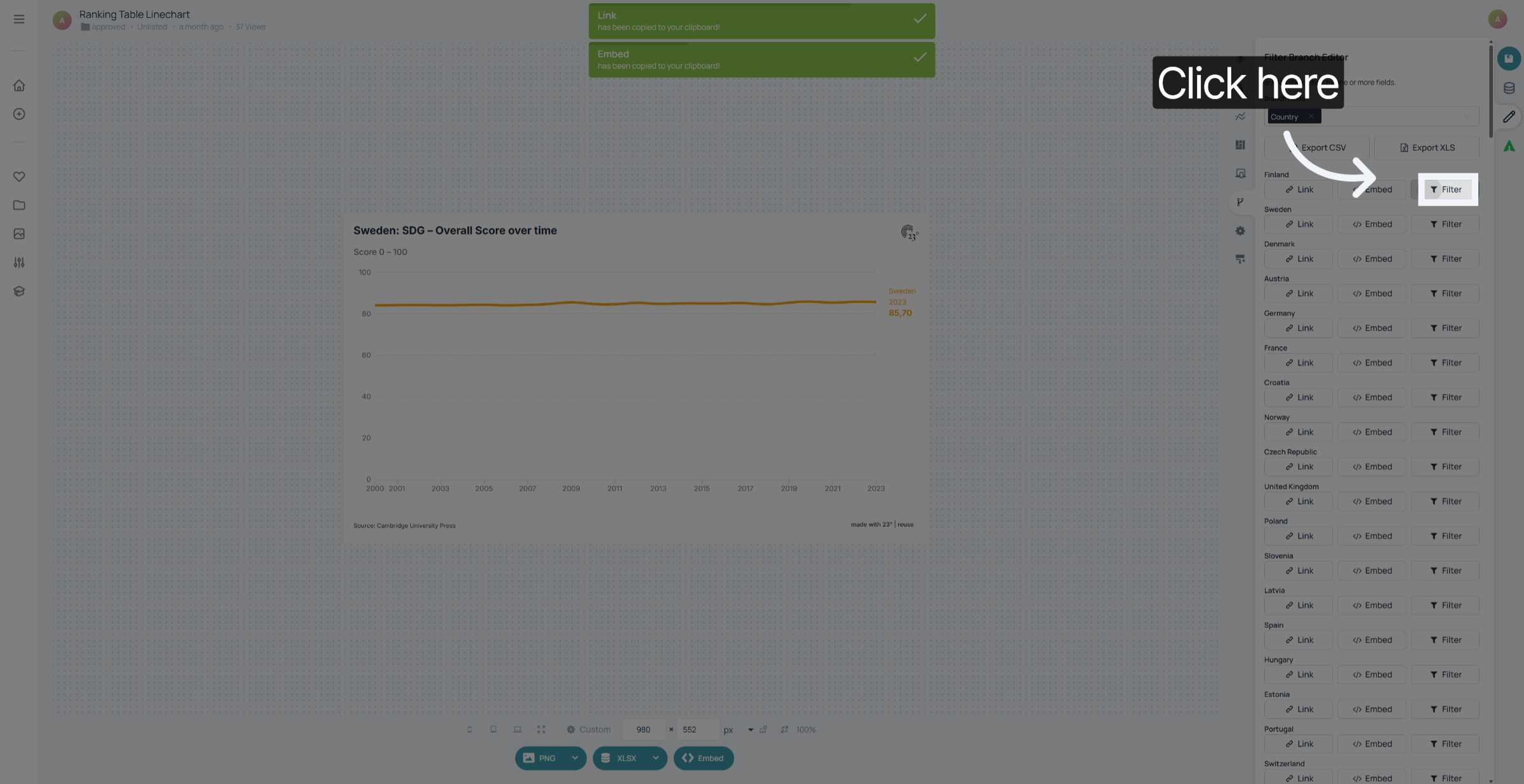
If you only need the url filter parameter click on Filter. Keep in mind: The Base URL of the chart does not change, only a url filter parameter is appended on the url. This makes it a great way to use for automatic integration into your target websites.
You have successfully used the Embed Branch Editor to create filtered embeds each country. In another tutorial I will show you how you can create dynamic titles that work well with filtered Embeds.