Configure Dynamic Height Settings In Bar Charts
This tutorial explains how to configure dynamic height settings in bar charts to optimize their appearance.
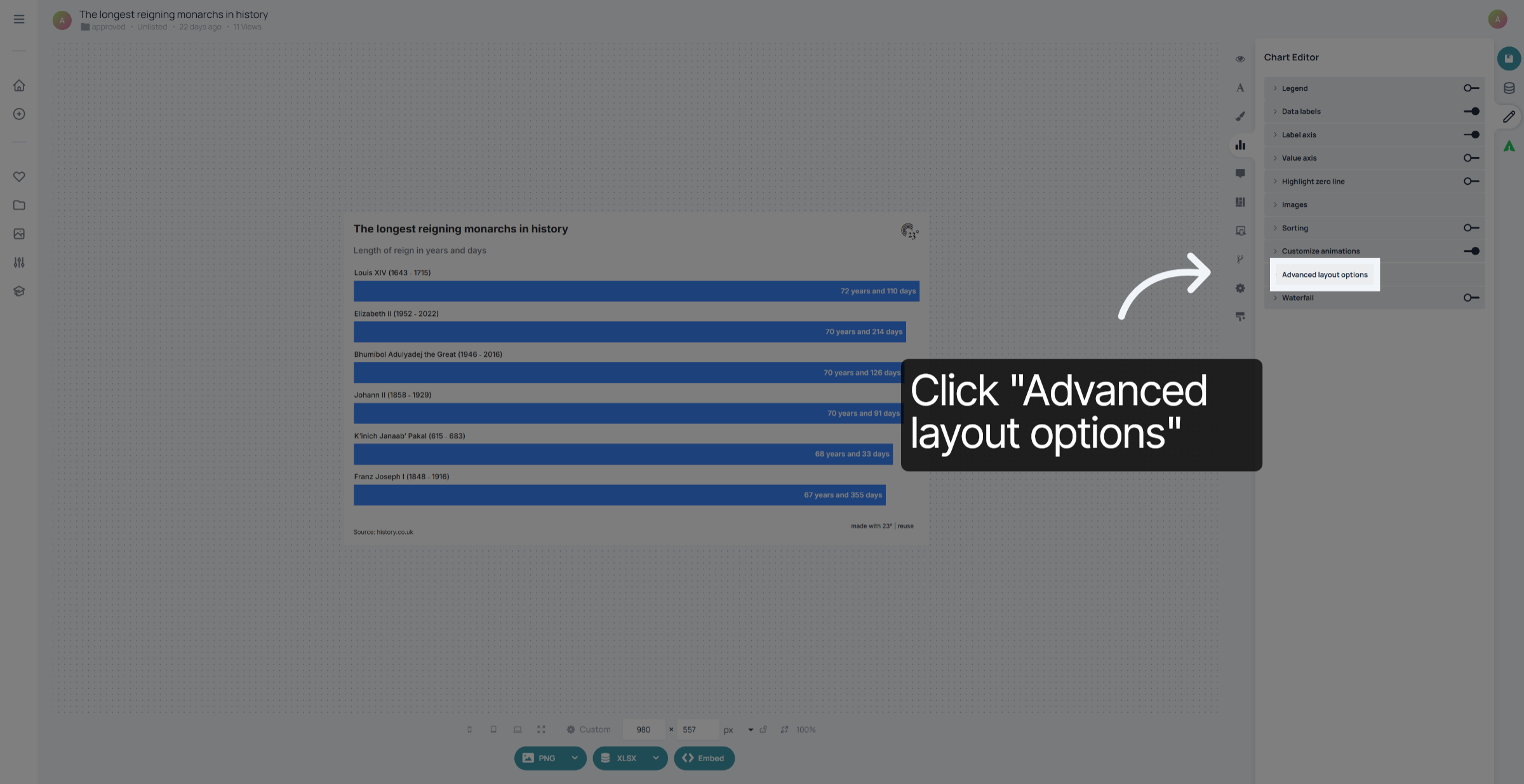
Click the Advanced layout options within the chart editor options to access the dynamic height settings.
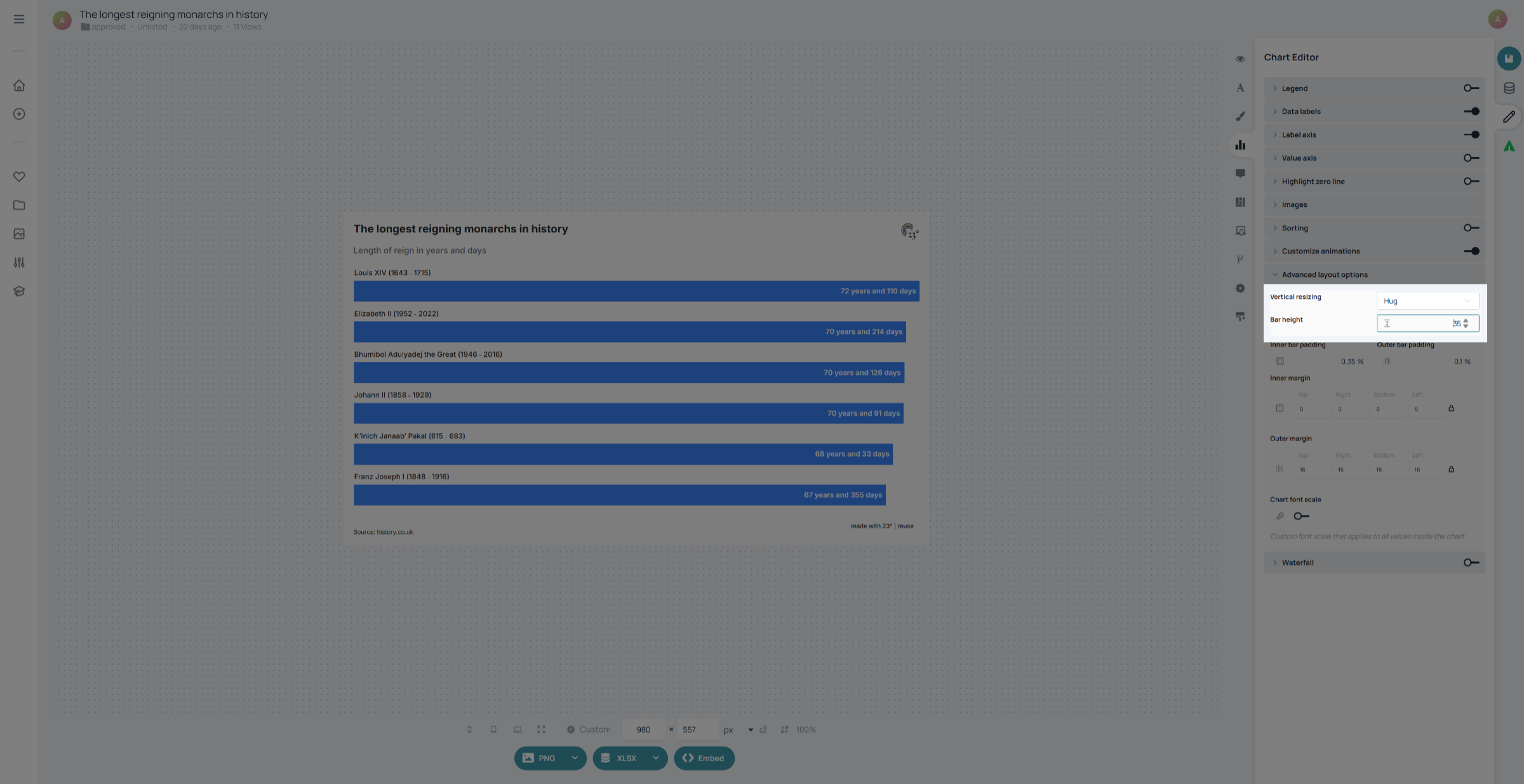
Select "Hug" and set the bar height of the chart in pixels. The hug option means that every bar has a constant height of 35 pixels and that the chart can vary in height depending on the number of bars you have.
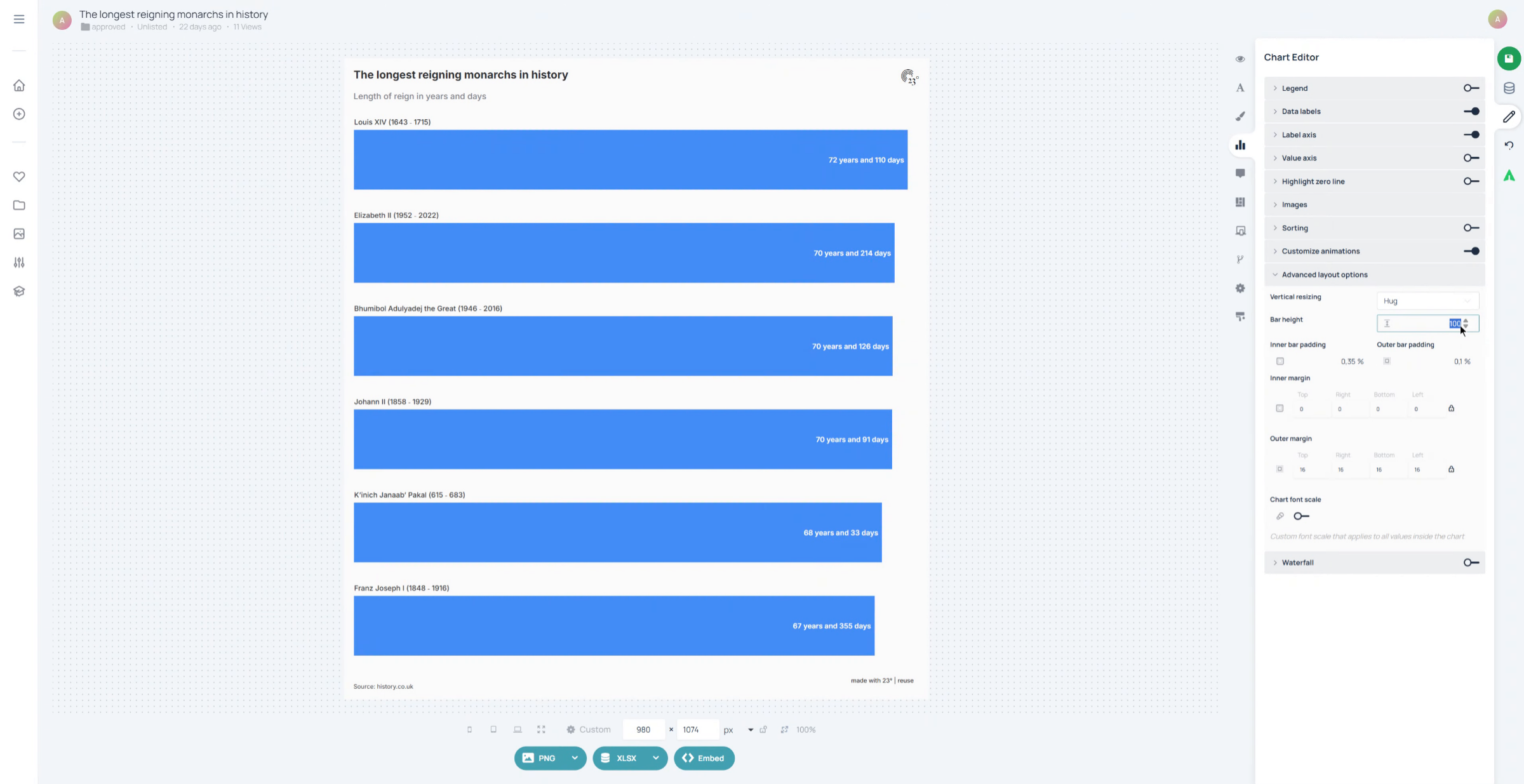
If you increase your bar height you can see your chart grow in height.
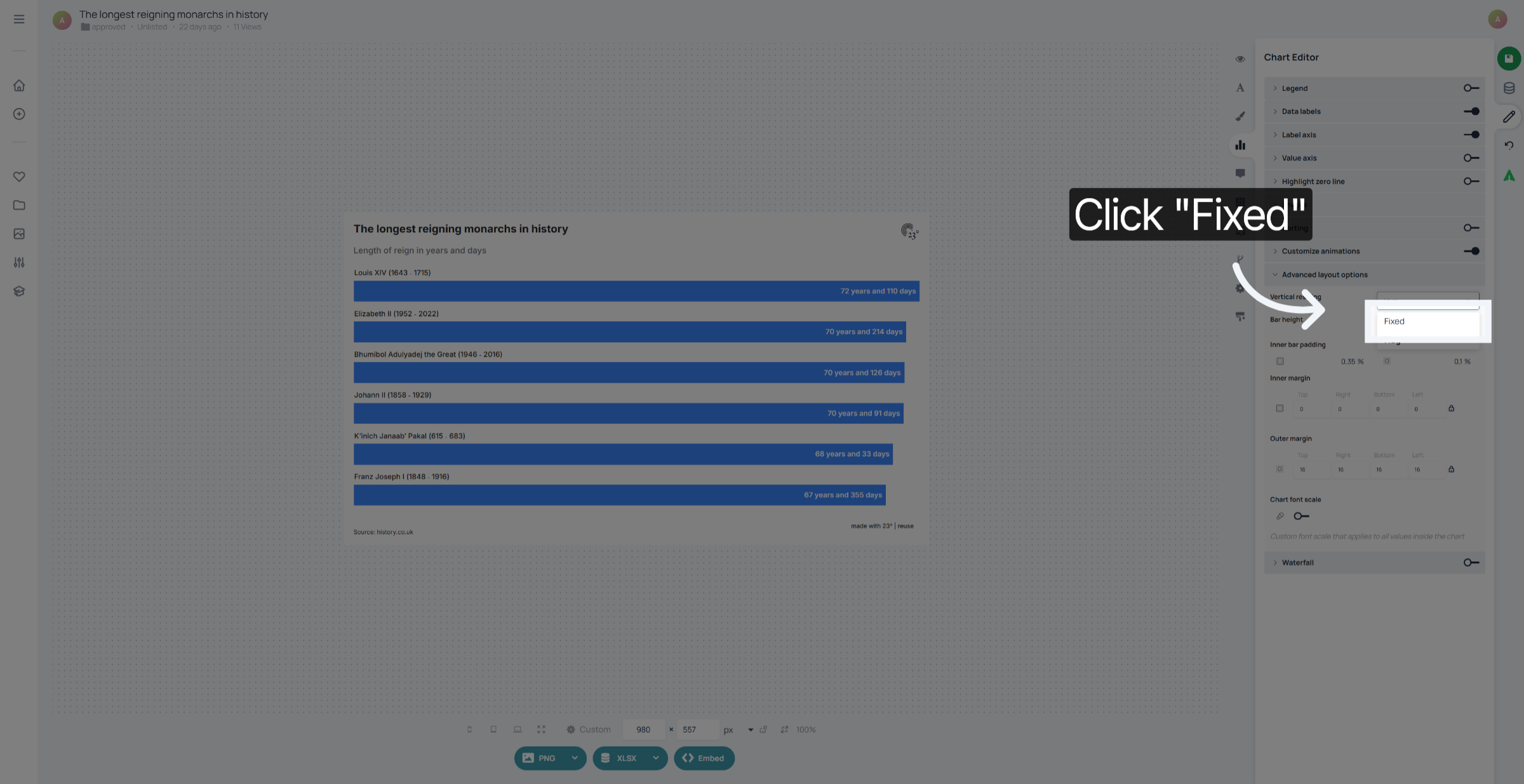
The other option is the "Fixed" Vertical Resizing Option. With this setting the chart has a fixed height. Increasing the number of bars or the minimum height of the bars will not increase the chart height but produce a scrollbar on the right side instead
You have successfully configured dynamic and fixed height settings in your bar chart to enhance its visual layout. For further customisation, explore additional chart styling options or adjust other layout parameters.