Change Folder Display Settings in 23degrees Application
This tutorial explains how to change your folder display settings in the 23degrees application.
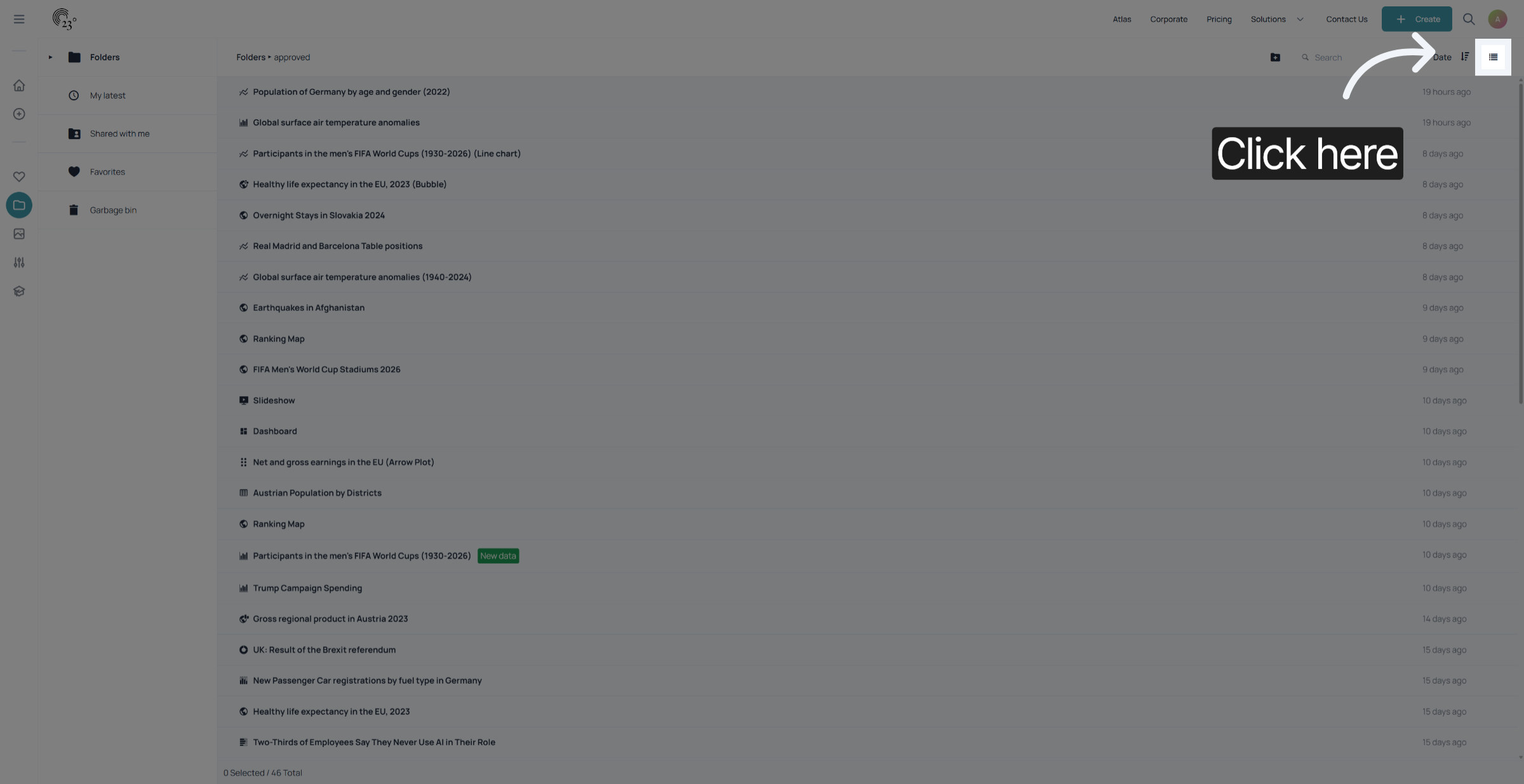
To adjust your folder display settings click on the icon in the top right corner.
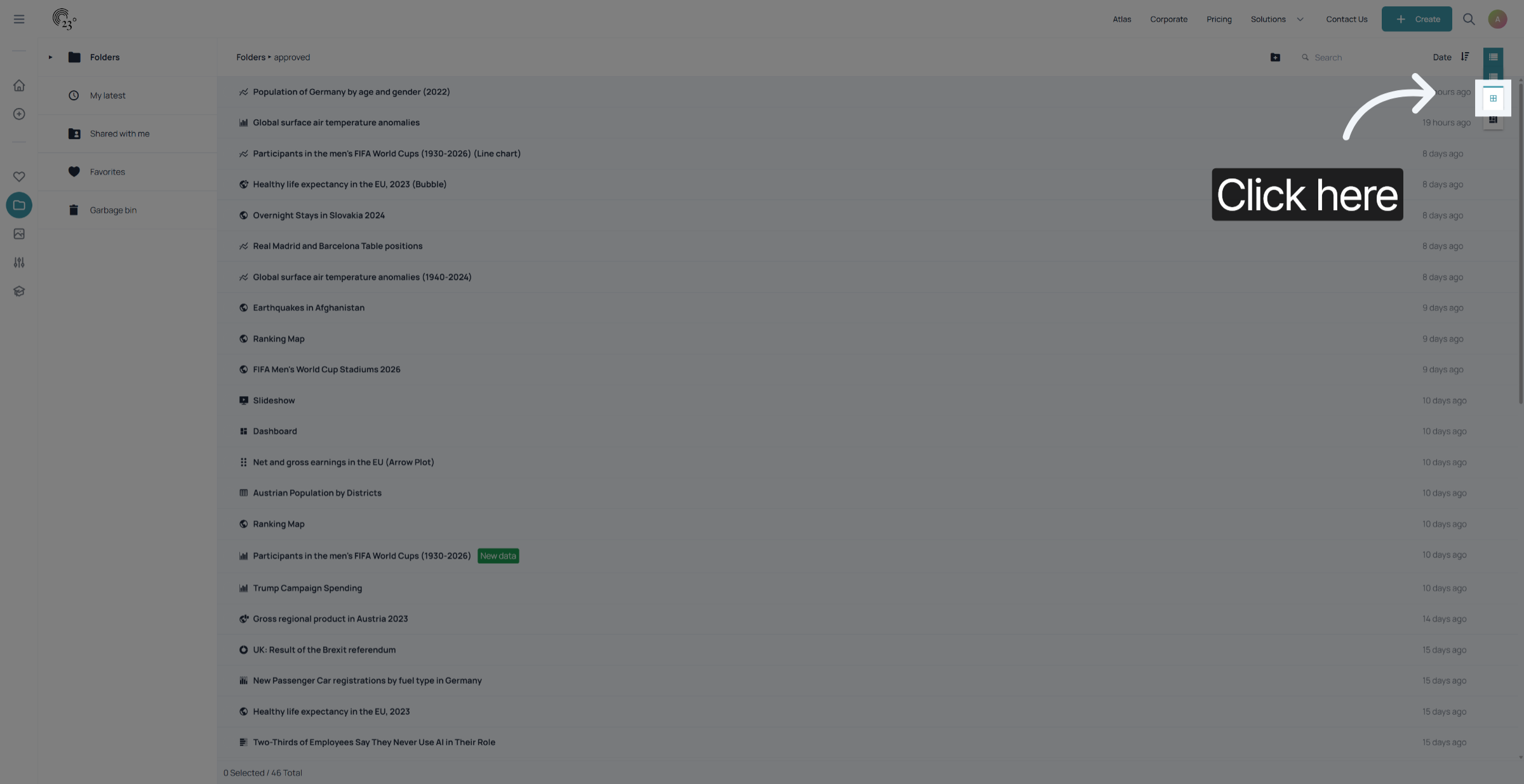
Select the second icon view option to see a compact preview of your visualisations and folders instead of a list.
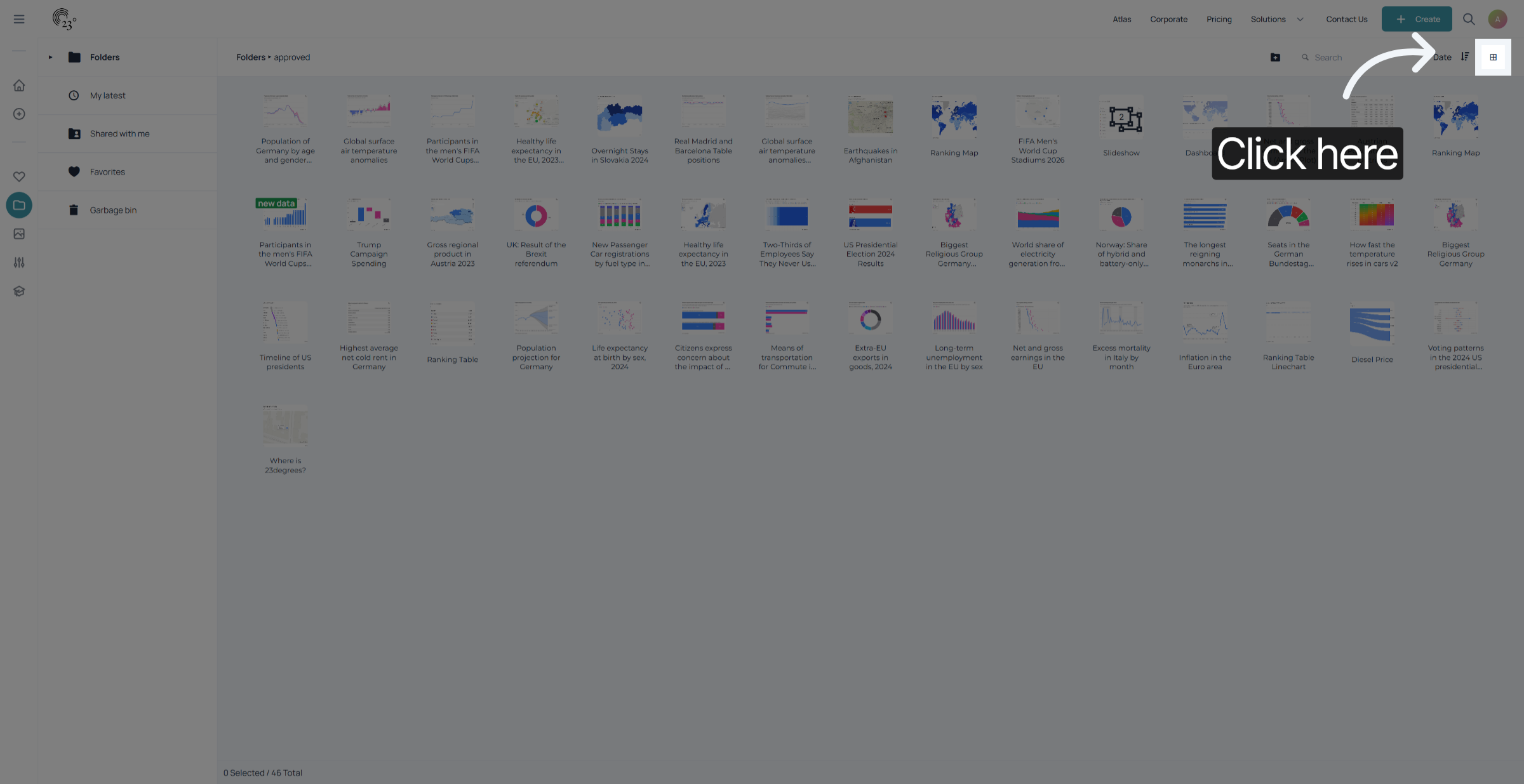
Now you see all your items with a preview picture. This helps you find the content you are looking for more easily.
For a more detailed preview view select the preview icon
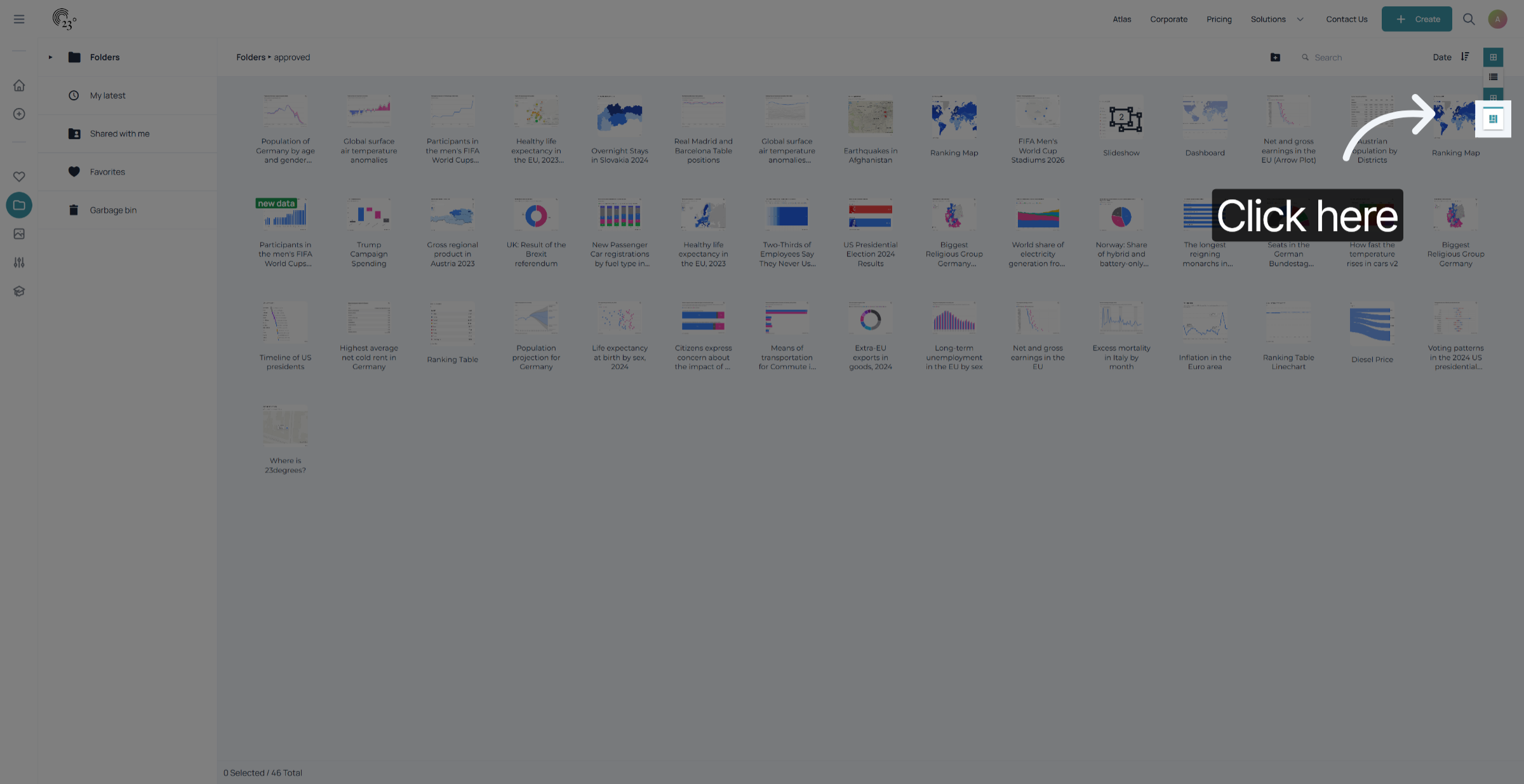
Your chart cards should appear bigger and the preview shows more details.
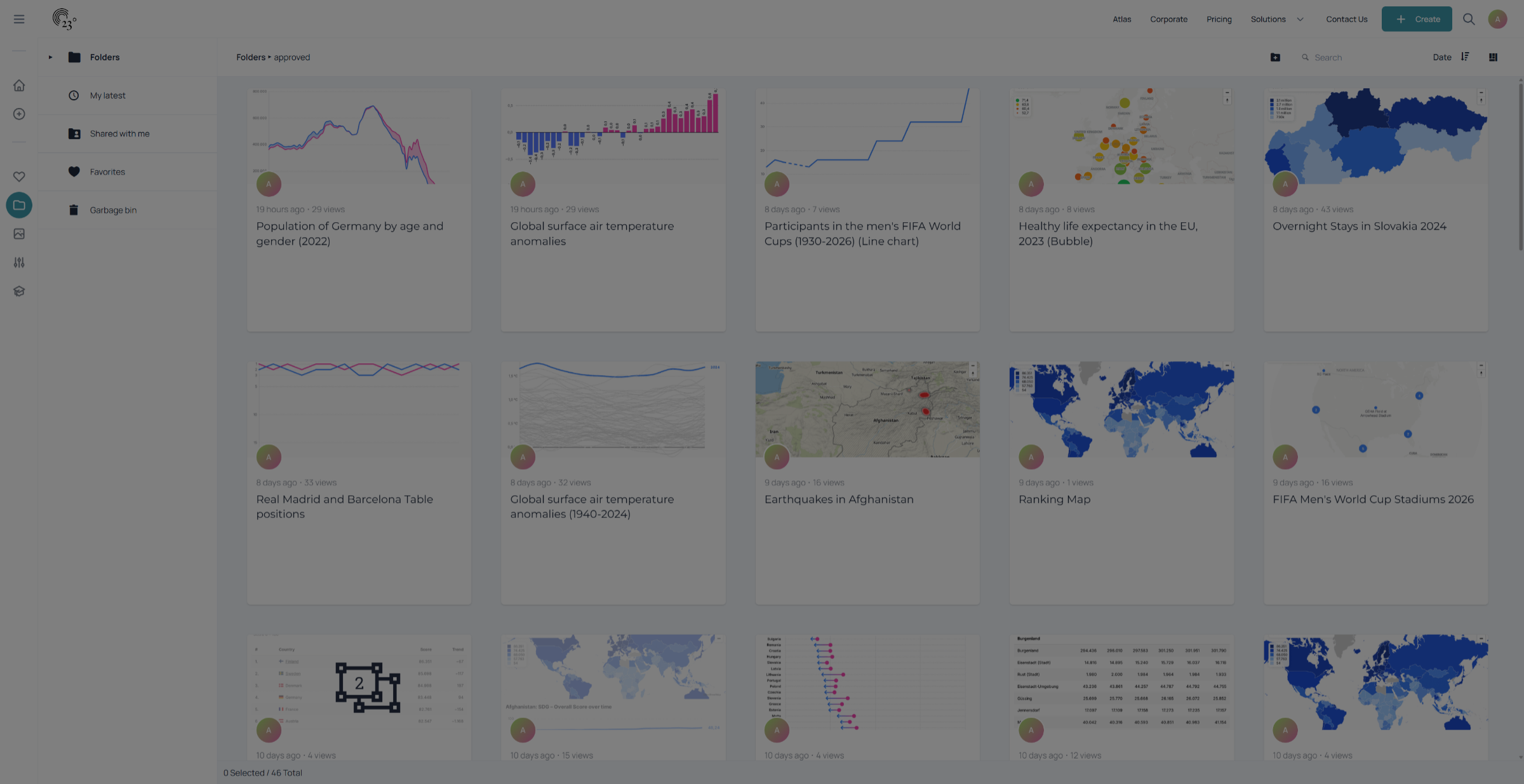
You have successfully changed your display settings in the folder view of the 23degrees application. Your folders and content itemswill now appear according to your customized preferences, enhancing your navigation experience.