How to style Slideshow buttons
This tutorial will show you how to style and name buttons in Slideshows.
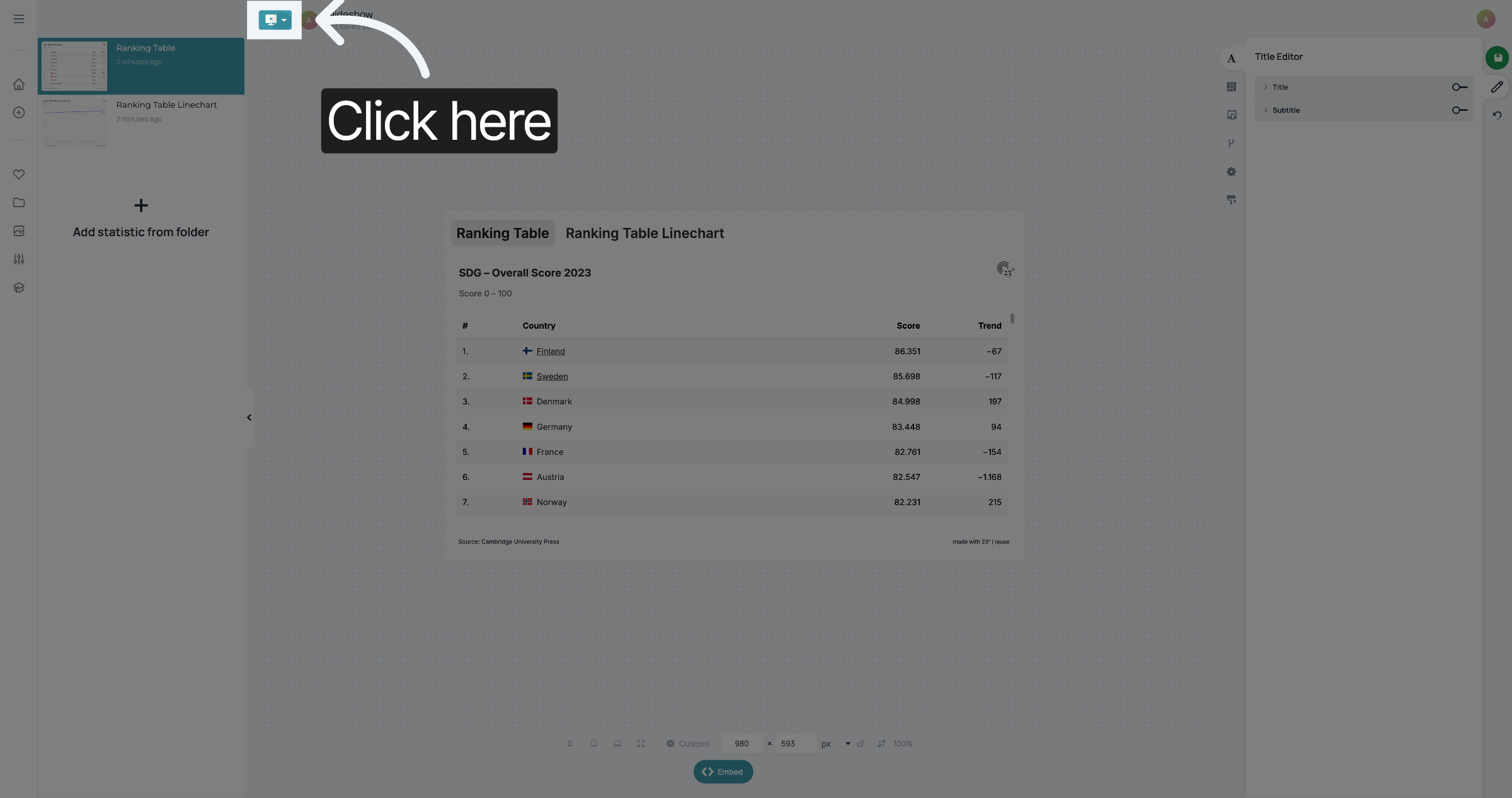
Open your Slideshow and make sure the button at the top shows the Slideshow button. If it doesn't, click here...
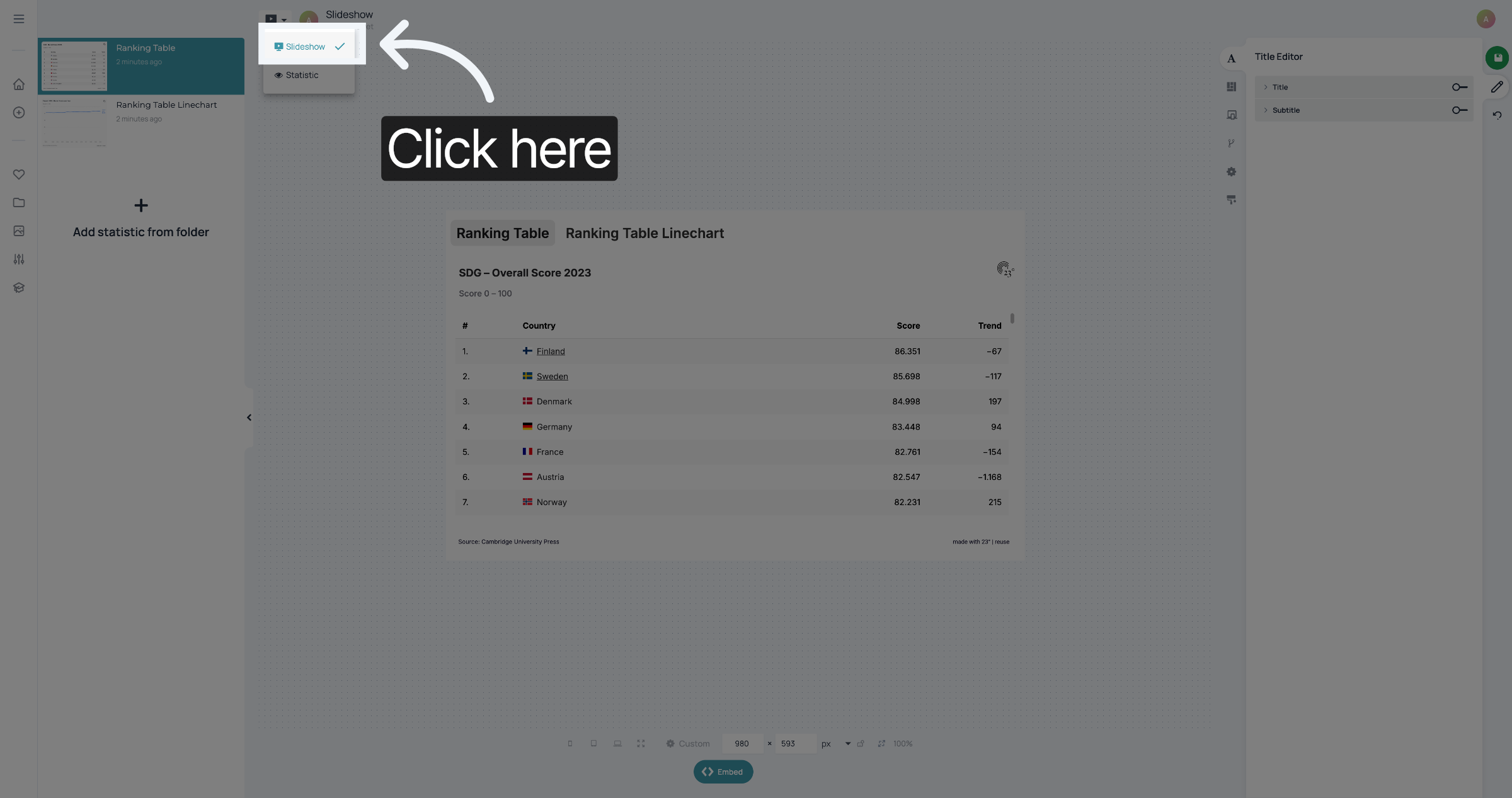
...and select Slideshow.
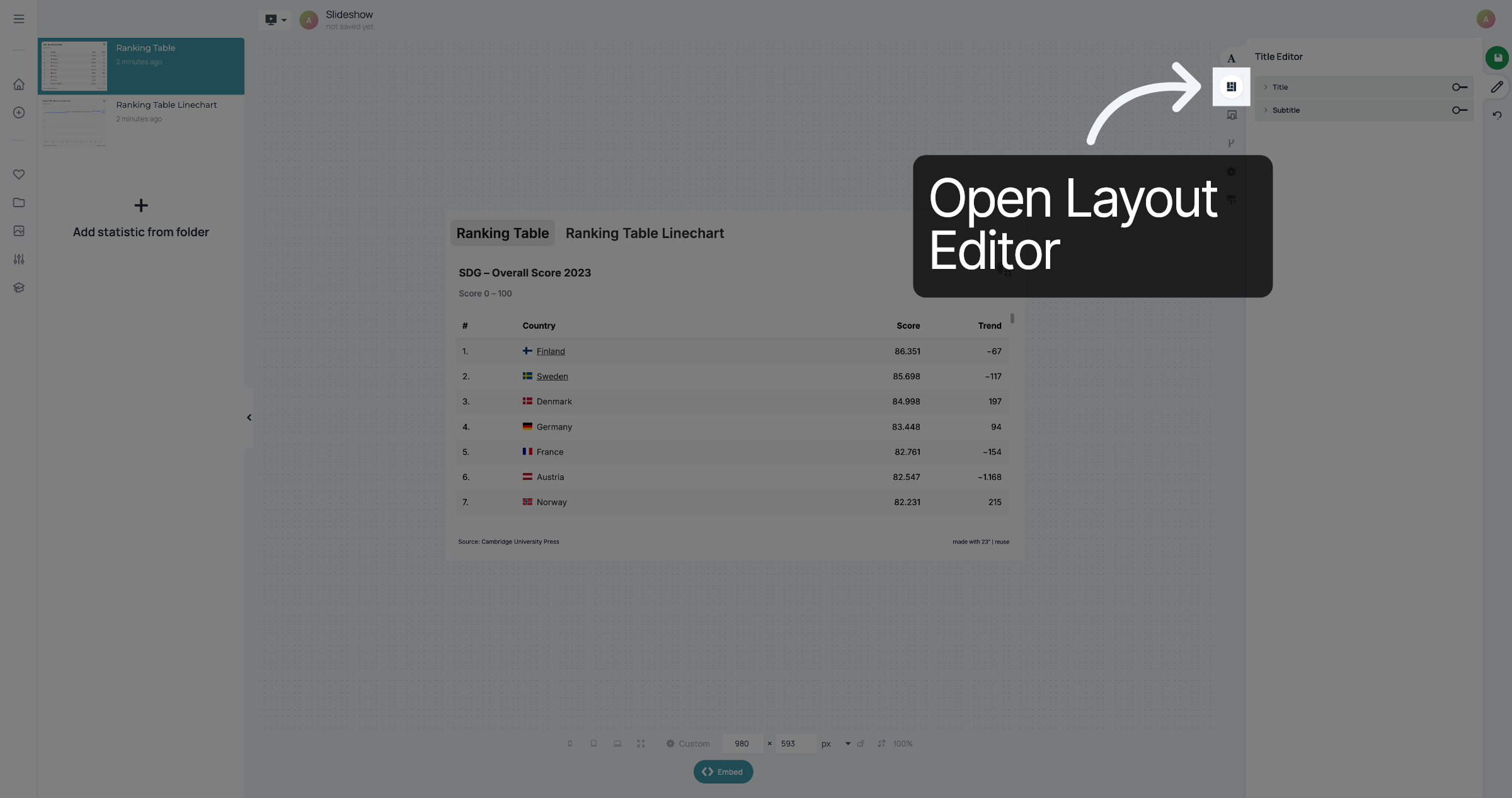
To change the style of the buttons, open the Layout Editor.
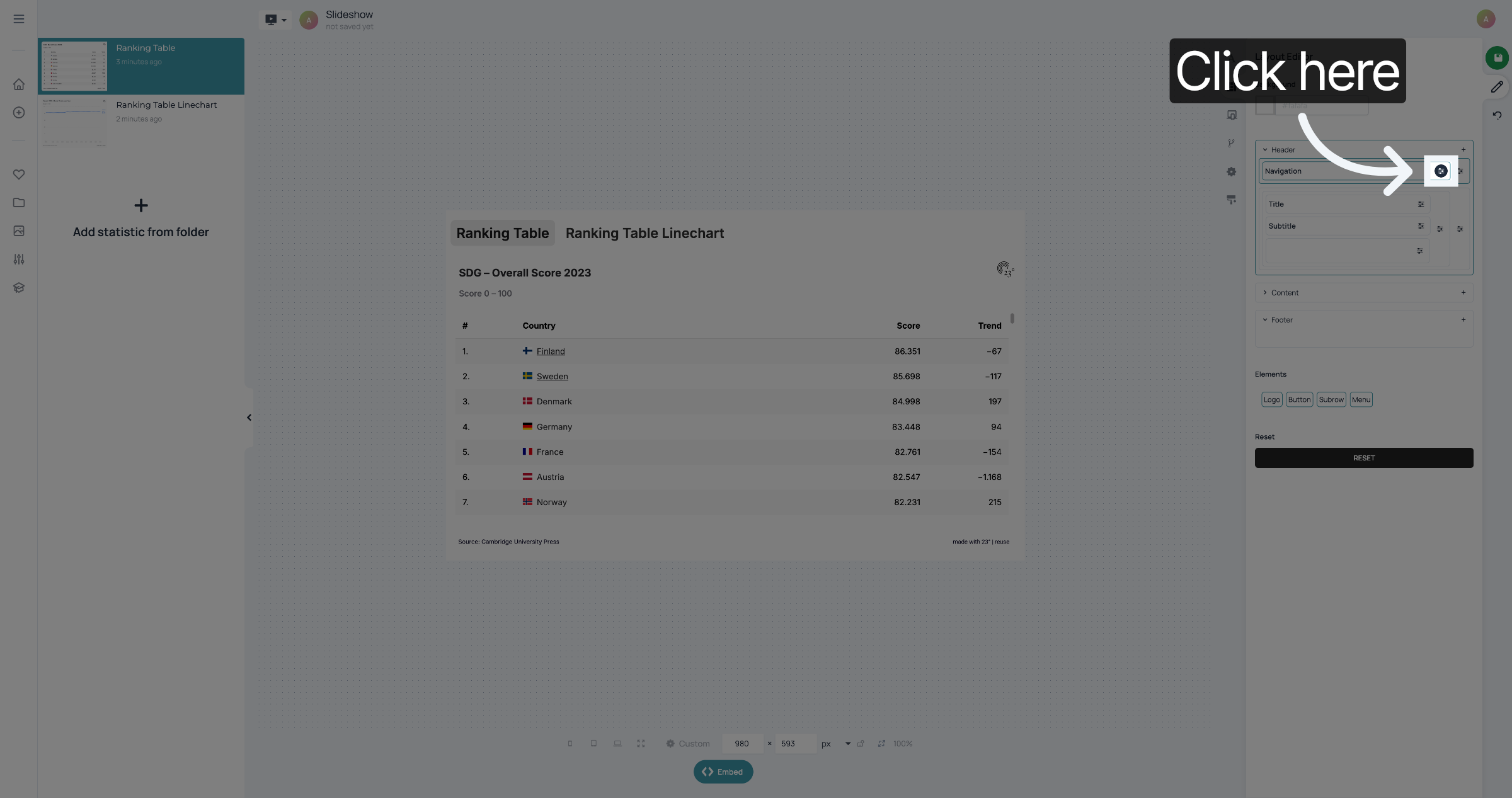
Find the "Navigation" container and click on the settings button next to it.
Click the specific button you want to style or rename within the slideshow interface.
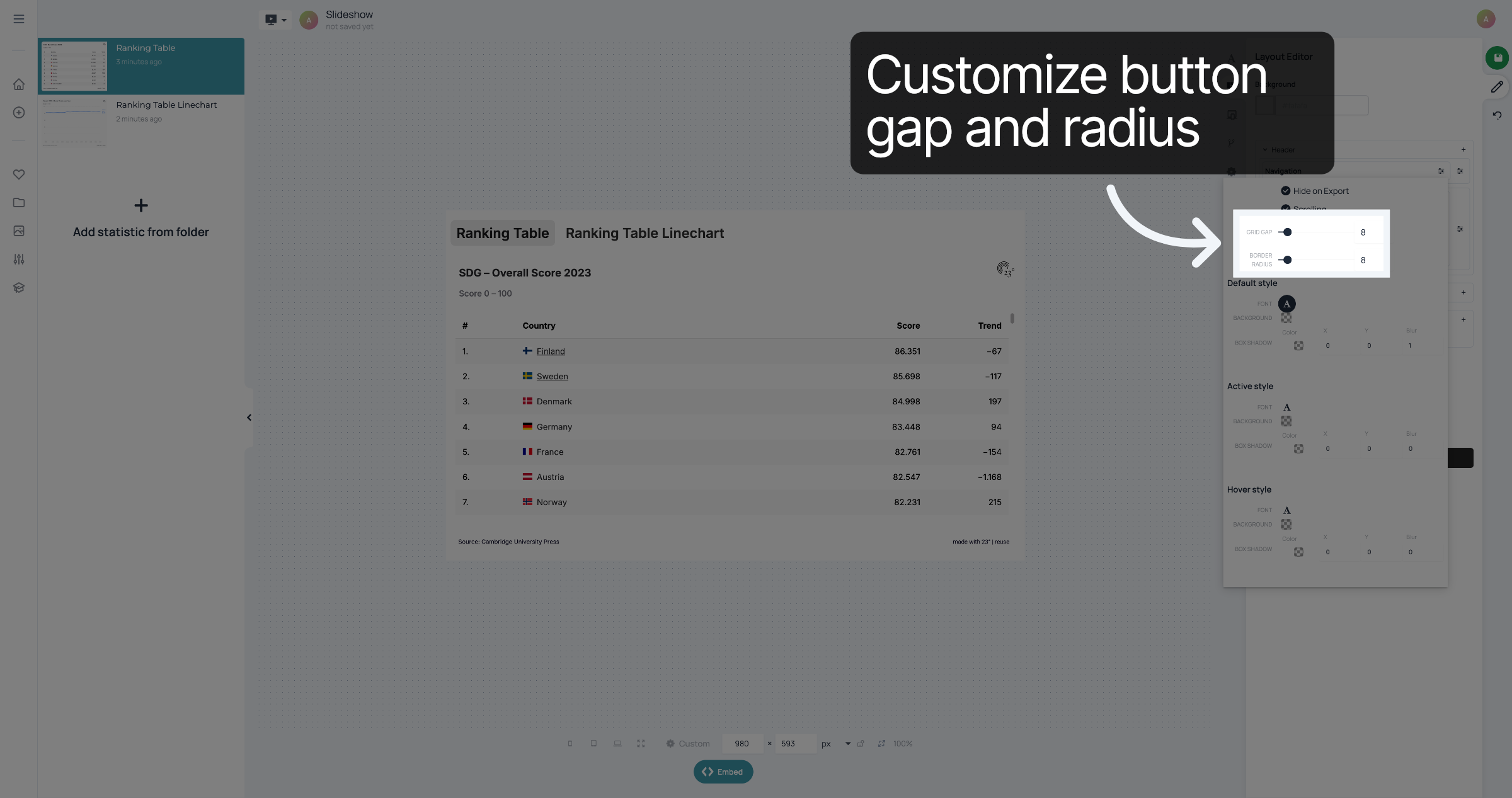
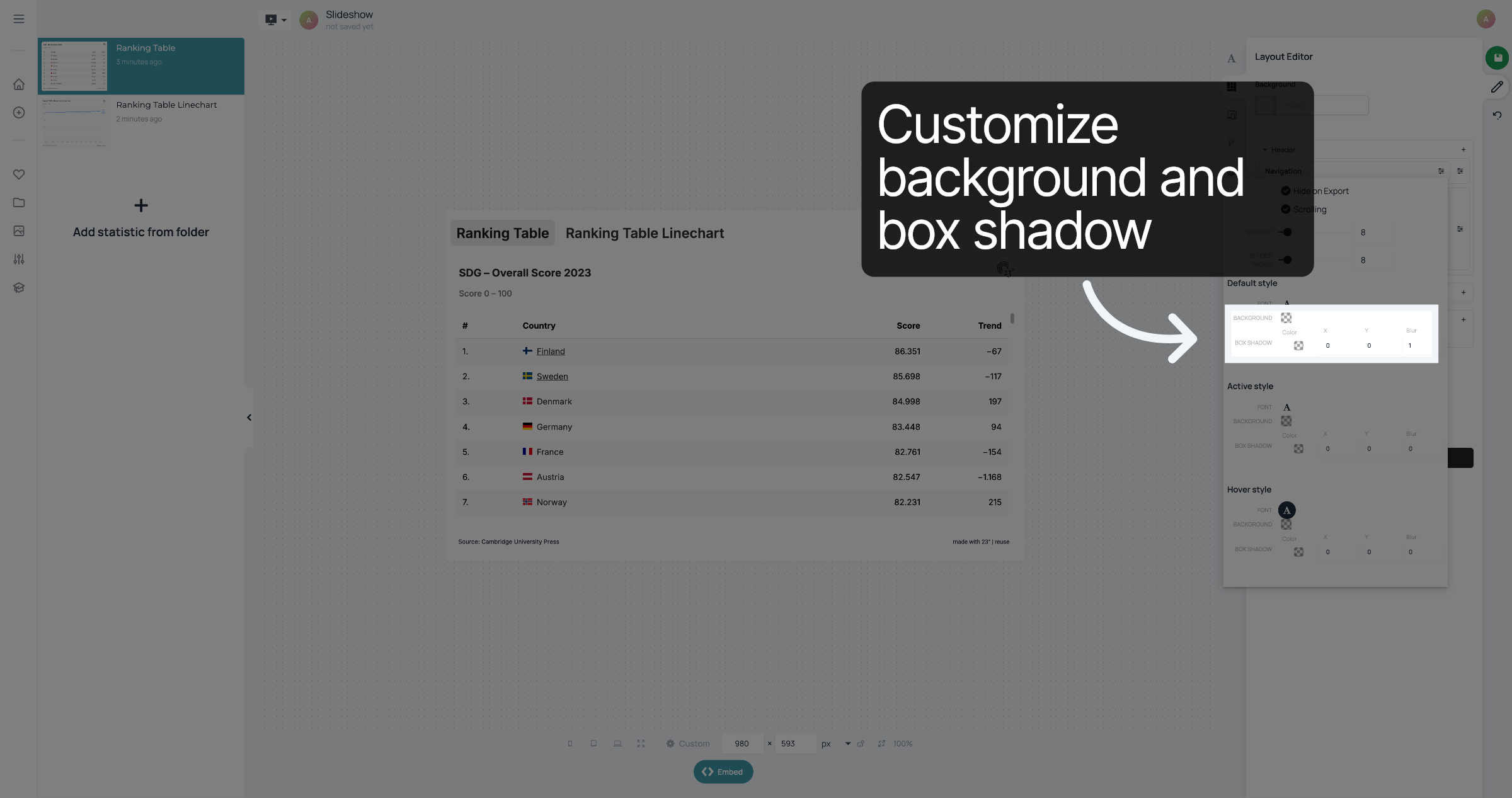
You can customize three button styles. "Default style" is the style of the button that is not selected. "Active style" is the style of the button that is currently selected. "Hover style" is the style of the button when the user hovers over it with their mouse.
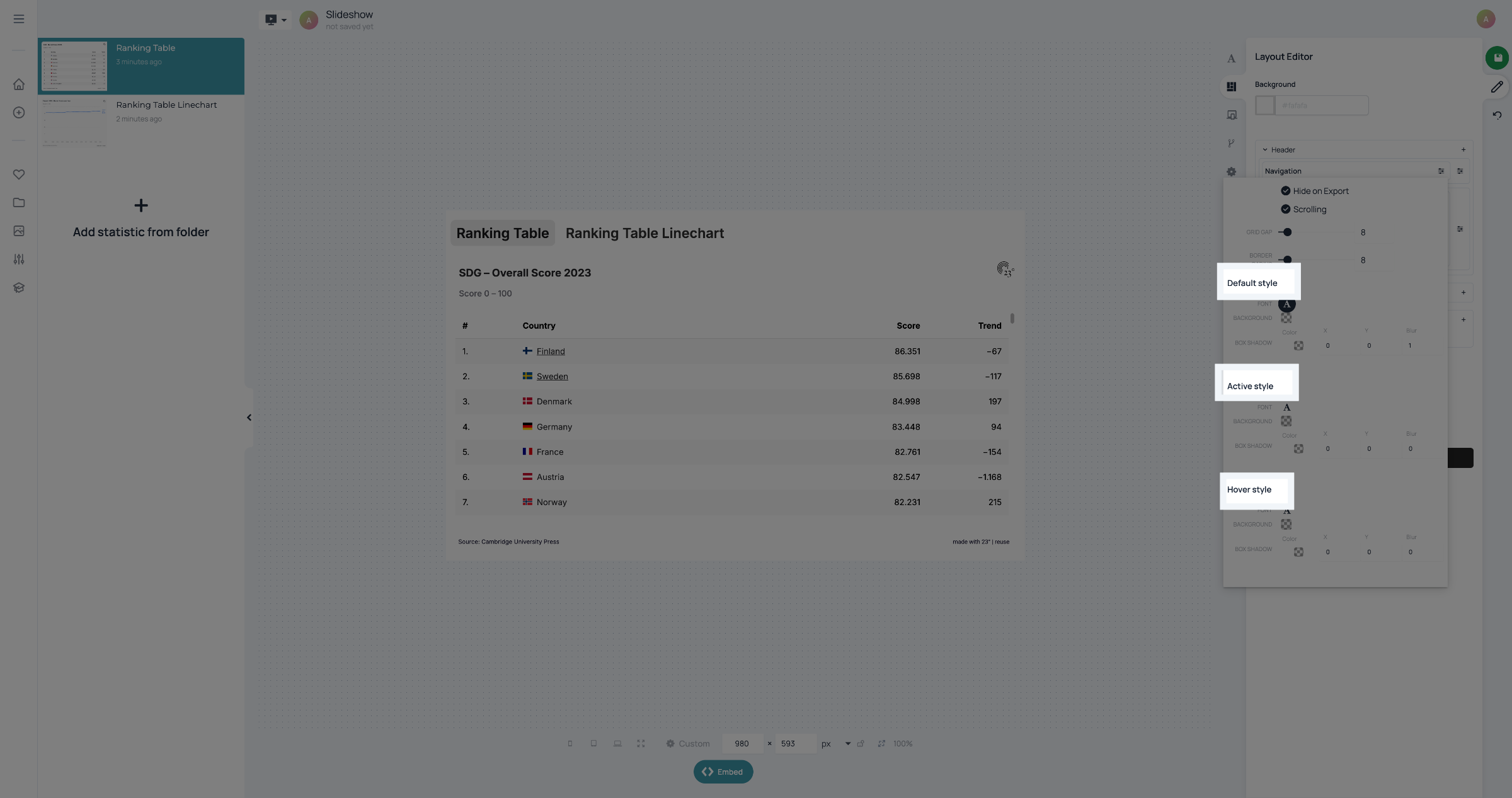
Click here to customize the styles of the font.
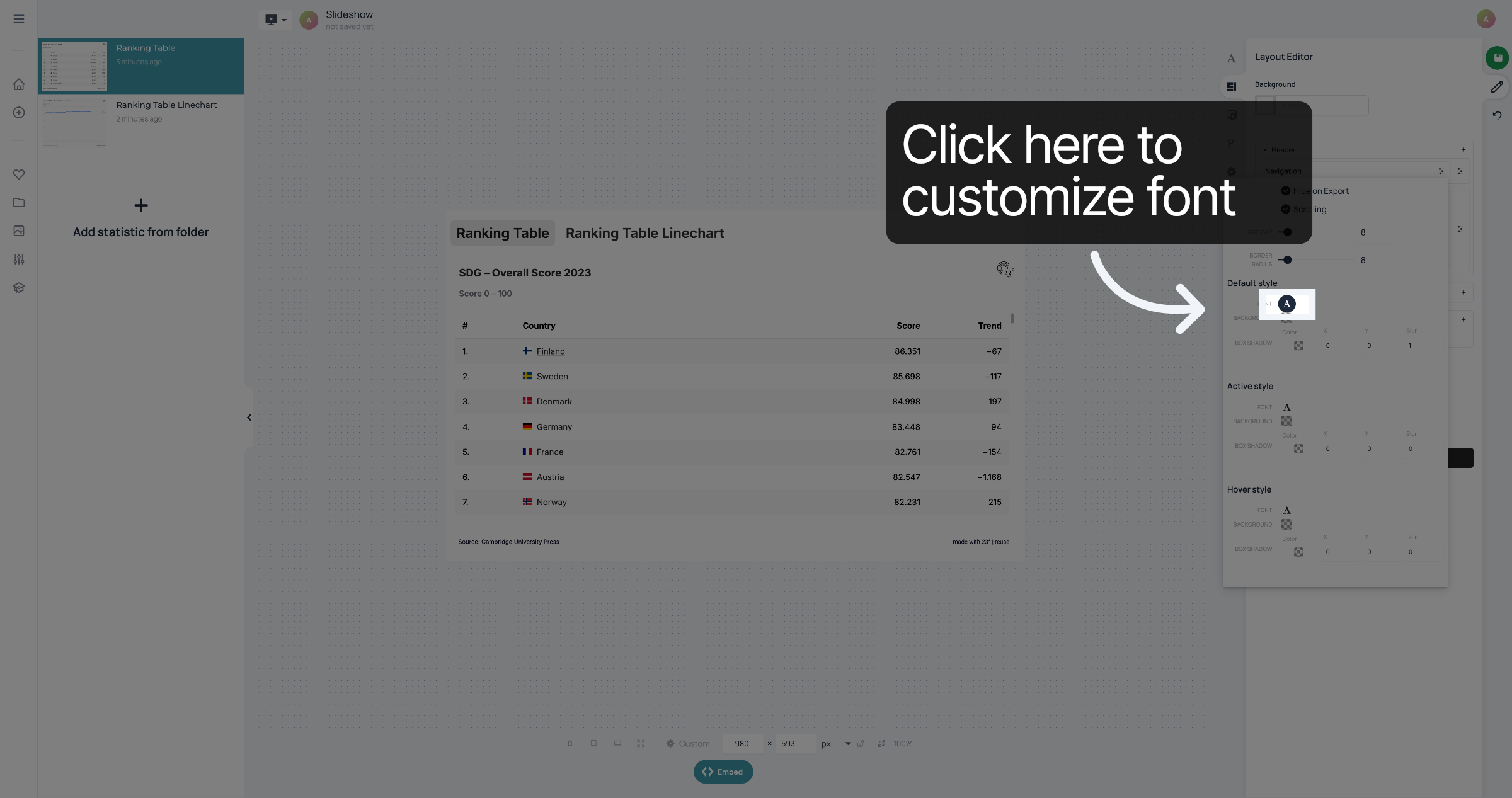
You can customize the alignment, font, size, line height, colour, shadow, padding and margin.
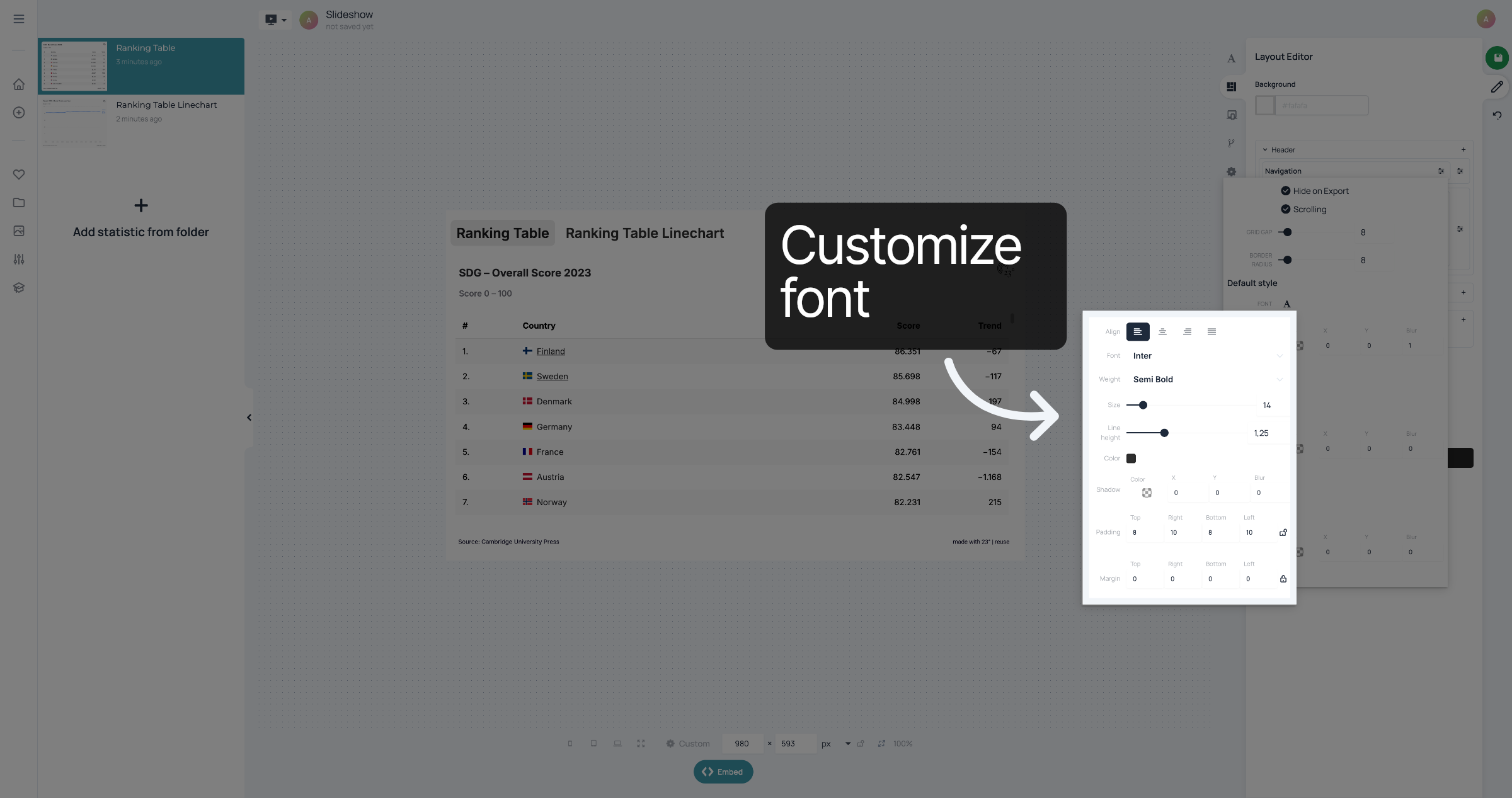
Below that, you can customize the background and box shadow. Repeat steps for the Active Style and the Hover Style.
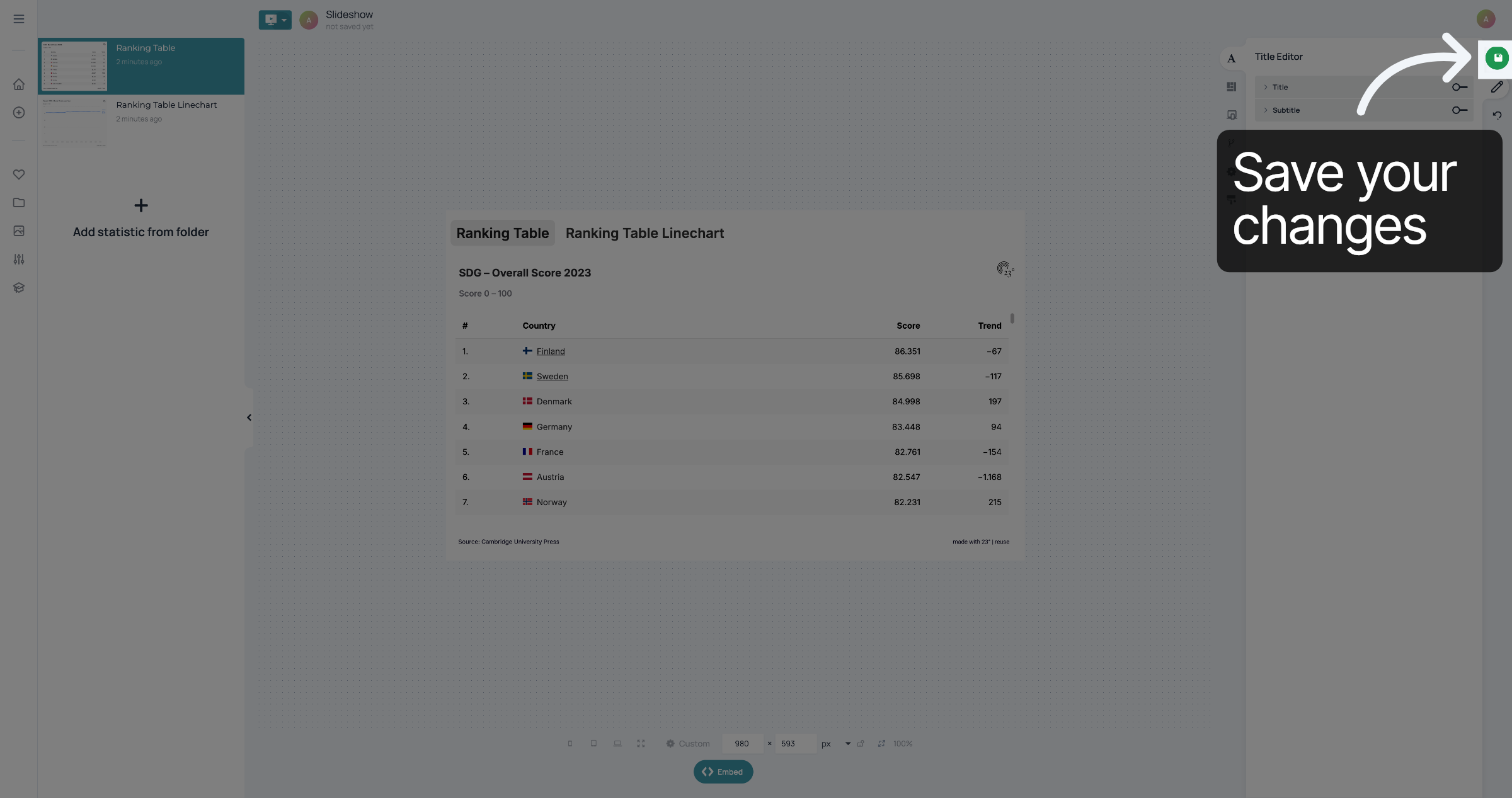
Don't forget to save your changes.
You have successfully styled the buttons of your Slideshow