Add Reuse Button to Statistic in 23degrees
This tutorial guides you through adding a reuse button to your statistic in 23degrees.
The reuse button is a great way to give other users to option to create duplicates of your statistic for further analysis or just download the data and images of the statistics themselves
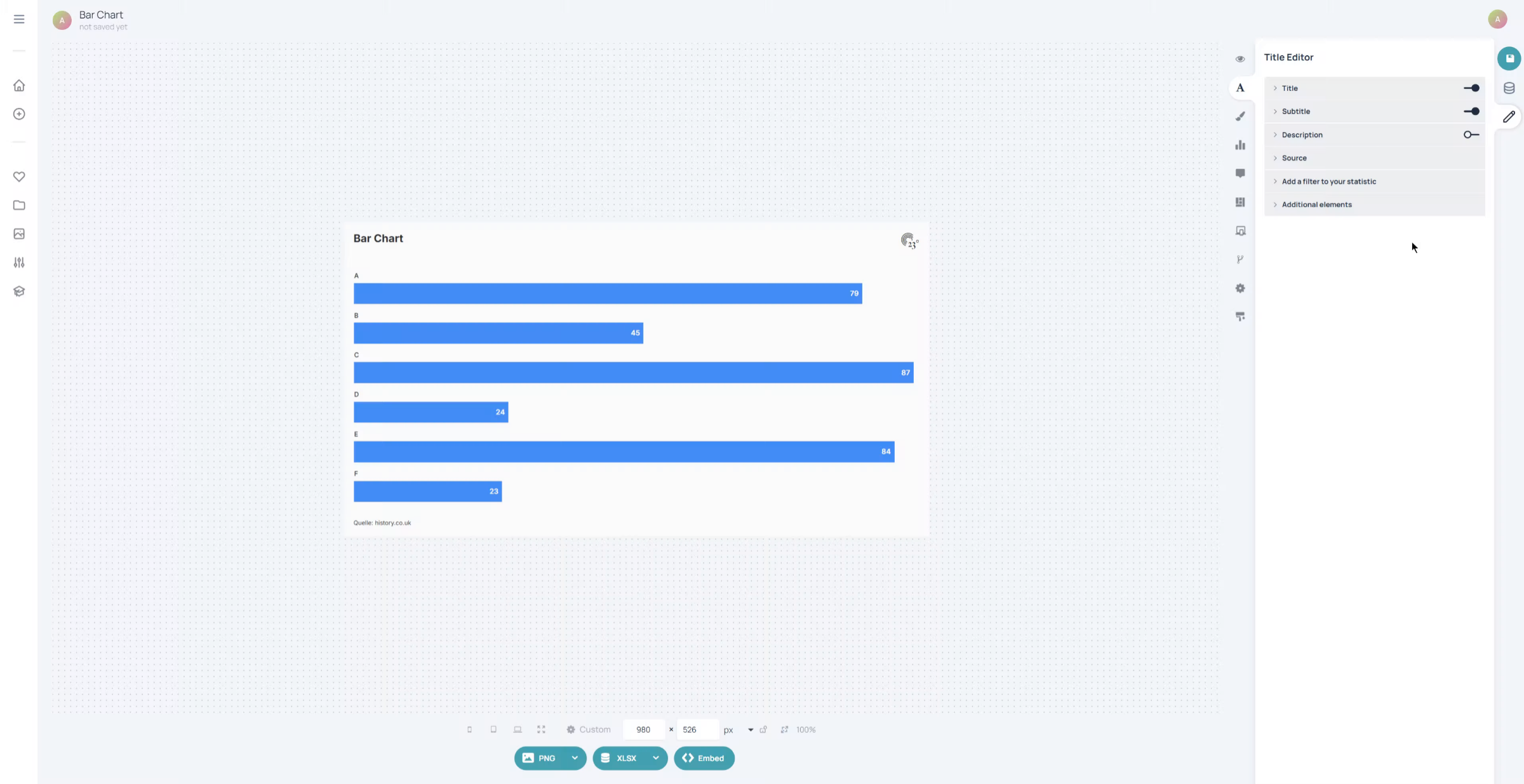
To create the button we must go to the layout editor of the chart.
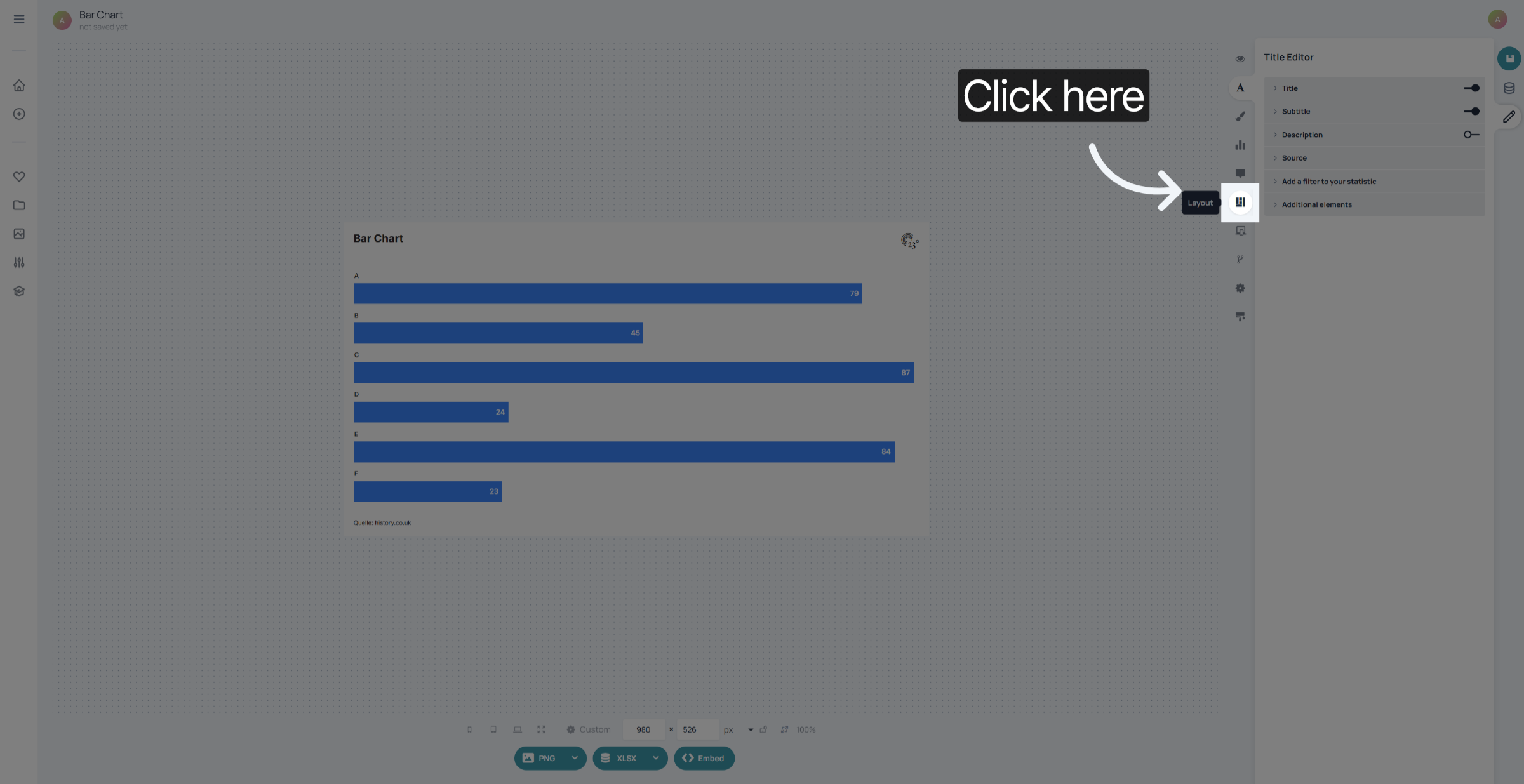
Select the button element from the elements section
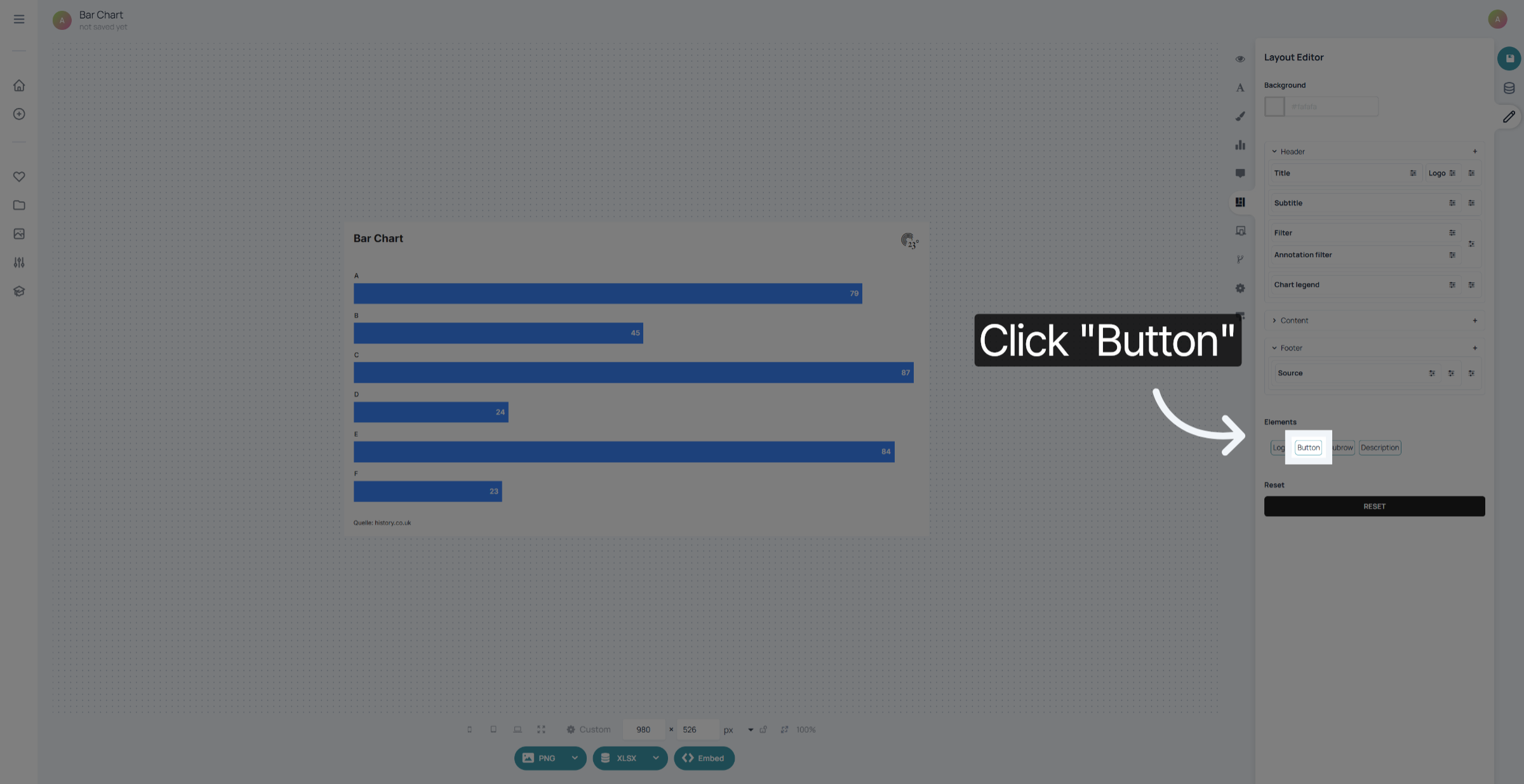
Drag and drop it where you wish to place it. In this case we want to place it in the bottom right footer section.
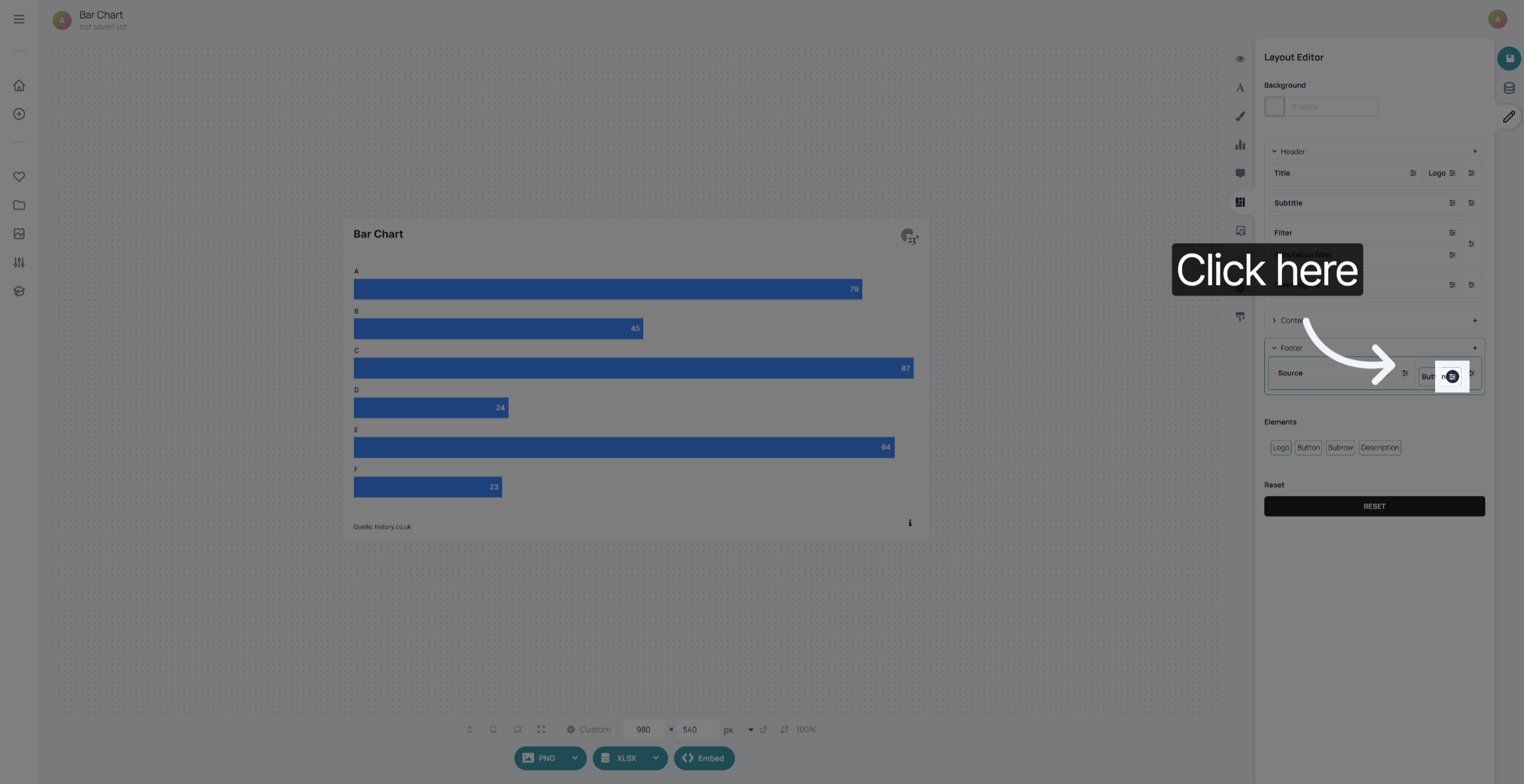
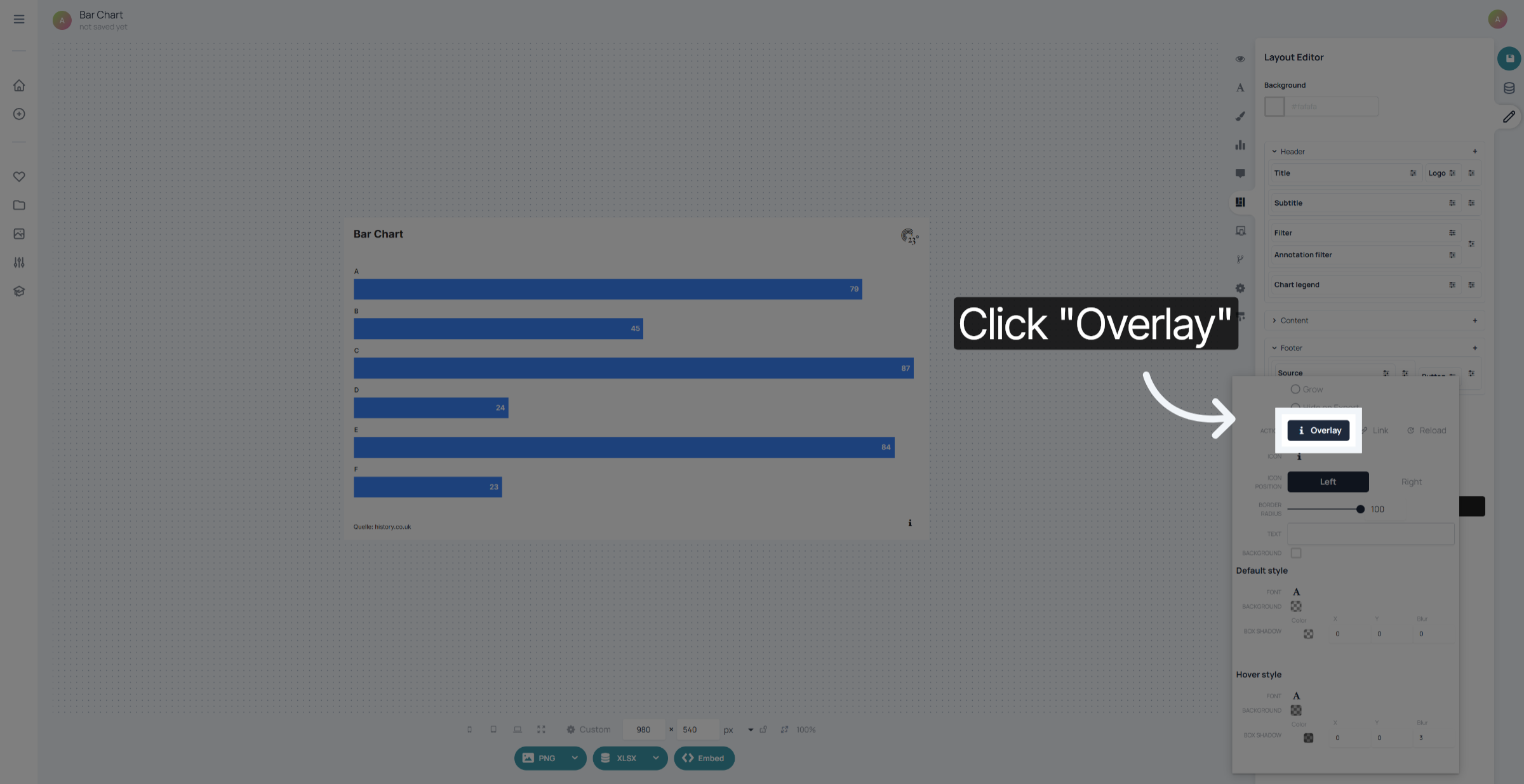
Click on the button and select the overlay option
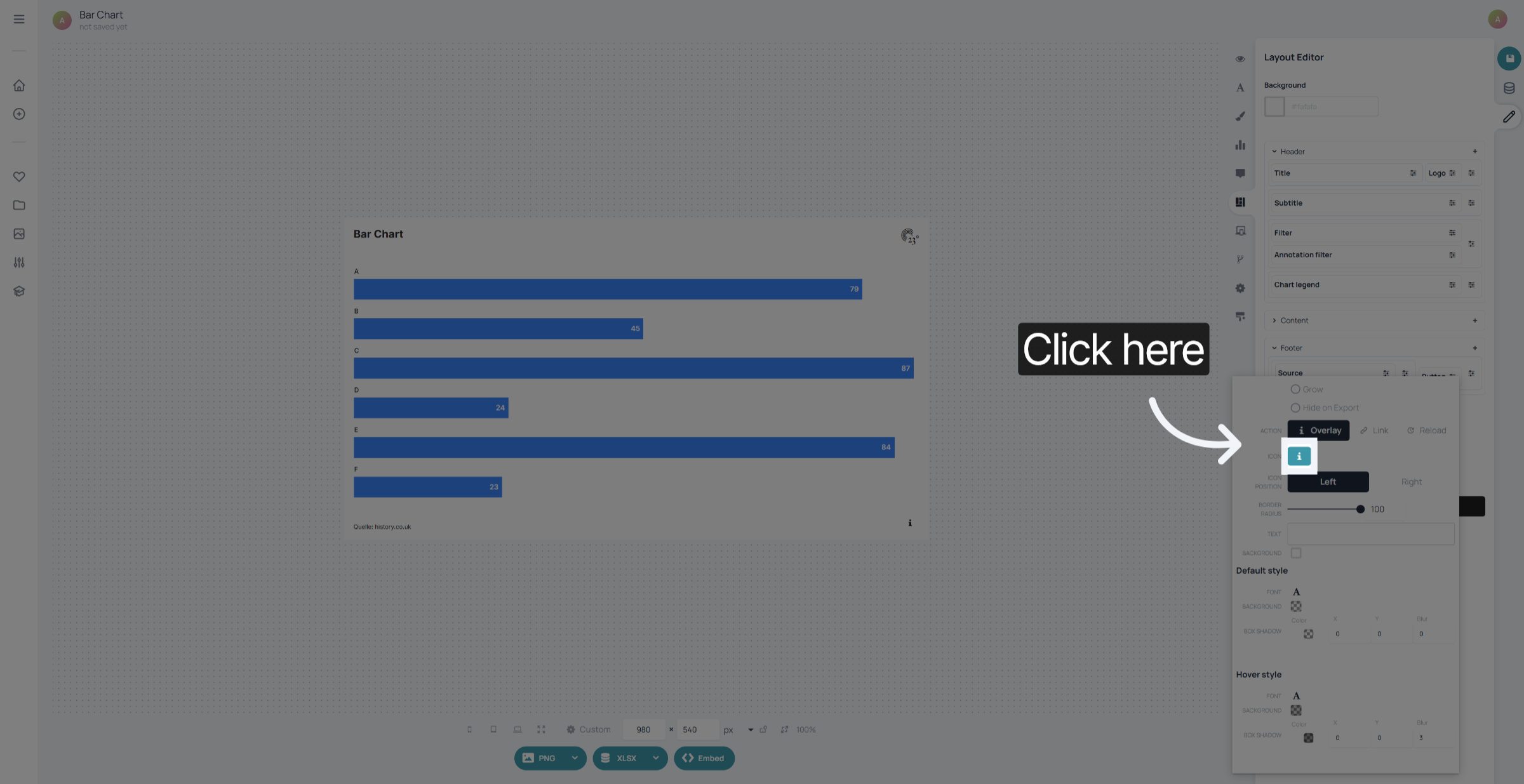
Click here to select your symbol.
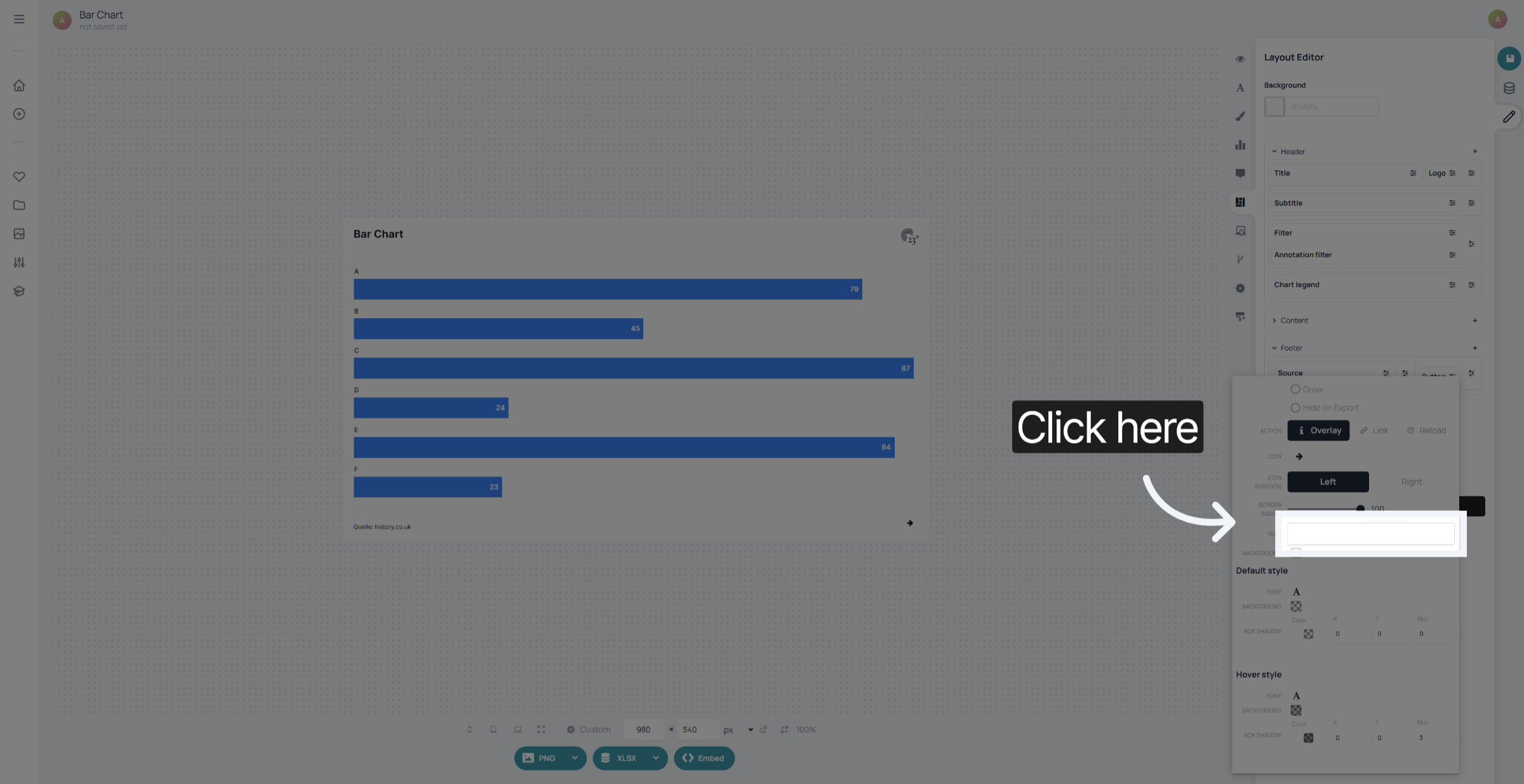
Click here to add a custom text.
Click here to change the fonts and colours of the standard button view.
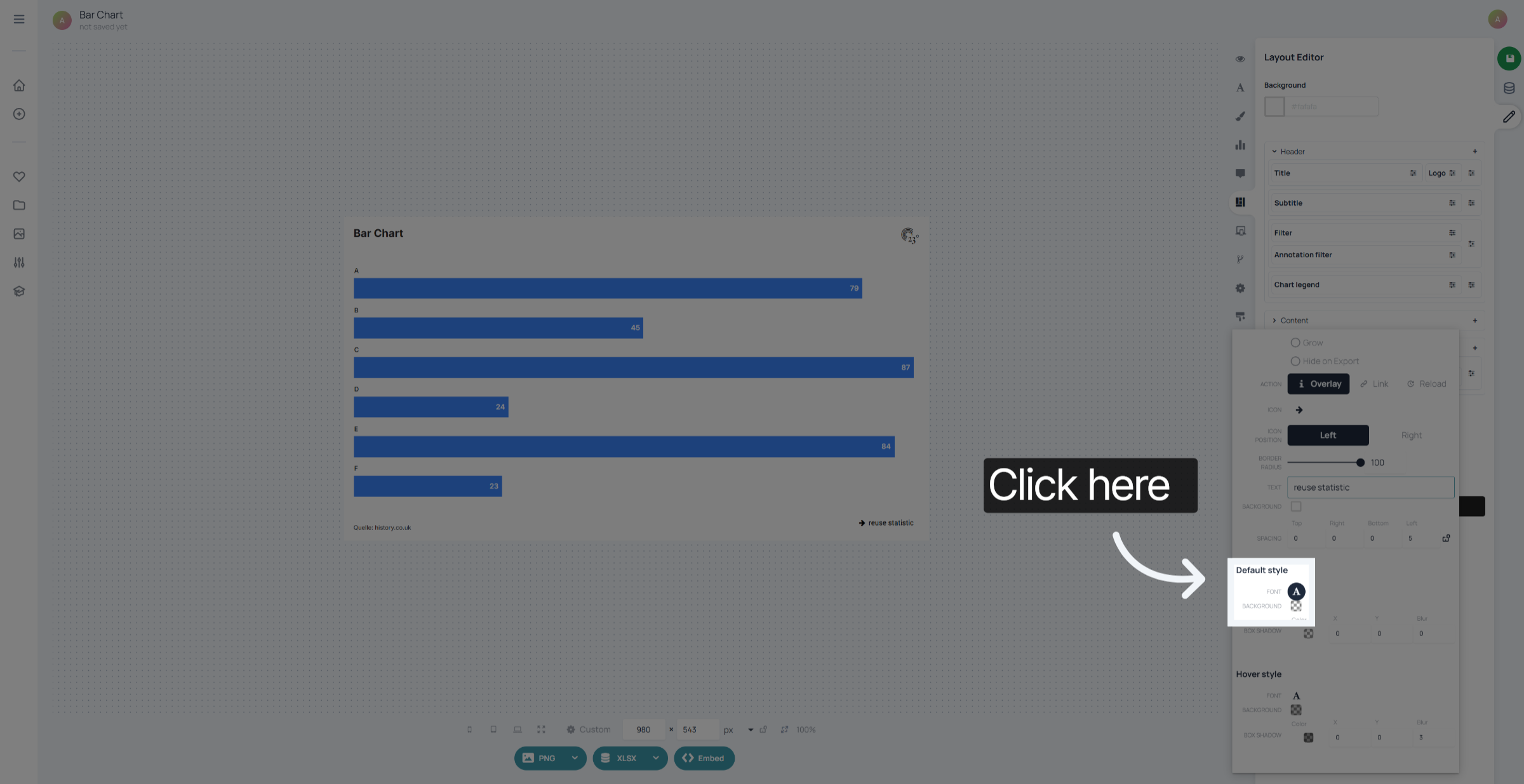
Click here to define fonts and colours of your on hover button view.
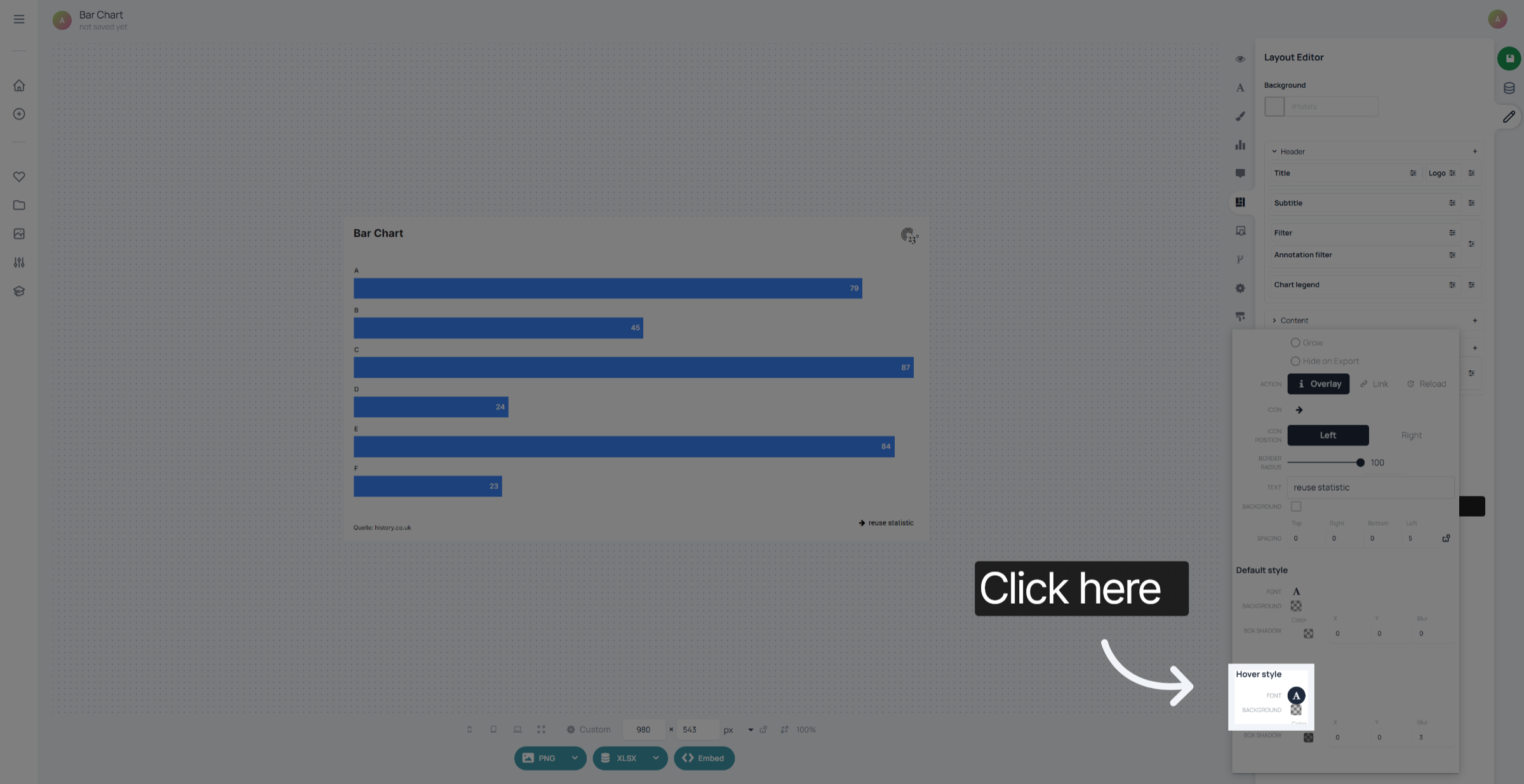
You have successfully added and customized a reuse button to your statistic in 23degrees. This enables easy reuse functionality and improves interaction with your data visualisation.