Save Content in 23°
This tutorial demonstrates how to save content in 23°
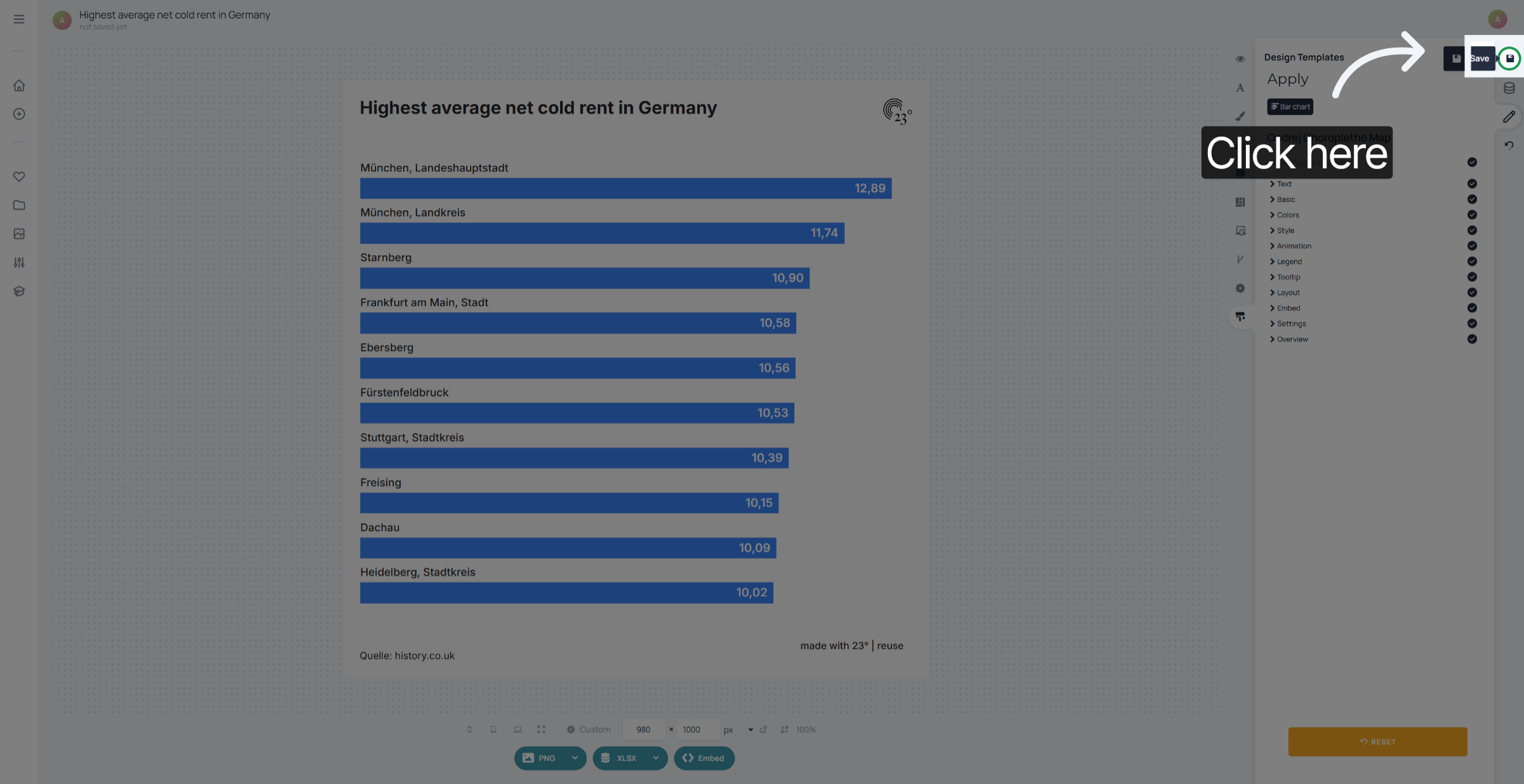
To save your content click on the save symbol in the top right corner of your chart. If you have unsaved changes in your chart you can see it by your save icon turning green
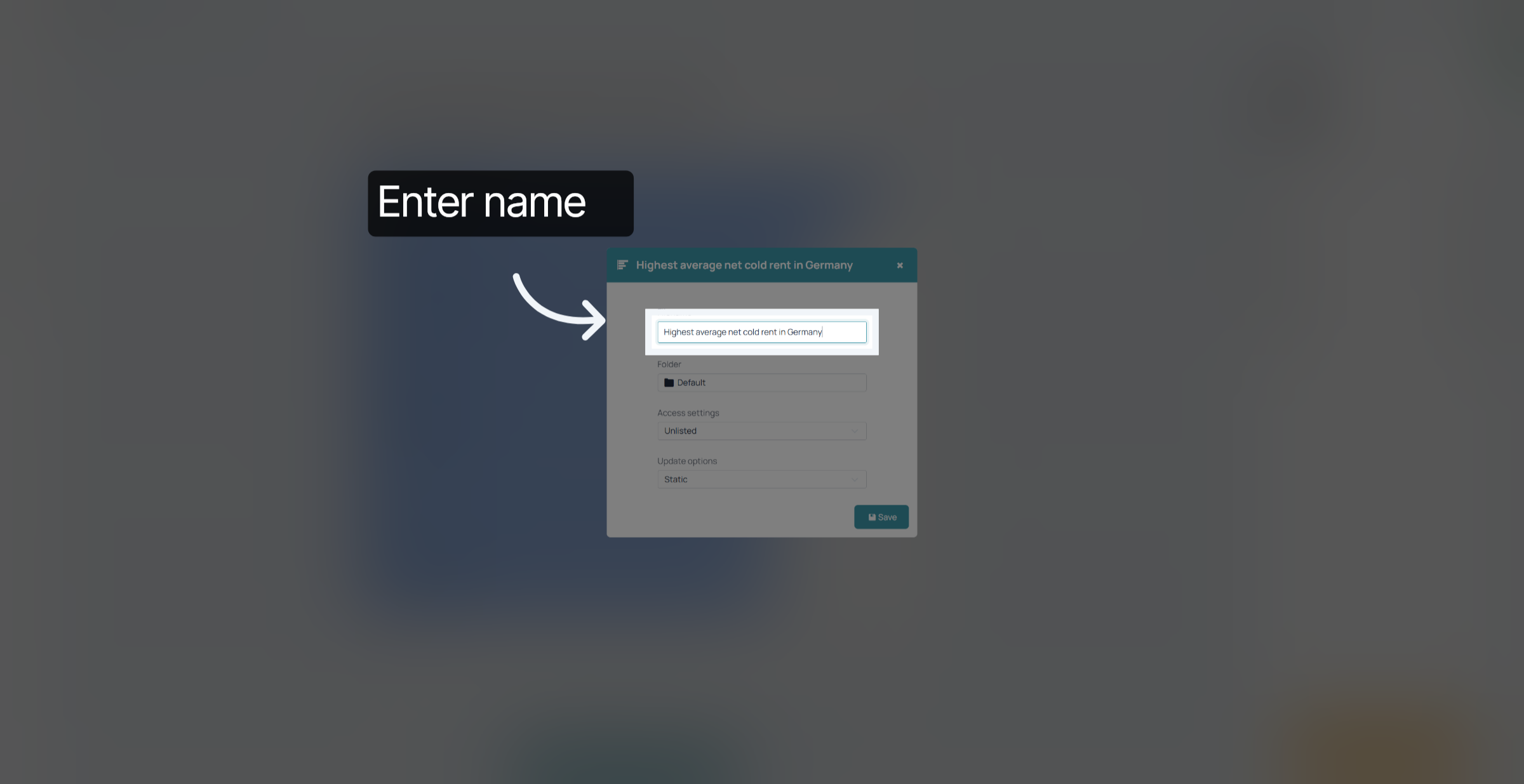
First name your content item. Per default the title of your visualisation is going to be your file name.
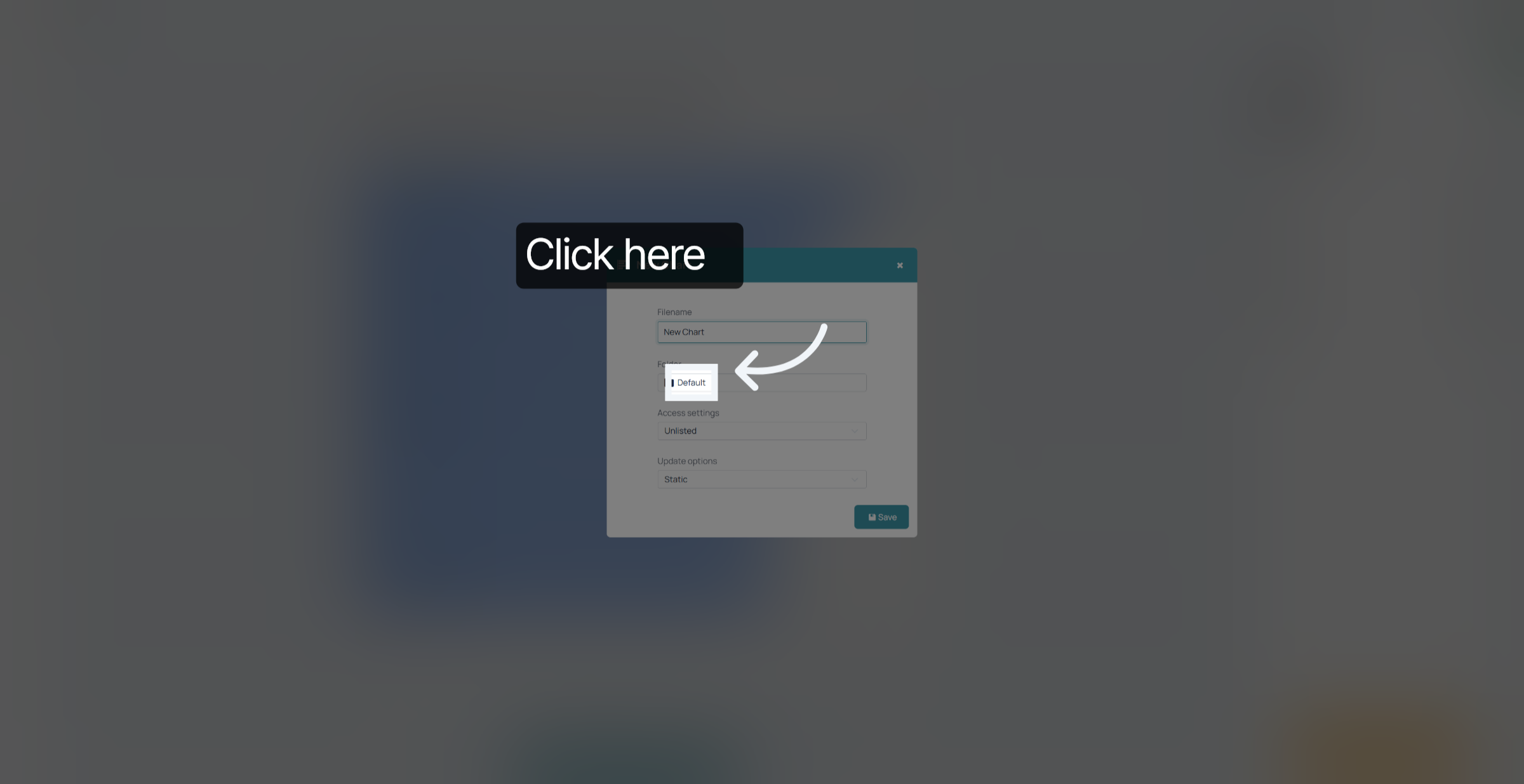
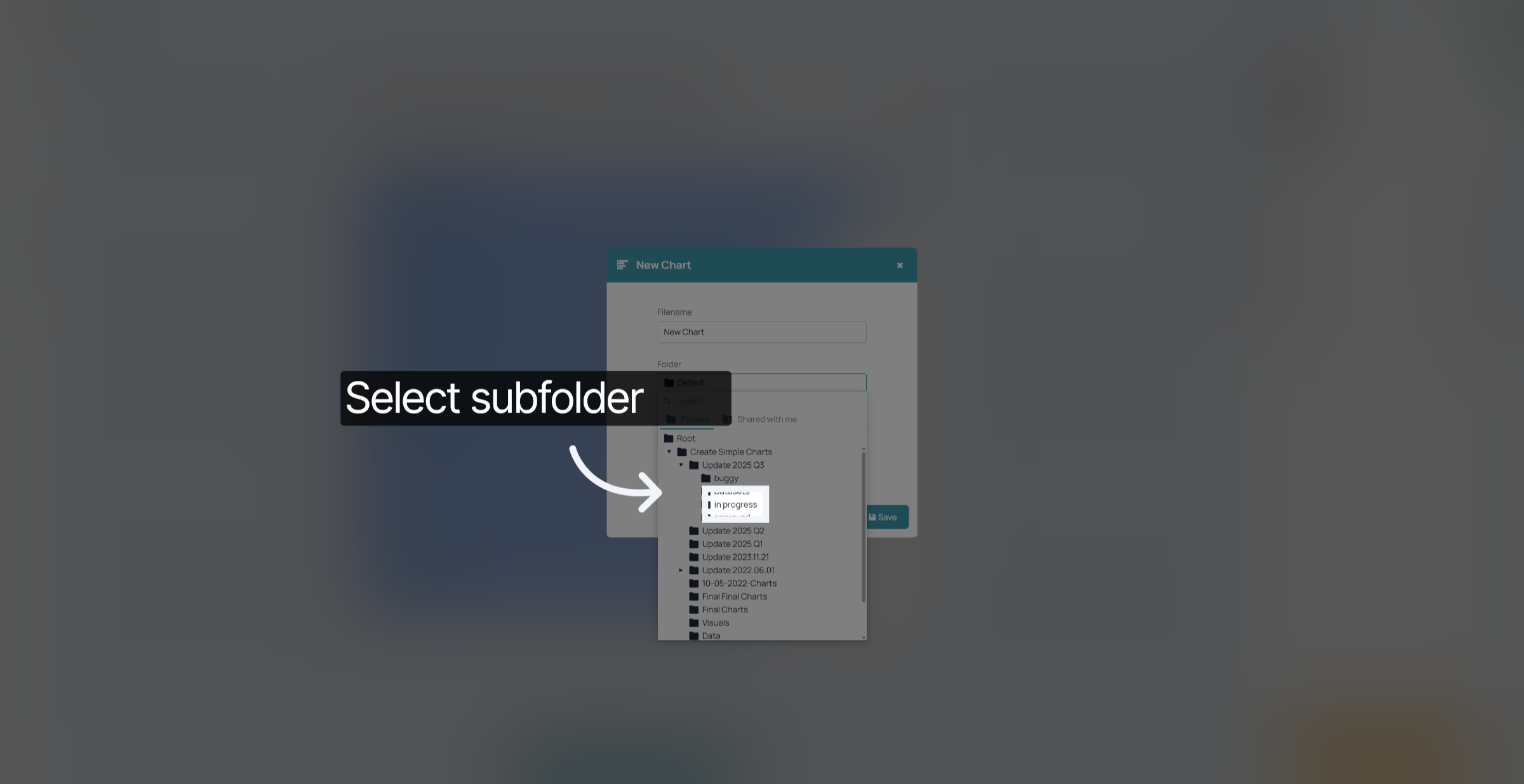
Select the folder where you want your visualisation to be saved in
you can access subfolders by clicking here.
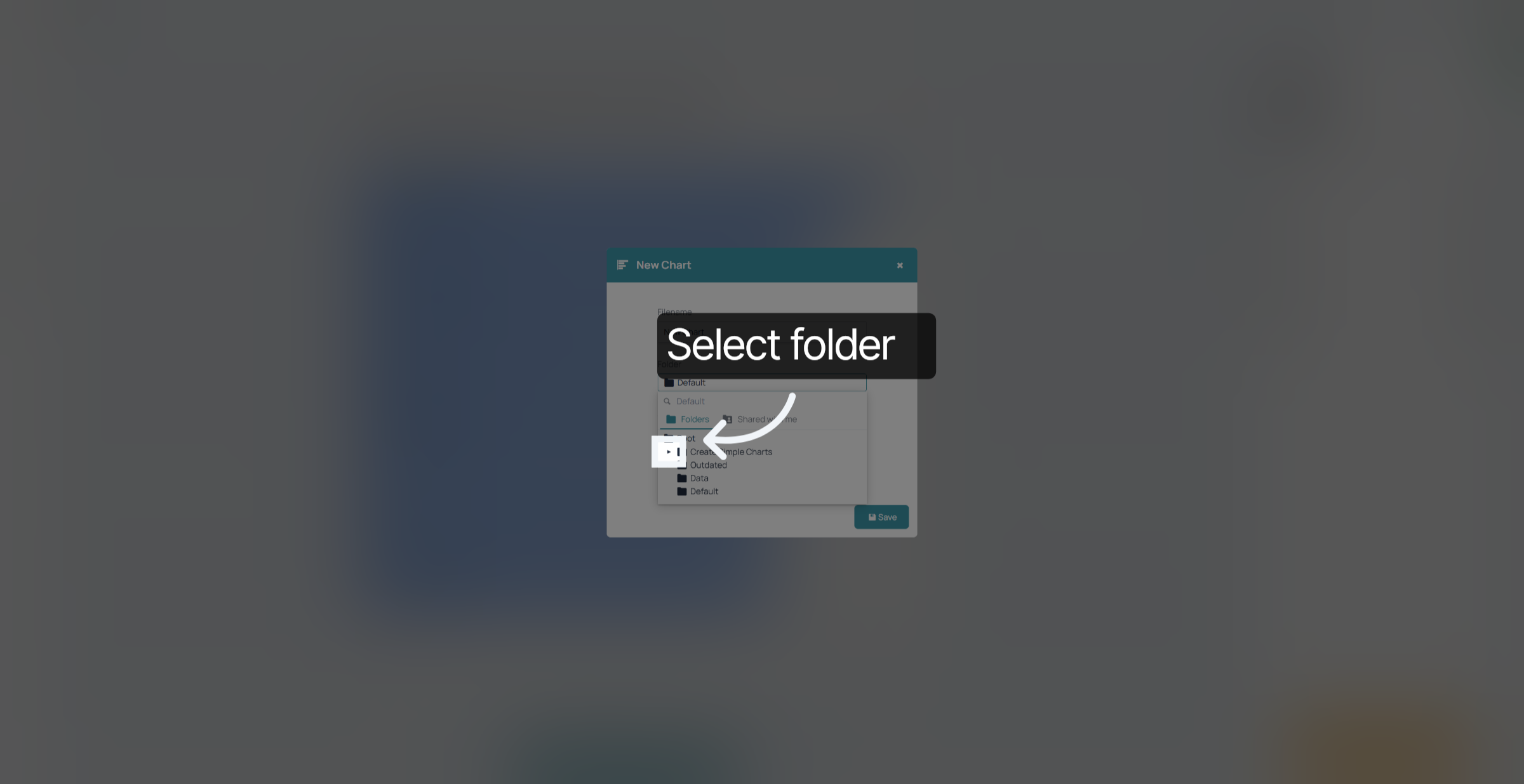
click on the folder you want to select.
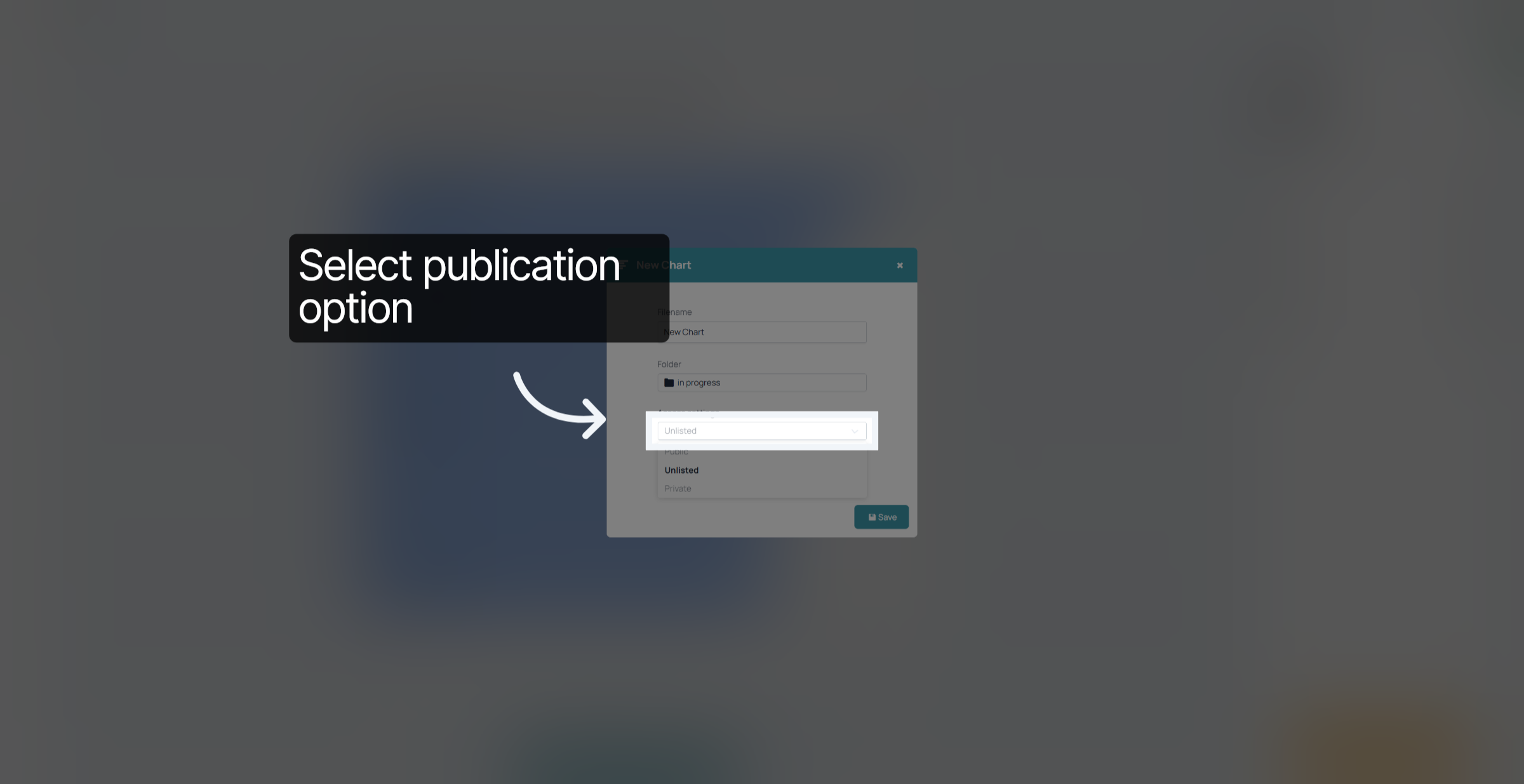
Choose your publication setting.
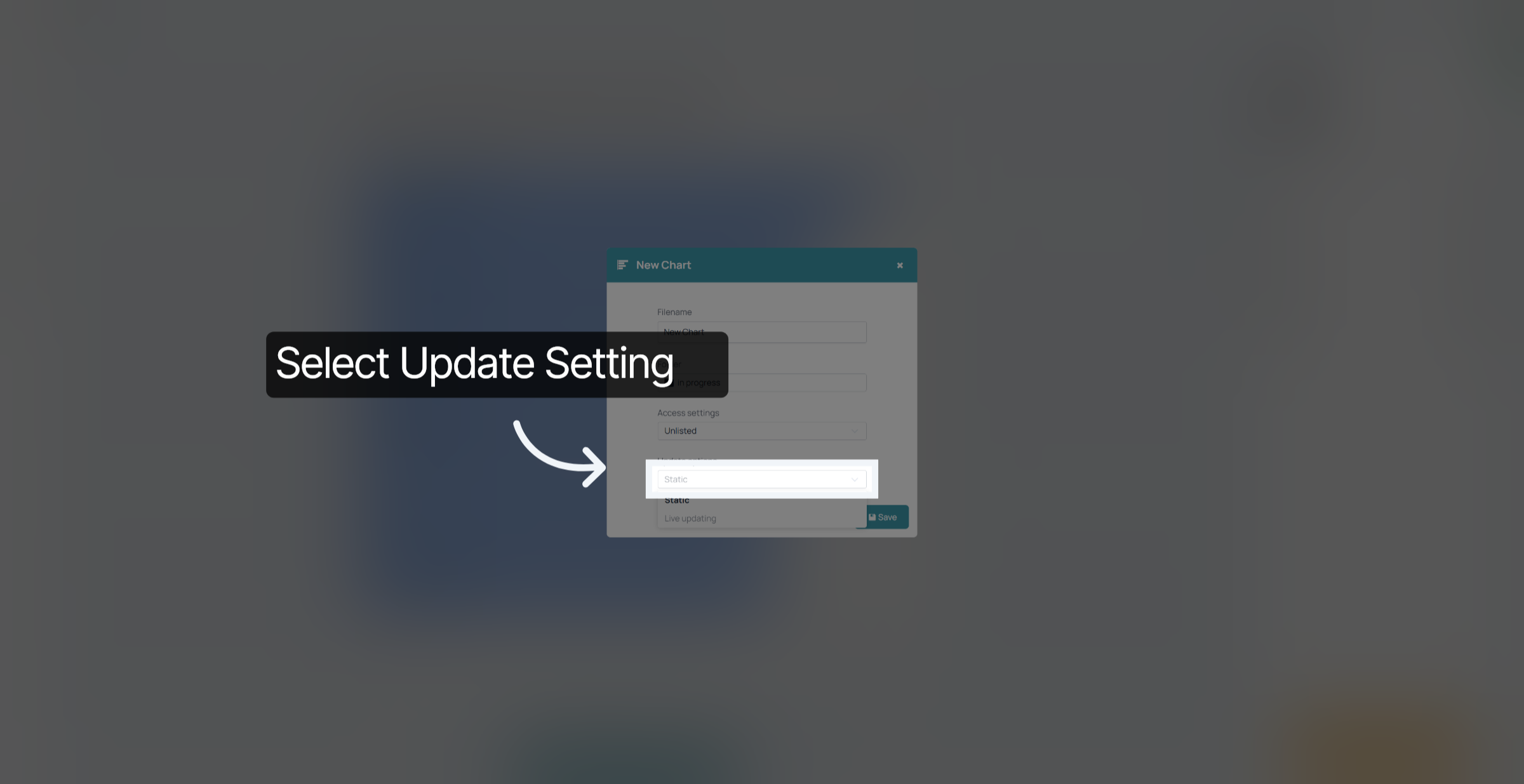
for charts that are created from a linked dataset. pick the static or live updating option. If you want your chart to receive updates automatically from its connected dataset, choose "Live Updating", if not choose "Static. This option does not appear on charts that are not linked to datasets.
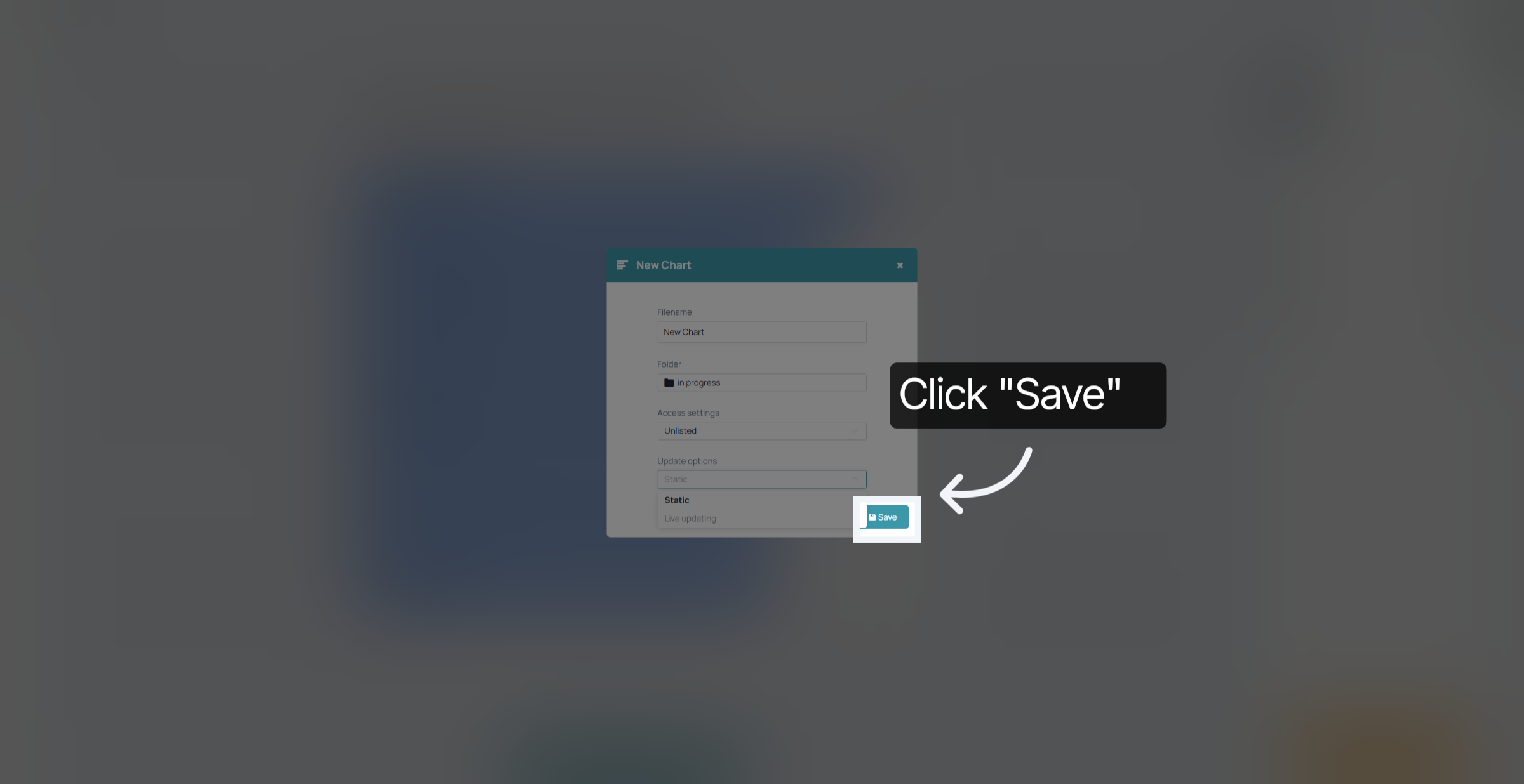
Confirm all the settings by clicking on the save button.
You have successfully saved your content in the 23degrees application.