How to Create a Template
This tutorial guides you through creating a custom template in 23degrees.
Templates are a great way to save and reuse chart settings later one. This save you time, keeps your branding and CI consistent and you do not have to worry about all the styling elements anymore and can focus on creating better charts.
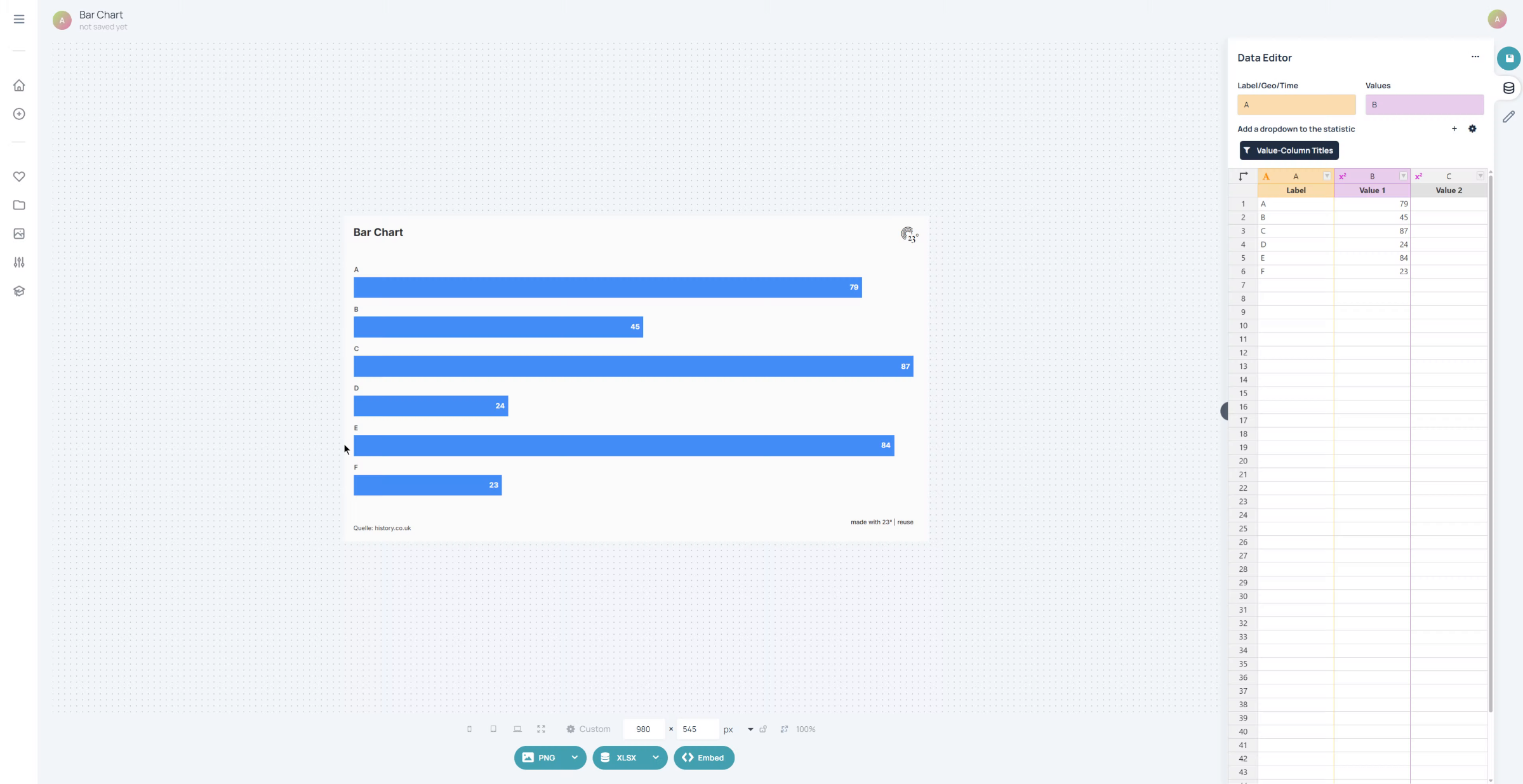
First click on the Chart Editor Button
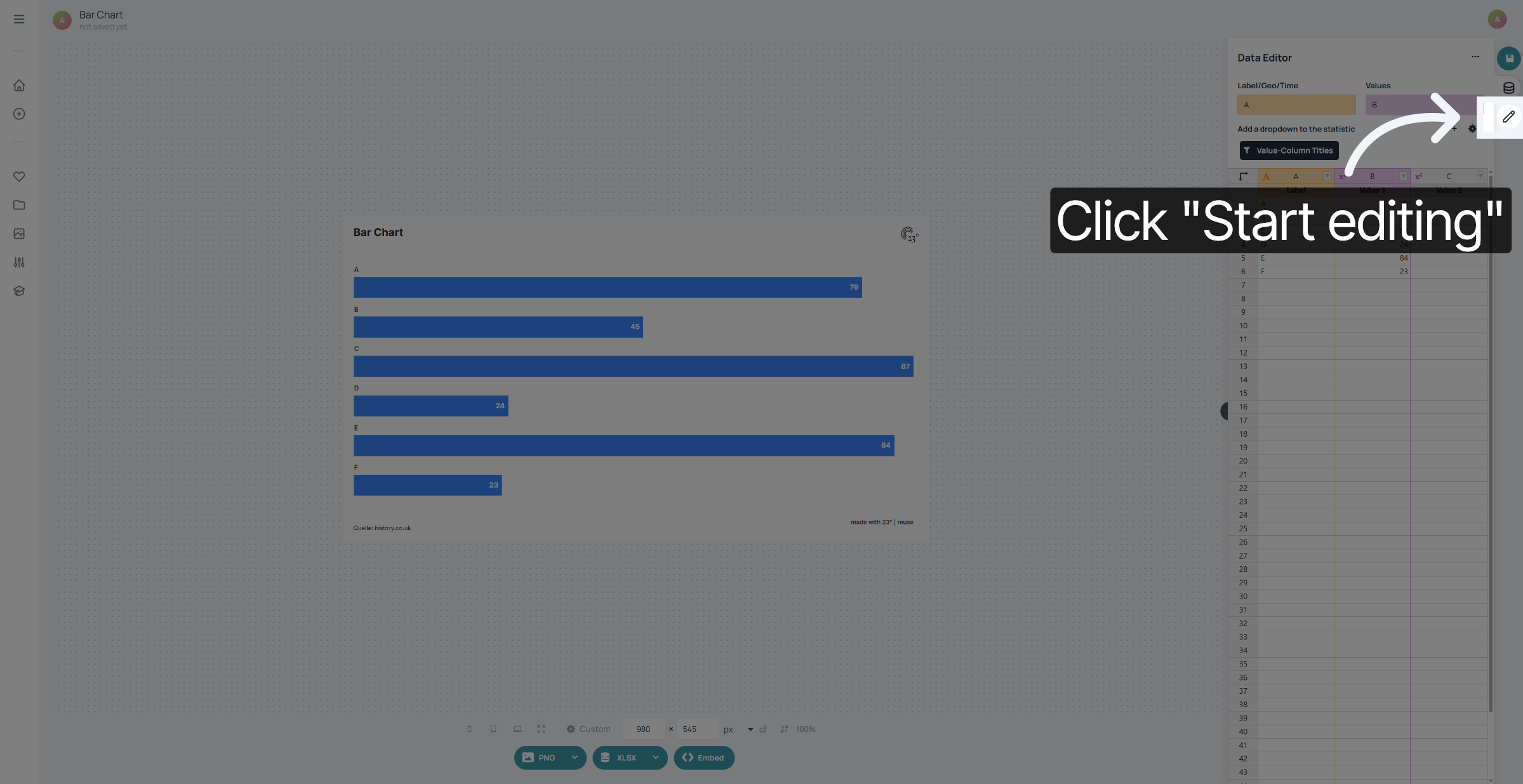
Go to the Text Editor
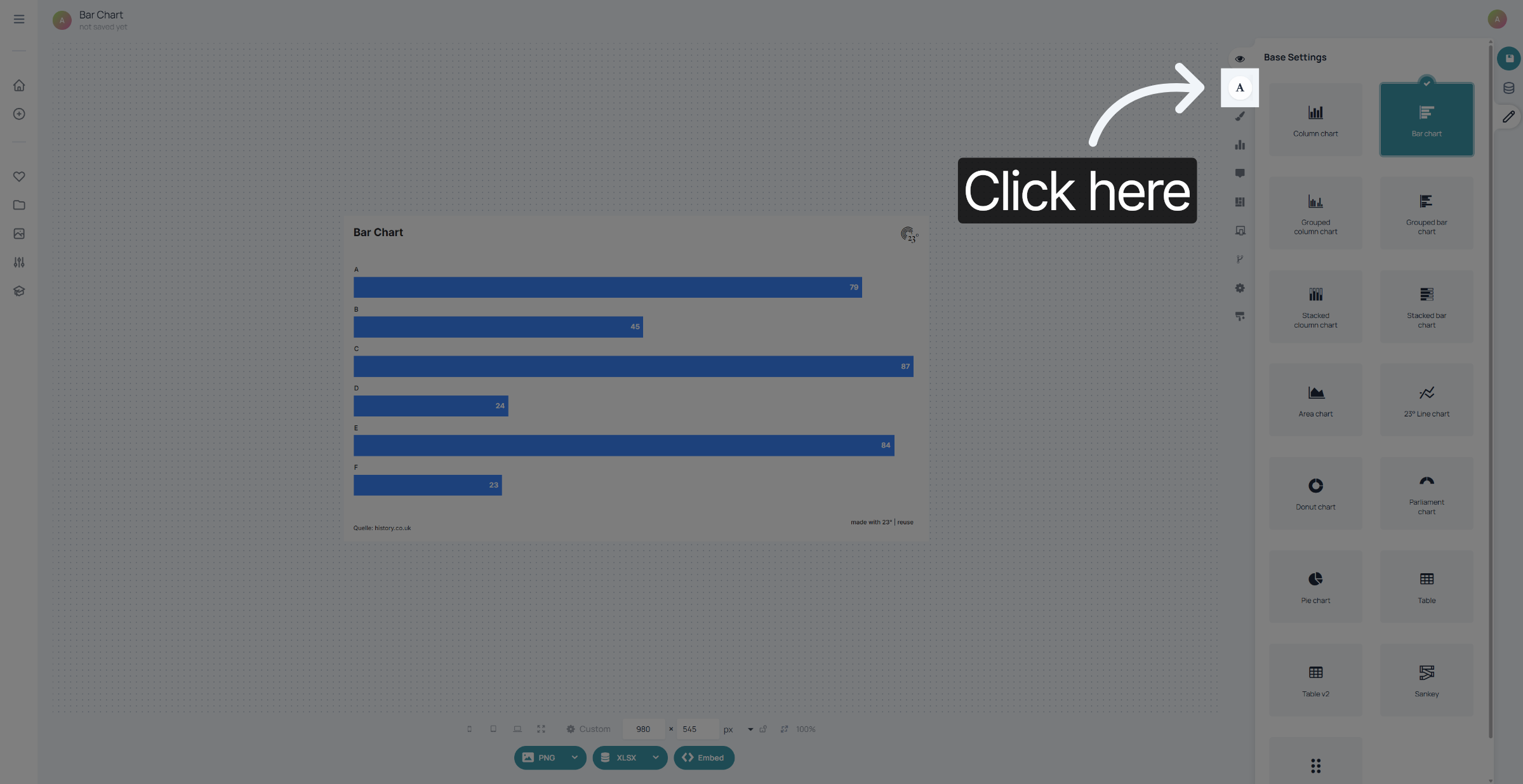
Open the Title Editor
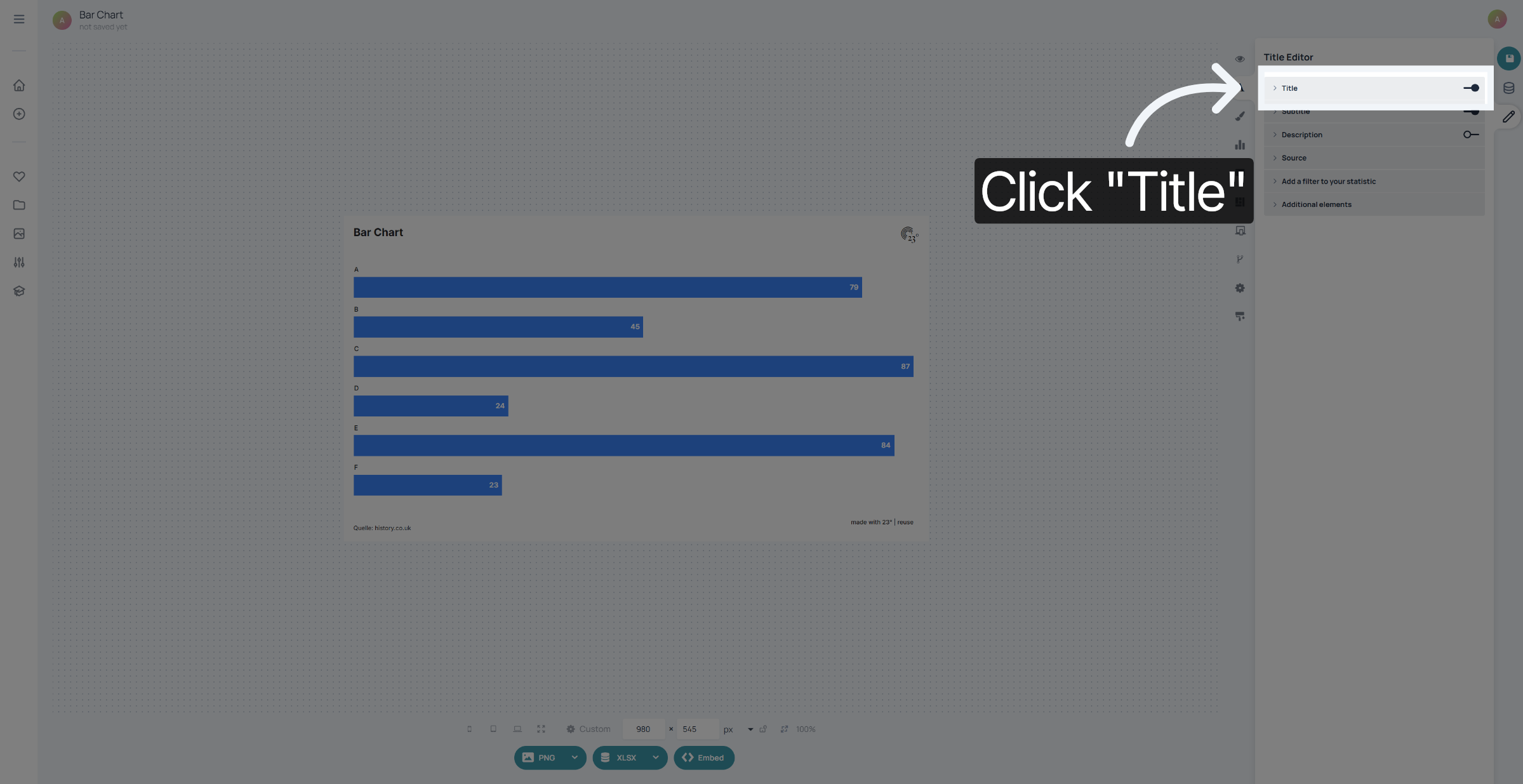
Here in the Title field we see two different text editing options. the initially visible one is the so called "local text editor" here you can customize single words, allignment and colouring. But for templating purposes we want to click on the Text symbol in the top right corner.
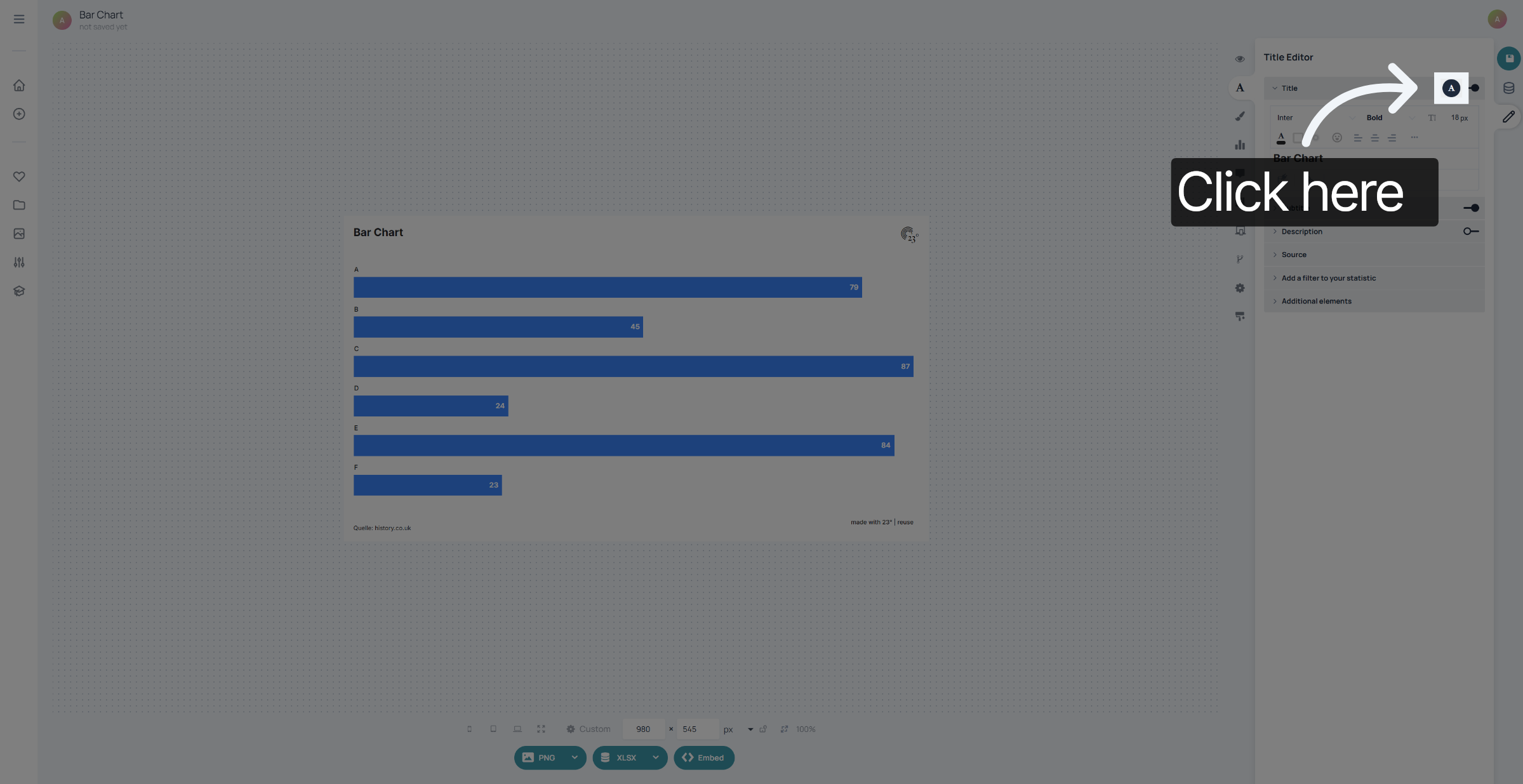
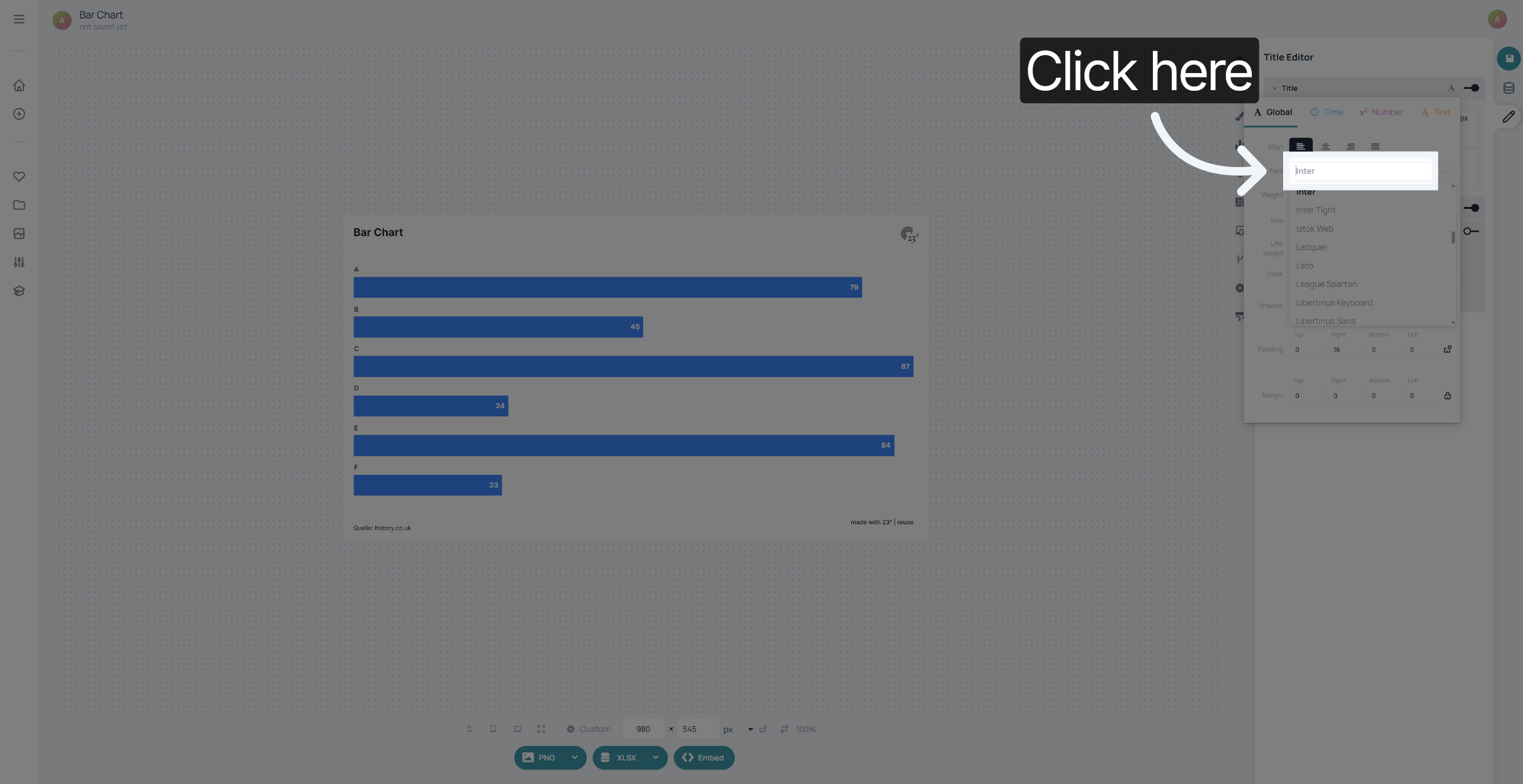
Everything in the Global Options can be set as a template. It doesn't matter if it is text, value displays or axis settings. If it has global options it can be templated.
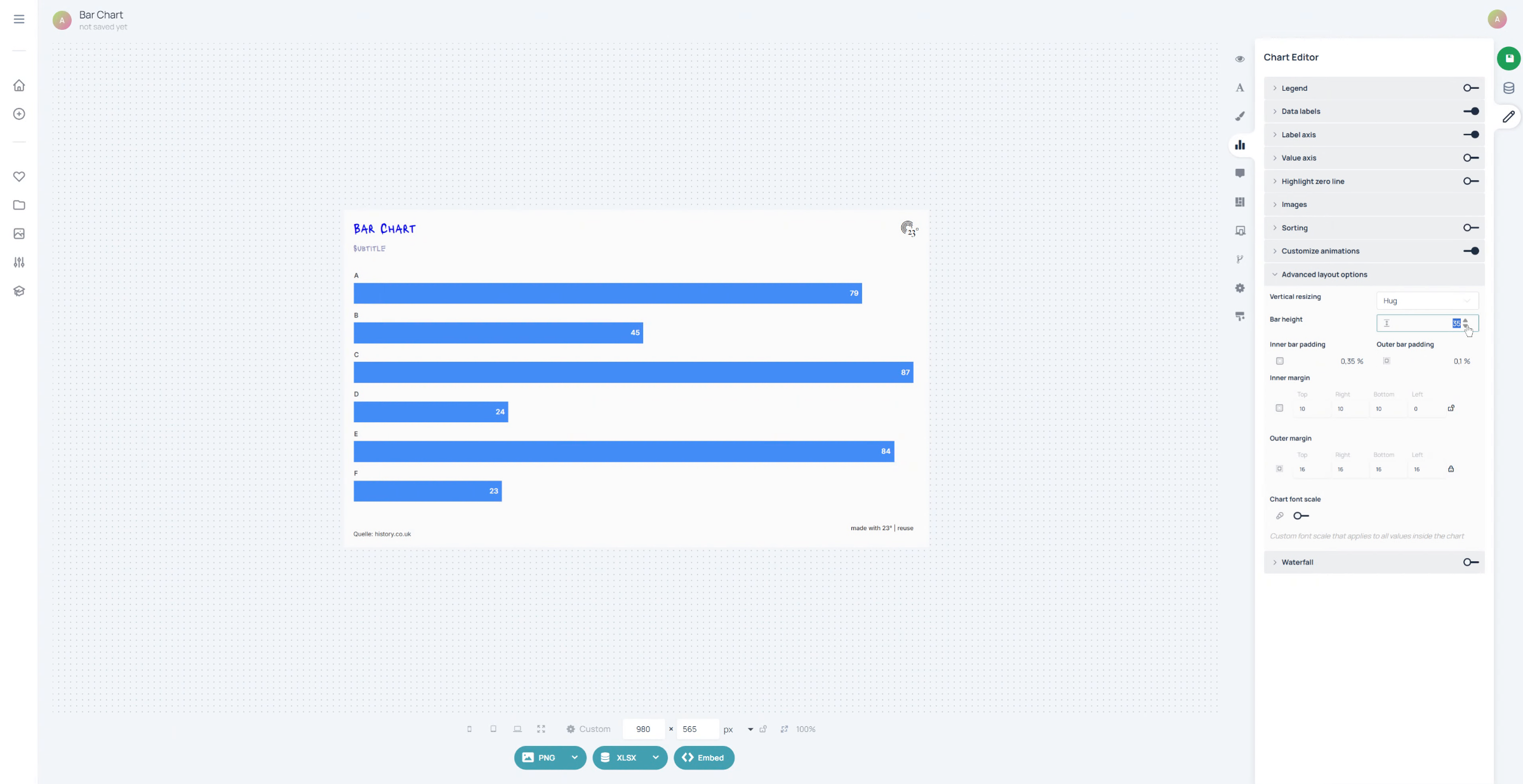
Also settings like advanced layout options, where you can set a fixed bar height are templetable.
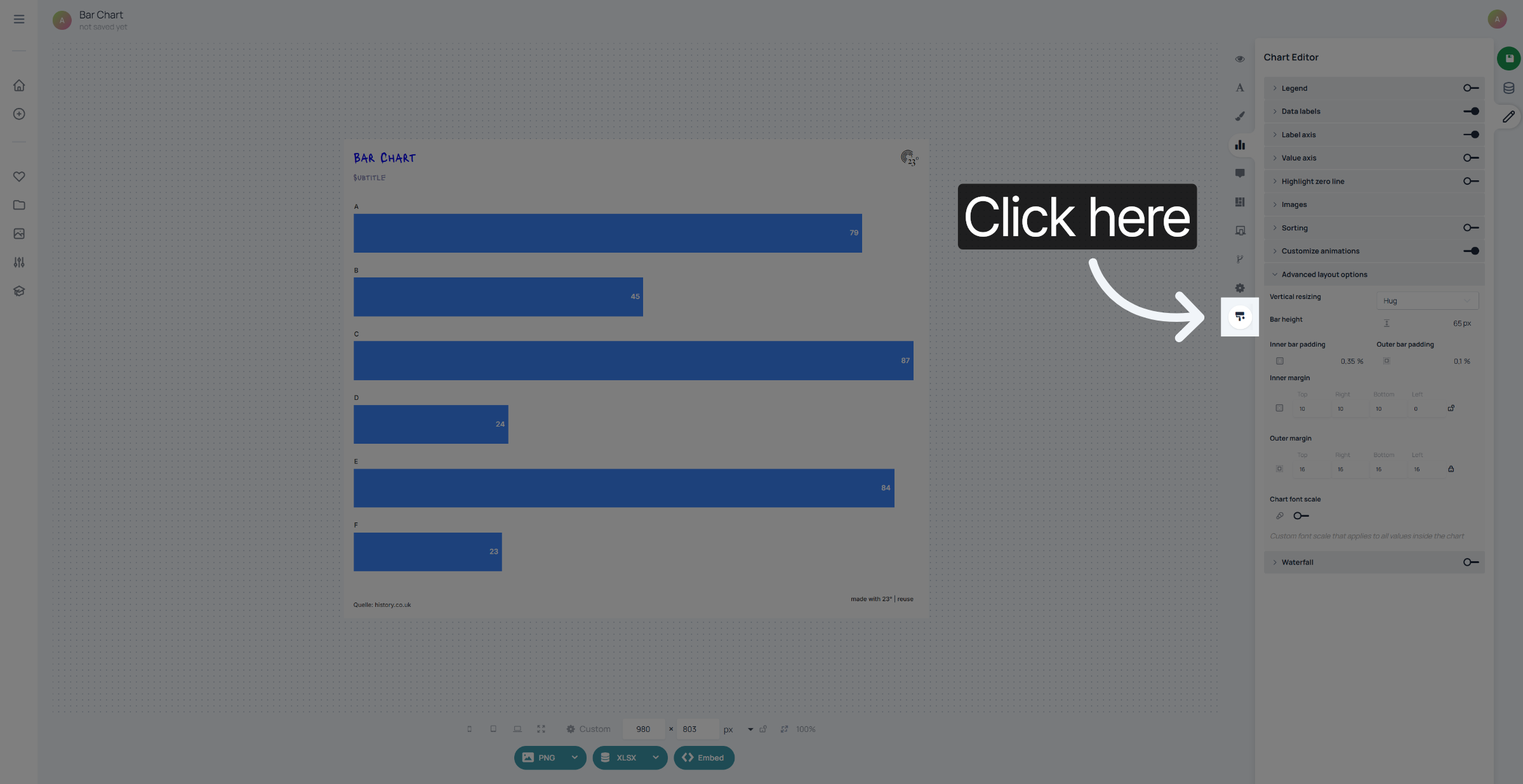
To create a new template click on the brush icon to access the template editor.
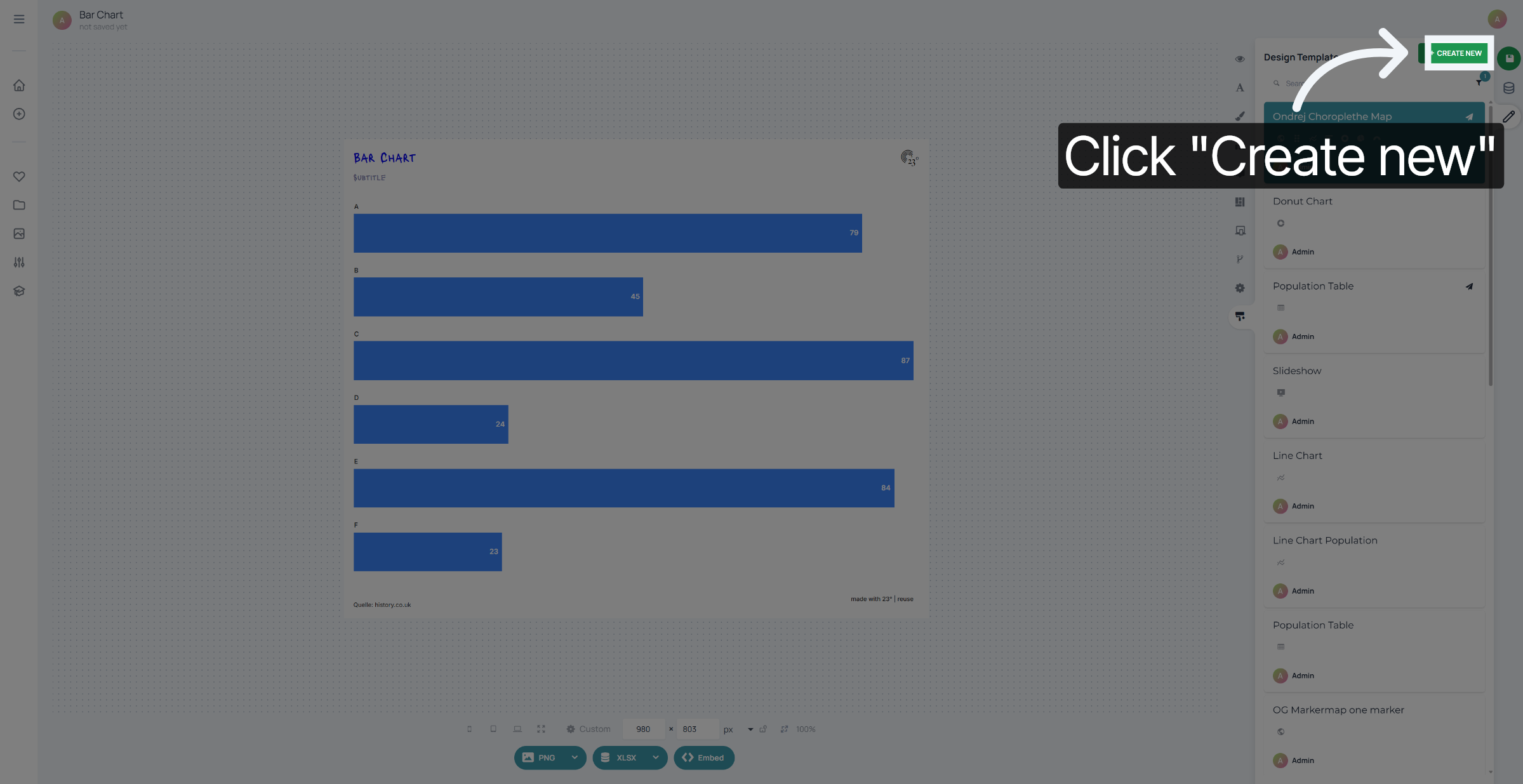
Click on Create New.-
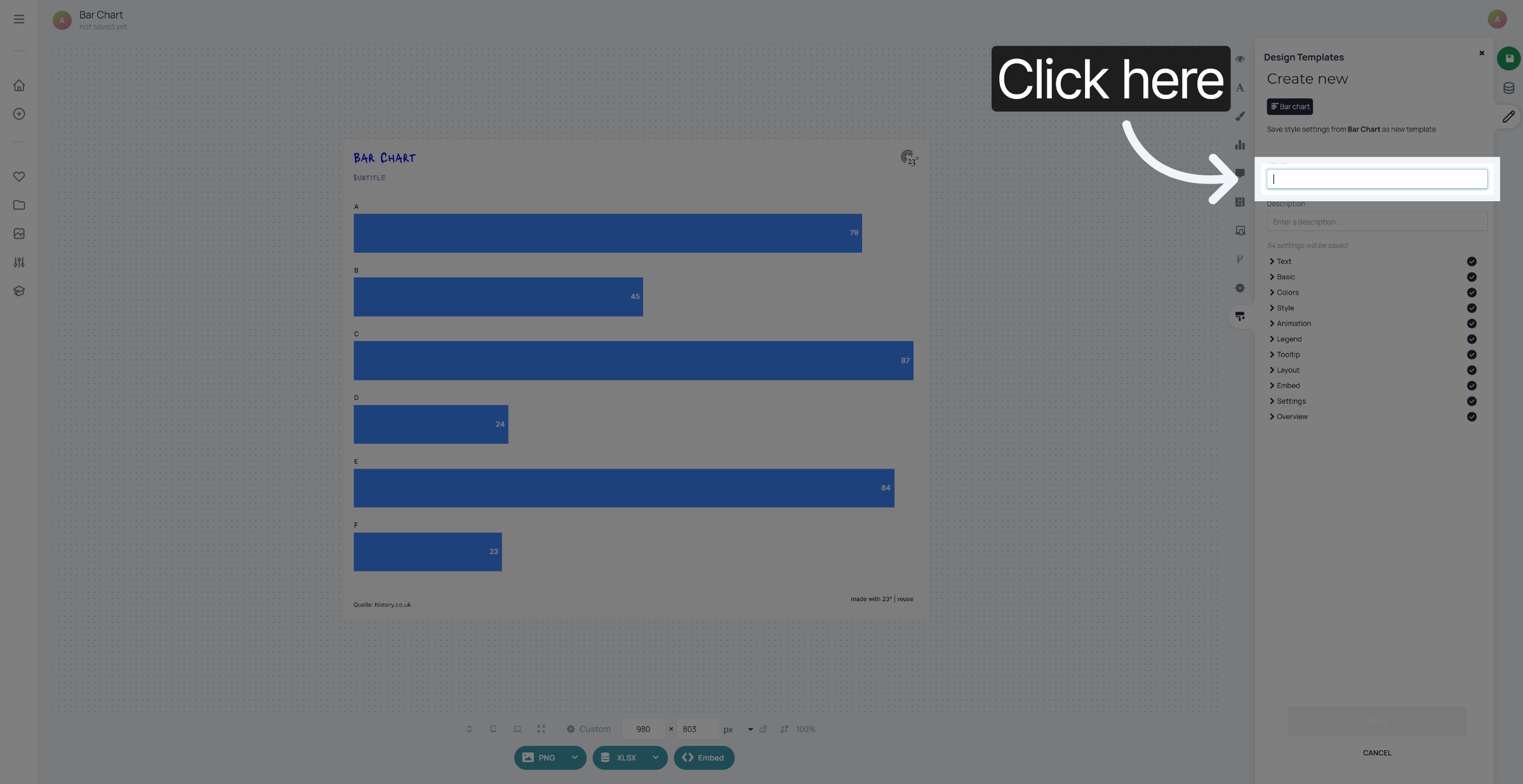
Enter your new template name to identify it clearly.
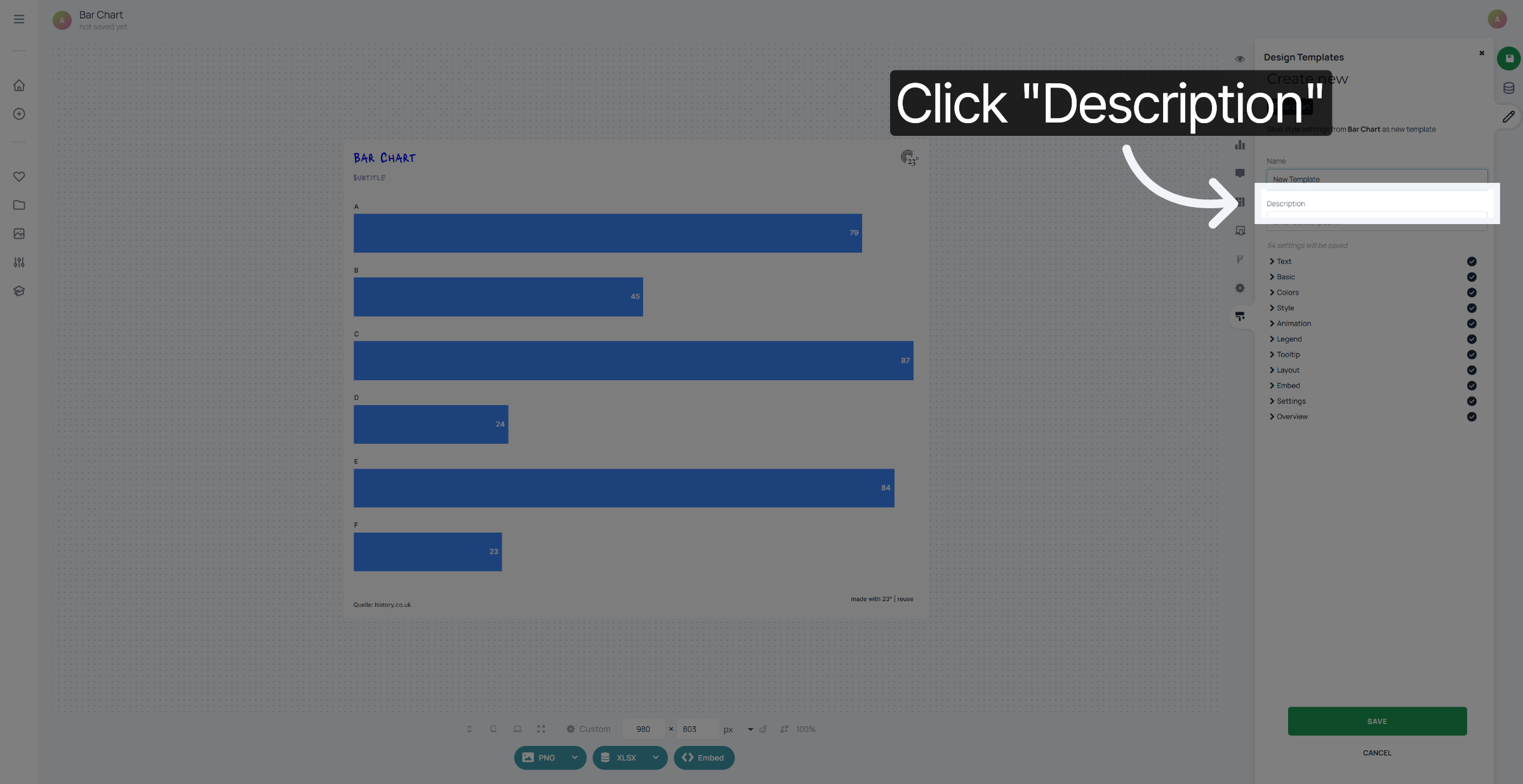
Fill in the description to provide context and purpose for your template.
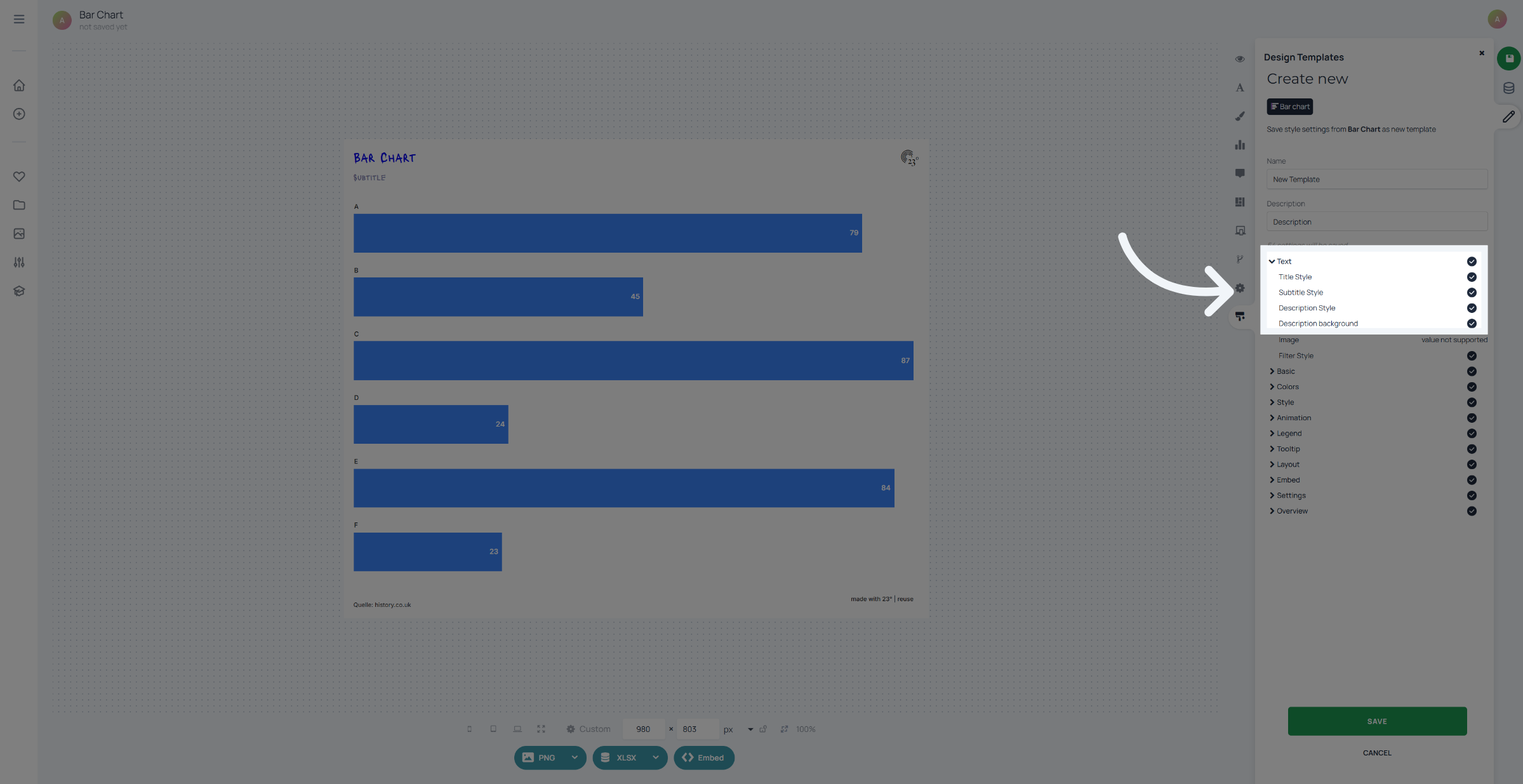
You can optionally deselect items you dont want to save as a template.
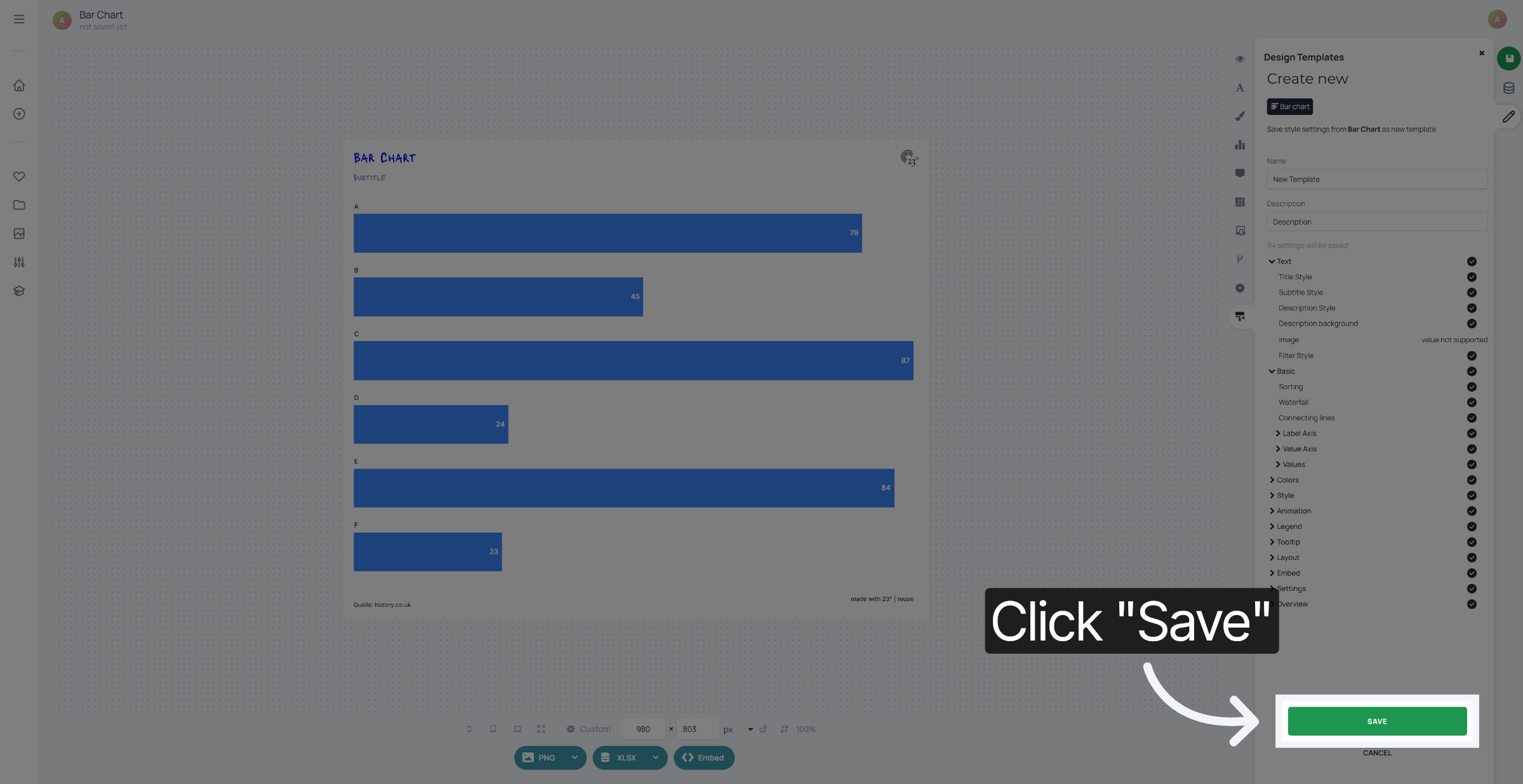
Click on "Save" to save your template. now when selecting a chart to create you can go to the template editor and select your newly created template.
You have successfully created a custom template in 23degrees. Your template is now saved and ready for use or further customization.