How to add and customize annotations in Line Charts
This tutorial will teach you how to add annotations to your linechart.
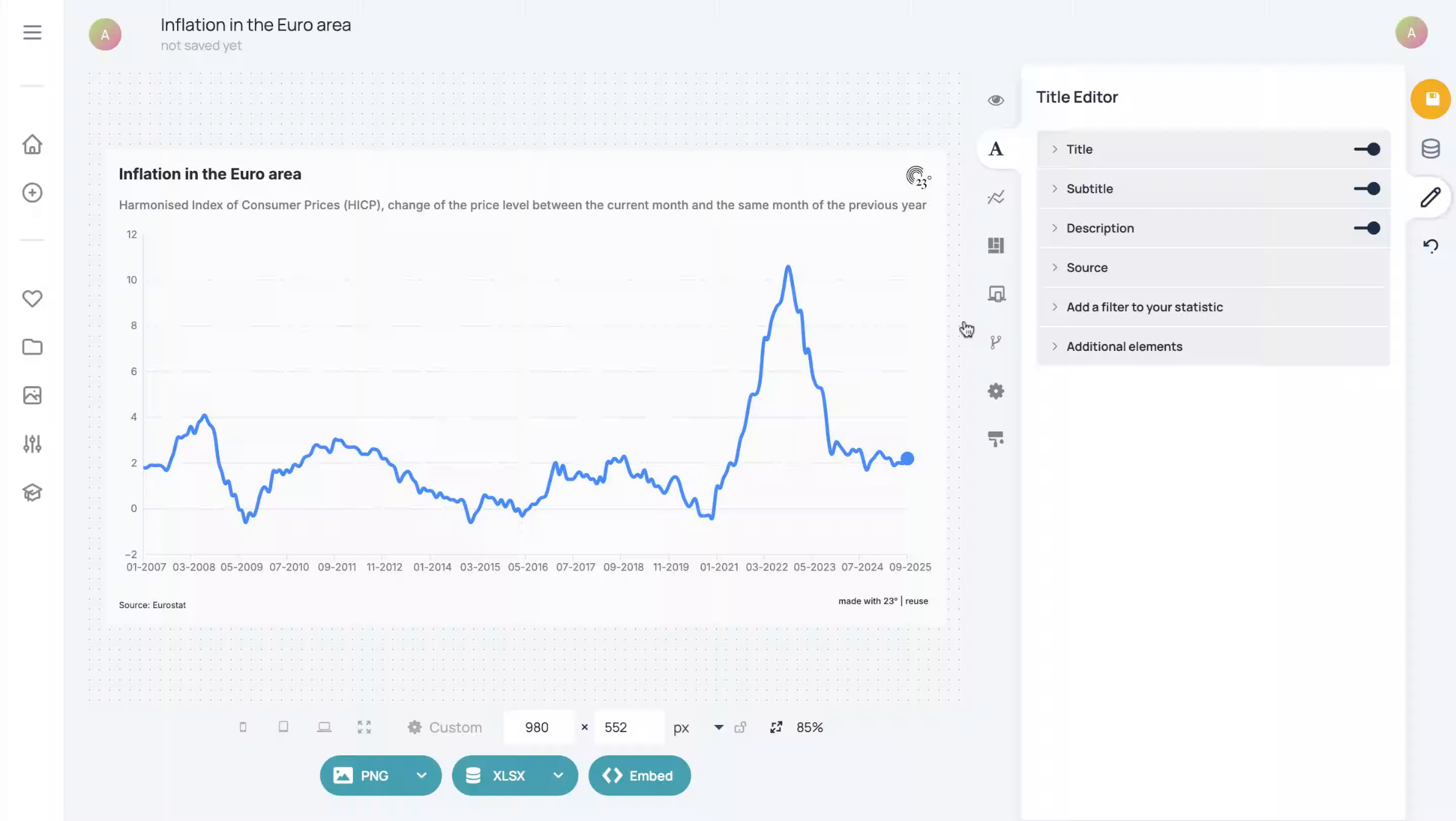
Open your linechart and click on the Linechart Editor.
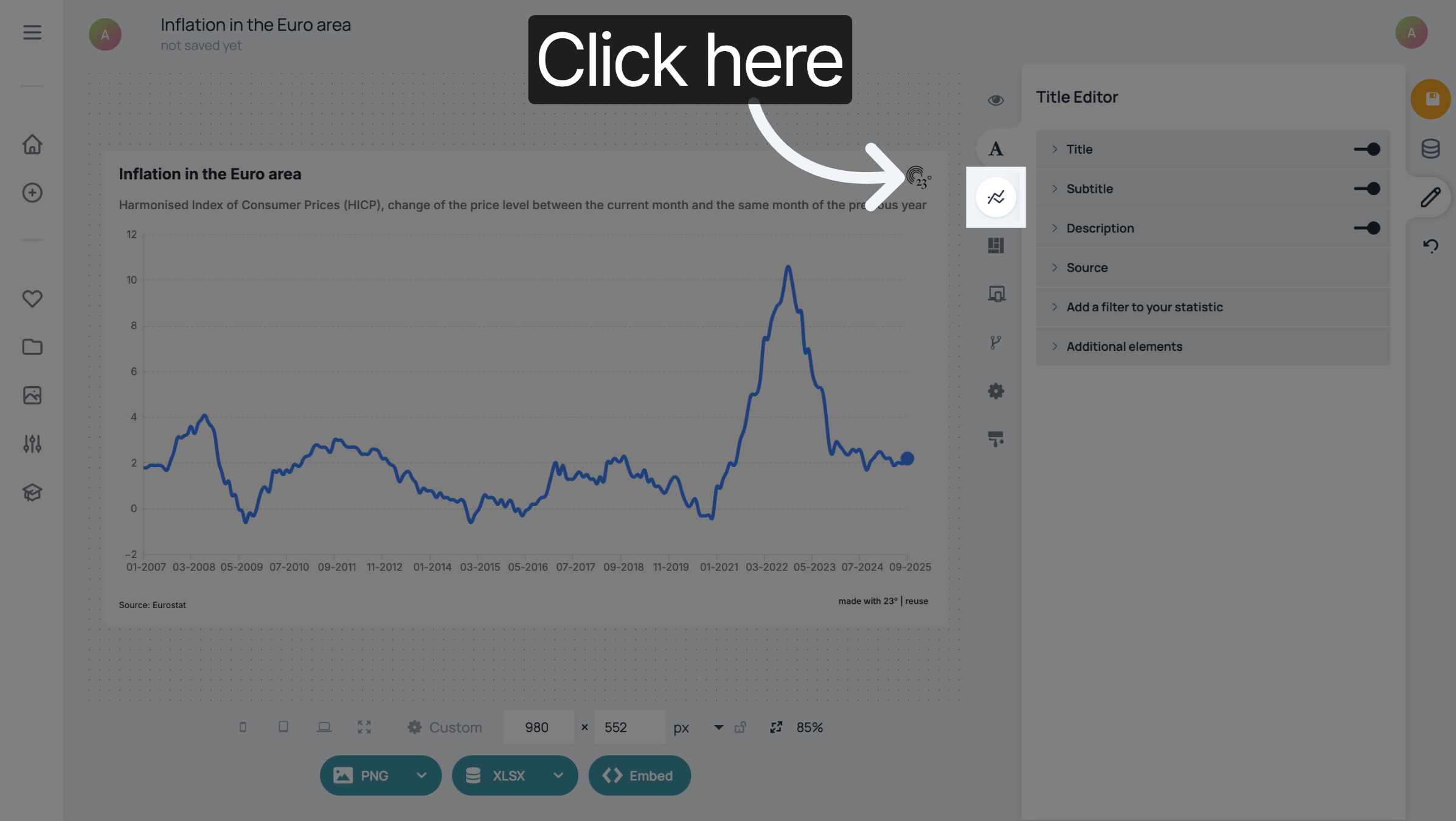
Click "Annotations".
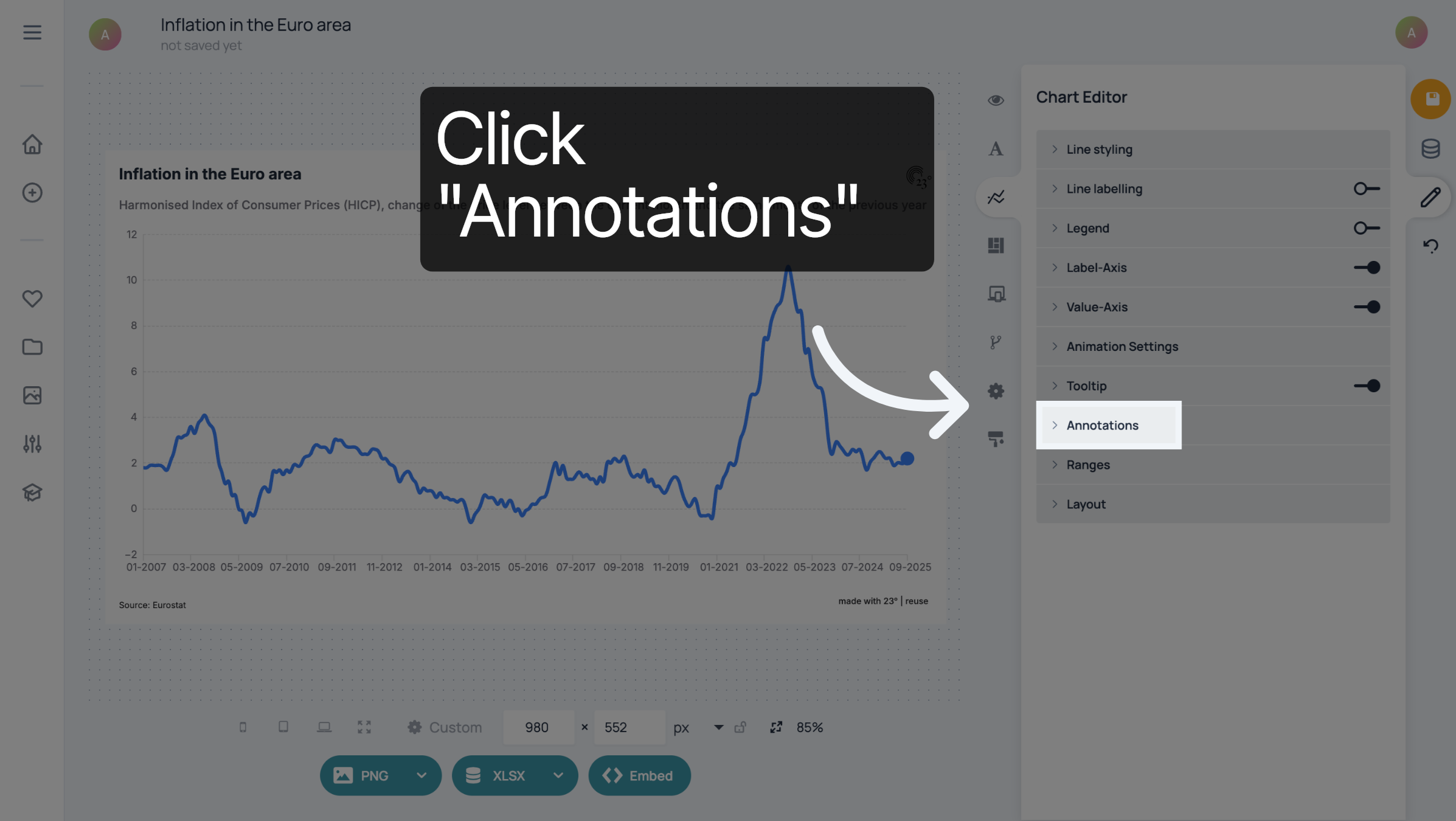
Click "Add annotation". An annotation will appear below "Global label".
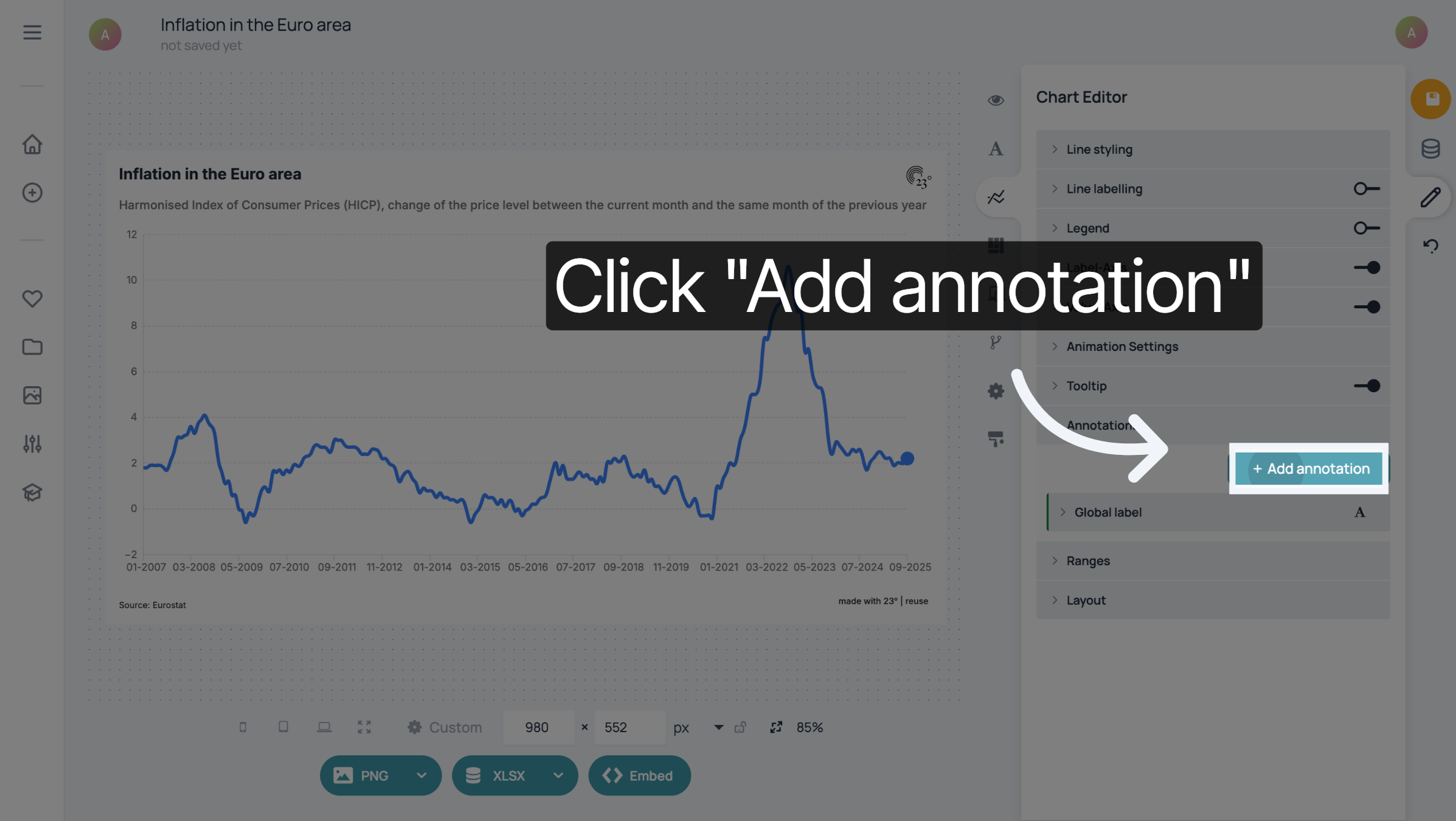
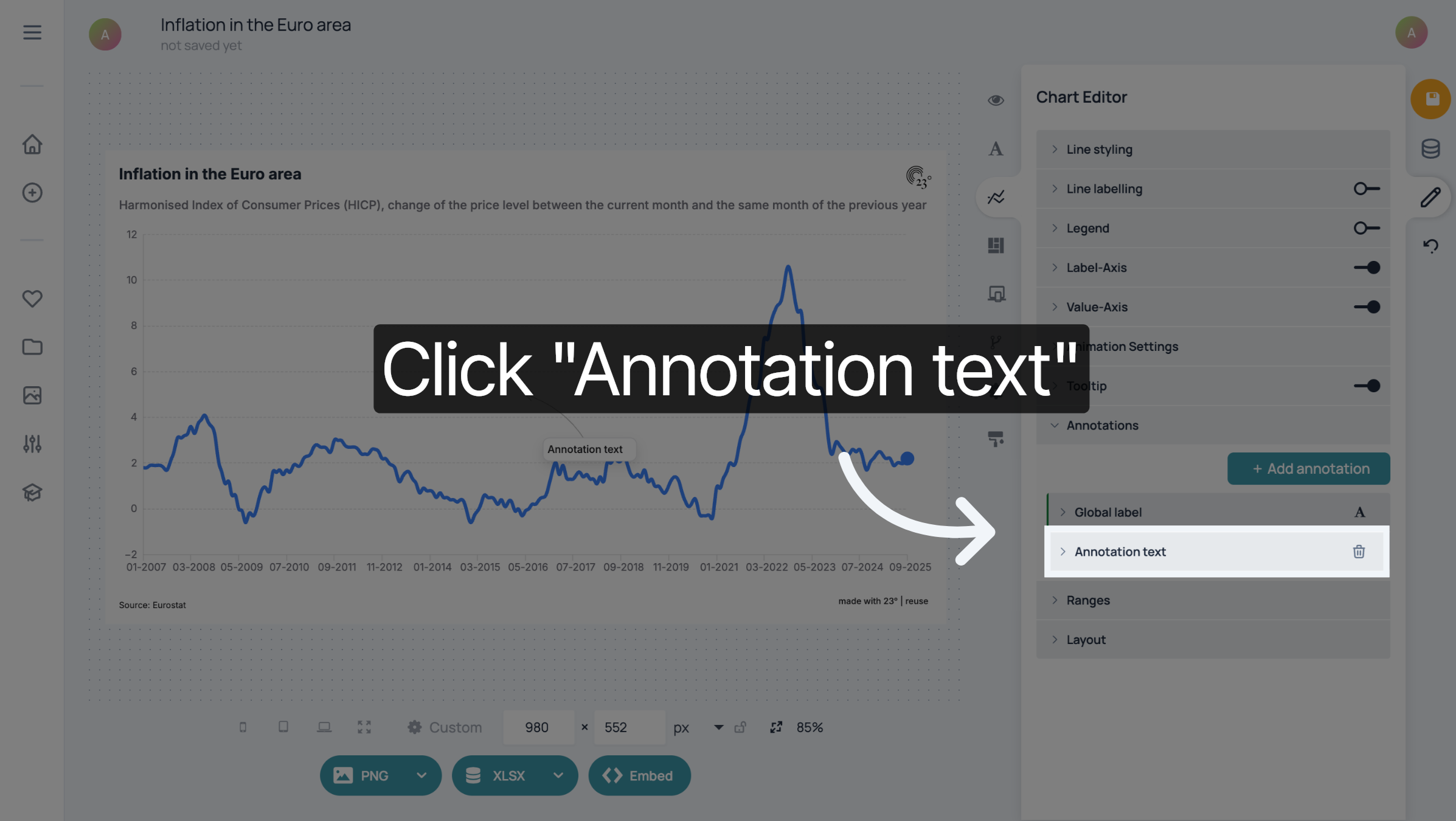
Click "Annotation text" to edit the annotation
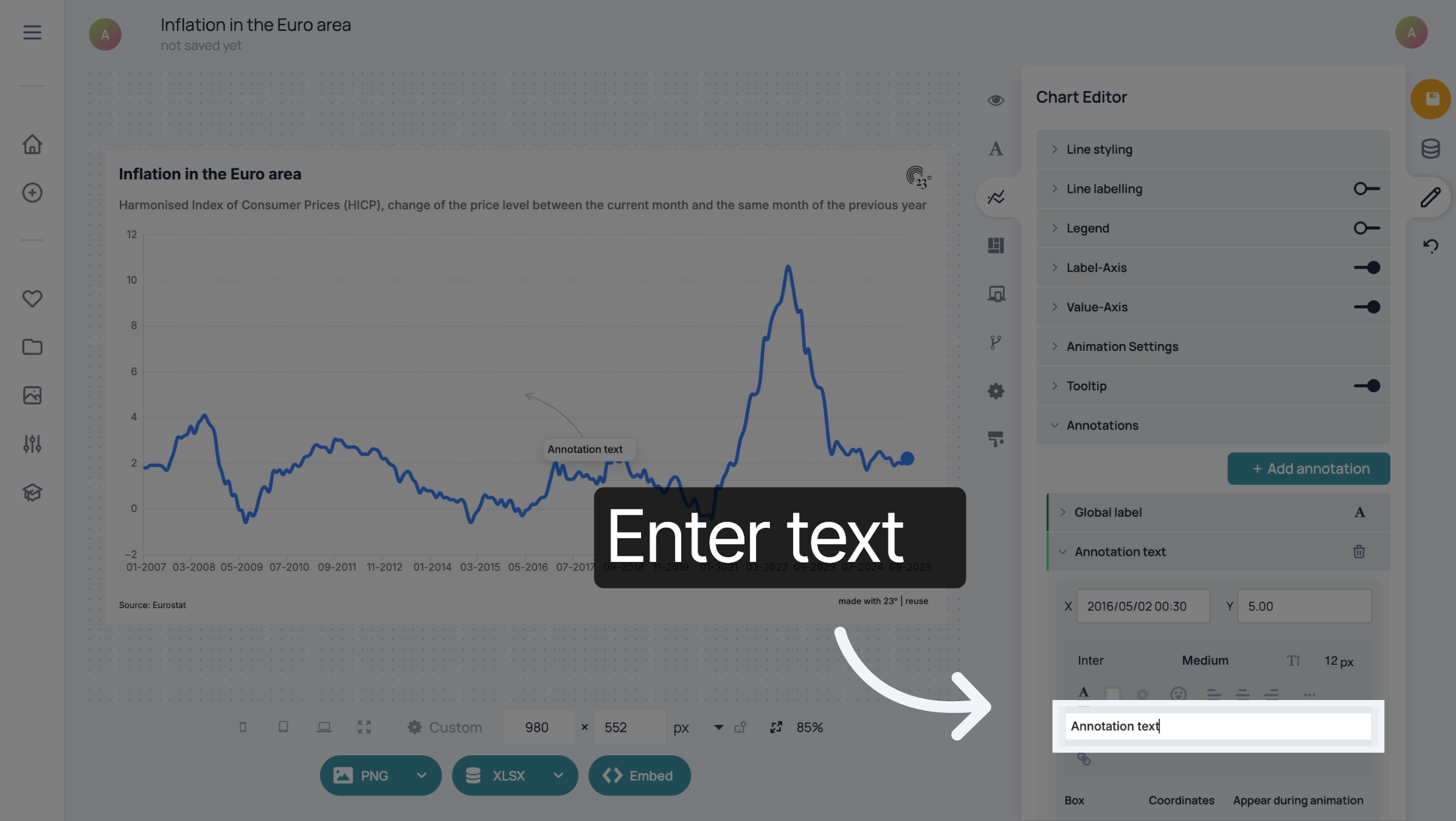
Type in your annotation text.
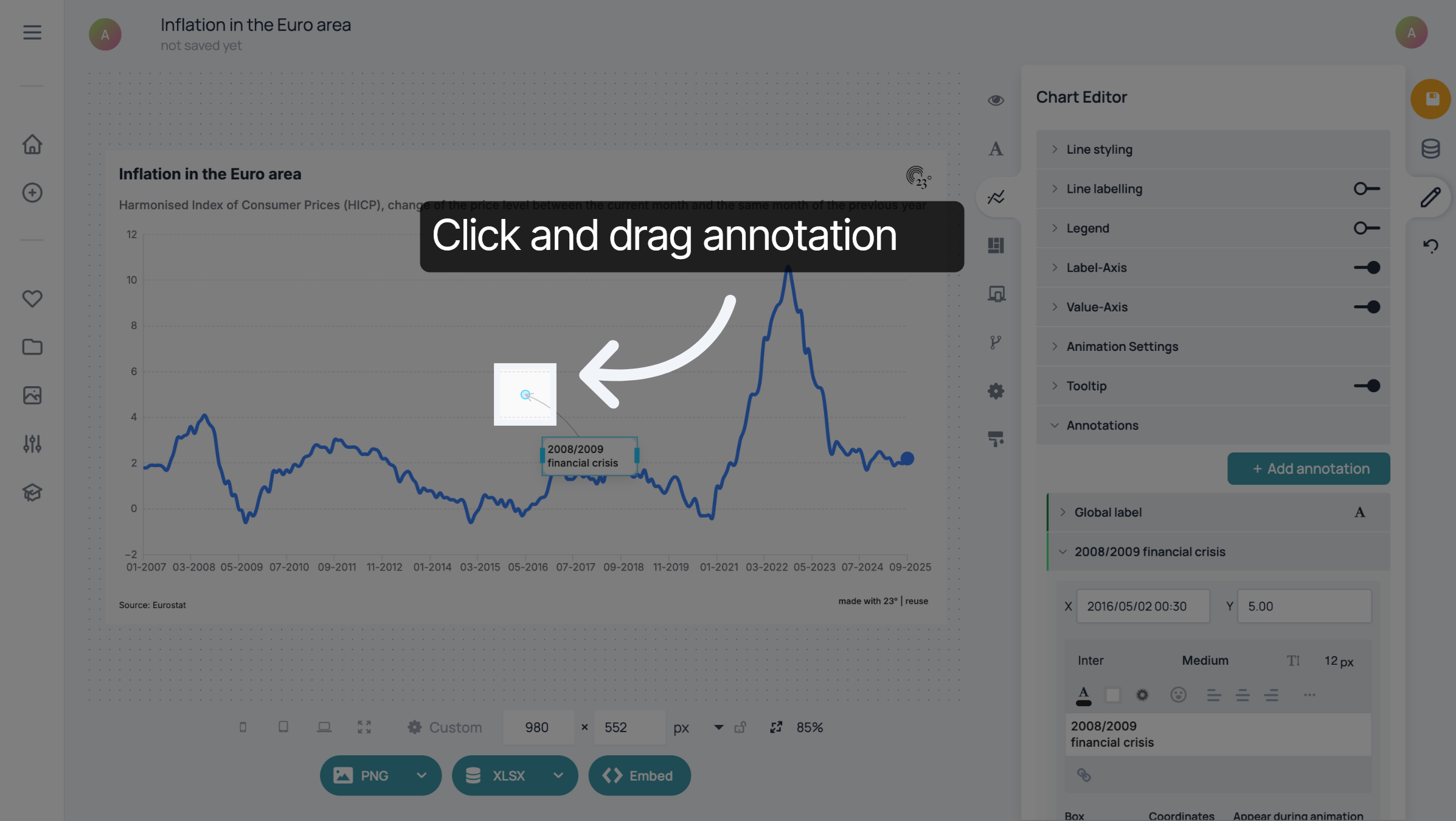
Once you have entered the text, you can click it and drag it where you want it to be in your chart.
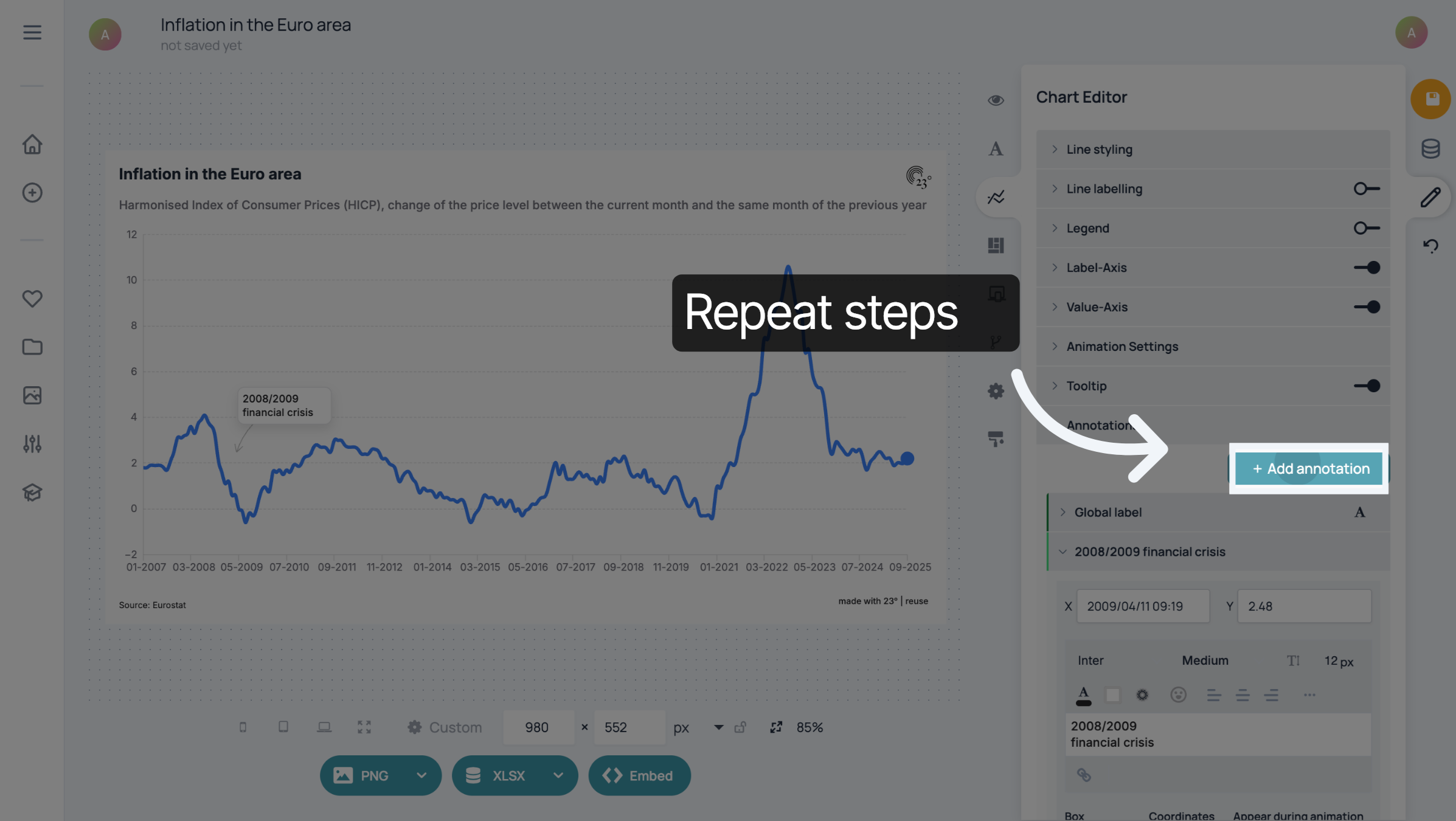
To add another annotation, click "Add annotation" and repeat the steps.
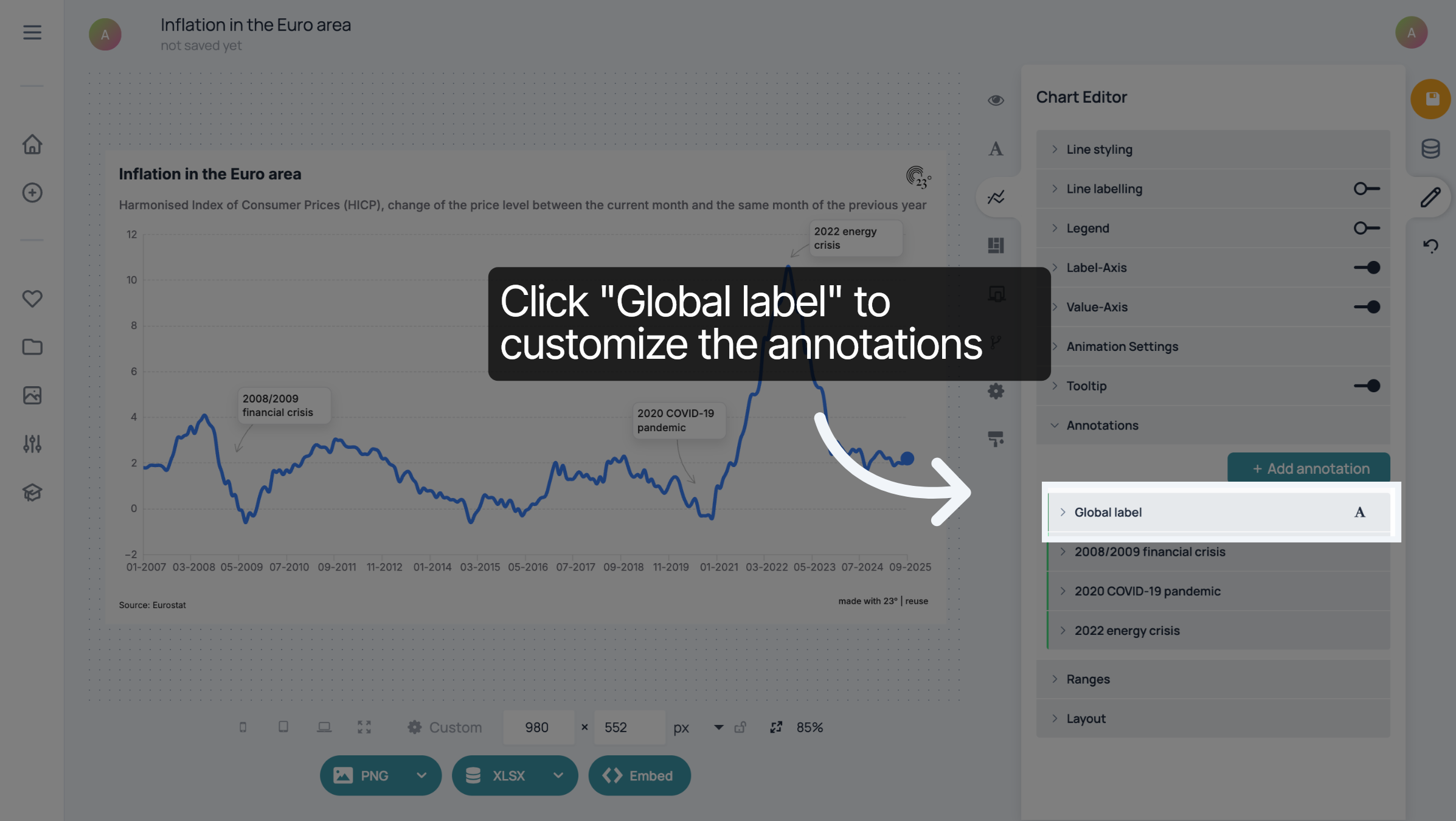
To customize the design of your annotations, click "Global label".
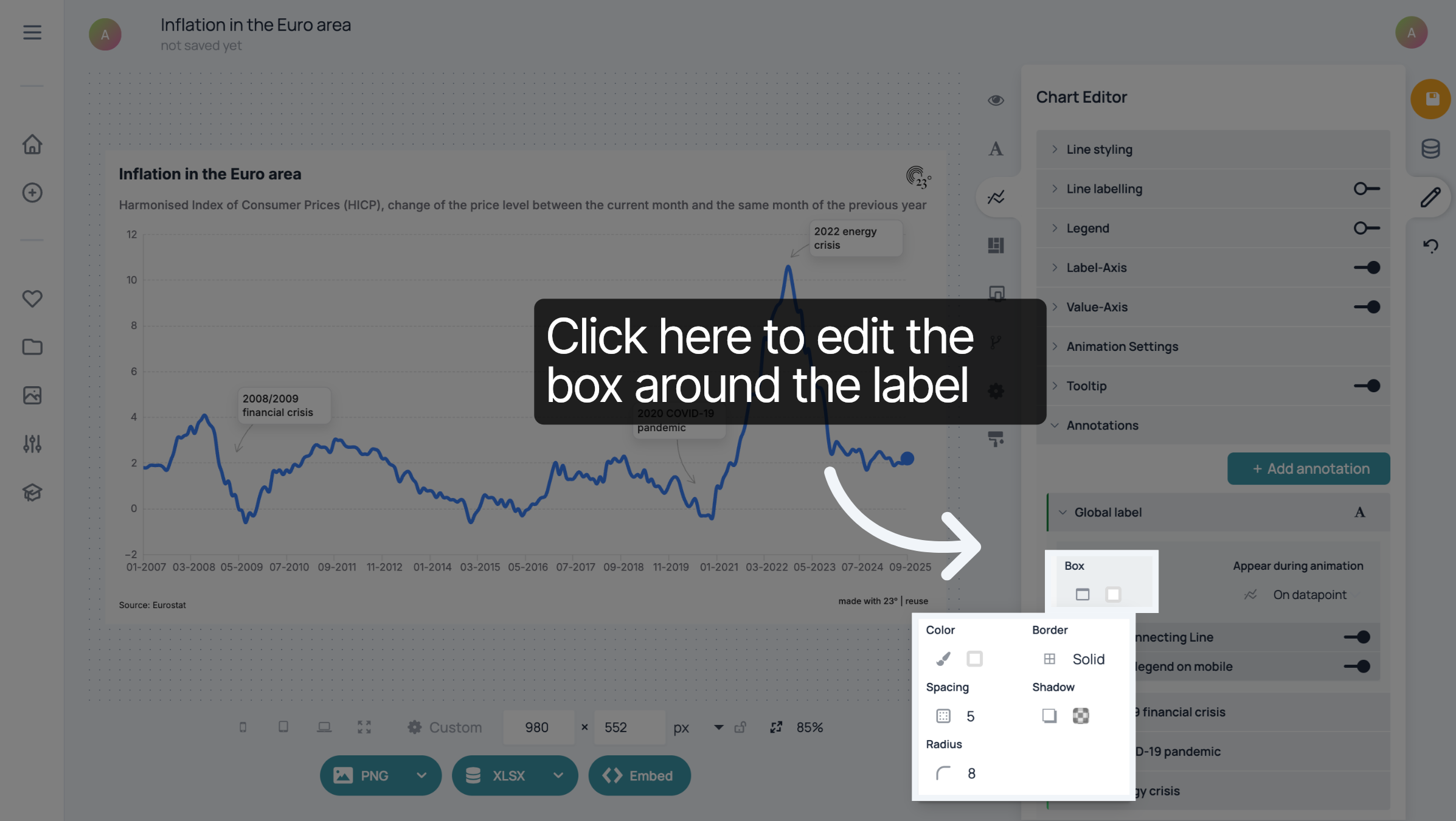
To edit the box around your annotations, click here.
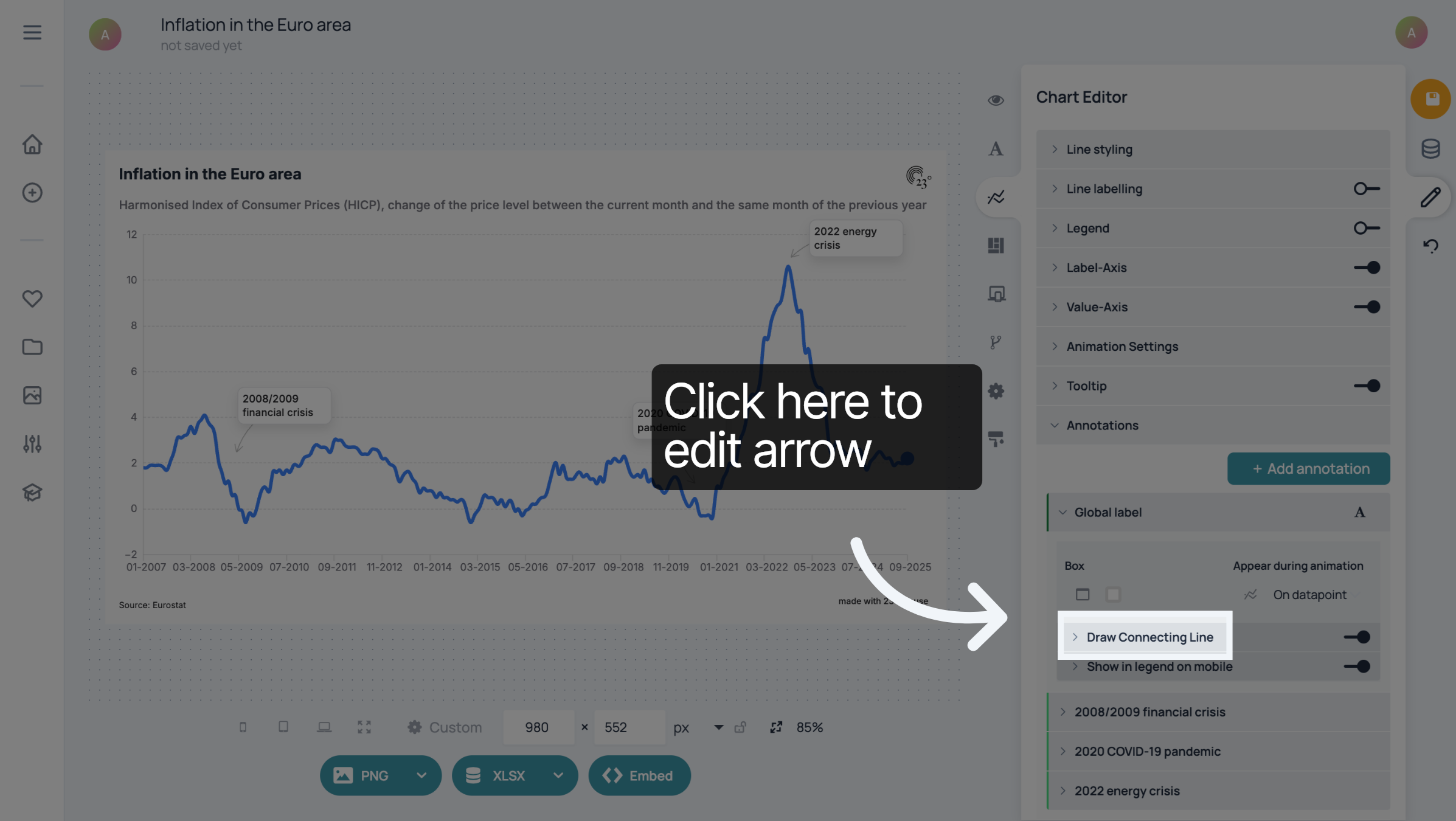
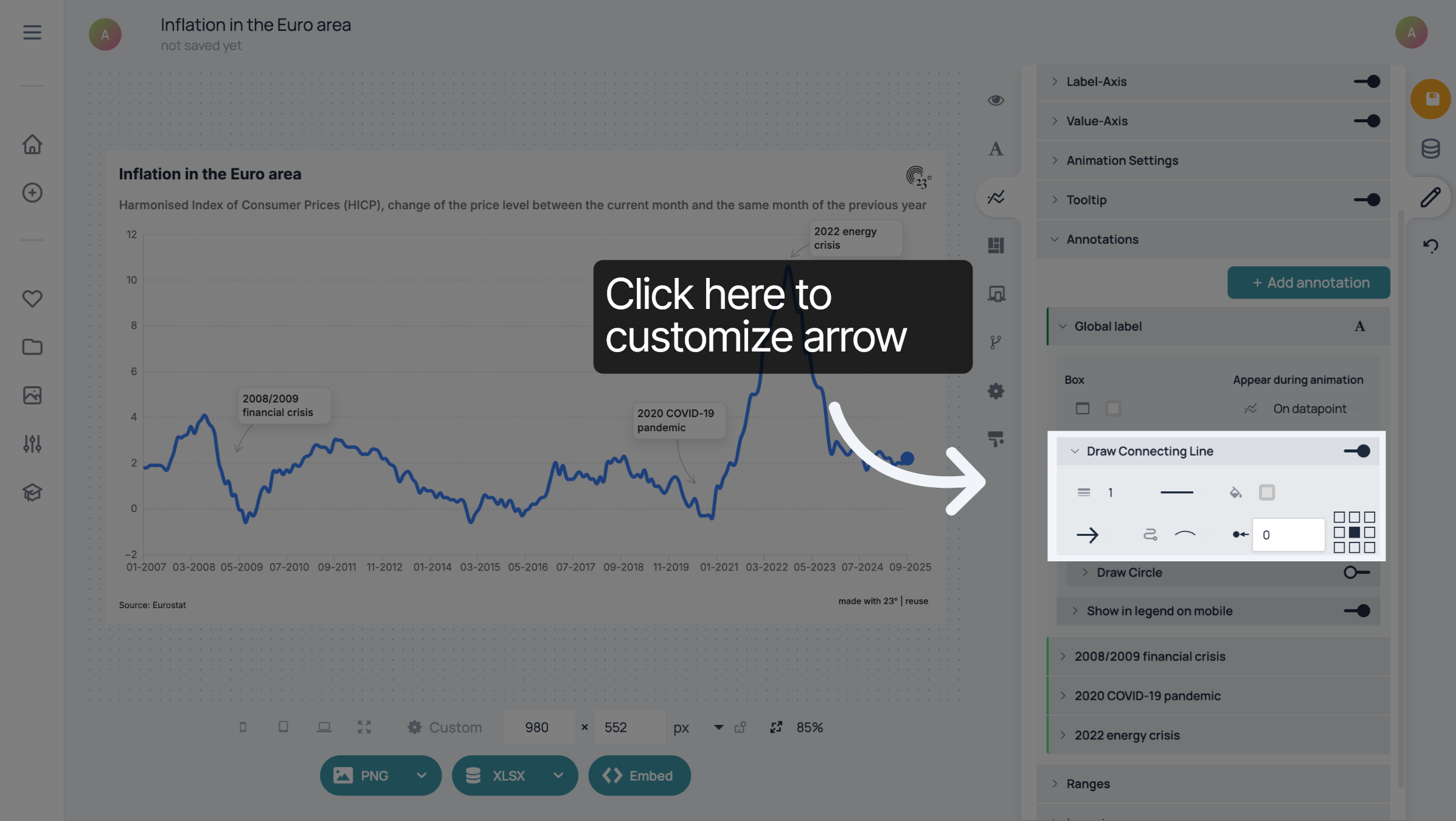
Click "Draw Connecting Line" to edit the arrow next to your annotation. You can also deactivate it.
Click here to edit what the annotations look like when a user looks at the linechart on their phone.
Click here to edit what the annotations look like when a user looks at the linechart on their phone.
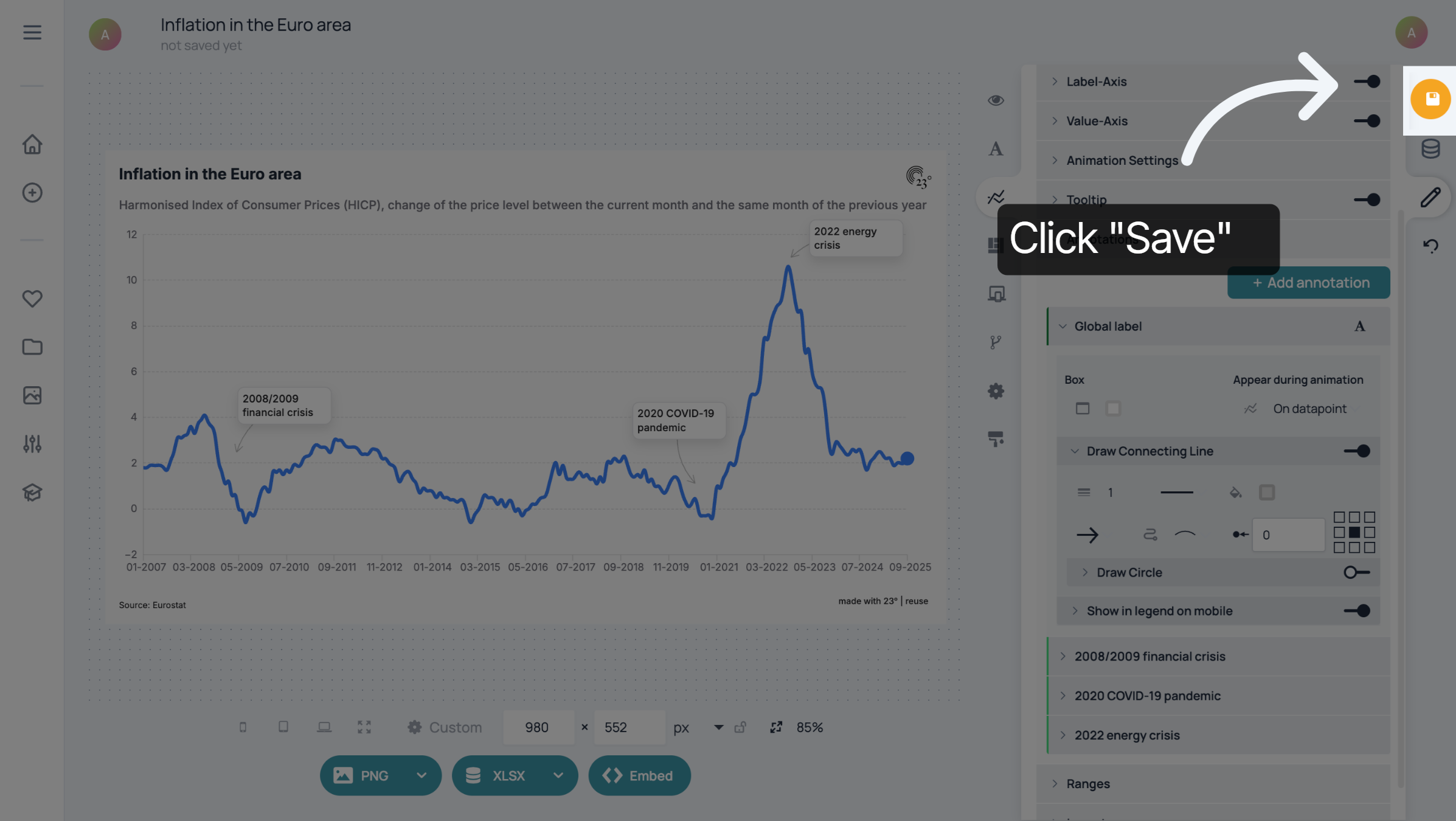
You have added and customized multiple annotations on your line chart.