How to change the height of bars in barcharts
This tutorial demonstrates how to change the height of bars in barcharts
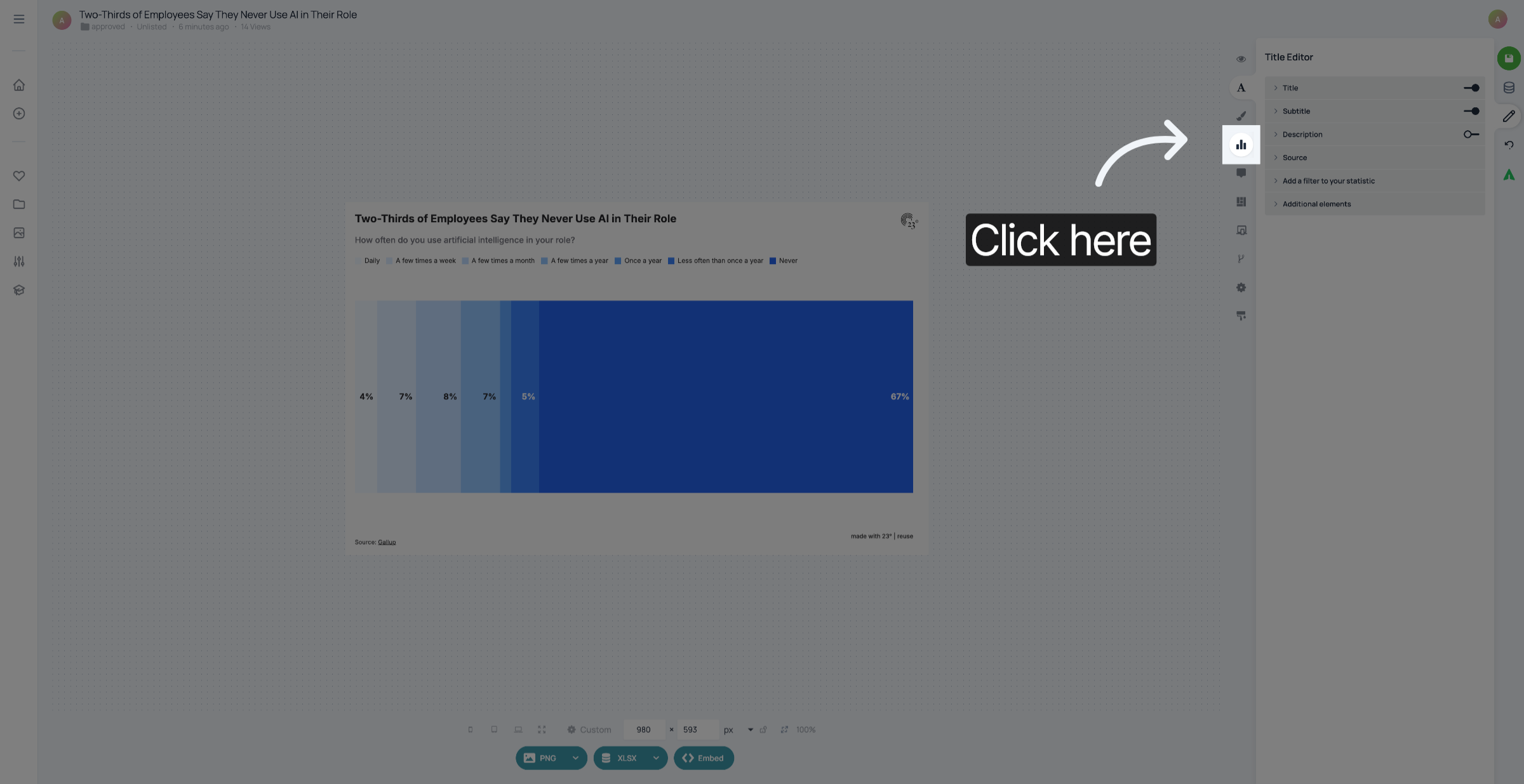
1. Go to Chart Editor
Open your visualisation and go to the Chart Editor.
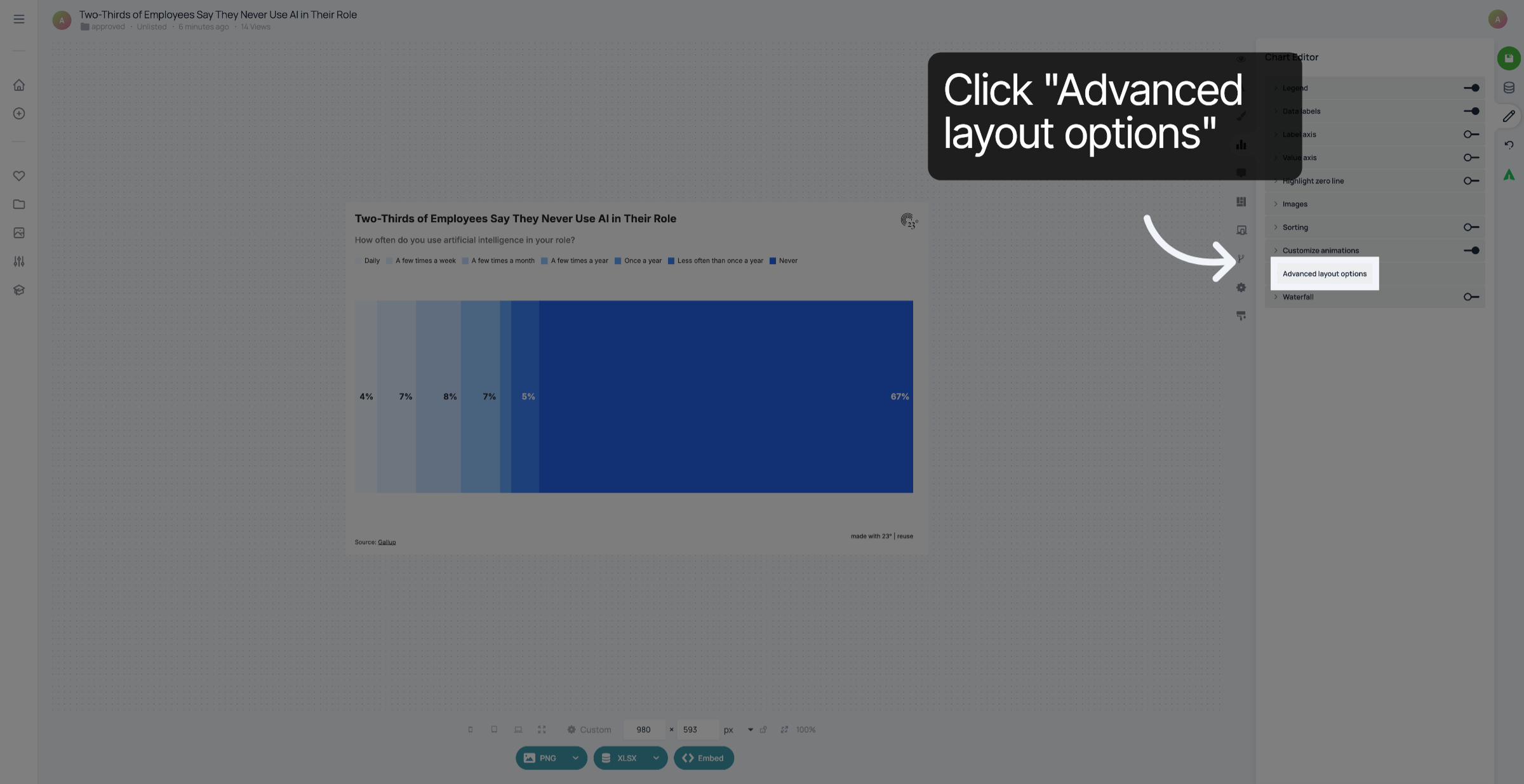
2. Click "Advanced layout options"
Click "Advanced layout options".
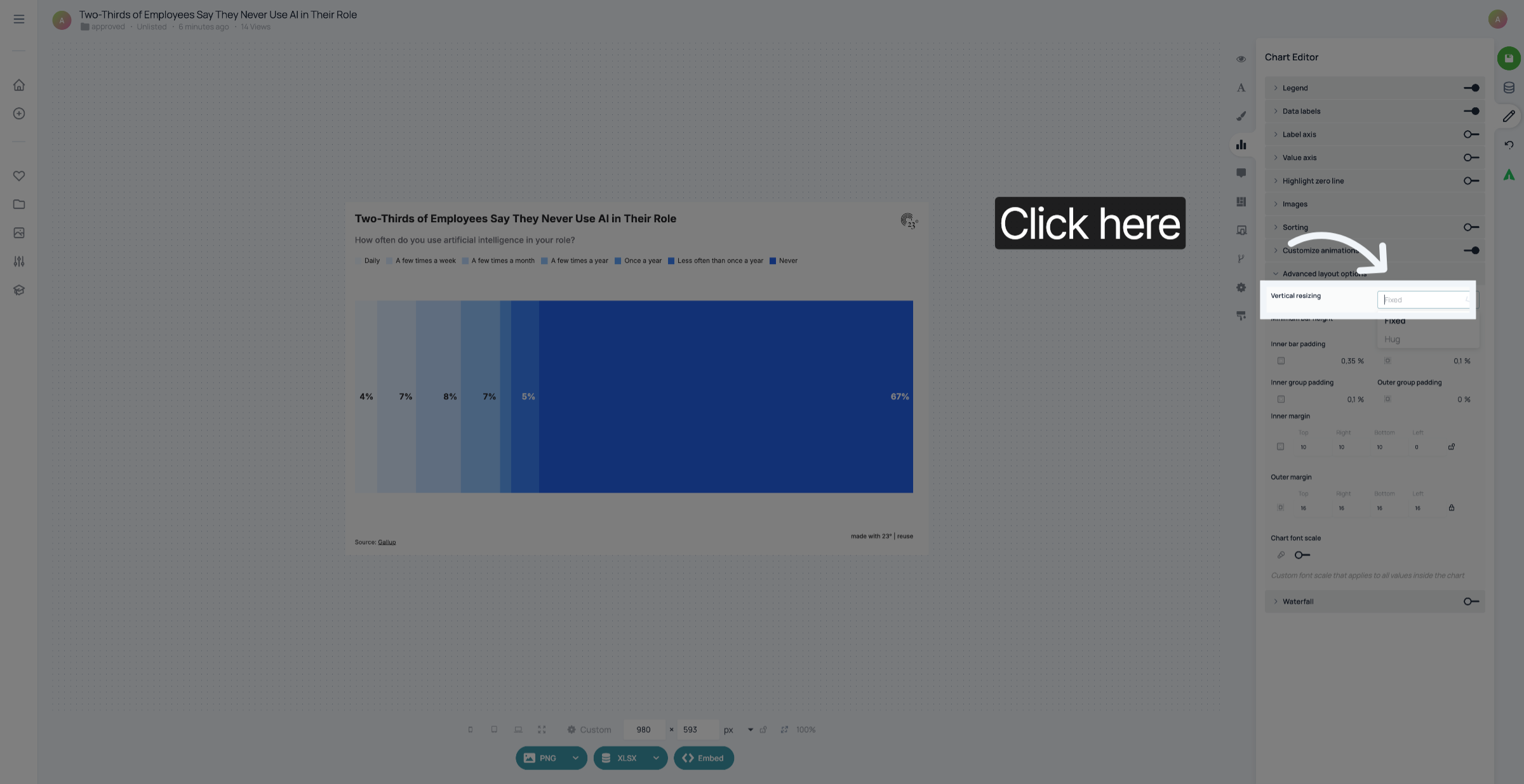
3. Adjust Vertical resizing
In "Vertical resizing" you can choose either "fixed" if you want the height of the bar to resize depending on how much space there is. "Hug" means that the bars will always have the same height, no matter where you embed it. In this case, a scroll bar is added if there is not enough space to display the entire visualisation.
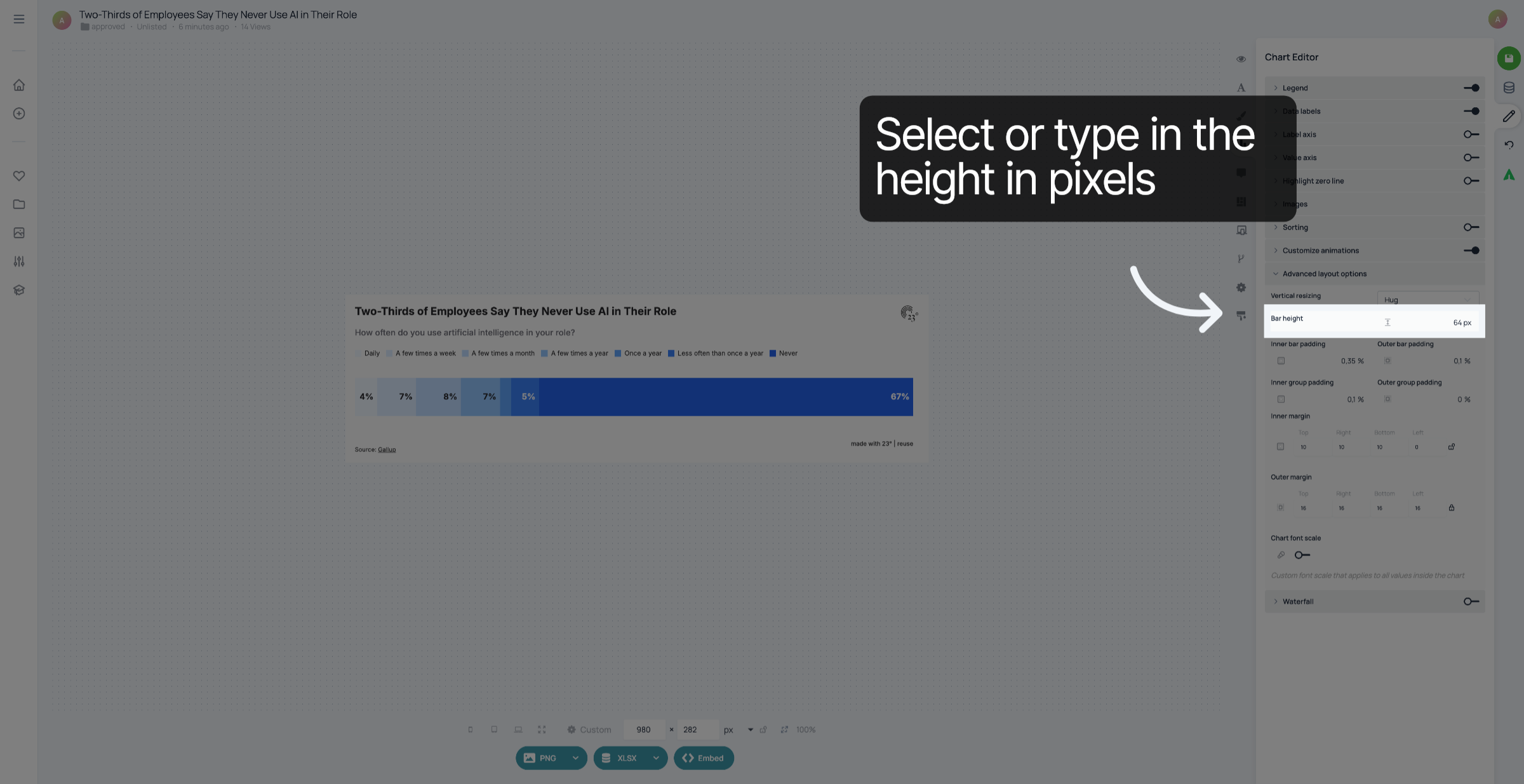
4. Adjust height
Select or type in the height you want the bars to be in pixels.
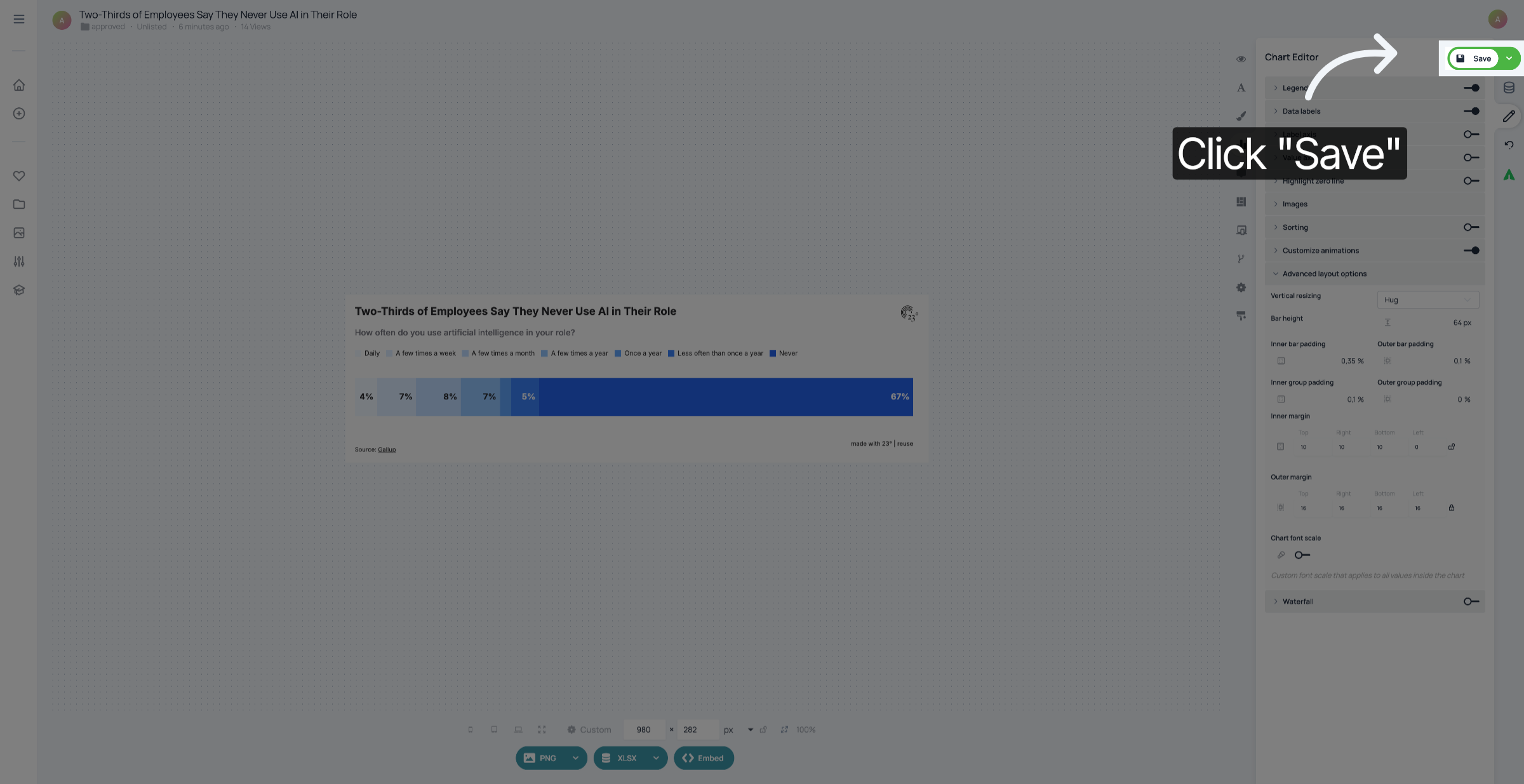
5. Save your changes
Don't forget to save your changes.
You have successfully changed the height of the bars in your barchart.