Update an Existing Template
This tutorial explains how to update an existing template within the 23degrees application.
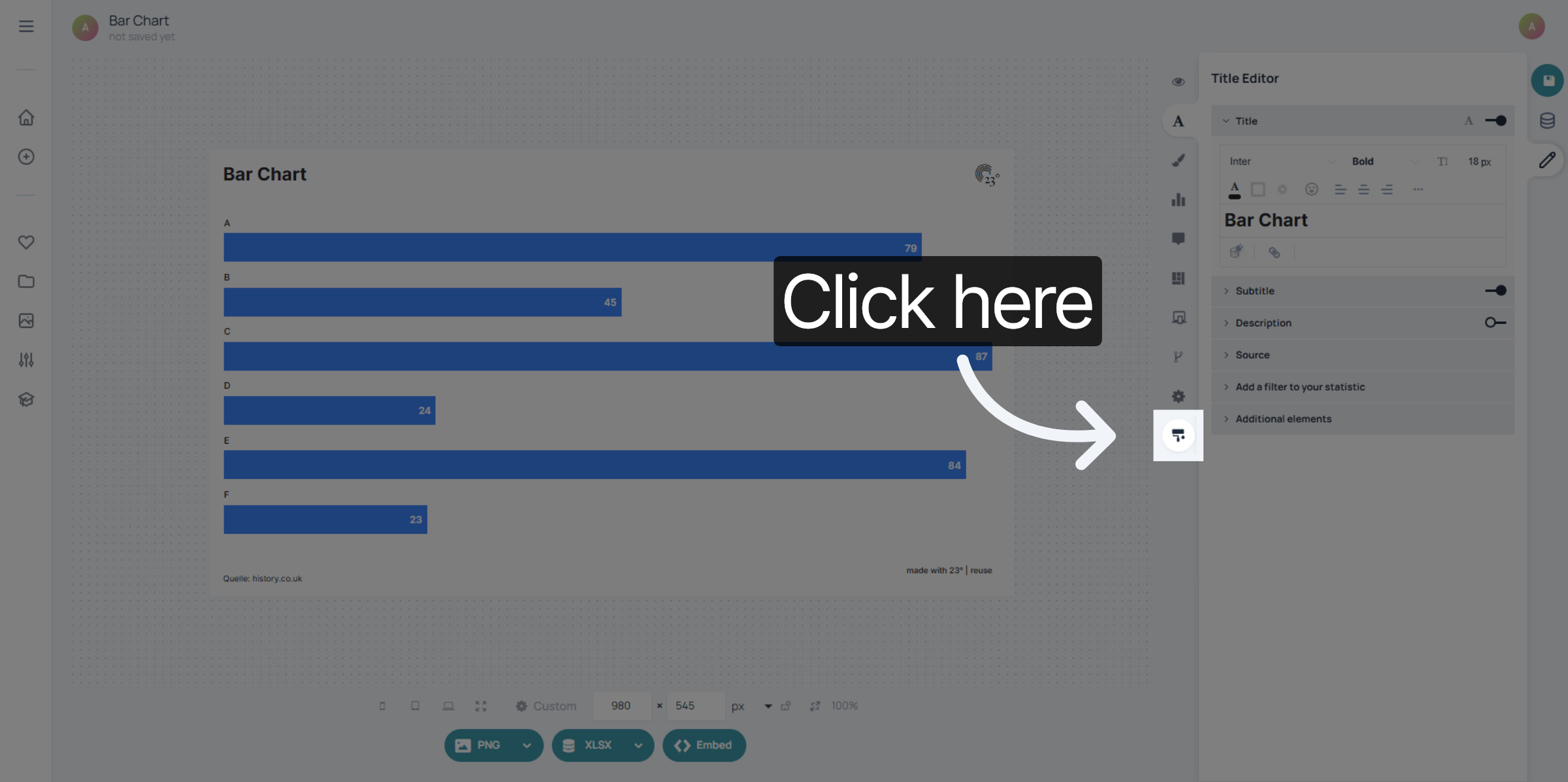
If you have made changes to your current design template like increasing the font size or selecting a different font or default colour palette you can update this changes to an existing template. Just go to the template editor...
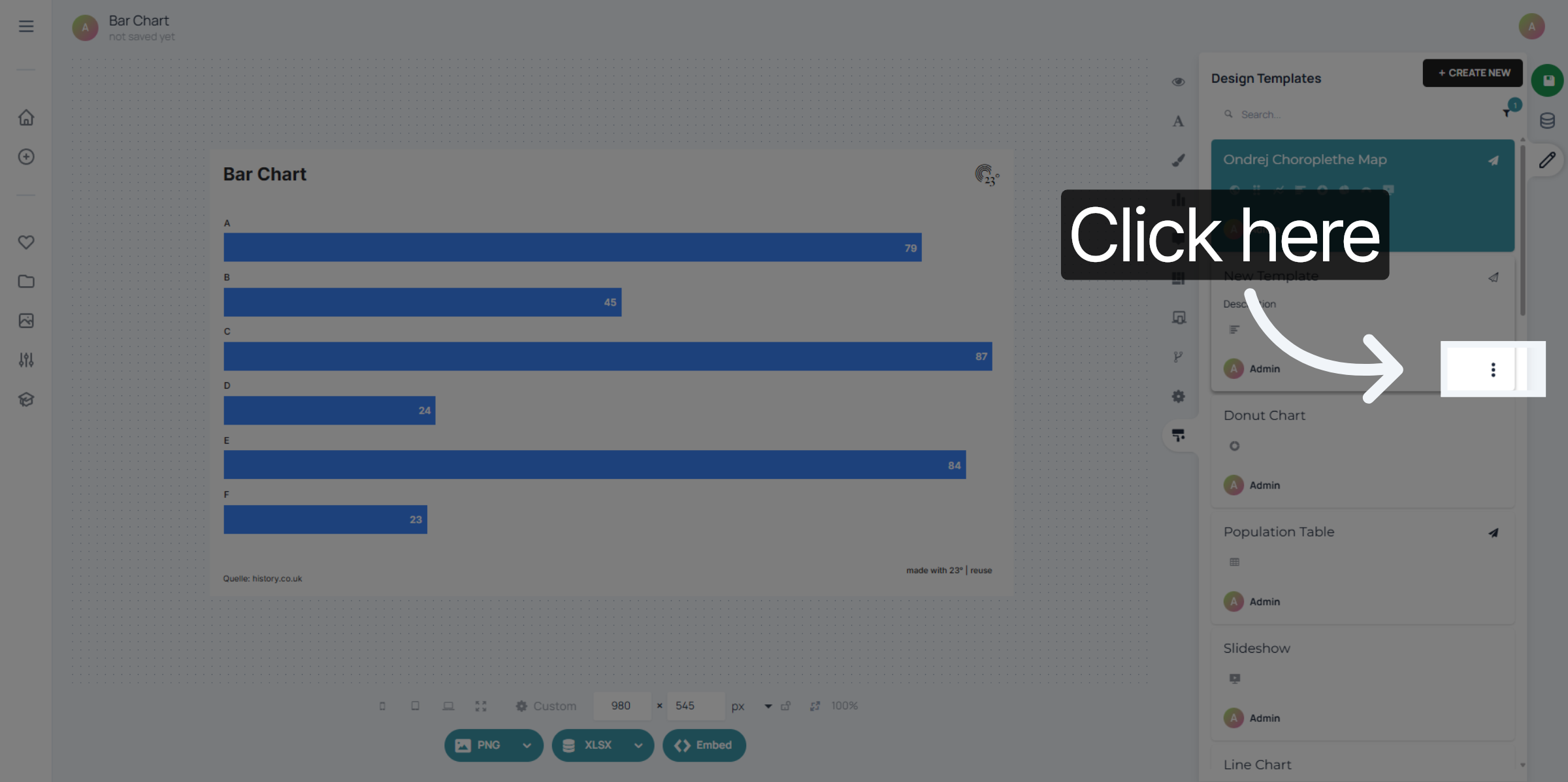
...select the existing template you want to update and click on the three dots.
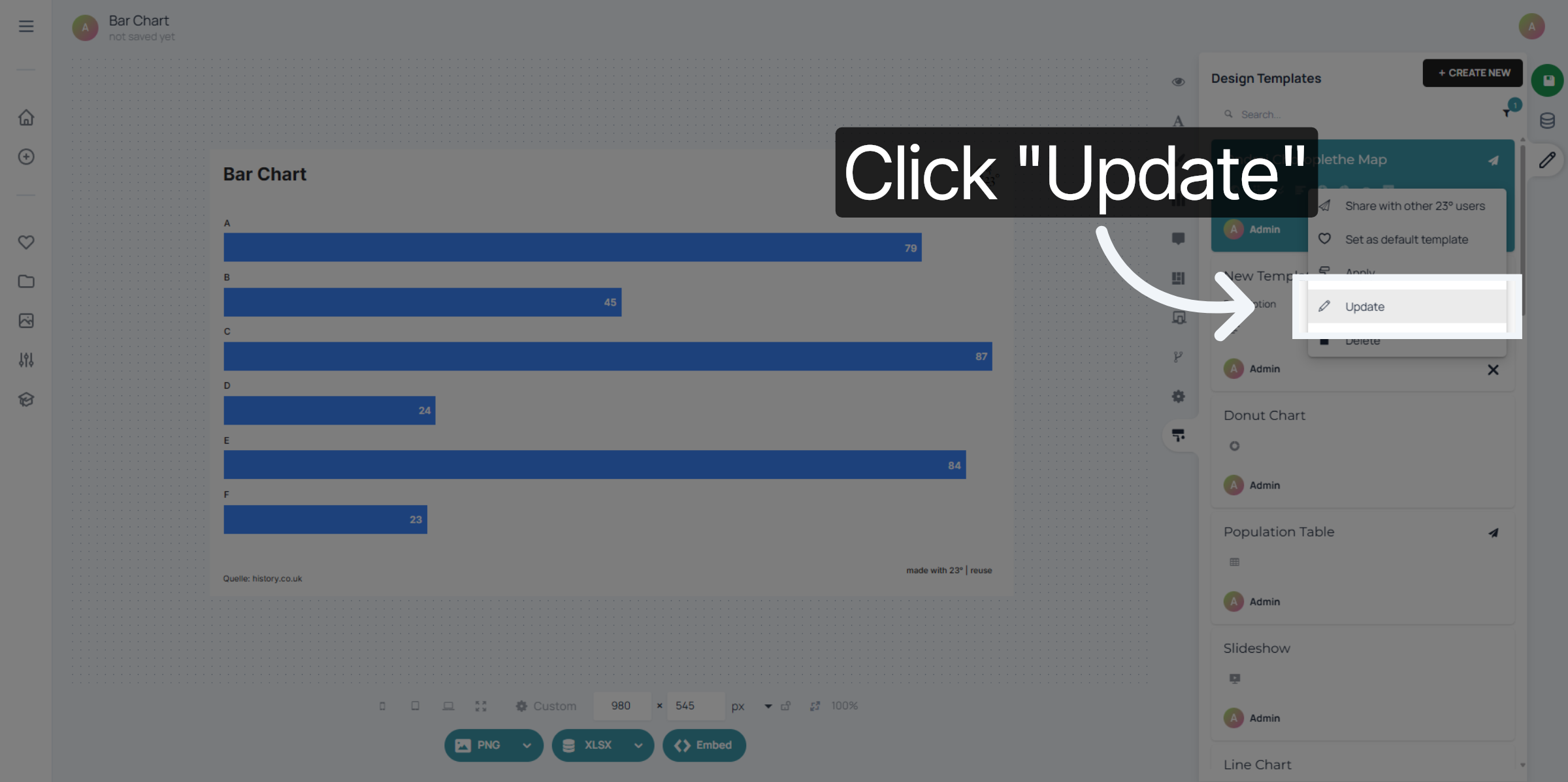
Click the Update button to apply the changes made to the template.
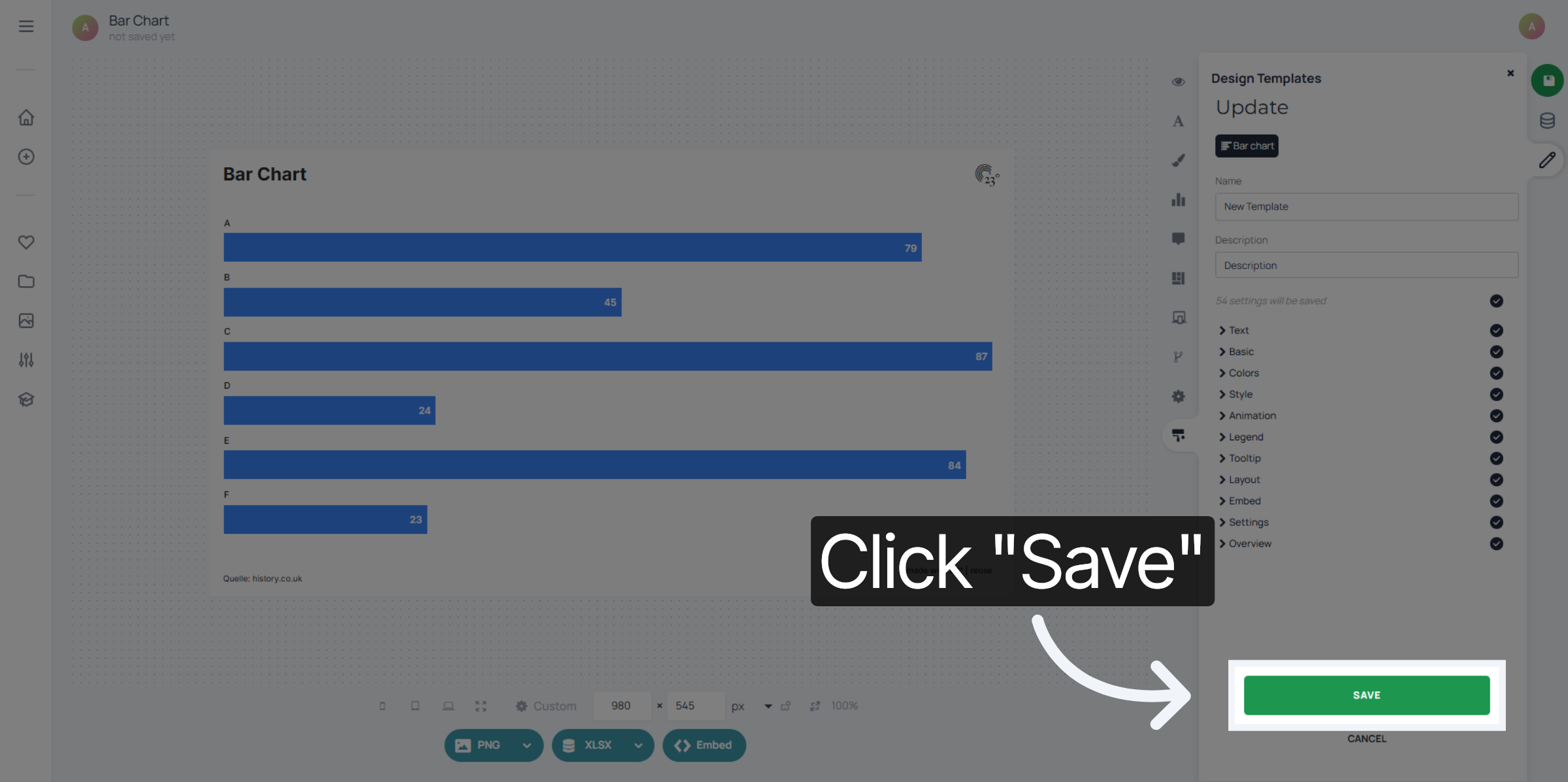
Click to open the confirmation menu to finalize your template update. You can pick and choose which chart changes you want to apply the update too.
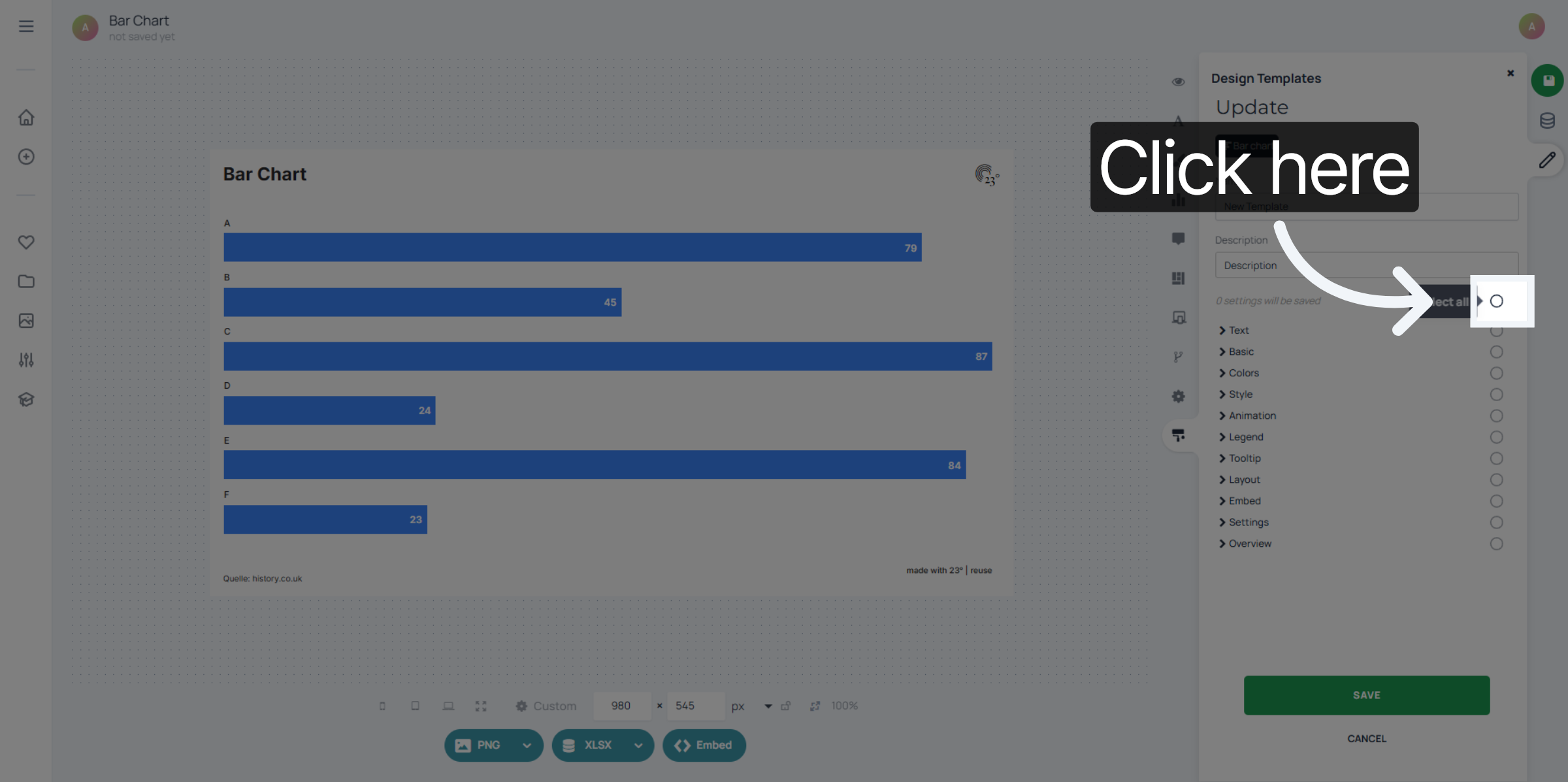
Click the Save button to save all changes and complete the template update.
You have successfully updated an existing template. This ensures your template reflects the latest information and is ready for use.