Configure Tooltip Display Style Options In 23degrees
This tutorial guides you through configuring tooltip style options in 23degrees.
You will learn how to customize display settings to enhance your user interface experience.
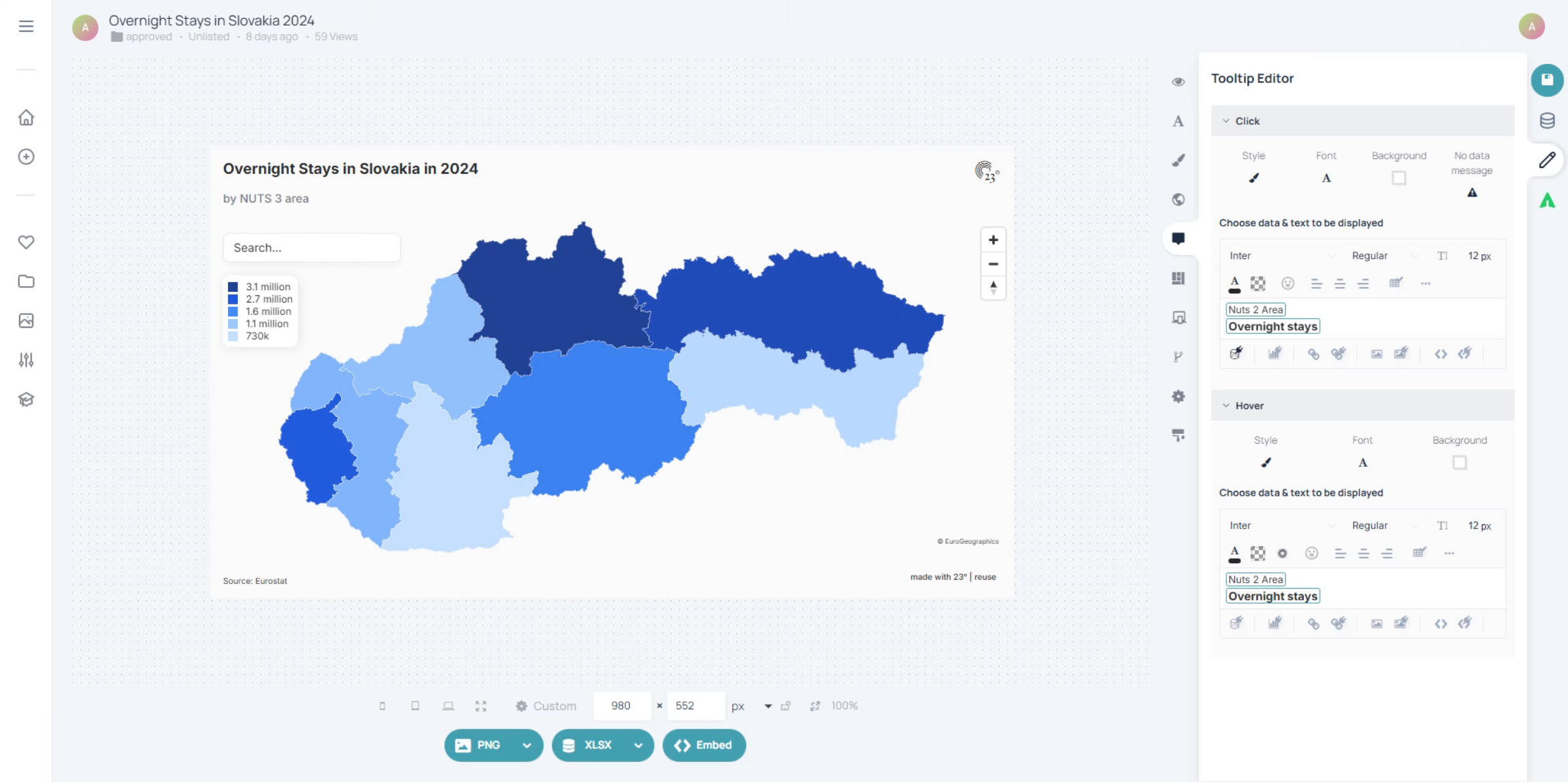
Click the tooltip style settings area to begin customizing your tooltip styles.
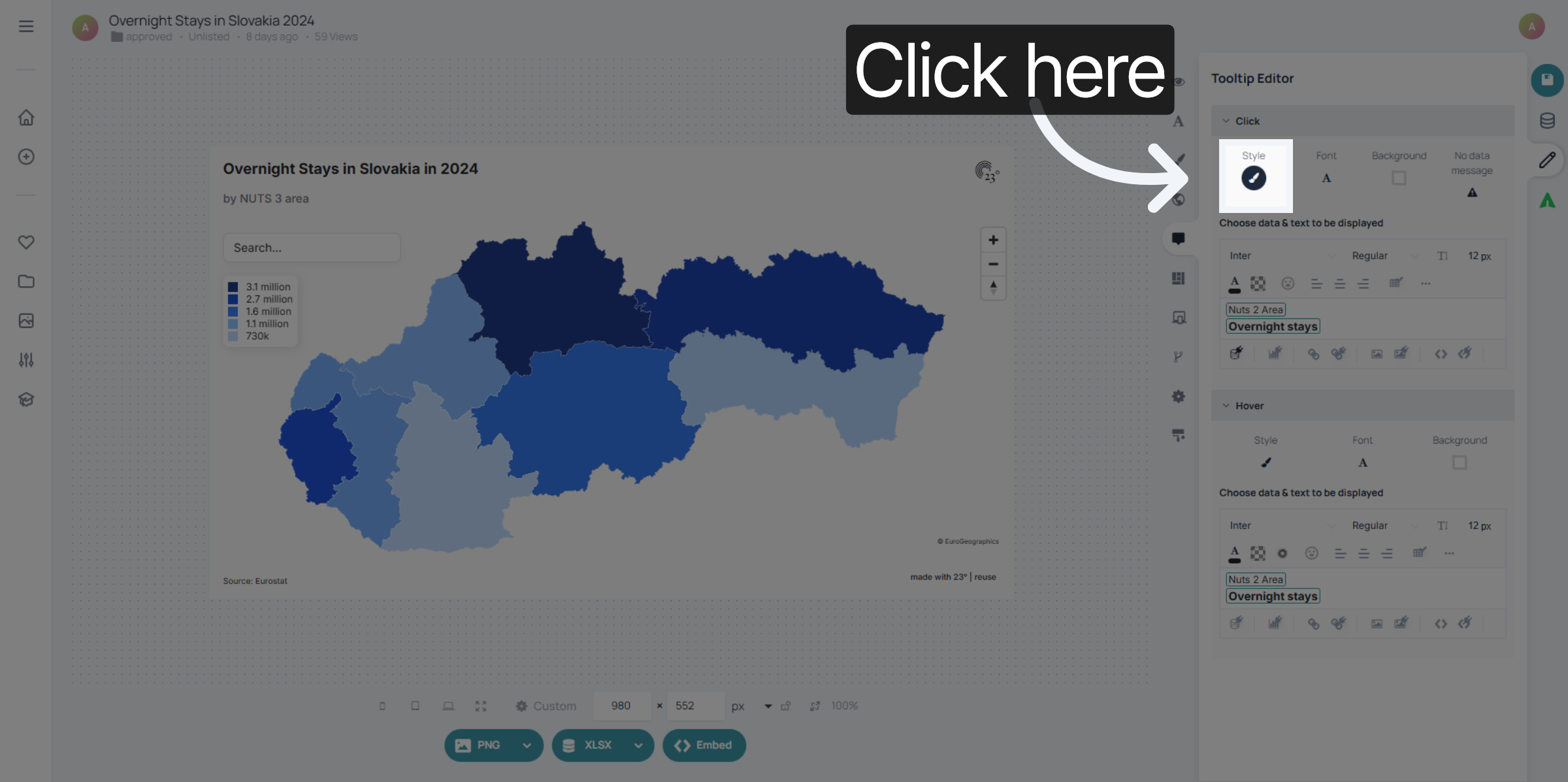
Select regular for the small window style that pops up when clicking on an area.
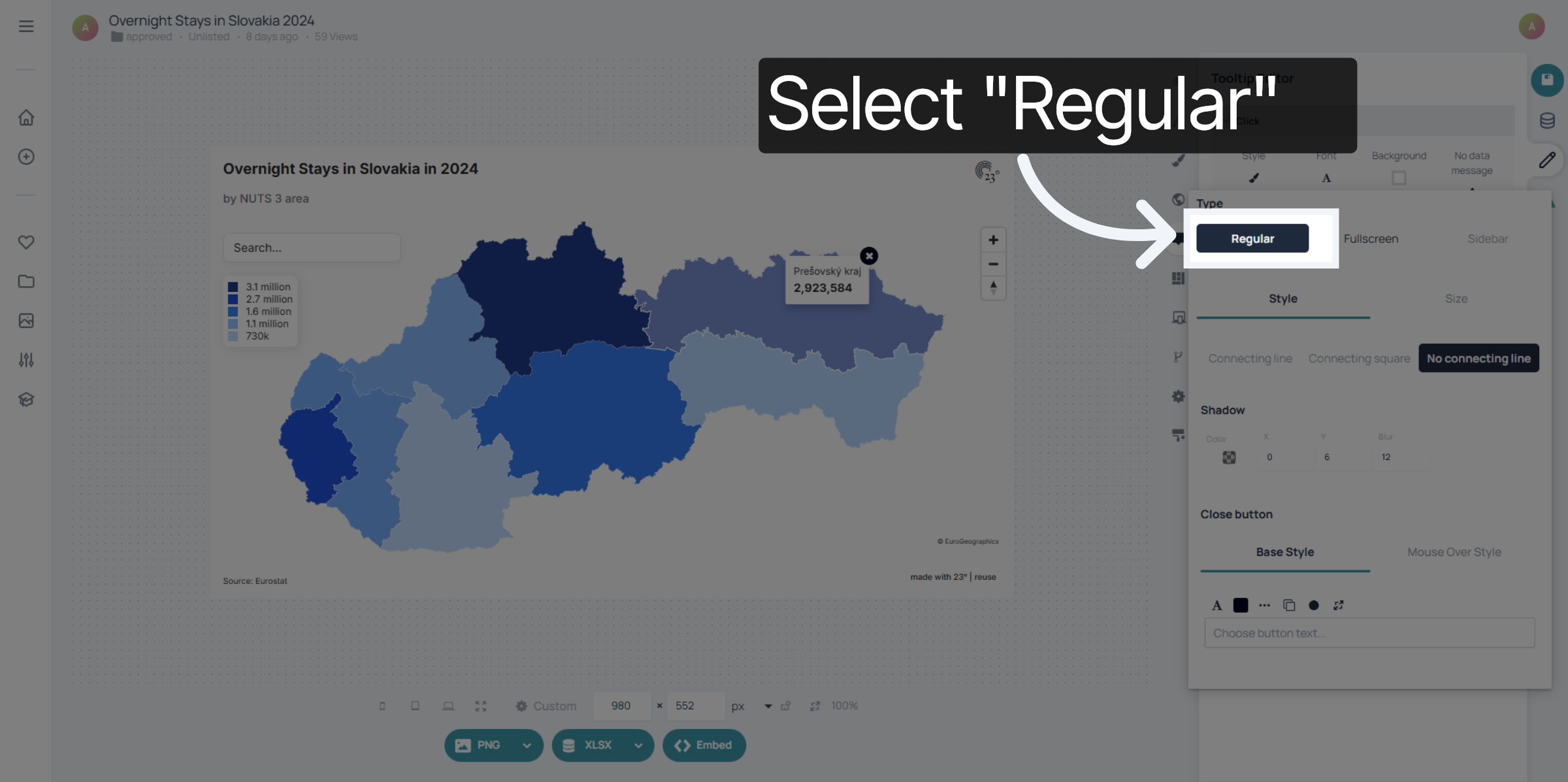
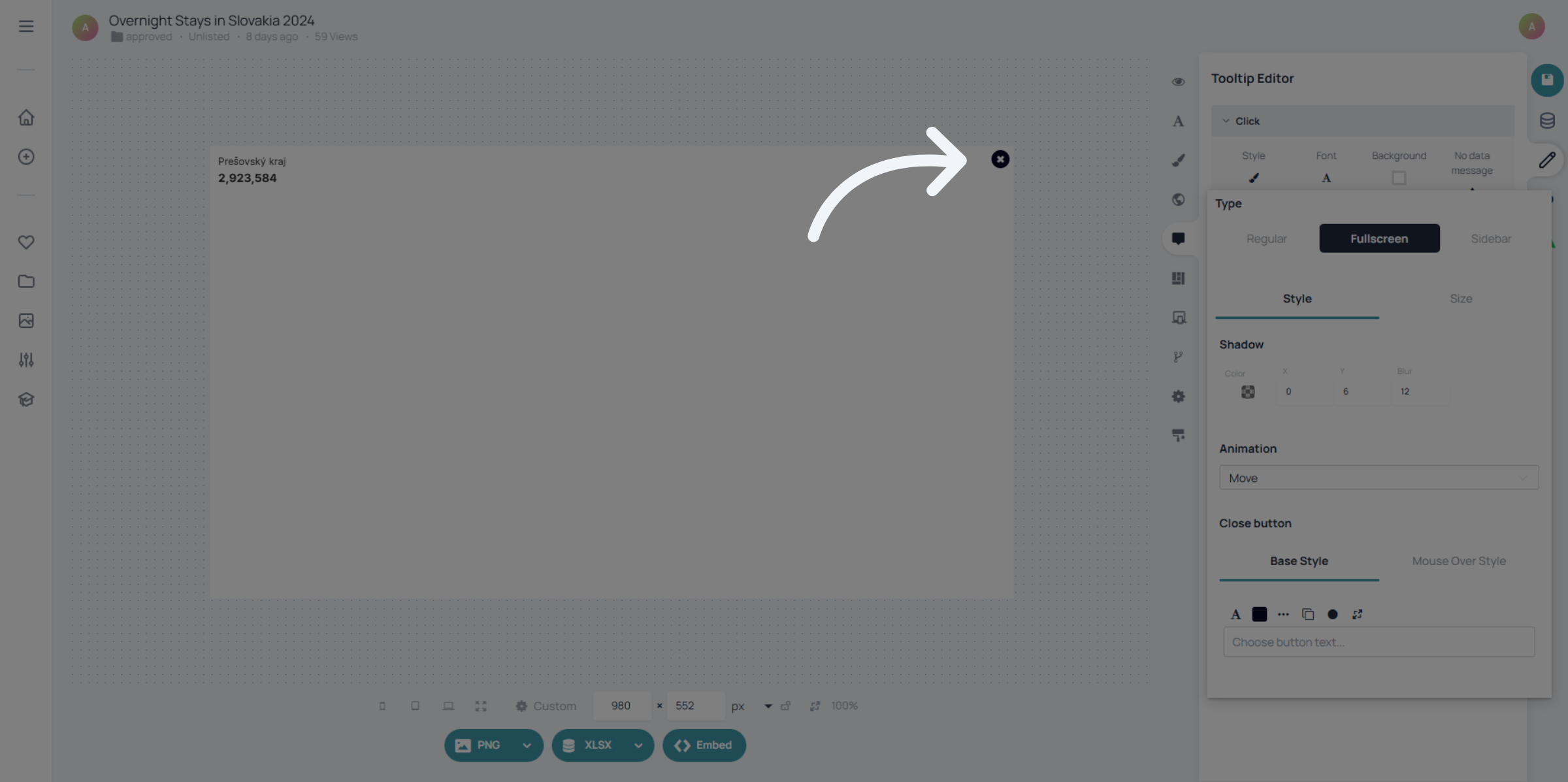
Select"Fullscreen" to enable full display of tooltip styles for better visibility. This is mostly used when displaying a lot of information in the tooltip or adding additional charts to the tooltip.
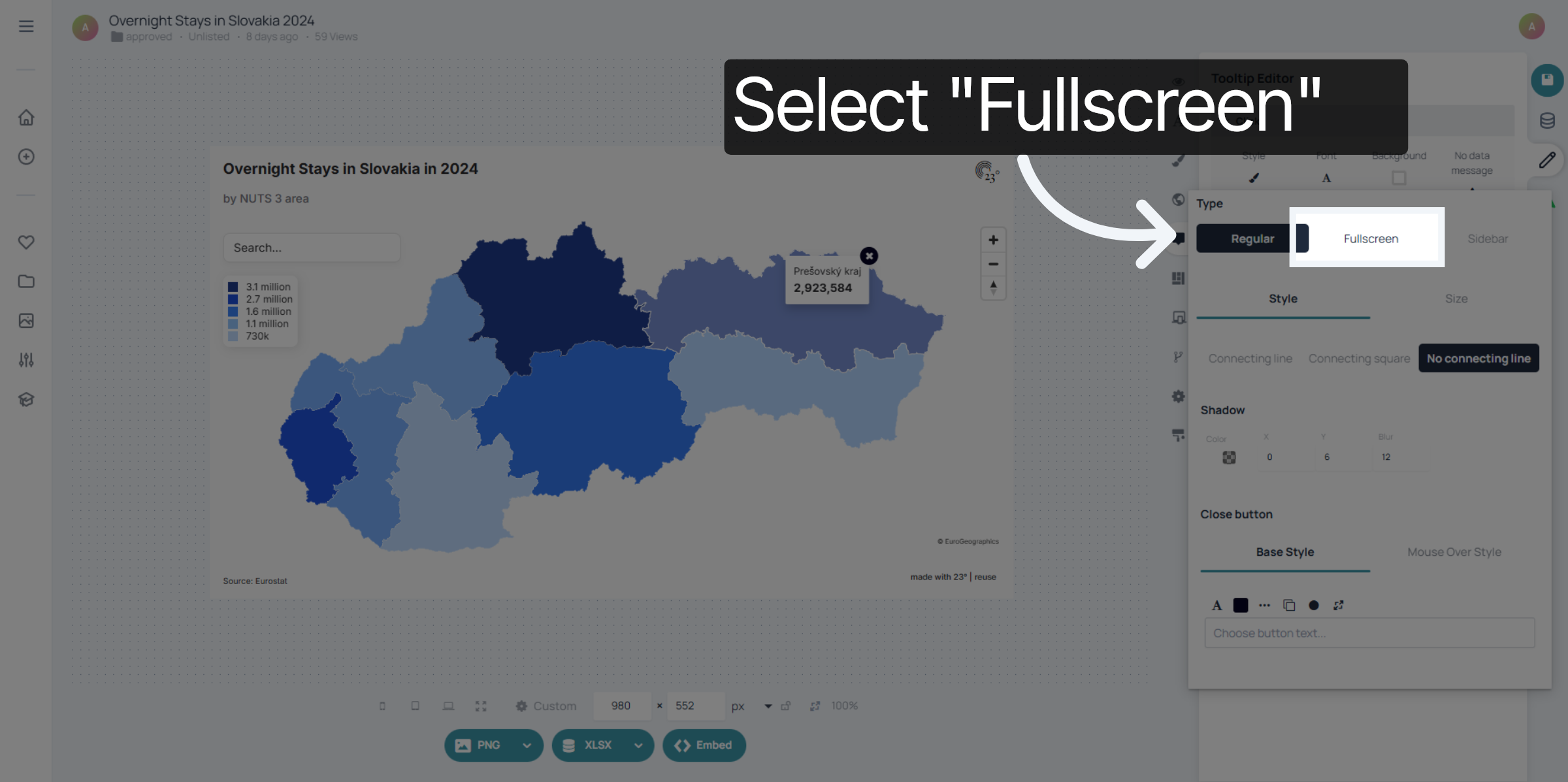
To go back from fullscreen to the chart click on the close icon in the top right corner.
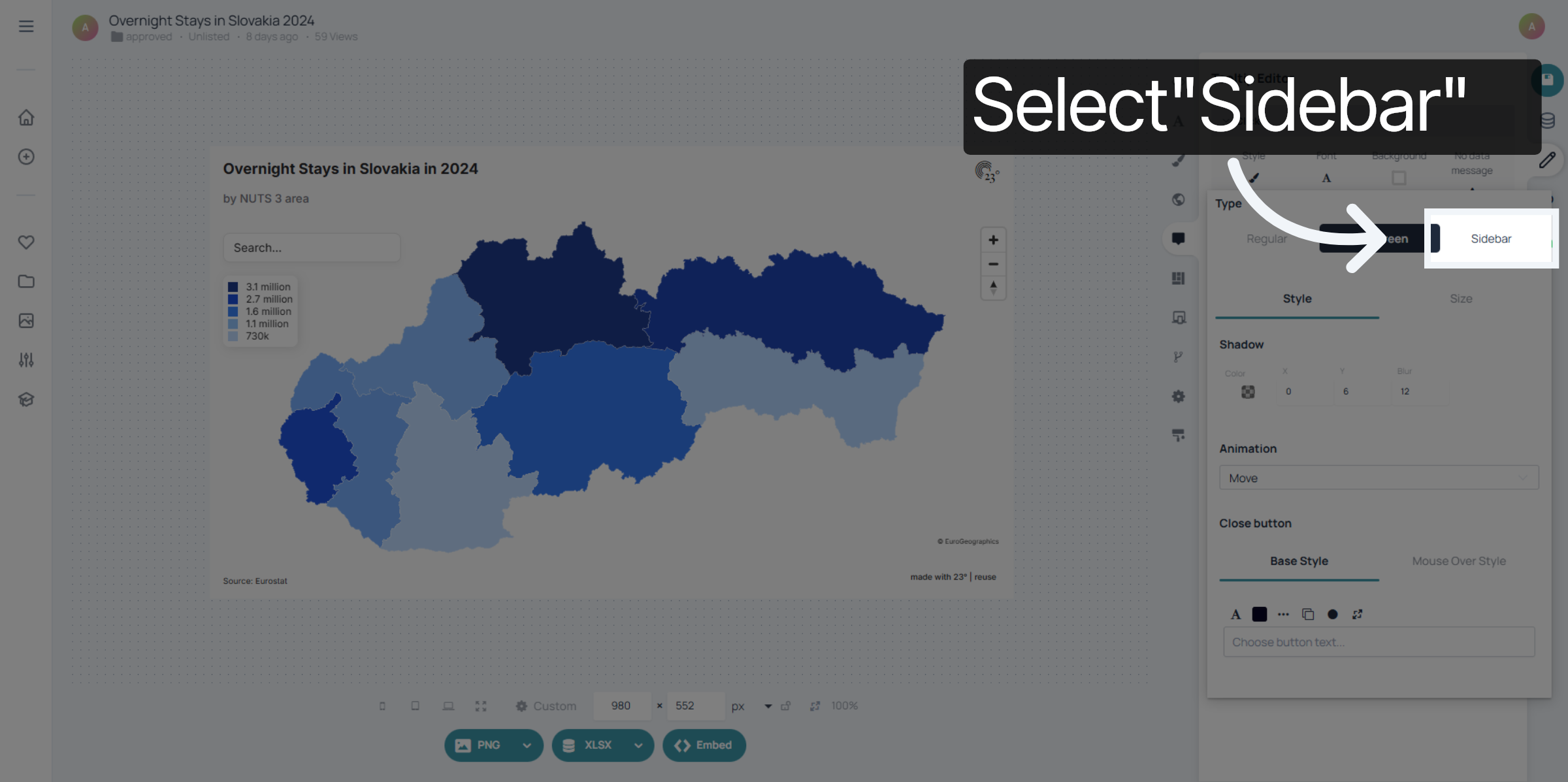
Select "Sidebar" to set the tooltip display position to side the of the chart.
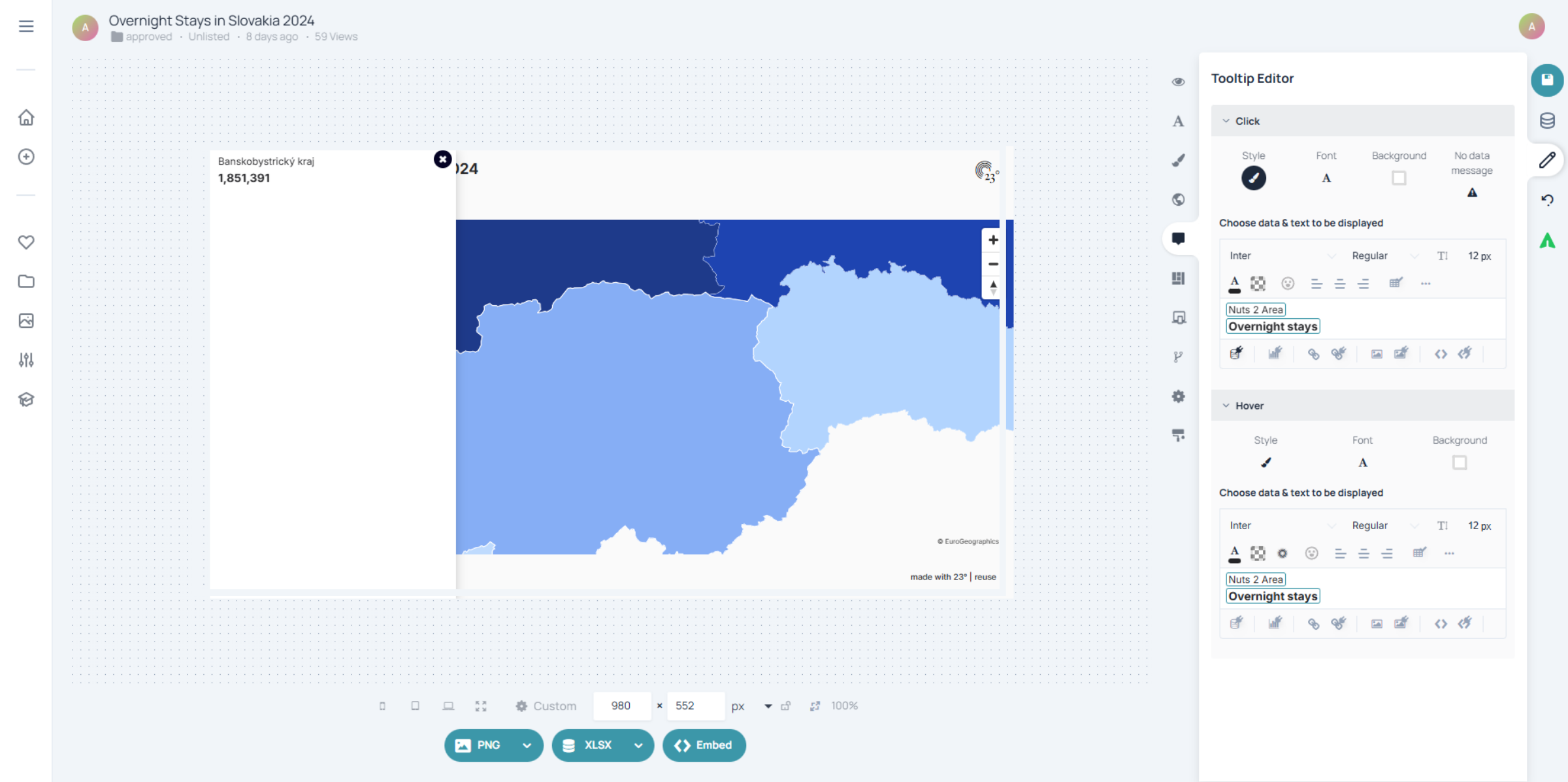
This is also used when having more information in the tooltip but you still want to keep the chart context in view.
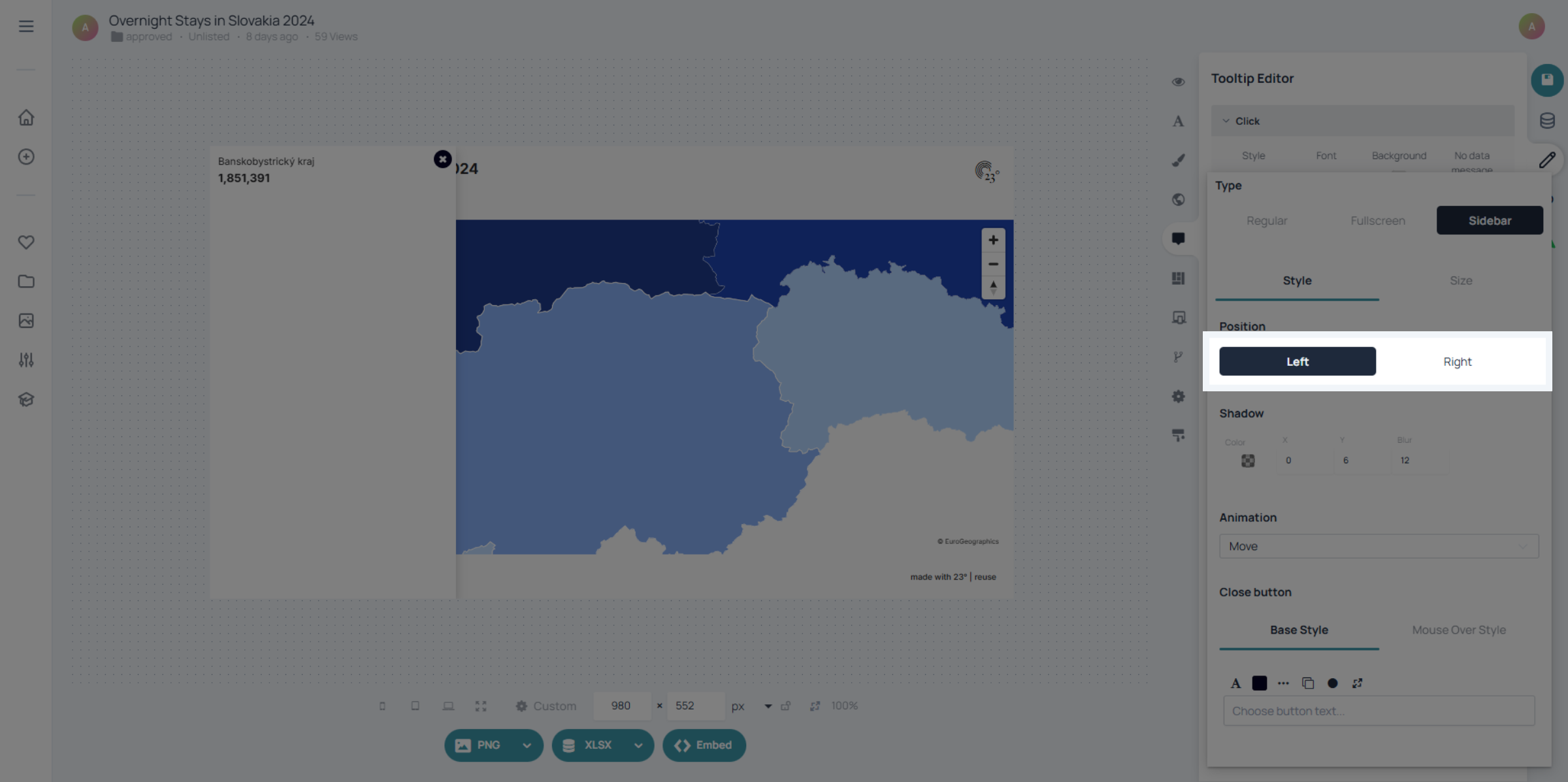
Click "Right" to position tooltips on the right side of the interface and left if you want it on the left side.
You have successfully configured tooltip style options in 23degrees, customizing display position and size. These settings enhance your interface by providing clear and well-placed tooltips for improved user experience.