Remove Insignificant Zeros From Value Display Settings
This tutorial explains how to remove insignificant zeros from value displays in your application.
In this example i will show you how you can remove the insignificant 0 decimals while still keeping the significant decimals displayed.

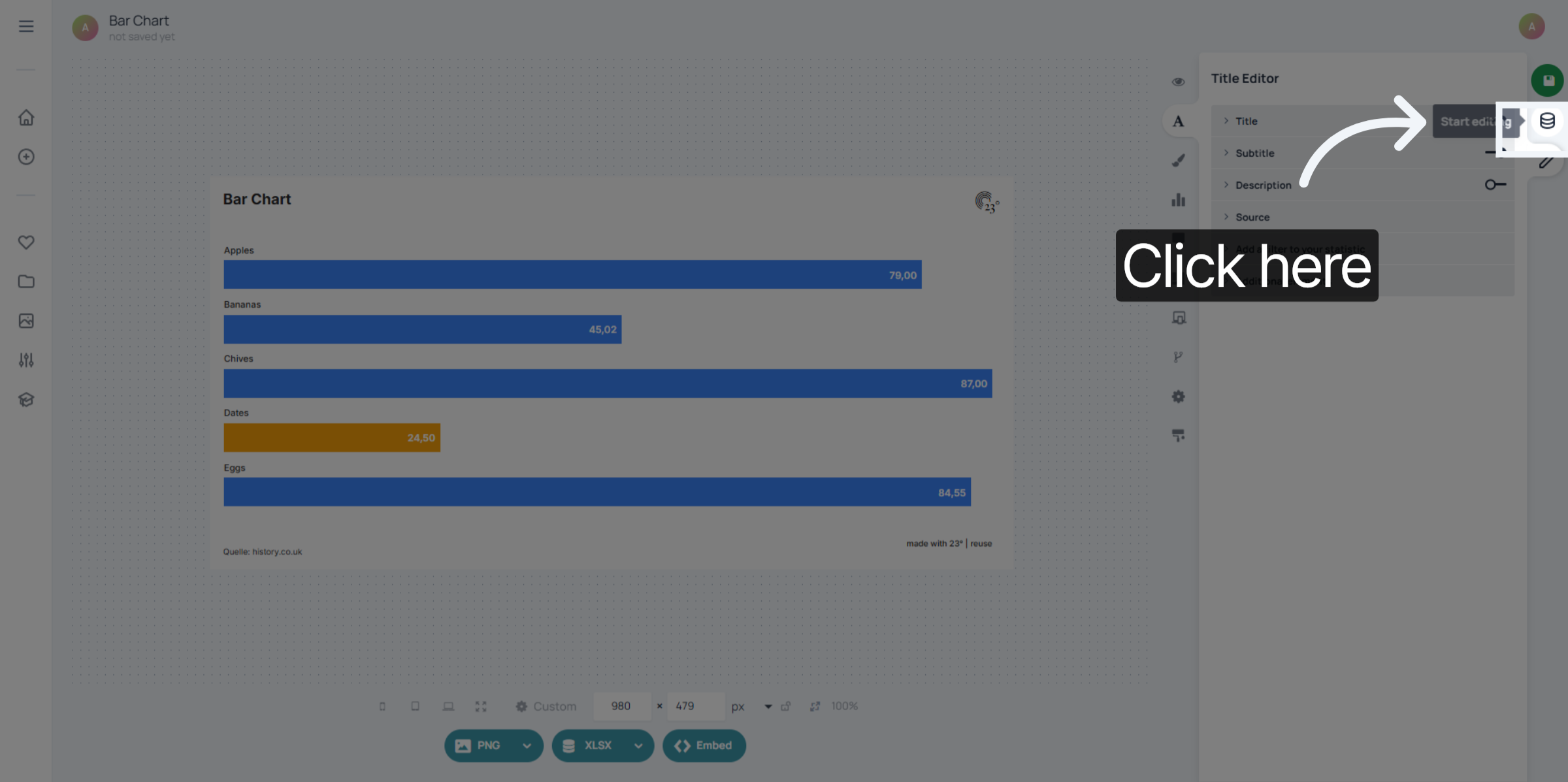
First click here to open the data editor.
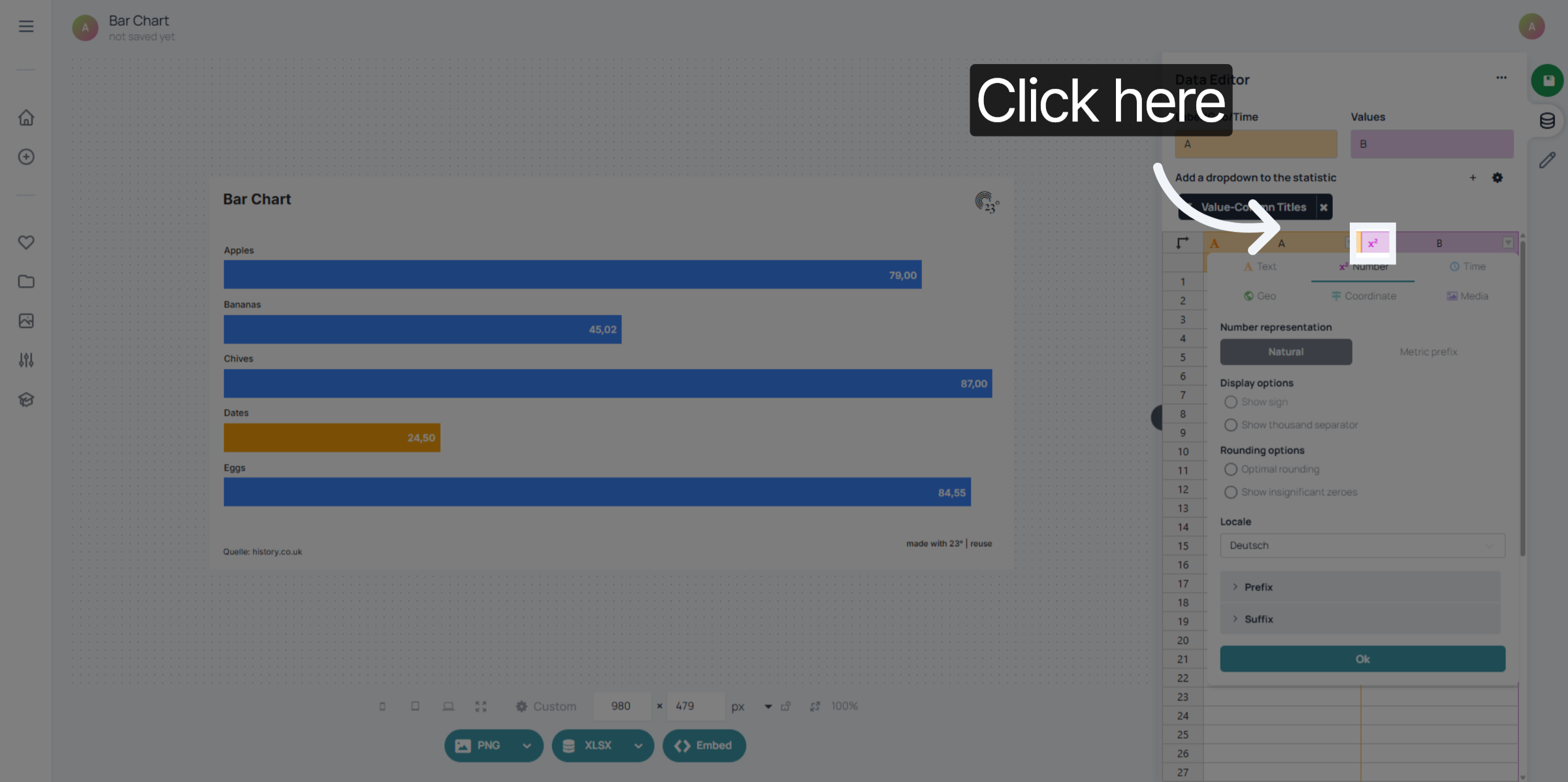
click on the column icon of the column you wish to edit.
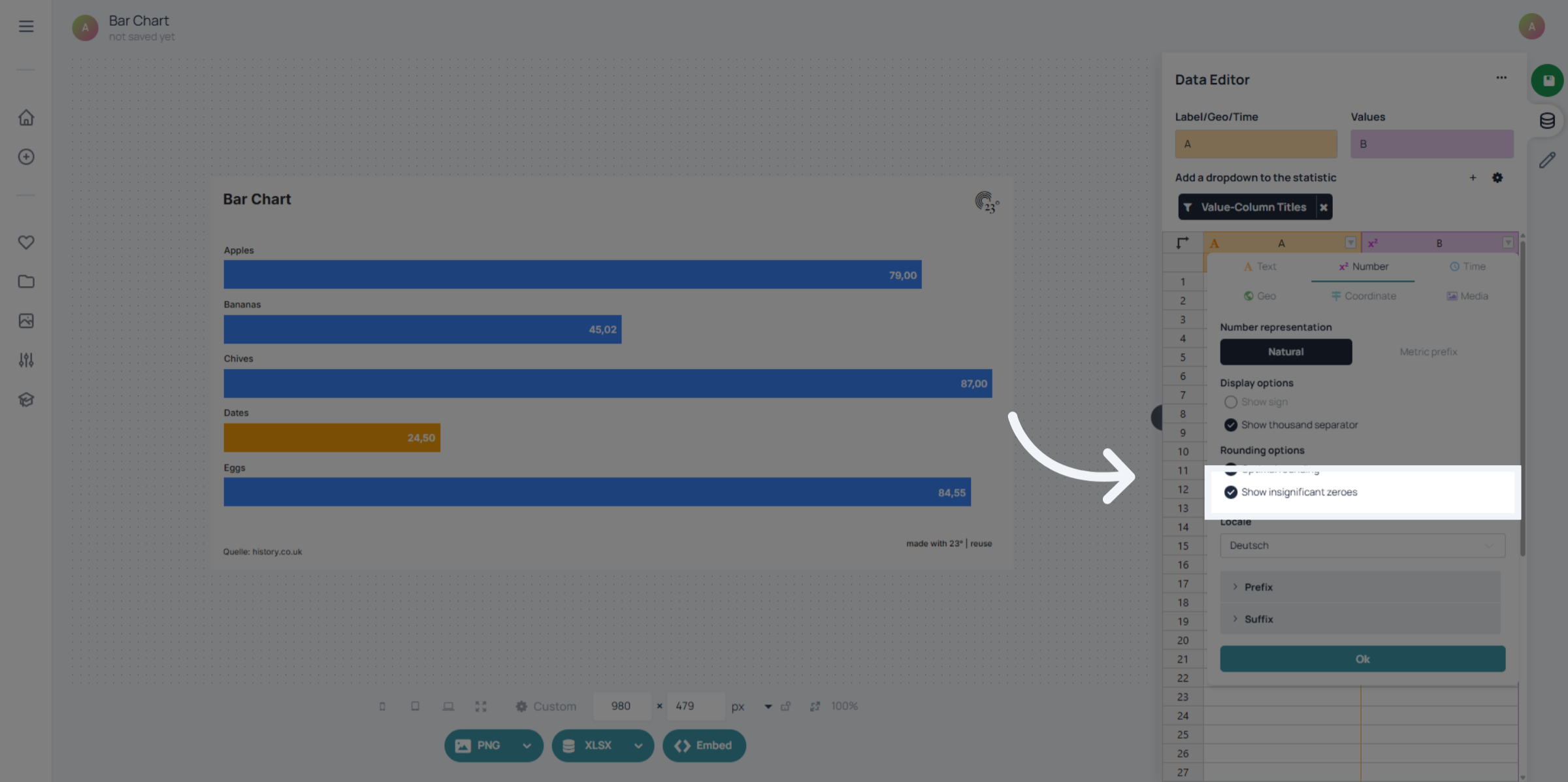
Deactivate "Show Insignificant Zeros".
Click "Ok" to confirm your settings.

Additionally you can also change the value display in the chart editor.
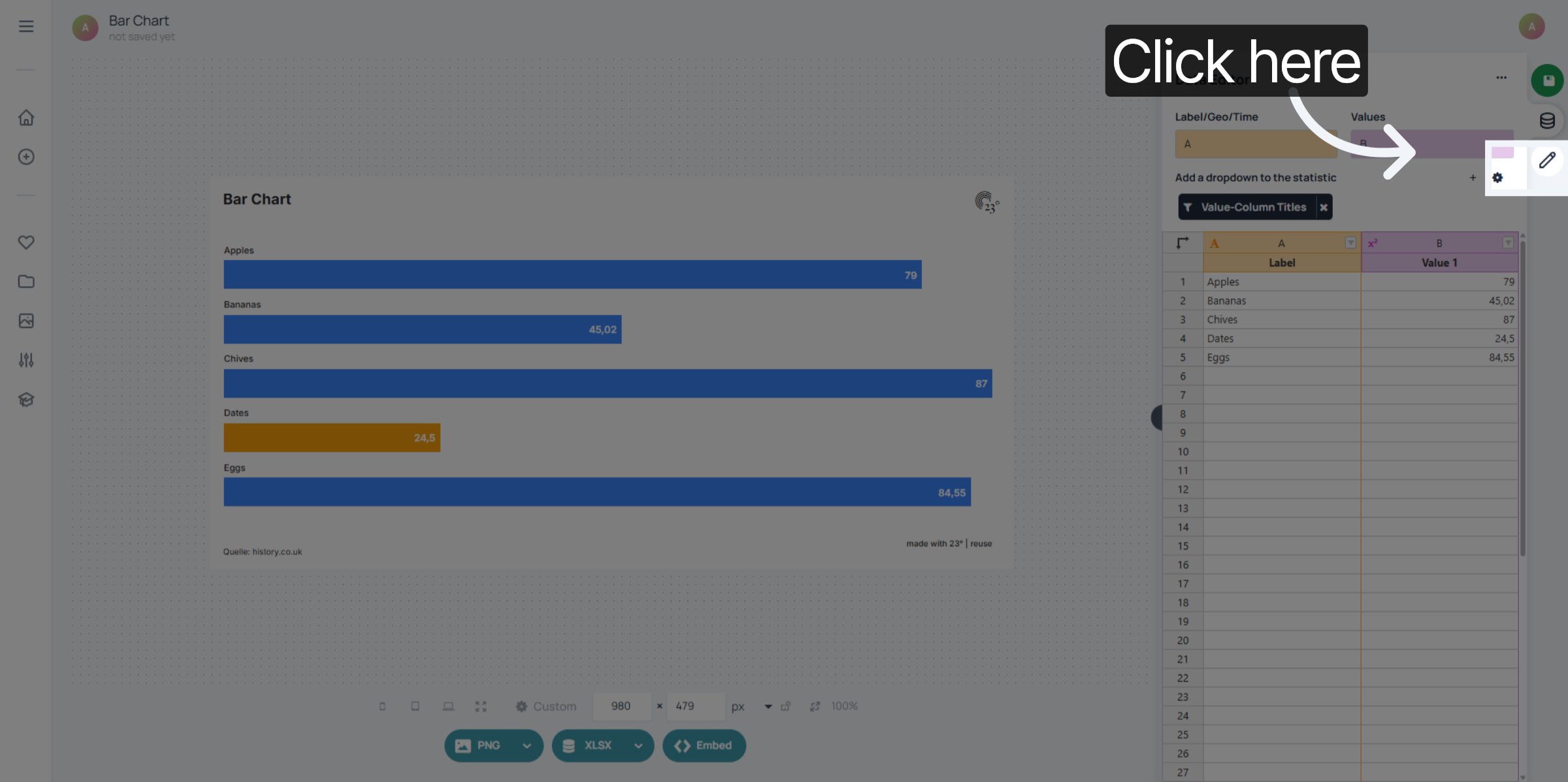
Go to the chart editor
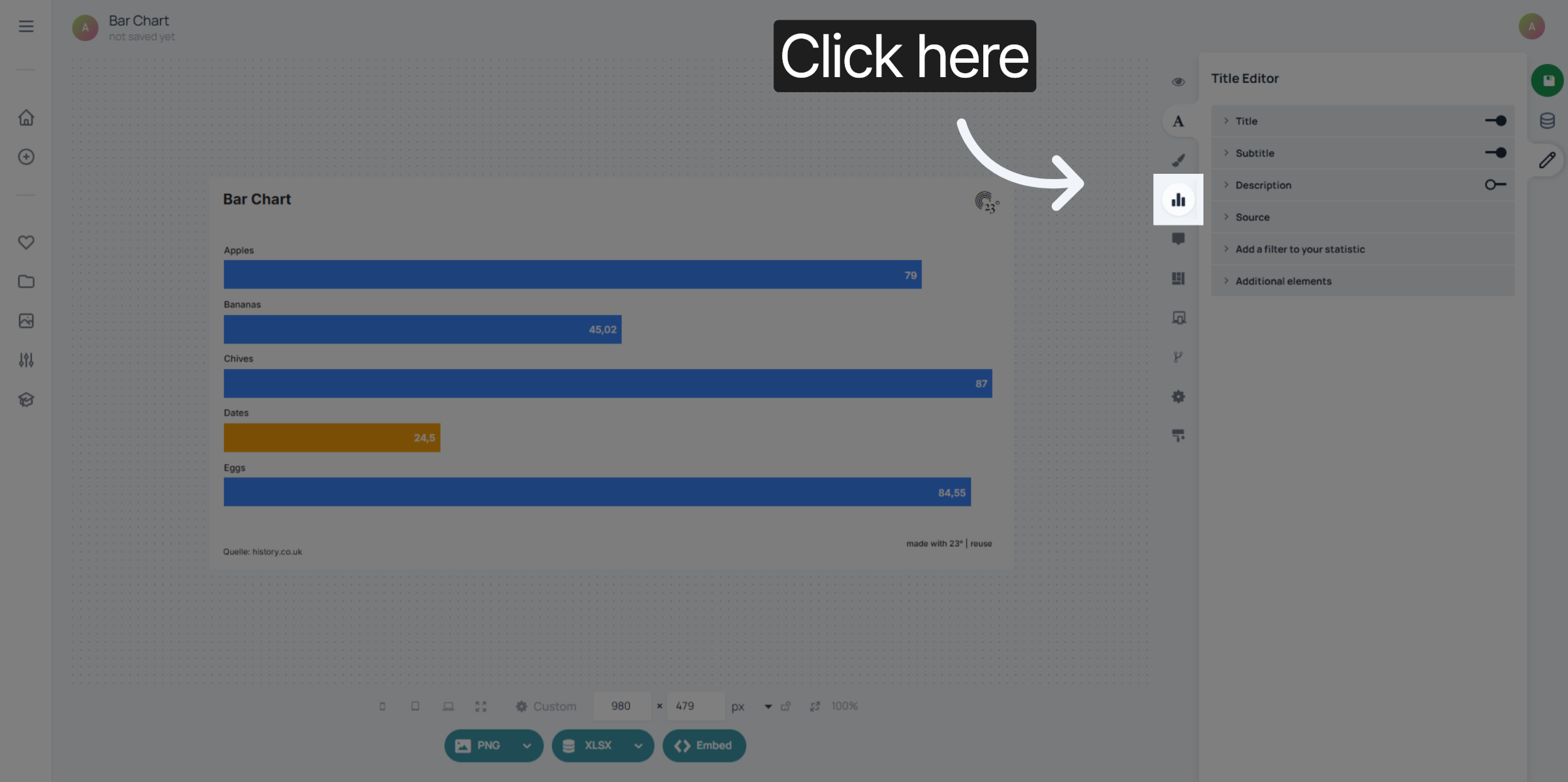
Click "Data labels"

Click on your value data field.
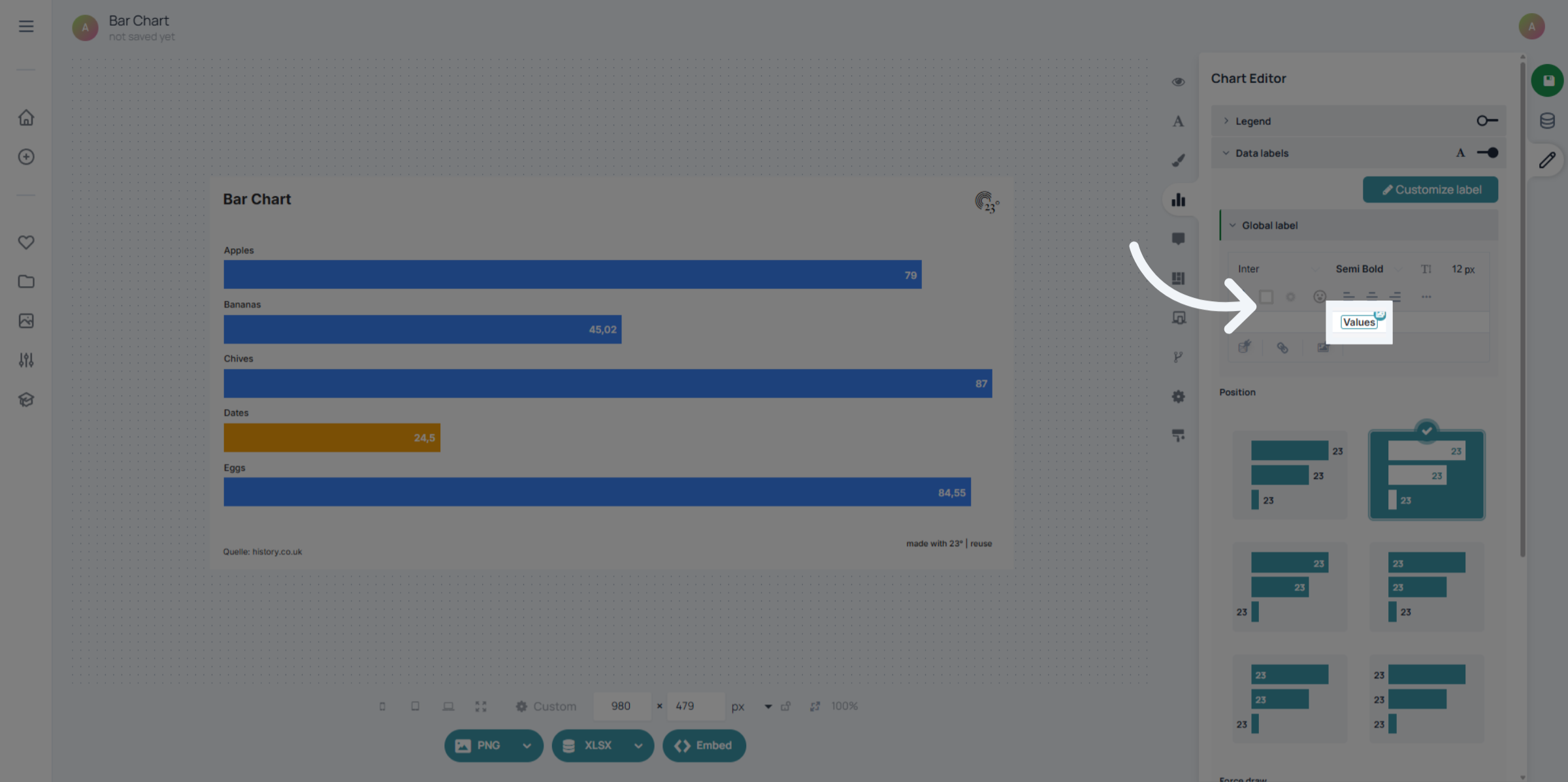
Then select the data field settings.

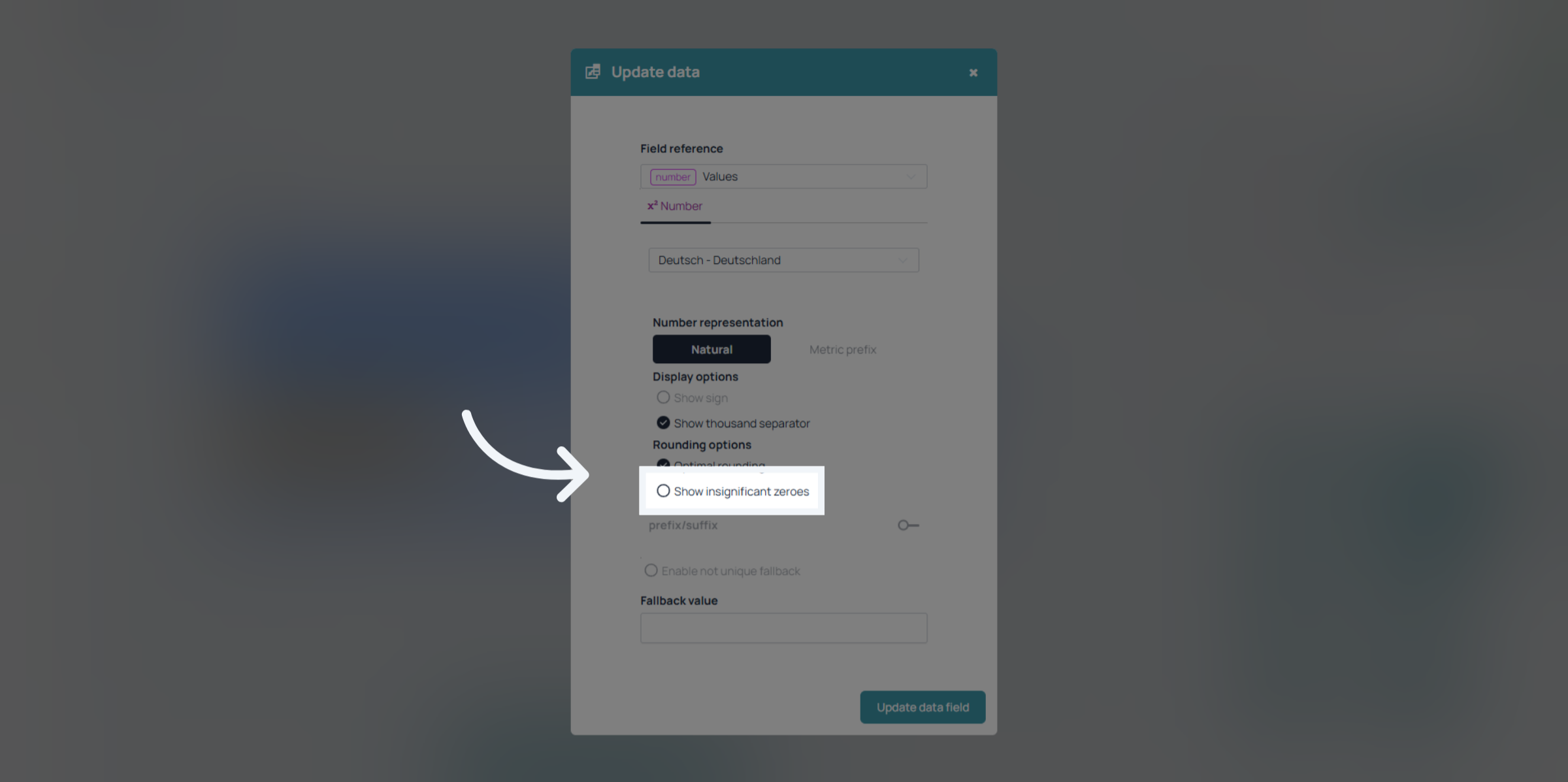
Click "Show insignificant zeroes" to enable or disable the display of insignificant zeros.
Click "Update data field" to apply your changes and refresh the value display.
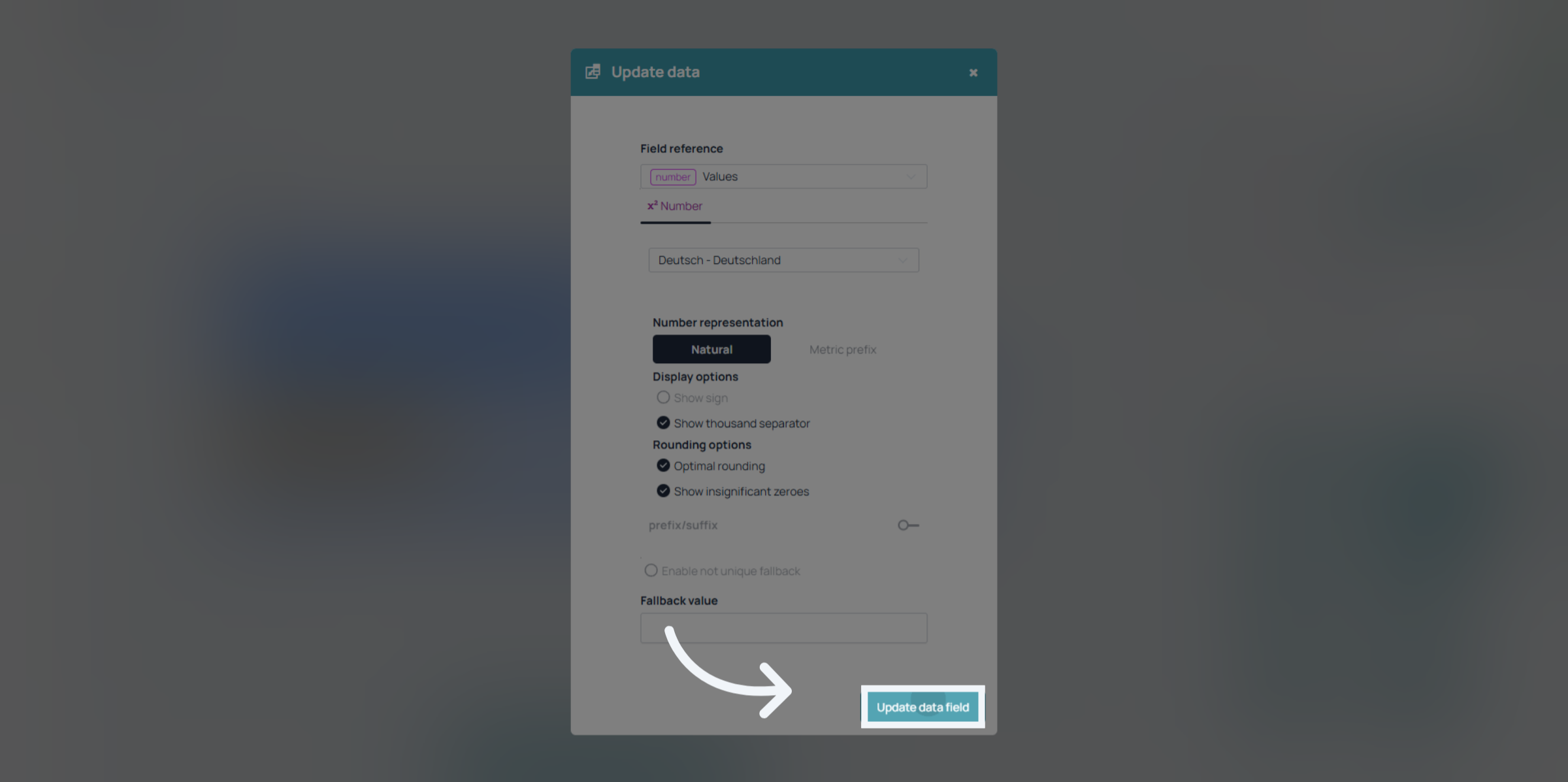
You have successfully removed insignificant zeros from value displays by adjusting the relevant settings. This improves the clarity of numerical data presentation in your application.