Filter Data In 23degrees Data Editor
This tutorial demonstrates how to apply filters within the 23degrees Data Editor to refine your dataset.
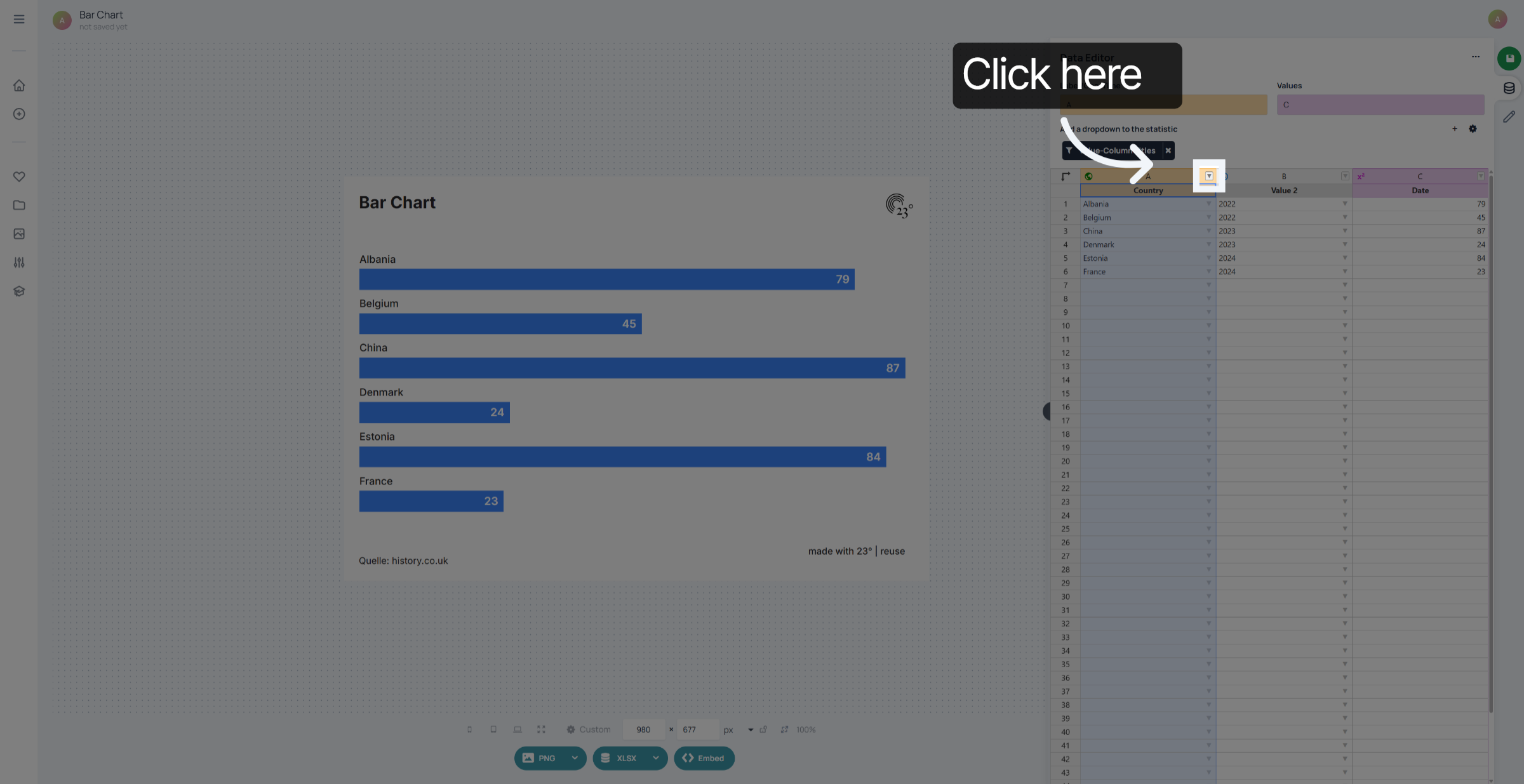
1. Open Filter Options
Click the filter menu to access filtering options in the Data Editor.
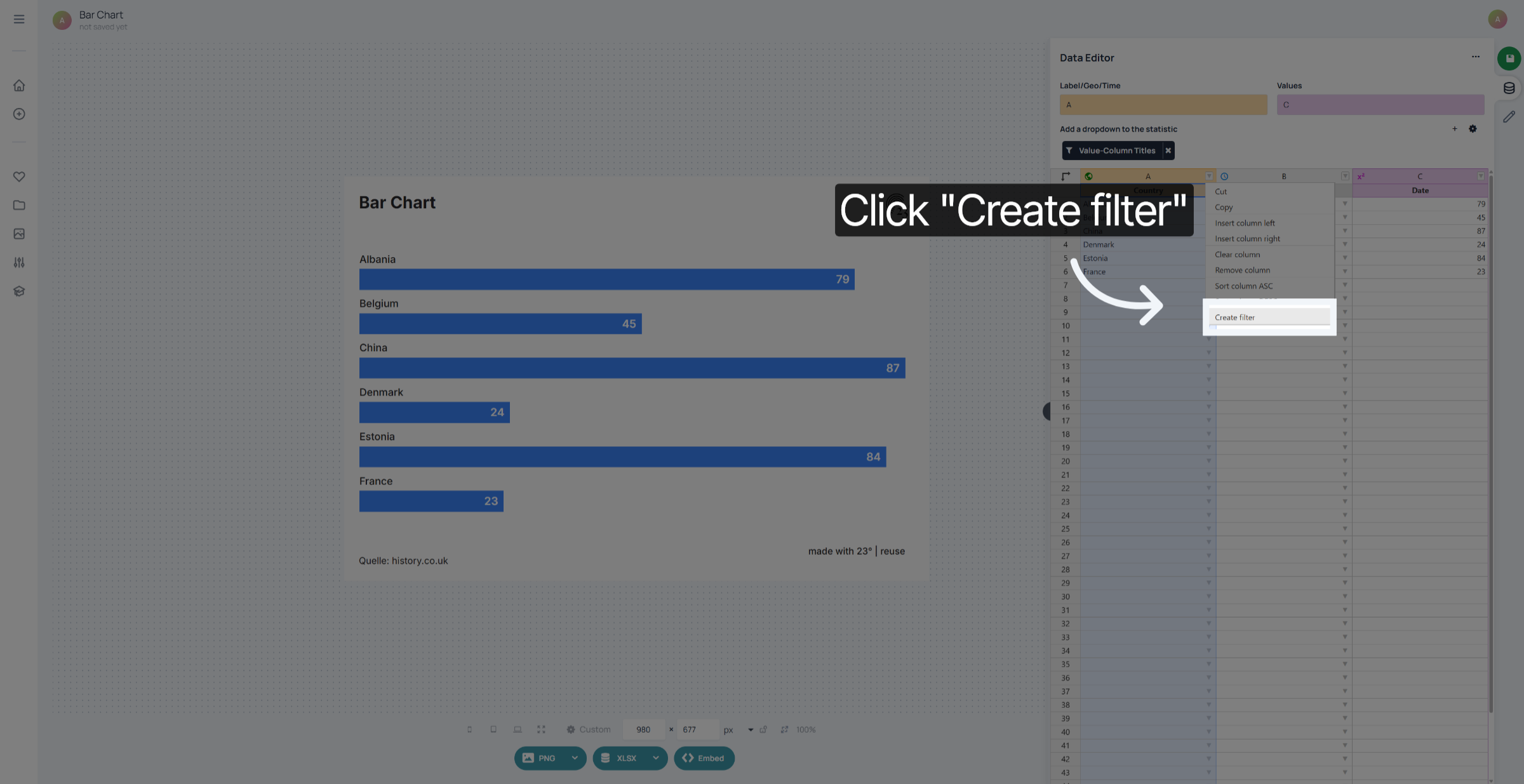
2. Create New Filter
Click "Create filter" to start defining a new data filter.
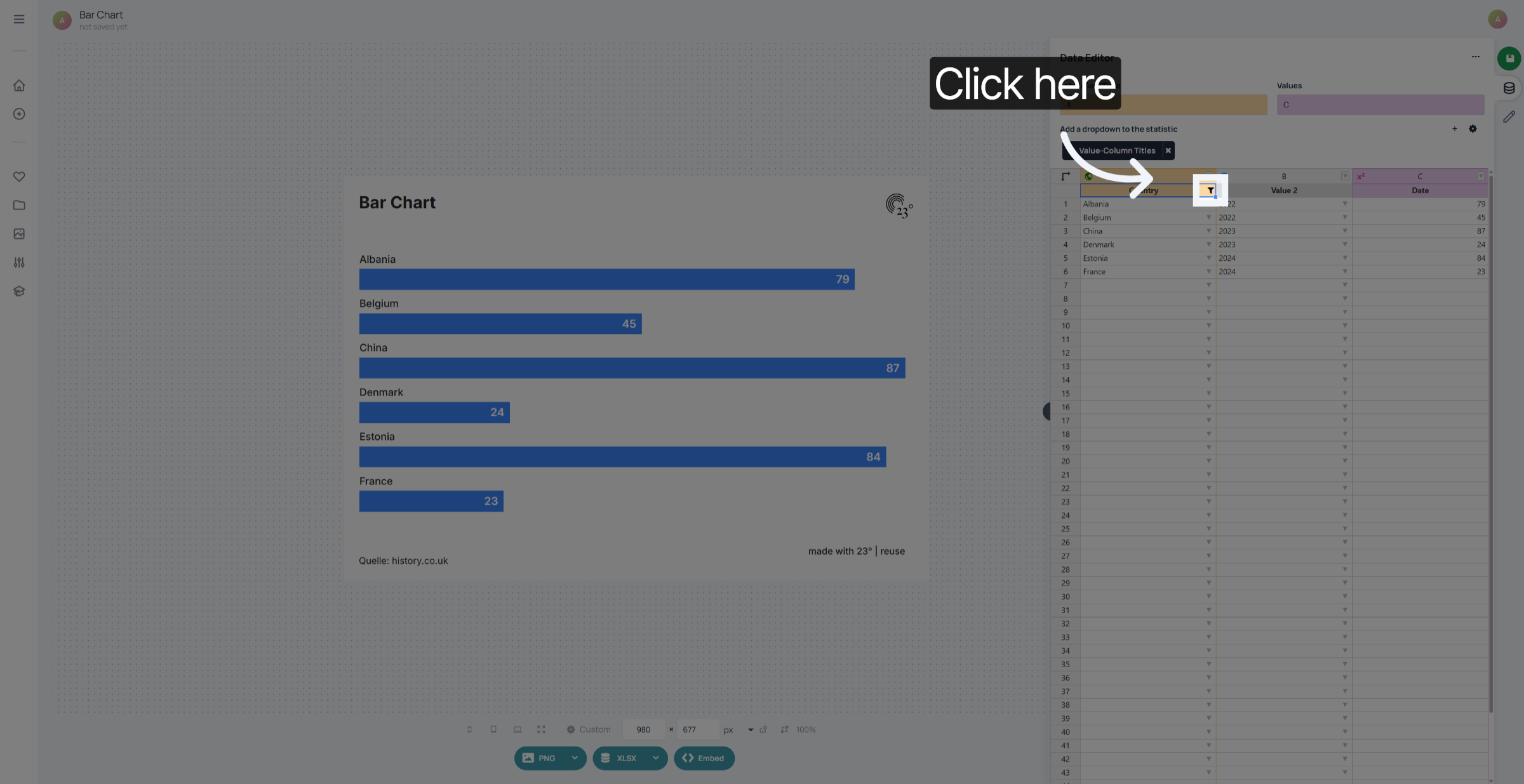
3. Access Filter Criteria
Click the filter criteria area to specify conditions for your filter.
4. Select Filter Field
Click the target icon to select a single item
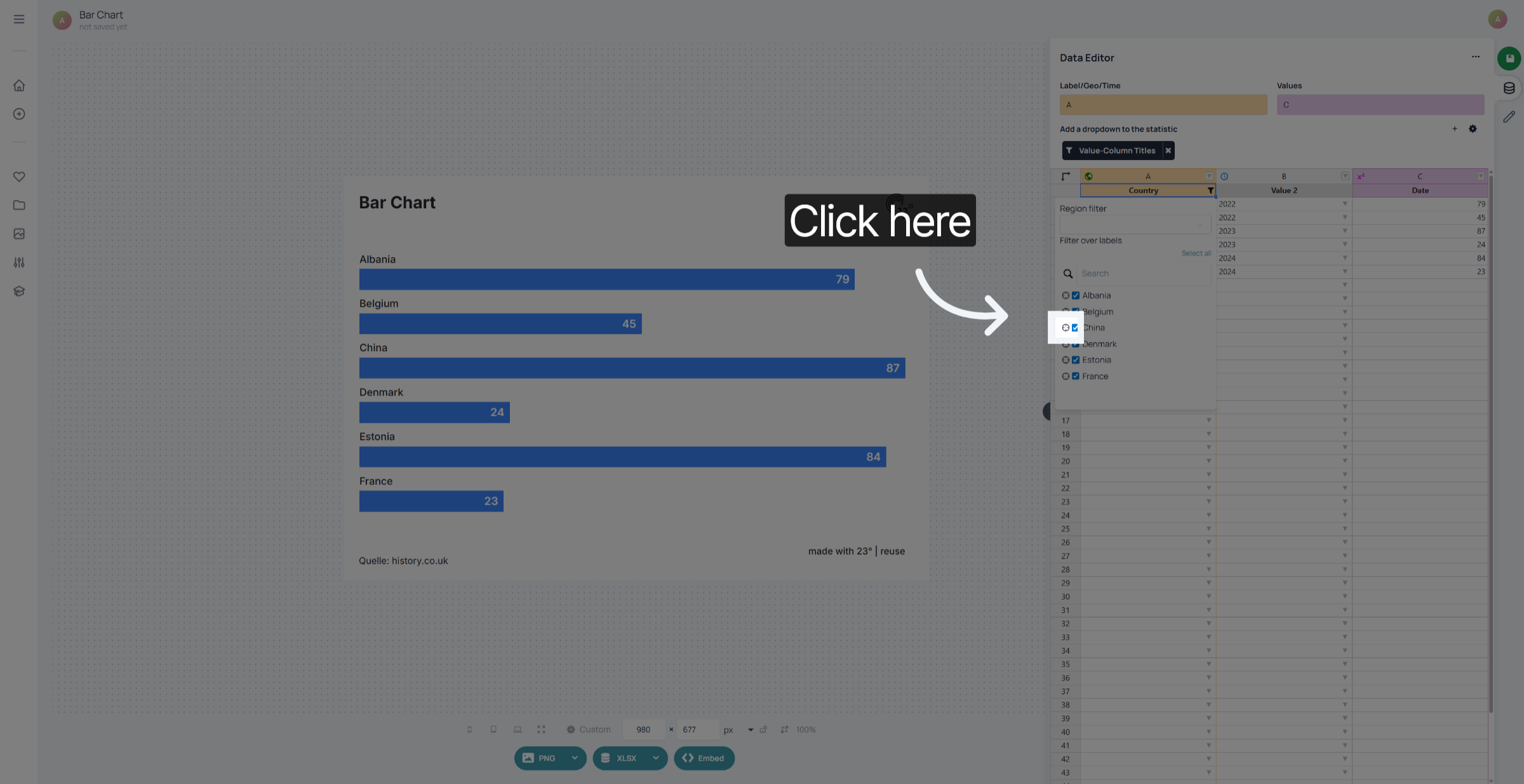
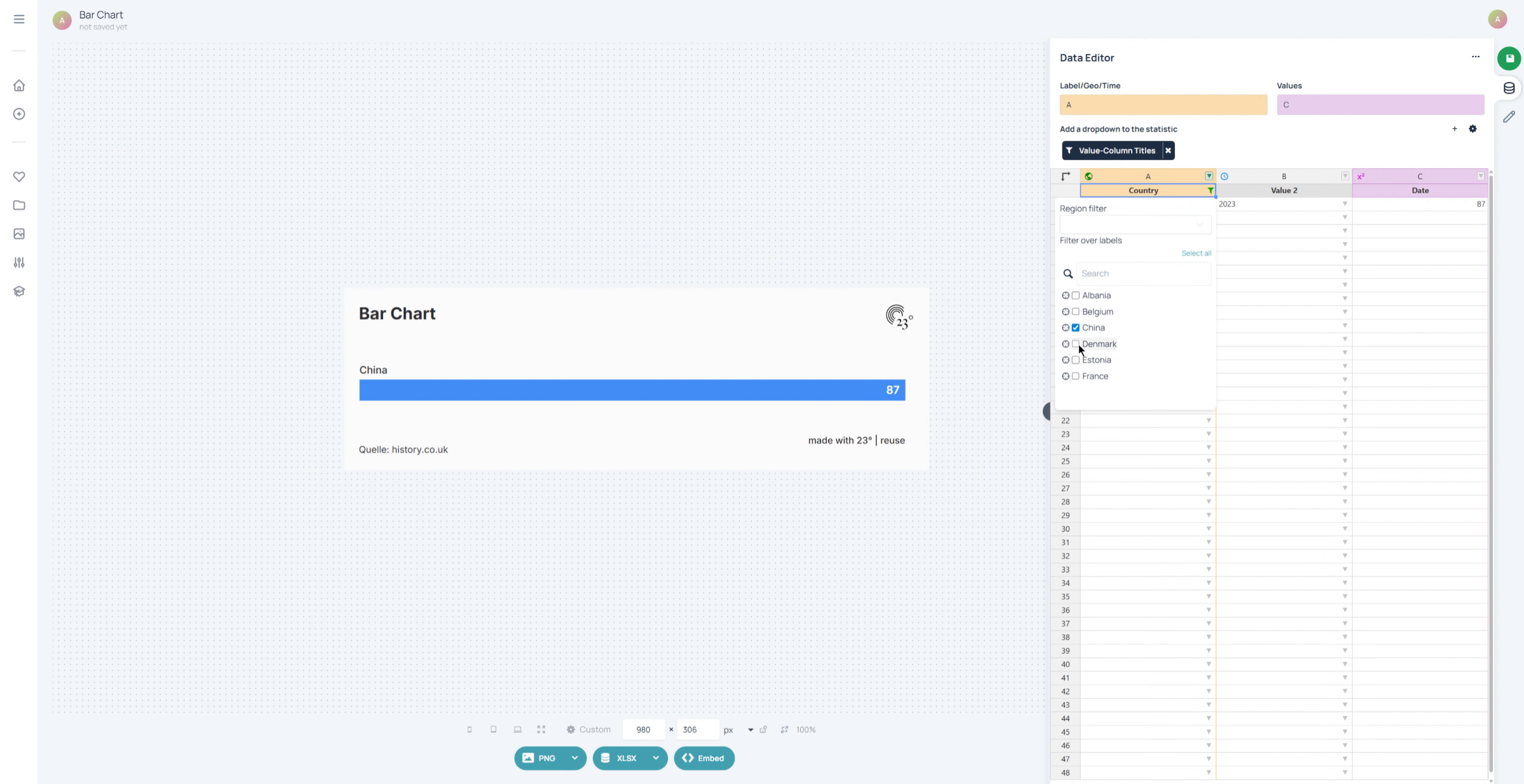
5. Select Country Denmark
Use the checkboxes to select multiple items.
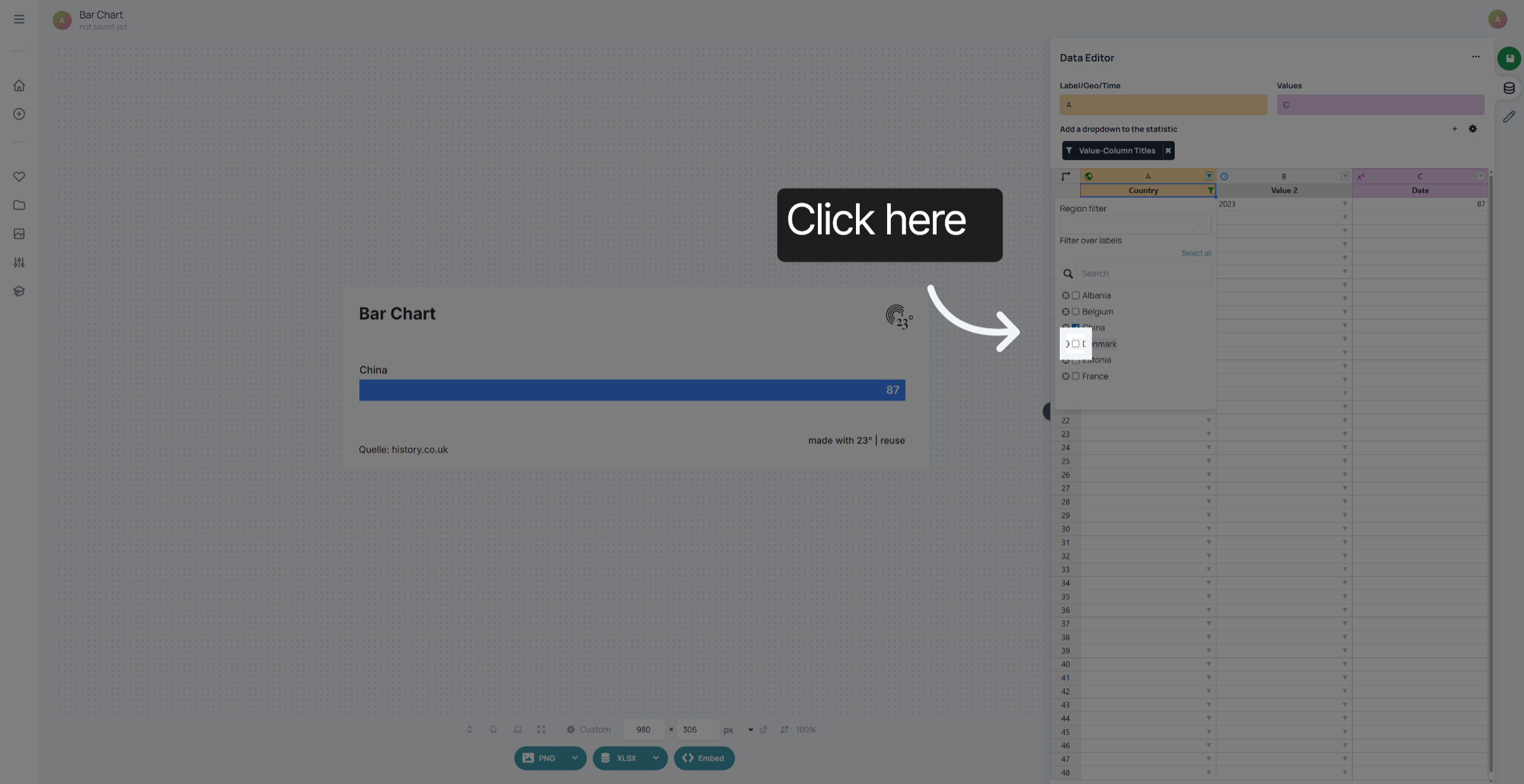
6. Enter Filter Keyword
select the items that you want to display buy checking the checkbox.
7. Select All Filtered Items
Click "Select all" to apply the filter to all matching data entries.
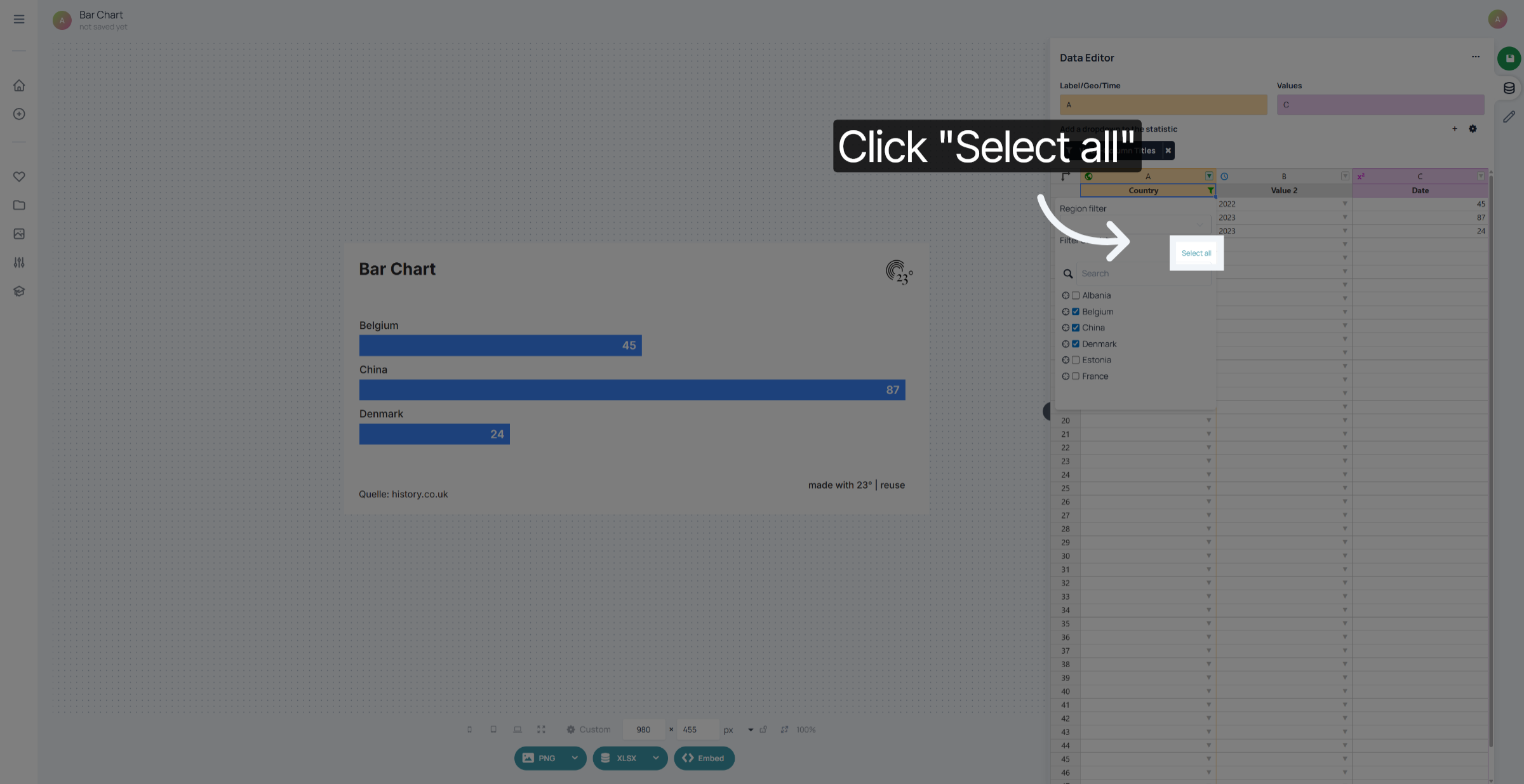
You have successfully created and applied filters in the 23degrees Data Editor to focus on specific countries and keywords. This enables more targeted data analysis and management within your dataset.